DSH plugin market uninstall residue: config and cache
The list entry disappears and most people call the cleanup done — but a market uninstall only does half the job: it removes the dependency and load layer while configuration, cache, profile overrides and logs stay behind. The four residues rarely break anything immediately, yet they surface on the next reinstall and make you wonder why an old version came back (2.2.5 index). This article follows the cleanup lifecycle: understand the uninstall boundary, locate the four residues, clean them in order, then run a pre-reinstall check. Uninstall lives in the installed list of DSH Plugin Hub.
What a DSH Plugin Hub market uninstall deletes and keeps
Market uninstall deletes the dependency plus the load entry; it does not delete data the plugin wrote or overrides you created. Those two have different lifecycles, and mixing them leads to wrong assumptions.
| Handled by uninstall | Not handled by uninstall |
|---|---|
| The profile's dependency manifest | Configuration keys the plugin wrote |
| The profile's load manifest | pnpm cache and node_modules residue |
| The plugin entry in the current environment | Hand-written cordis.patch.yml overrides |
| The record in the installed list | Historical records in system logs |
- Find the target plugin in the installed list and click Uninstall at the end of its row.
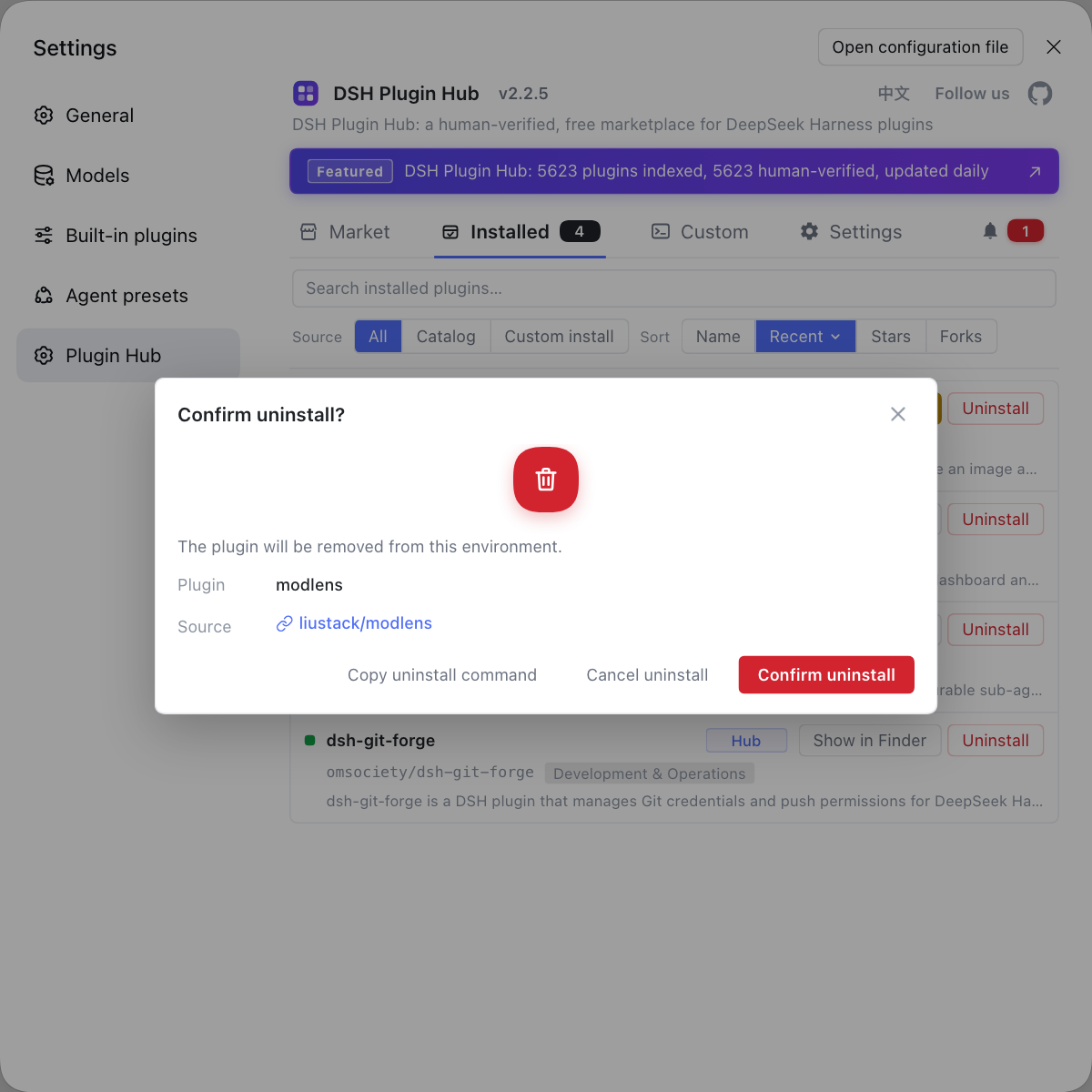
- Read the confirmation dialog and verify the plugin name and source repository before confirming.
- Refresh the list after removal and confirm the entry really disappeared.
- Do not start deleting directories here; move to the four-location check below.
The dialog only guarantees that you remove the plugin you meant to remove. It is not responsible for data cleanup. Treat this step as removing the manifest entry; the rest of the cleanup follows.
Locating the four residues: DSH plugin config, cache, profile, logs
Each residue lives somewhere different: config in the profile and config layer, cache in the pnpm store, profile residue in override files, logs at the location shown on the system logs page. Locate first, then decide whether to delete.
- Config: start from the configuration keys named in the plugin docs and search the profile directory and your own config layer for the same keys; back up before deleting anything.
- Cache: pnpm's content-addressed store is global, and
node_modulesinside the profile is a link into it. The cache can be reclaimed, but do not manually delete packages still in use. - Profile: inspect hand-written overlays such as
cordis.patch.yml, which may contain references to the uninstalled plugin. - Logs: find the log location under Settings → Plugin Market → System Logs, export anything worth keeping, then decide whether to clear.
The easiest residue to miss is the profile overlay: remove will not clean hand-written content, and cache cleanup certainly will not. It is also the most common reason configuration looks old after a reinstall.
Cleanup order in dsh plugin market: manifest first, files second
The order is fixed: confirm the manifest is clean, then clear cache, then handle configuration and logs. Reverse it and you lose the reference for whether the package should exist at all.
# 1. Installed list: confirm the entry is gone
dsh plugin --profile web list
# 2. Profile manifest: neither dependencies nor dsh.profile.bundles should contain the old name
cat ~/.dsh/profiles/web/package.json
# 3. Composed config: confirm the load layer has no old plugin
dsh --profile web --dump-config | grep -in <plugin-keyword>
- Run the three read-only checks above and confirm the manifest layer is clean.
- If the manifest still has residue, return to market uninstall or the official
removecommand instead of deleting files first. - Once the manifest is clean, reclaim pnpm cache if needed; it only removes unreferenced content, so it is relatively safe.
- Handle configuration and overlays last: back up, then delete only keys or sections belonging to the target plugin.
- Process logs according to retention needs, exporting evidence before clearing.
"Manifest first, files second" is not a formality. It avoids the hardest state to debug: files deleted while the manifest still points at them, so startup reports a missing package and you think the uninstall was incomplete.
Before reinstalling: three DeepSeek Harness checks
Check three places before reinstalling — list, manifest, overlay — because only a clean three means the new version will not inherit old state. Verifying only one easily carries old configuration into the new build.
- The old entry cannot be found in the installed list, even with the source filter set to All.
- Neither
dependenciesnordsh.profile.bundlesin the profile'spackage.jsoncontains the old package name. - The profile's hand-written overlays contain no reference or old path pointing at the previous plugin.
- If the old version left a data directory, confirm whether the new version reuses it; if so, back it up before reinstalling.
- Install only after all three pass, then verify the entry and logs as usual.
Reinstalling is not just "overwrite and go"; an old overlay and a new version can conflict. The goal is not an empty environment but one the new version can start from with a clear explanation. For a fuller residue list, see how to fully clean uninstall residue.
When not to clean: DSH plugin shared dependencies and overrides
The boundary is residue that belongs only to this plugin; shared dependencies, unrelated configuration and evidence logs must stay. Clean too aggressively and the problem changes from residue to a broken environment.
- Never manually delete dependencies still referenced by other plugins; let the package manager decide what can be reclaimed.
- Do not wipe unrelated profile configuration in bulk; handle keys precisely by name.
- Export logs you still need as evidence before clearing, so the failure scene survives.
- Comment out or back up overlay content whose ownership is unclear instead of deleting it.
- Restart once after cleanup and confirm other plugins still load.
The value of cleanup is explainability: you know what was deleted, why, and whether the environment still runs. If any of those three is missing, stop at the backup step.
Keep a cleanup record too
- Note the uninstalled plugin name and version.
- Note which files and configuration were removed.
- Note whether other plugins still worked afterward.
For the full reinstall sequence, continue with plugin uninstall and reinstall.
FAQ
DeepSeek Harness removes the plugin dependency and load entry from the current profile but does not clean configuration the plugin wrote, pnpm cache, hand-written overrides or logs. So disappearing from the list is not the same as a clean disk. The remaining traces need a separate cleanup pass.
DeepSeek Harness keeps configuration in the profile directory or your own config layer, cache in the pnpm store and node_modules, profile residue in hand-written overrides such as cordis.patch.yml, and logs at the location shown on the system logs page. The four locations differ, so no single delete command is safe for all of them.
DeepSeek Harness should be checked for a clean manifest before files are touched. The manifest covers two places in the profile: dependencies and dsh.profile.bundles. Delete node_modules while the manifest still points at the package and startup will keep looking for it, which looks like the plugin is still installed.
DeepSeek Harness requires three checks: no old entry in the installed list, no old package name in either manifest field, and no leftover hand-written override in the profile directory. Only reinstall when all three are clean, or the new version may inherit old configuration or overrides.
DeepSeek Harness should keep shared dependencies still referenced by other plugins, profile configuration unrelated to the target plugin, and log records you still need as evidence. The goal is residue that belongs only to this plugin, not emptying the whole profile.
Related Terms
- market uninstall
- Market uninstall is the uninstall action in the DSH Plugin Hub installed list, which removes the plugin dependency and load entry from the current profile after confirmation. It is not the same as cleaning the configuration, cache and logs the plugin left behind.— https://api.dsh-plugin.org/images/releases/2-2-5/index.json
- uninstall confirmation dialog
- The uninstall confirmation dialog is the prompt DSH Plugin Hub shows before removing a plugin, listing the plugin to be removed and its source repository. Removal from the current environment begins only after approval.— https://api.dsh-plugin.org/images/releases/2-2-5/index.json
- profile
- A profile is the startup configuration stack in DeepSeek Harness that layers plugins and patches in order, located under $DSH_HOME/profiles/<name>. It holds pnpm dependencies, the dependency manifest, the load manifest and user overrides.— https://github.com/deepseek-ai/deepseek-harness
- cordis.patch.yml
- The cordis patch override file is a hand-written patch overlay in the profile directory that is not managed by pnpm. Uninstalling a plugin does not automatically remove references to it from this file.— https://github.com/deepseek-ai/deepseek-harness
Sources
- DSH Plugin Hub 2.2.5 UI screenshot index· dsh-plugin.org
- deepseek-ai/deepseek-harness (source repository)· GitHub
- dshplugin/dsh-plugin-hub repository· GitHub