DSH plugin market update badge stuck: causes and fixes
The badge has been lit for a week: you click Update, restart, and it is still lit — the most frustrating loop in update problems, because you acted and the interface refuses to acknowledge it. In dsh plugin market, an update badge only means "a newer version was detected"; it says nothing about success and nothing about the version actually changing (2.2.5 index). This article works by recovery priority: identify which of three causes you have, then decide whether to restart, roll back or refresh the index. The update entry sits on installed-list rows and market cards inside DSH Plugin Hub.
Why the DSH plugin market badge stays lit: real update, stale index, version pinning
A lit badge is not proof of failure: it may mean a genuinely newer version exists, the market index has not refreshed, or you pinned the version yourself. The three require completely different responses, so diagnose before acting.
| Cause | How to tell | What to do |
|---|---|---|
| A real new version | Installed version < latest market version | Update normally, confirm, restart |
| Stale index | Installed version = latest market version, badge still lit | Refresh the index or restart and look again |
| Version pinning | The version is fixed and updates are intentionally blocked | Decide whether to unpin |
- Open the installed list and note the plugin's current version.
- Return to the market, search for the same plugin and note the latest version on its card.
- If the two differ, update normally; if they match and the badge persists, refresh or restart first.
- If the version is pinned to an old build, confirm that was intentional before unpinning.
The key comparison is between installed version and market latest version. The badge alone cannot tell you whether the update failed or whether there was never anything to update.
After the update confirmation, why DeepSeek Harness must restart
The confirmation dialog only writes the new version in; the restart is what makes the running process use it. Skip the restart and the package has changed while the entry still runs old code.
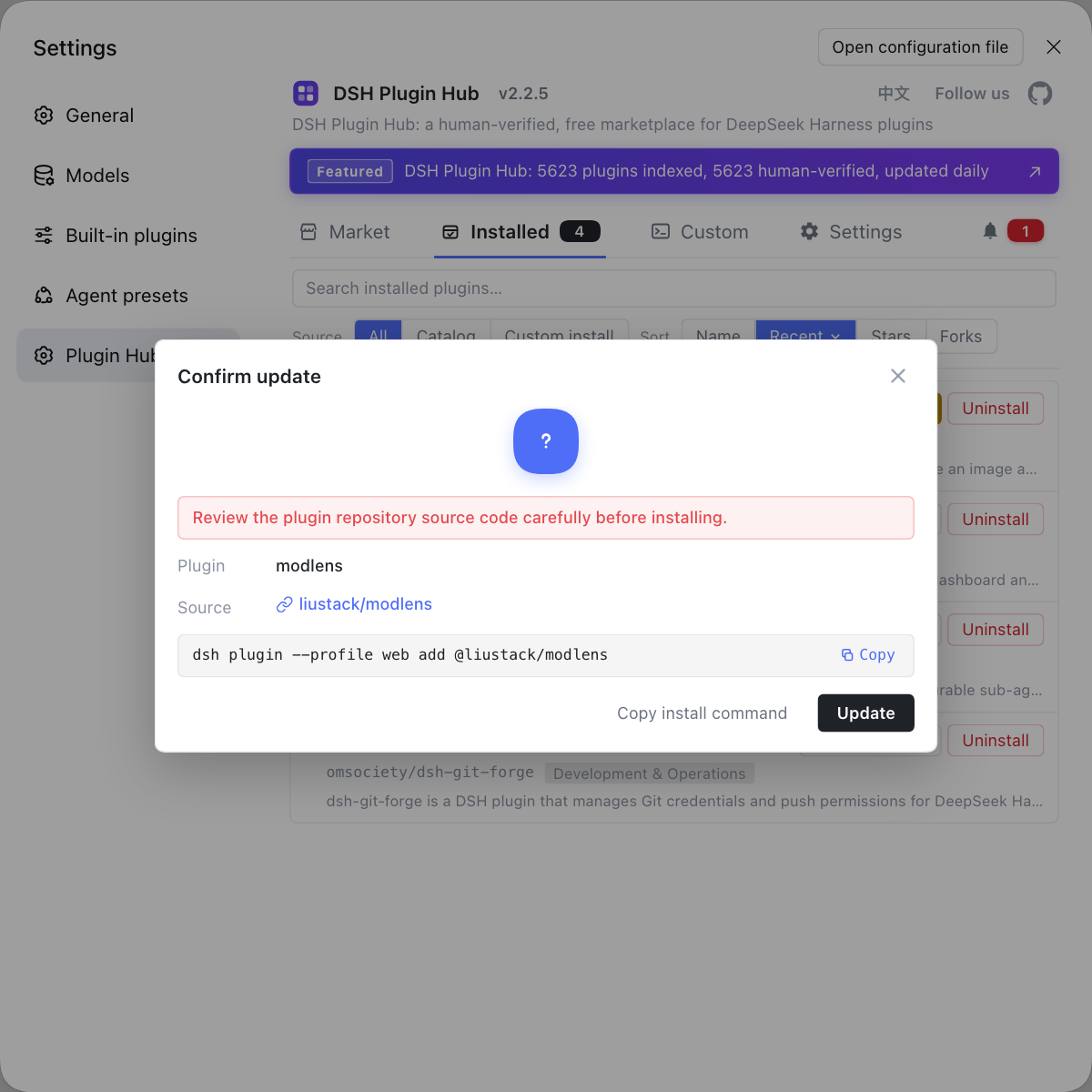
- After clicking Update Available, read the new version details in the dialog and confirm this is the version you want.
- Confirm and wait for installation, watching notifications for a pending-restart reminder.
- Fully quit and restart DeepSeek Harness; refreshing the page is not enough.
- Reopen the plugin entry and invoke it once to confirm the new version behaves correctly.
- Return to the installed list to check the version, then to the market to see whether the badge cleared.
The restart is not ceremony — it follows from load timing. Plugins load from the profile manifest at startup, and a running process does not swap modules just because the package was overwritten. Clicking Update again while a pending-restart reminder is visible only overwrites the same version.
Recovery order after a failed update in dsh plugin market
Recover in the order restart, retry once, roll back — one variable per step. Reinstalling immediately wipes the failure scene along with the problem.
- Level one: restart. Confirm that "pending restart" was not misread as failure; after restarting, check version and entry.
- Level two: retry once. Confirm the failing stage in notifications, fix the network or mirror issue, then retry exactly once.
- Level three: roll back. If the retry fails, reinstall the last known good version and restore usability first.
- Level four: change source. If you still want the upgrade after rolling back, try the npm prebuilt release or another source that avoids the failing channel.
- Record. Write down the failing stage, version and outcome for the next attempt.
The core principle is restore usability before chasing the latest version. Repeatedly updating a broken environment makes the version state harder and harder to read. For the mechanics of rolling back, see how to roll back a failed update.
# Read-only check 1: the actual version in the current profile
dsh plugin --profile web list
# Read-only check 2: which profile holds the load layer
dsh --profile web --dump-config | grep -in <plugin-keyword>
Neither command changes anything. Confirm you are looking at the same profile and the same version before discussing updates. Many "failed updates" are actually installed in one profile and inspected in another.
Cache and index: why clearing the cache leaves the dsh plugin market badge lit
The badge is computed by comparing the market index with the installed version, and clearing the browser cache may not refresh that index. What you cleared is page assets; the index data may still sit on the server or in local configuration.
- Restart the host first so the market fetches the index again, then check the badge.
- Refresh the market page and look at whether the latest version on the card changed.
- If the version is unchanged and the badge remains, verify the actual installed version.
- If the installed version is already latest and the badge is still lit, treat it as a stale index, note the timestamp and keep watching.
- Never uninstall and reinstall repeatedly just to make the badge disappear; that scrambles plugin state.
Cache problems generate the most false failures: you think the update did not work when the version is already correct and only the index lags. The judgment standard is always installed version versus market latest, not the color of a badge.
Should the version pin be removed?
- If you pinned to avoid a known issue, do not unpin merely to clear the badge.
- If the pin is leftover from an old trial, confirm the new version's compatibility range before unpinning.
- After unpinning, run a normal update and confirm the version actually changes.
- Then decide whether to pin again and write down the reason.
How to tell the update really finished: three DSH Plugin Hub proofs
Completion needs three proofs: version, entry behavior and a clean log. The badge disappearing is only a fourth signal and may be an artifact of index refresh.
- Version: the installed list shows the target version.
- Entry behavior: after restart, the plugin entry opens and one real invocation works.
- Logs: system logs contain no new activation or dependency error for that plugin.
- Badge: only after the first three line up, check whether the badge cleared; if it did not, the conclusion stands anyway.
- Record: note version, time and verification result in your environment notes.
If any of the first three fails, return to the diagnosis table instead of reinstalling. For pinned versions, see how to pin a plugin version; for why a restart is mandatory, compare plugin updates and restarts.
FAQ
DeepSeek Harness does not necessarily mean failure: the badge only says a version newer than the installed one was detected, which can be a real update, a stale index or a pinned version. Read the actual installed version first, then compare it with the latest version on the market card. If both match and the badge stays lit, suspect an index that has not refreshed.
DeepSeek Harness needs two checks: whether the update really wrote into the current profile, and whether the restart completed the mount. After confirmation the update overwrites in place, so a failed install leaves the version unchanged. If the version changed but the badge persists, the market index is probably still on old data; refresh or restart and look again.
DeepSeek Harness loads plugins from the profile manifest at startup, so an update replaces package content while the running process still holds the old module. Only a restart rereads the manifest and mounts the new version. A pending-restart reminder in notifications is saying exactly this: restart rather than update again.
DeepSeek Harness should first preserve the scene: note the current version, copy the failure log from notifications, and identify whether it failed at download, unpack, dependency or load. Reinstalling wipes that evidence. The correct order is roll back to a working version, fix the failing stage, then update again.
DeepSeek Harness leaves three proofs: the installed list shows the target version, the plugin entry works after a restart, and system logs contain no new error for that plugin. The badge disappearing is a fourth signal and can be a false positive caused by index refresh. Only the first three decide the conclusion.
Related Terms
- update badge
- The update badge is the marker on dsh plugin market cards and the installed list indicating that a newer version has been detected. It only reports that a newer version exists, not that an update has run or succeeded.— https://api.dsh-plugin.org/images/releases/2-2-5/index.json
- update confirmation dialog
- The update confirmation dialog is the prompt DSH Plugin Hub shows when an installed plugin has a newer version, presenting the new version details. Confirming it overwrites the installation in place with the latest version.— https://api.dsh-plugin.org/images/releases/2-2-5/index.json
- version pinning
- Version pinning is the practice of fixing a plugin to a specific version so it does not follow update prompts. The market may keep showing an update badge while the installed version stays unchanged.— https://github.com/deepseek-ai/deepseek-harness
- pending restart
- Pending restart is a DSH Plugin Hub notification-center state meaning an update was written but not yet mounted. It is resolved by restarting the host, not by running the update again.— https://api.dsh-plugin.org/images/releases/2-2-5/index.json
Sources
- DSH Plugin Hub 2.2.5 UI screenshot index· dsh-plugin.org
- dshplugin/dsh-plugin-hub repository· GitHub
- deepseek-ai/deepseek-harness (source repository)· GitHub