deepseek harness install plugin: market, CLI & offline
deepseek harness install plugin comes down to three entry points: one-click from the plugin market, the dsh plugin add command line, and local-directory or offline install (source). This guide works through three directions one by one: how market install works; how command-line install and profile ownership are decided; and when local and offline install apply. It covers the three-route quick pick, when to use each entry and the key point, with commands identical to the official CLI.
Overview
In one line: use the market when an interface will do, the command line when you need to script, and local or offline when there is no internet. All three entry points go down to dsh plugin --profile web add underneath, differing only in trigger and source. The quick-pick table first:
| Entry | Fits the case | Key action |
|---|---|---|
| Plugin market | daily installs, beginners | Settings → Plugin Market → Install → confirm |
| Command line | scripting, bulk, no UI | dsh plugin --profile web add <package> |
| Local / offline | no internet, private packages | dsh plugin --profile web add <local path> |
deepseek harness install plugin route one: one-click from the plugin market
For daily installs and beginners, start with the plugin market: once the market is installed, search in the DSH Plugin Hub under Settings → Plugin Market, click install and confirm the source and command in the dialog — no package name or command to remember. It goes down to the same dsh plugin --profile web add as the command line, with the advantage that the source and the command to run are both verifiable in the dialog. Steps:
- Open the Web UI and go to Settings → Plugin Market. Expected: you see the search box and the plugin card list.
- Filter the target plugin by search or category and click Install on its card. Expected: a confirmation dialog appears showing the source repo and the command it will run.
- Verify the source and command, confirm, and let the progress finish. Expected: the card turns Installed and takes effect after a page refresh.
The prerequisite is an installed market; if you have none, see how to use the plugin market first for the step-by-step interface details.
deepseek harness install plugin route two: the dsh plugin add command line and profile ownership
Use the command line when you need scripting, bulk or no UI: the full form is dsh plugin --profile <profile name> add <package or GitHub reference>, where --profile decides which environment it goes into (source). Three steps:
- Confirm the
webprofile is initialised. Expected:dsh webstarts normally. - Run
dsh plugin --profile web add <package or GitHub reference>. Expected: download and install progress appears, ending with no error. - Restart
dsh web, then rundsh plugin --profile web listto verify. Expected: the target plugin appears in the installed list.
The easiest trap here is profile ownership: the wrong profile produces "the command succeeded but nothing shows", which you fix by matching --profile to the environment the interface uses. For the full command syntax and troubleshooting, see how to install a DSH plugin.
deepseek harness install plugin route three: local directory and offline install
When a plugin is not in the online registry, or the machine has no internet, use local-directory install or offline install: keep the plugin source or packaged artifact locally, then point dsh plugin add at it. Neither depends on the online registry — they differ only in how the source is prepared. Three steps:
- Prepare the plugin source or packaged artifact (tgz) on a connected machine and copy it over. Expected: the local directory holds the full plugin manifest and build artifact.
- Run
dsh plugin --profile web add <local path>. Expected: the command enters the install flow without a "package not found" error. - Restart
dsh web, then rundsh plugin --profile web listto verify. Expected: the plugin appears in the list and its capability works.
If you have the source in hand, use local-directory install; on an intranet or isolated environment, use offline install.
The three routes are not mutually exclusive: use the market day to day, the command line for bulk, and local or offline in restricted environments — switch by case.
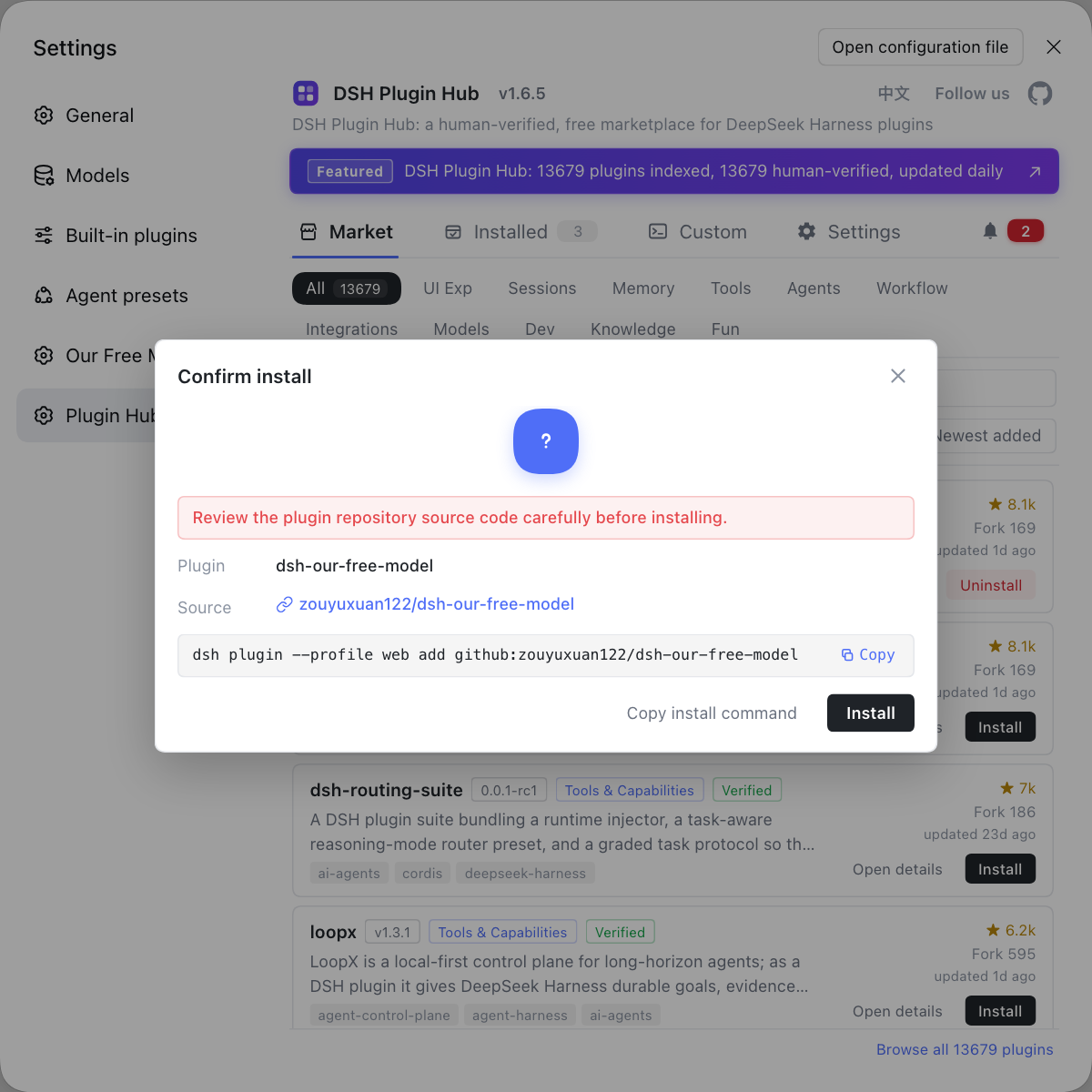
Rather than trialling the three install paths one by one, install DSH Plugin Hub first: clicking install in the market pops a confirmation dialog with the plugin name, source repo and the command it will run, so you confirm before anything is added.
Notes and limits
All three entry points install the same thing, and the traps cluster at a few fixed points. Line by line:
- Keep the profile consistent: write
--profile webfor command-line installs to match the environment the interface uses, or it will be invisible after install. - Restart after installing: plugins load at startup, so the interface will not refresh without a restart.
- Do not mistype the reference form: write the package name directly for npm packages, and
github:owner/repofor GitHub sources; a mistake fails to resolve. - Keep local sources complete: local or offline install needs the full plugin manifest and build artifact in the directory, or the install will fail.
- Check compatibility: prefer plugins marked as verified, and trial anything unconfirmed on a small scale first.
Sources: dsh CLI README, @deepseek-ai/dsh (npm), dshplugin/dsh-plugin-hub
FAQ
deepseek harness install plugin has three main entry points: one-click from the plugin market, the dsh plugin add command line, and local-directory or offline install. Beginners should start with the plugin market: after installing DSH Plugin Hub, search in Settings → Plugin Market, click install and confirm. The command line suits scripting and bulk cases, while local and offline install suit no-internet or private-package situations.
The --profile flag in dsh plugin add says which environment the plugin goes into; the web interface uses the web profile, so the command is dsh plugin --profile web add <package>. The framework forwards the arguments to the package manager of that profile's directory. Whichever profile you install into is the only environment the plugin affects, and installing into the wrong profile is the number one cause of "installed but invisible".
Without internet, use local-directory or offline install: bring the plugin source or packaged artifact to the machine and point dsh plugin add at the local path. Local-directory install suits having a source package in hand, and offline install suits intranet and isolated environments; neither depends on the online registry, and both still need a dsh web restart to take effect. See the matching local and offline install tutorials for the exact steps.
Both give the same result: the market button and the command-line add share one underlying install mechanism, differing only in the way you operate them. A market install shows the dsh plugin --profile web add command it will run in the confirmation dialog so you can verify the source, while the command line has you type that command yourself. Both need a dsh web restart afterwards, and if nothing takes effect, first check the profile matches the interface.
Verification has two steps: first confirm the plugin is in the installed list or dsh plugin --profile web list, then restart dsh web to see whether the capability appears. Interface plugins change the UI, and tool plugins show up in the tool list. If nothing takes effect, first check that the plugin's stated compatibility version matches your core version.
Related Terms
- dsh plugin add
- dsh plugin add is the command-line action for installing plugins in DeepSeek Harness, written in full as dsh plugin --profile <name> add <package or GitHub reference>. The framework forwards the arguments to the package manager of that profile's directory to complete the install.— dsh CLI README
- --profile
- --profile is the parameter in the dsh plugin command that names the environment; a plugin installed into one profile affects only that environment, and the web interface uses the web profile. It is the key checkpoint for "installed but invisible" problems.— dsh CLI README
- DSH Plugin Hub
- DSH Plugin Hub is the official plugin market built into DeepSeek Harness under Settings → Plugin Market, turning the command-line install into a visual one-click install and showing the plugin source and the command it will run in a confirmation dialog.— dshplugin/dsh-plugin-hub
- offline install
- An offline install is installing a plugin in a no-internet or isolated network environment by preparing the plugin source or packaged artifact on the machine and then pointing dsh plugin add at the local path. It does not depend on the online registry.— dsh CLI README
Sources
- dsh CLI README(plugin add 与 --profile 语义)· deepseek-ai
- @deepseek-ai/dsh(npm 包页)· npm
- dshplugin/dsh-plugin-hub GitHub 仓库· dshplugin