How to update DeepSeek Harness: check, back up, upgrade
Updating DeepSeek Harness follows four steps — check the version, back up, upgrade by your install method, then verify. First confirm the current version and how you installed it, back up your user data, run the matching upgrade command, and finally verify that the version number, Web UI and plugins all work.
Overview
A “dsh update” replaces the program files: the upgrade touches only the DeepSeek Harness core, while configuration, sessions and plugin data live in a separate data directory — so updating is not what is risky; upgrading blind, without checking the version or using the wrong method, is. This article is a standard first-time procedure plus a verification checklist: answer three questions before updating, run the upgrade, then verify item by item. Deeper topics — stuck updates, failures, rollback and version pinning — link to their dedicated guides at the end.
Before updating DeepSeek Harness: check the version, install method, back up
Take two minutes before updating and do three things; they decide which command you need and whether your data needs care. Step by step:
- Check the current version and install method: if
dsh --versionprints a version in your terminal, you installed globally with npm or from source; if the command is missing, you used the npx install-free method (each start is the latest); if you remembergit clone+ build, you are on the source method; - Decide whether to update: check the GitHub Releases or npm package page for the newest version and release notes, and judge whether it is worth following (early adopters can track rc; those who prefer stability track latest — version rules in our how to read dsh versions);
- Back up your user data: normal updates lose nothing (credentials, profiles and sessions live in the default
~/.dshuser data directory, separate from the program), but rare preview versions carry storage migrations — to be safe, copy the key directories under~/.dsh. What to back up and why nothing is lost is covered in will an update remove my config.
Upgrade DeepSeek Harness by install method: npx, npm global or source
The upgrade command depends on how you installed it — install method decides upgrade method, so do not mix them up. The three ways (their install procedures are in Install DeepSeek Harness for the first time):
- npx install-free (easiest): just run the startup command again — each run resolves the latest official version:
npx @deepseek-ai/dsh web
To force the newest, use npx @deepseek-ai/dsh@latest web; if it still feels old, the local npx cache is usually the cause — run npm cache clean --force and retry.
- Global npm install: upgrade the global package and verify the version:
npm install -g @deepseek-ai/dsh@latest
dsh --version
- Source build: pull the latest code and rebuild (
pnpm run buildproduces fresh artifacts, then keep running them withpnpm dsh webas usual):
git pull
pnpm install
pnpm run build
If git pull conflicts with local changes, resolve them before updating — see update failed for troubleshooting.
After updating DeepSeek Harness: check the version, Web UI, data and plugins
Do not rush to work after the update — verify the checklist below one by one first. Four checks:
- Version number: for global/source installs run
dsh --versionand it should show the new version; for the npx method, read the version shown in the UI at startup; - Web UI starts: run the startup command, open
http://127.0.0.1:3080in a browser, and the interface should appear normally; - Data is still there: after the UI loads, confirm your session list, configuration and model provider settings are intact — a normal update never clears them (data lives in the user directory, separate from the program);
- Plugins still work: restart, open the Installed list in DSH Plugin Hub, and confirm every installed plugin is present and loads normally.
While you are at it: DSH plugin updates follow the same path
Once the core passes verification, bring your plugins up to a compatible state too — click Update in DSH Plugin Hub's Installed list; it is more visual than the CLI. When an installed plugin has a newer version, the list shows an update entry; confirming reinstalls it in place to the latest release:
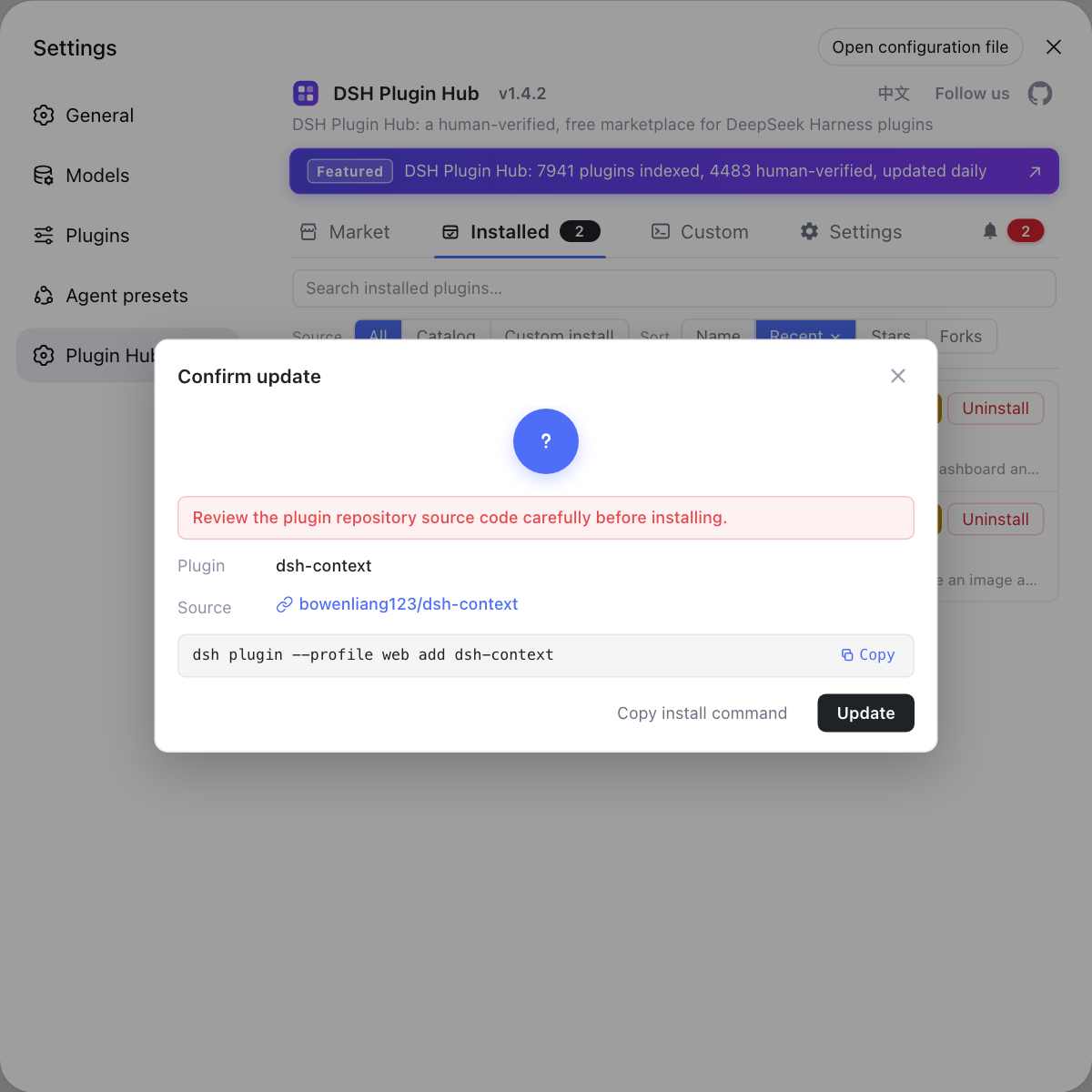
Full plugin update commands and batch strategy are in updating DSH plugins in batch; if a plugin becomes incompatible after the update, see plugin rollback after updates; to manage versions overall and downgrade, see how to upgrade dsh to the latest.
In short: check the version, back up, upgrade by install method, then verify four items — once updating DeepSeek Harness becomes a routine, the rapid preview iteration stops being scary.
Sources: deepseek-ai/deepseek-harness, deepseek-ai/deepseek-harness Releases, @deepseek-ai/dsh on npm
FAQ
Check three places: run dsh --version (or read the version shown at startup, since the npx method creates no global command); look at the npm package page or run npm view @deepseek-ai/dsh version for the latest official release; and open the deepseek-ai/deepseek-harness Releases page on GitHub for release notes.
For the npx install-free method, just run npx @deepseek-ai/dsh web again — each run resolves the latest official version from the registry. To force the newest, use npx @deepseek-ai/dsh@latest web. If it still feels old, the local npx cache is usually the cause: run npm cache clean --force and retry.
Updating DeepSeek Harness replaces only the program files and leaves your data untouched: credentials, profiles and sessions live in the user data directory (default ~/.dsh), separate from the program location, so plugins and sessions survive a normal update. Rare major preview versions may include storage migrations, so back up first as described in this article.
Plugin problems and dsh rollback are separate cases: if a plugin fails to load, it is usually incompatible with the new core — remove it from the Installed list in DSH Plugin Hub and install a compatible version. To downgrade dsh itself, reinstall a pinned version with npm install -g @deepseek-ai/dsh@old-version, or git checkout an older tag and rebuild from source.
Related Terms
- dsh --version
- dsh --version prints the current version of the DeepSeek Harness CLI; it exists for global npm or source builds, while the npx install-free method has no global dsh command.— deepseek-ai/deepseek-harness
- npx cache
- npx caches packages it has downloaded (under ~/.npm/_npx by default); if repeated runs still look old, run npm cache clean --force and retry npx @deepseek-ai/dsh@latest web to force the newest.— npm official docs
- npm update -g
- npm update -g @deepseek-ai/dsh upgrades a globally npm-installed dsh to the newest version allowed by the version rules; use npm install -g @deepseek-ai/dsh@latest for an explicit upgrade.— npm official docs
- GitHub Releases
- GitHub Releases is a project's release page; deepseek-ai/deepseek-harness publishes versions and notes there, one of the official places to check for new DSH releases and changes.— deepseek-ai/deepseek-harness Releases