Install DeepSeek Harness: check Node.js, run npx dsh web
To install DeepSeek Harness for the first time, follow four steps: check Node.js, start it with npx, verify the install, then add your first plugin.
Overview
DeepSeek Harness (command-line tool dsh) is the open-source agent harness built by DeepSeek AI, and the official way to install and start it is one command: npx @deepseek-ai/dsh web. It downloads and launches everything, serving the Web UI at http://127.0.0.1:3080 by default and auto-opening it in your browser on a local machine (source). This guide breaks each step down for beginners so you can complete your first install by following along.
Before installing DeepSeek Harness: make sure Node.js is ready
The npx startup of DeepSeek Harness depends on exactly one prerequisite: Node.js on your machine. Spend a minute checking first — it prevents most errors later.
- Open a terminal and run
node -v; it should print a version number such asv20.11.0; - Run
npm -v; it should print an npm version — npm is bundled with Node.js, no separate install needed; - If you see
node: command not found: download and install the official LTS package from the Node.js website, reopen the terminal, then repeat step 1; - (If your network is slow) confirm npm can reach its registry — you may run
npm config set registry https://registry.npmmirror.comfirst to avoid a stalled first download.
Once these checks pass, you are ready to install DeepSeek Harness itself.
Install and start DeepSeek Harness: bring up the Web UI with one npx command
The officially recommended way to start is the install-free npx run: it writes no global files and downloads, initializes and starts in one command. The command and full description live in the run section of the official README.
- Run the startup command in your terminal:
npx @deepseek-ai/dsh web
- The first run downloads the
@deepseek-ai/dshpackage and initializes the default web profile — wait for the terminal to report that the service has started (downloads may take tens of seconds to minutes depending on your network); - On a local machine the browser opens
http://127.0.0.1:3080automatically; if it does not, type the address manually; - Seeing the DeepSeek Harness Web UI means startup succeeded — keep this terminal window open; closing it stops the service;
- To run the server without opening the browser, add
--no-open:npx @deepseek-ai/dsh web --no-open.
For long-term daily use or tracking the latest development build, you can also install globally with npm (then run
dsh webdirectly) or build from source. The full comparison and commands for both are in our install guide for the three install methods. Switching methods never loses data — your config and sessions live under the default~/.dshdirectory regardless of the install method.
Verify DeepSeek Harness: the page opens at 3080
The success bar is: the service starts and the page opens. Run the checks below in order; when each shows its expected result, your first install is complete.
- Look at the terminal that started it: it should report the service is listening on
http://127.0.0.1:3080without errors; - Open
http://127.0.0.1:3080in a browser: you should see the DeepSeek Harness Web UI home page (with the npx method this is the verification entry — it does not create a globaldshcommand); - If you switched to the global npm install, additionally run
dsh --versionand it should print a version number; - Finish the first-time setup shown on the page, such as configuring a model provider (a DeepSeek API key or a local model both work), then send a message to confirm the conversation works.
At this point DeepSeek Harness itself is installed and running.
Next step: install your first DSH plugin from the plugin market
Once the core runs, extending capabilities means installing plugins — a visual market beats memorizing commands. For one-stop browsing, installing, updating and uninstalling plugins, install the community-official DSH Plugin Hub plugin market:
- Install the DSH Plugin Hub plugin into your current environment from the Web UI, then reopen it from Settings → Plugin market;
- In the Market screen, search or browse categories; each plugin card shows the name, version, verified badge and description;
- Clicking Install first shows a confirmation dialog with the plugin name, source repo and the command that will run — the install only starts after you confirm, a safety gate before anything executes;
- After it finishes, manage the plugin in the Installed list, where future updates and uninstalls are one click away.
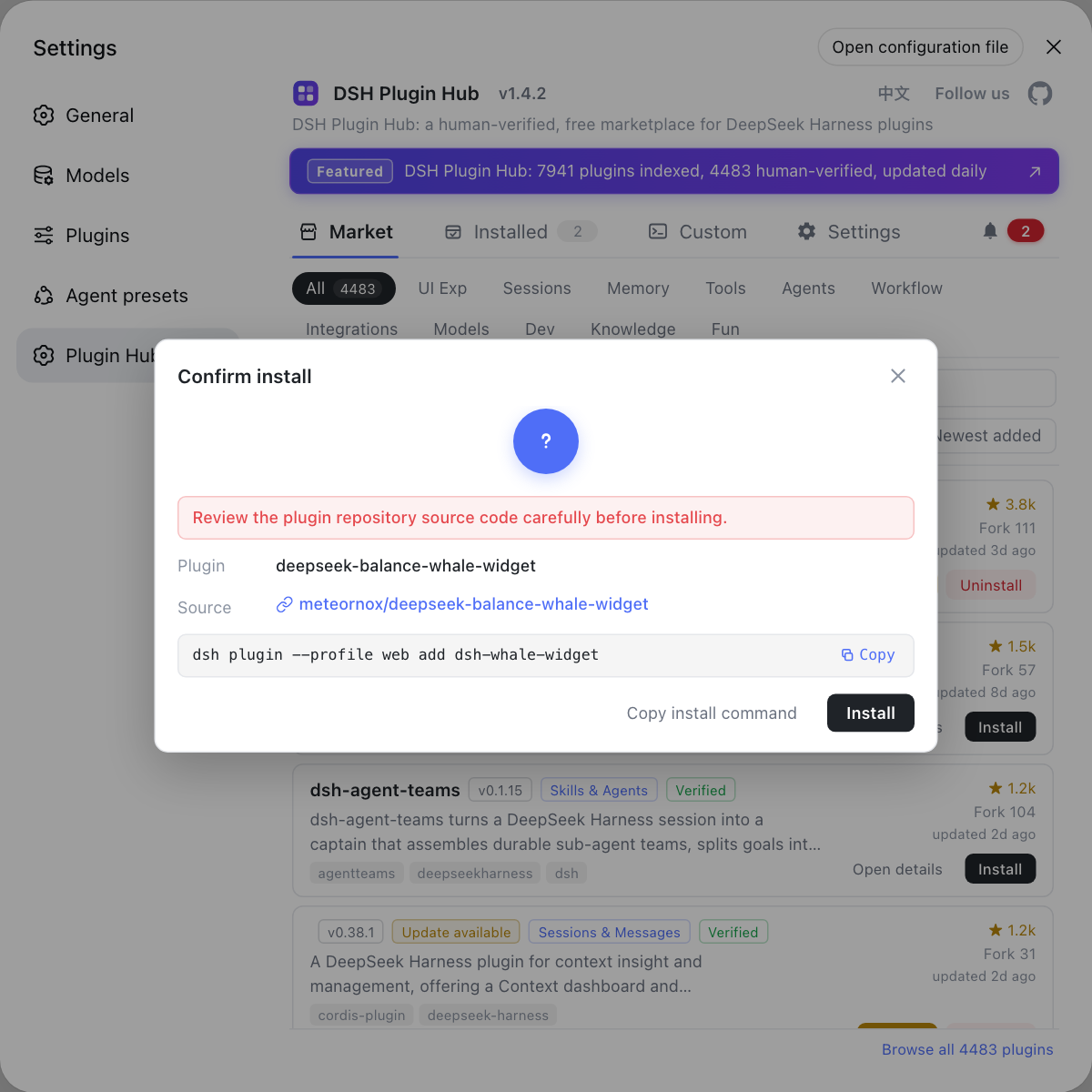
Instead of memorizing dsh plugin flags, manage your plugins through DSH Plugin Hub's visual interface — search, install, update and uninstall all come with confirmations and progress hints, and official catalog entries are marked as verified. Visit https://dsh-plugin.org/ for details.
Sources: deepseek-ai/deepseek-harness, DeepSeek Harness official docs - Quickstart, dshplugin/dsh-plugin-hub
FAQ
Before installing DeepSeek Harness, check Node.js first: run node -v in a terminal and it should print a version number. If nothing prints, Node.js is not installed or not on your PATH — install the official LTS package, reopen the terminal and run node -v again until it prints a version.
A command not found error when running npx @deepseek-ai/dsh web means Node.js is not set up or PATH is not configured. Slow downloads are usually a network issue: run npm config set registry https://registry.npmmirror.com to switch to a mirror and retry. The first run downloads the whole package, so waiting tens of seconds to a few minutes is normal.
Verify in two layers: if the browser opens http://127.0.0.1:3080 and shows the DeepSeek Harness Web UI, startup succeeded. If you did a global npm install instead, run dsh --version in a terminal and it should print a version number.
Right after launching DeepSeek Harness, finish the basic setup shown on the page — such as configuring a model provider — before you can chat. To manage plugins with a visual market, install the DSH Plugin Hub plugin market next and search categories to install plugins in one click.
Related Terms
- DeepSeek Harness
- DeepSeek Harness (DSH) is the open-source agent harness built by DeepSeek AI, based on an all-plugins architecture driven by Cordis, with a command-line tool named dsh.— DeepSeek Harness official docs
- npx
- npx is the command runner bundled with npm that downloads and runs an npm package's executable without installing it globally; the official DeepSeek Harness quickstart uses it for one-command startup.— npm official docs
- dsh web
- dsh web is the startup command of DeepSeek Harness that launches the Web UI at http://127.0.0.1:3080 by default and opens it in your browser on a local machine; add --no-open to run the server only.— DeepSeek Harness official README
- DSH Plugin Hub
- DSH Plugin Hub is the community-official DSH plugin market that offers visual browsing and one-click install, uninstall and update of plugins; it asks you to confirm the source repo and command before any install, serving as a one-stop manager.— dshplugin/dsh-plugin-hub GitHub repository
Sources
- deepseek-ai/deepseek-harness· GitHub
- DeepSeek Harness official docs - Quickstart· deepseek-harness
- dshplugin/dsh-plugin-hub GitHub repository· GitHub