How to use the dsh plugin command: install, remove, list
The dsh plugin command family manages DSH plugins: add installs, remove uninstalls, and list shows what is installed — all combined with --profile. Installing a plugin supports four ways (npm package, GitHub source, local directory, visual market) and uninstalling has two (command line and UI). This guide expands each way with full commands and finishes with a troubleshooting table.
Overview: the dsh plugin command family at a glance
Three core subcommands cover add, remove and list, with two arguments (--profile / --help) used throughout. Basic format (source):
| Subcommand | Purpose | Basic format | Frequency |
|---|---|---|---|
add | Install a plugin | dsh plugin --profile <env> add <target> | every install |
remove | Uninstall a plugin | dsh plugin --profile <env> remove <package> | every uninstall |
list | List installed | dsh plugin --profile <env> list | any time |
--help | Show help | dsh plugin --help / dsh plugin add --help | when unsure |
<env> is usually web (the web UI environment), covered later; <target> can be an npm package name, github:owner/repo, or a local path.
Installing a plugin: four ways to choose from
The same plugin can be installed four ways — pick the one that fits the situation. All four produce the same result: the plugin is written into the current profile's dependencies.
Way 1: npm package name (recommended)
If you know the package name, install away — the source is traceable and dependencies are handled automatically; the most reliable way. Steps:
- Confirm the package name: search npm or dsh-plugin.org for the exact name;
- Run the install command:
# Taking the plugin market as an example
dsh plugin --profile web add dsh-plugin
- Wait for npm to download and write into the profile; a success message appears;
- Restart dsh web and refresh the page to verify.
The npm route pulls from your configured registry, so an existing npm mirror applies automatically. A mistyped name returns 404; npm view <package> confirms the package exists beforehand.
Way 2: GitHub source install
For plugins missing from the market, or when you want the source build, use the repo address. Steps:
# Format: github: prefix + owner/repo
dsh plugin --profile web add github:meteornox/deepseek-balance-whale-widget

# Equivalent: a bare repo address also works (depending on the version)
dsh plugin --profile web add github:owner/repo
The prerequisite is access to GitHub from your machine (configure a proxy when the network is restricted). This route clones the repo and handles dependencies; a few repos lack build artifacts and may not activate after install — switch to the npm build or contact the author.
Way 3: local directory install
When developing a plugin yourself or using a local clone, point at the path. Steps:
# Relative and absolute paths both work
dsh plugin --profile web add ../my-plugin

# Or an absolute path
dsh plugin --profile web add /Users/you/dev/my-plugin
This is the standard plugin development workflow (source): re-add after code changes to apply, then consider publishing to the market once debugged.
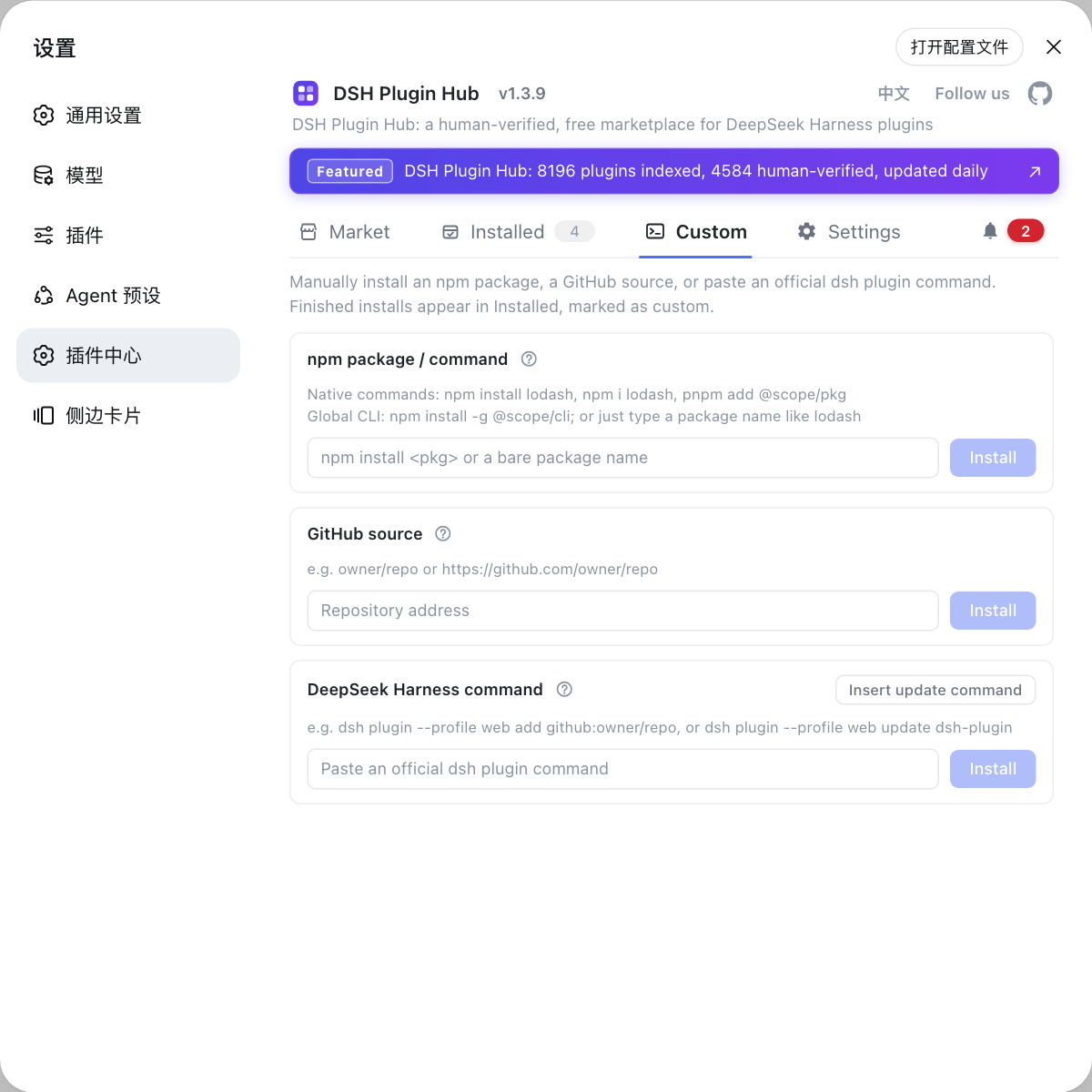
Way 4: visual market install
Prefer buttons over commands? The system generates and runs the command for you. Steps:
- Install DSH Plugin Hub first (
dsh plugin --profile web add dsh-plugin); - Open the DeepSeek Harness web UI → Settings → Plugin Market;
- Find the target plugin with search or categories and click Install on its card;
- Review the plugin name, source repo and the command that will run in the confirmation dialog;
- Confirm — it executes automatically with live progress.
The market route runs the same underlying command as Ways 1 and 2, just executed by the system — the friendliest option for beginners.
Uninstalling a plugin: two ways
Like installing, both the command line and the UI work — the underlying behavior is identical. Neither touches the configs, credentials or sessions under $DSH_HOME.
Way 1: command line
# Uninstall by package name
dsh plugin --profile web remove dsh-plugin
The plugin is removed from the current profile's dependencies; it takes effect after restarting dsh web. If unsure about the package name, run dsh plugin --profile web list first.
Way 2: the UI
- Open Settings → Plugin Market → Installed;
- Find the target plugin and click Uninstall at the row tail;
- Review the plugin and its source in the confirmation dialog, then confirm;
- The plugin disappears from the list once the live progress finishes.
To fully clean a plugin's leftover cache directories (not just the dependency), manually inspect the plugin's residue under $DSH_HOME.
Listing installed plugins: two ways
Use either to confirm what is installed and which versions. Command:
# List from the command line
dsh plugin --profile web list
The output lists plugin names and versions. Without a terminal, open the Installed page in Settings → Plugin Market — besides the list you can also click Update, Uninstall and Reveal in Finder, which is more visual than the command line.
The --profile argument explained
A profile is an isolated plugin environment; --profile decides which environment the command acts on. Three points to understand:
- Why it is required: dsh supports multiple environments (web, desktop, and more); without
--profilethe command does not know where to install, so the official CLI makes it mandatory; - How to discover profiles:
dsh plugin --profile web listtargets the web environment; other environments use their own names — see the official docs; - Installed into the wrong profile?: the plugin will not show up in the target environment; simply add it again with the correct
--profile— no need to uninstall first.
Troubleshooting common issues
Read the error type first, then fix accordingly. Common issues:
| Issue | Likely cause | Fix |
|---|---|---|
dsh: command not found | not installed globally, or npx cache issue | prefix with npx @deepseek-ai/dsh, or npm install -g @deepseek-ai/dsh |
| Package not found / 404 | mistyped name, stale mirror | confirm with npm view <package>, switch the npm mirror and retry |
| Install timeout | slow network, restricted repo | switch the npm mirror; configure a proxy for GitHub sources |
| Permission error | no write access to global dirs | check directory permissions; use a user-level npm config |
| Not active after install | not restarted, wrong profile | restart dsh web and refresh; verify --profile matches the environment |
| Command not recognized | version too old for the subcommand | check dsh plugin --help; upgrade dsh to the latest |
| Residue after uninstall | only dependencies removed | manually clean the plugin's leftover directories under $DSH_HOME |
If you cannot pinpoint it, open Settings → System logs for the full error and follow the matching guide.
Quick recap
In short: add installs, remove uninstalls, list shows — always pass --profile.
Four reminders:
- Default to the npm package name for a traceable source and automatic dependencies;
- Use the Plugin Market UI for daily management; keep commands for scripts and batch operations;
- Restart and verify after installing — check both the UI and
list; - Read the logs when something fails — the system logs keep the full context of every operation.
Sources: dsh CLI README, DeepSeek Harness docs - Packaging and installing plugins, dshplugin/dsh-plugin-hub
FAQ
Three are used daily: add installs a plugin, remove uninstalls it, and list shows what is installed. Run dsh plugin --help to see every subcommand and argument; every use requires --profile, such as --profile web.
Four: an npm package name (dsh plugin --profile web add dsh-plugin), GitHub source (add github:owner/repo), a local directory (add /path/to/plugin), and the visual market install (click a button; the system generates the command). npm is recommended for a traceable source.
Command line: dsh plugin --profile web remove <package>. UI: Settings → Plugin Market → Installed → Uninstall. Both are equivalent underneath and only remove the dependency; configs and sessions under ~/.dsh stay untouched.
It selects the environment (profile) a plugin lands in; the web profile matches the web UI environment. Profiles isolate plugins from each other, so installing into the wrong profile leaves the plugin inactive — always pass it.
Confirm dsh has been started once and the version supports the subcommand; run dsh plugin --help. For a missing package, switch the npm mirror or use github:owner/repo. If it still fails, check the exact error in the system logs.
Sources
- dsh CLI README· deepseek-ai
- DeepSeek Harness docs - Packaging and installing plugins· deepseek-harness
- dshplugin/dsh-plugin-hub GitHub repository· GitHub