dsh plugin 命令怎么用?DSH 插件安装、卸载、列出命令大全
dsh plugin 是管理 DSH 插件的命令族:add 安装、remove 卸载、list 列出,配合 --profile 指定环境。安装插件有四种方式(npm 包名、GitHub 源码、本地目录、市场图形化),卸载有两种方式(命令行、界面),本文逐个展开步骤、给出完整命令,并把常见问题与解决办法列成清单。
概览:dsh plugin 命令家族全景
三条核心子命令管住插件的增、删、查,另外两个参数(--profile / --help)贯穿始终。 基本格式(来源):
| 子命令 | 作用 | 基本格式 | 使用频率 |
|---|---|---|---|
add | 安装插件 | dsh plugin --profile <环境> add <目标> | 每次安装 |
remove | 卸载插件 | dsh plugin --profile <环境> remove <包名> | 每次卸载 |
list | 列出已装 | dsh plugin --profile <环境> list | 随时查看 |
--help | 查看帮助 | dsh plugin --help / dsh plugin add --help | 记不清时 |
<环境> 通常是 web(Web 界面环境),后面单独讲;<目标> 可以是 npm 包名、github:owner/repo 或本地路径。
安装插件:四种方式任选
安装同一个插件有四条路,按场景选择最顺手的。 四种方式最终效果一致,都是把插件写入当前 profile 的依赖。
方式一:npm 包名安装(推荐)
知道包名就能装,来源可溯、依赖自动处理,是最稳的方式。 操作步骤:
- 确认包名:到 npm 或 dsh-plugin.org 搜索准确包名;
- 执行安装命令:
# 以插件市场为例
dsh plugin --profile web add dsh-plugin
- 等待 npm 下载并写入 profile,出现成功提示;
- 重启 dsh web,刷新页面验证生效。
npm 方式会从你配置的 registry 拉取,之前配过镜像会自动生效;包名拼错会提示 404,用 npm view <包名> 可提前确认存在。
方式二:GitHub 源码安装
市场没收录、或想装源码版的插件,用仓库地址。 操作步骤:
# 格式:github: 前缀 + owner/repo
dsh plugin --profile web add github:meteornox/deepseek-balance-whale-widget

# 等价写法:直接给完整仓库地址也可以(视版本而定)
dsh plugin --profile web add github:owner/repo
前置条件是本机能访问 GitHub(网络受限时需配置代理)。源码方式会 clone 仓库并处理依赖,个别仓库缺少构建产物时可能装完不生效,此时改装 npm 版或反馈作者。
方式三:本地目录安装
自己开发插件、或想直接用本地克隆的仓库,用绝对路径。 操作步骤:
# 进入插件仓库上一级,用相对/绝对路径均可
dsh plugin --profile web add ../my-plugin

# 或绝对路径
dsh plugin --profile web add /Users/you/dev/my-plugin
这是插件开发调试的常用姿势(来源):改完代码重新 add 一次即生效,调试确认后再考虑发布到市场。
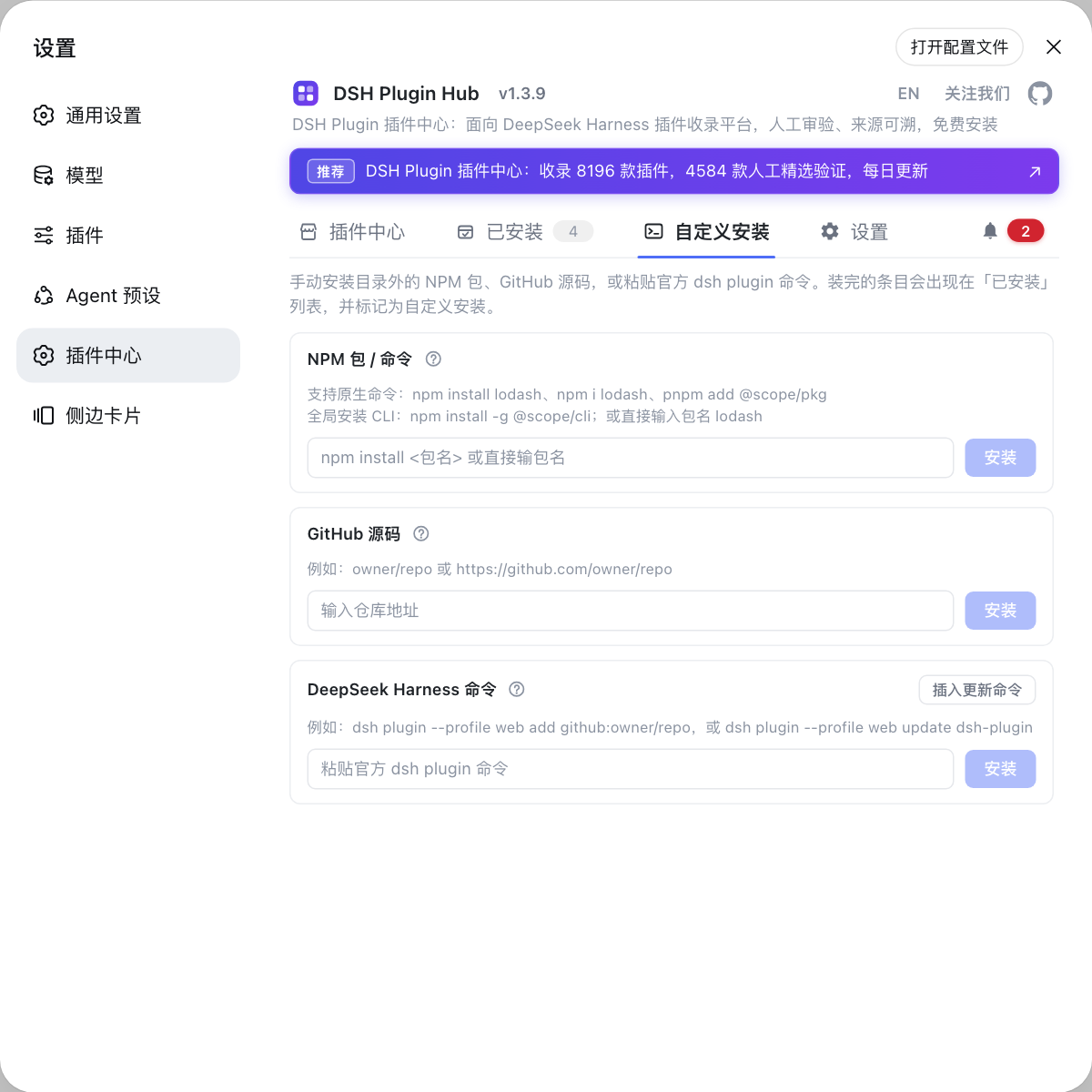
方式四:插件市场图形化安装
不想敲命令就点按钮,系统帮你生成并执行命令。 操作步骤:
- 先装好 DSH Plugin Hub(
dsh plugin --profile web add dsh-plugin); - 打开 DeepSeek Harness Web UI → 设置 → 插件市场;
- 搜索或分类找到目标插件,点卡片上的安装;
- 在弹出的确认弹窗里核对插件名、来源仓库与将要执行的命令;
- 确认后自动执行,弹窗实时显示进度。
图形化方式的底层命令和方式一/二相同,只是由系统代为执行,对新手最友好。
卸载插件:两种方式
卸载和安装一样,命令行与界面都能做,底层一致。 两种方式都只移除插件依赖,$DSH_HOME 下的配置、密钥与会话不受影响。
方式一:命令行卸载
# 按包名卸载
dsh plugin --profile web remove dsh-plugin
执行后插件从当前 profile 的依赖中移除,重启 dsh web 后生效。不确定包名时先 dsh plugin --profile web list 查一下。
方式二:界面卸载
- 打开设置 → 插件市场 → 已安装;
- 找到目标插件,点行尾的卸载;
- 在确认弹窗核对插件与来源,点确认;
- 实时进度完成后插件从列表消失。
想彻底清理插件留下的缓存目录(不只是移除依赖),需要手动检查 $DSH_HOME 下对应插件的残留文件。
查看已装插件:两种方式
确认装没装、装了什么版本,用下面两种方式。 典型命令:
# 命令行列出
dsh plugin --profile web list
输出会列出插件名与版本;不想开终端的话,打开设置 → 插件市场的已安装页,除了看列表还能直接点「更新」「卸载」「在 Finder 中显示」,比命令行更直观。
--profile 环境参数详解
profile 是插件的隔离环境,--profile 决定命令作用在哪个环境上。 需要理解三点:
- 为什么必须带:dsh 支持多环境(web、桌面端等),不带
--profile命令不知道往哪装,官方把它设为必填参数; - 怎么知道有哪些 profile:
dsh plugin --profile web list对应 web 环境;其他环境用对应名字,可查看官方文档; - 装错 profile 怎么办:插件不会出现在目标环境里,重新用正确的
--profileadd 一次即可,无需先卸载。
常见问题与解决
命令出错先看报错类型,再对症处理。 常见问题清单:
| 问题 | 可能原因 | 解决办法 |
|---|---|---|
dsh: command not found | 未全局安装、或 npx 缓存问题 | 用 npx @deepseek-ai/dsh 前缀执行,或 npm install -g @deepseek-ai/dsh |
| 包找不到 / 404 | 包名拼错、镜像源滞后 | npm view <包名> 确认存在,切换 npm 镜像重试 |
| 安装超时 | 网络慢、仓库访问受限 | 换 npm 镜像;GitHub 源配置代理 |
| 权限错误 | 全局目录无写权限 | 检查目录权限,必要时用用户级 npm 配置 |
| 装完不生效 | 没重启、装错 profile | 重启 dsh web 并刷新;核对 --profile 与环境一致 |
| 命令不识别 | 版本过旧不支持子命令 | dsh plugin --help 看支持项,升级 dsh 到最新版 |
| 卸载后仍有残留 | 只删了依赖、缓存还在 | 手动清理 $DSH_HOME 下插件残留目录 |
还定位不了时,打开设置 → 系统日志查看完整报错,再按对应排查文章处理。
总结速查
一句话:add 装、remove 卸、list 查,永远带 --profile。 四个提醒:
- 默认推荐 npm 包名,来源可溯、依赖自动处理;
- 日常管理用插件市场界面,命令留给脚本与批量操作;
- 装完重启再验证,界面与
list双重确认; - 出错先看日志,系统日志会记录每次操作的完整上下文。
来源:dsh CLI README、DeepSeek Harness 官方文档 - 打包与安装插件、dshplugin/dsh-plugin-hub
常见问题
常用三个:add 安装插件、remove 卸载插件、list 列出已装插件。执行 dsh plugin --help 可查看当前版本支持的全部子命令与参数;每次使用都要带 --profile 指定环境(如 --profile web)。
四种:npm 包名(dsh plugin --profile web add dsh-plugin)、GitHub 源码(add github:owner/repo)、本地目录(add /path/to/plugin)、以及插件市场图形化安装(点按钮,系统自动生成命令)。推荐 npm 包名,来源可溯。
命令行:dsh plugin --profile web remove <包名>;界面:打开设置 → 插件市场 → 已安装 → 点卸载。两者底层一致,都只移除依赖,不影响 ~/.dsh 下的配置与会话。
指定插件装到哪个环境(profile),比如 web profile 对应 Web 界面环境;不同 profile 的插件相互隔离,装错 profile 会导致插件不生效,所以每次命令都要带上。
先确认 dsh 已启动过(web profile 已初始化)且版本支持该子命令,运行 dsh plugin --help 看帮助;包找不到换 npm 镜像或改用 github:owner/repo;仍不行到系统日志查具体报错。
来源
- dsh CLI README· deepseek-ai
- DeepSeek Harness 官方文档 - 打包与安装插件· deepseek-harness
- dshplugin/dsh-plugin-hub GitHub 仓库· GitHub