Uninstall DeepSeek Harness by install method: keep data?
Uninstalling DeepSeek Harness starts with a choice: remove the program only, keep the data for a reinstall, or wipe everything — each tier is a different operation. The npx install-free method leaves almost no program files, a global npm install is removed with npm uninstall -g @deepseek-ai/dsh, and a source build is removed by deleting the cloned repository. Chat history, configuration and plugins live in a separate user data directory (default ~/.dsh), so whether they survive is your call.
Overview
“Uninstall dsh” goes wrong most often when people fail to separate the program from the data — they are two different things. The program files decide whether dsh runs; the data directory (default ~/.dsh, movable via $DSH_HOME) holds your configuration, sessions and plugin records. So pick a tier first, then run the command that matches your original install method. This article gives a comparison table and verification steps; for stuck uninstalls or deep residue cleanup, follow the links at the end.
Before uninstalling DeepSeek Harness, pick a tier: program only / keep data / full removal
Uninstall is not one “delete it” action — decide which of three tiers you want first so you never delete data you meant to keep. The difference:
- Program only (switch install methods or pause for a while): remove the program files and leave the data directory untouched; you can reinstall anytime and keep your configuration, sessions and plugins;
- Keep the data for a reinstall (fix a broken setup or move machines): remove the program and back up the whole data directory (copy
~/.dsh) — the old environment is cleaned and the new machine restores everything from the copy (see uninstall and reinstall with data migration); - Full removal (say goodbye for good): handle the program files, the npx/npm caches and the data directory together — chat history disappears with the data directory, so only do this when you are sure.
Uninstall DeepSeek Harness by your original install method: three installs, three removals
The removal command matches how you installed it — npx leaves no global files, a global npm install is removed with the uninstall command, and a source build is removed by deleting the directory. Comparison:
| Original install method | Program removal | Notes |
|---|---|---|
| npx install-free | No global files to remove | The npx method creates no global dsh command; downloads stay in the npx cache (~/.npm/_npx) — keep or clean them as you like |
| Global npm install | npm uninstall -g @deepseek-ai/dsh | After this, the dsh command is gone |
| Source build | Delete the cloned repository | Remove the directory you git cloned (for example deepseek-harness/) |
Source-removal example:
# exit a running dsh first
rm -rf ~/dev/deepseek-harness   # use your actual repo path
After removing the program, leave the data directory (default ~/.dsh) untouched — that is tier one, “program only”. To clean up data along with the program, follow the “full removal” checklist in the next section.
Keep or delete data when uninstalling DeepSeek Harness: ~/.dsh decides
The answer to “will my data survive an uninstall” has exactly one variable: whether you delete the data directory. Data lives by default in ~/.dsh (overridable with $DSH_HOME) — your profiles, configuration and chat sessions, independent of the program files. So:
- Keep it: do nothing; uninstalling the program leaves it in place and a reinstall restores everything;
- Back it up: copy the whole
~/.dshelsewhere (or point$DSH_HOMEat a backup location); - Remove it: delete the directory only after you are sure the chat history is not needed.
When in doubt, back it up before deleting — that is always the safest move.
Fully remove DeepSeek Harness: a layered checklist of program, cache and data
“Fully uninstalled” means the program layer has no residue and the data layer is handled as you wish — check each layer. Layered checklist:
- Program layer: for a global npm install run
npm uninstall -g @deepseek-ai/dsh; for a source build delete the repository directory; the npx method has no global files; - Verify the program is gone: run
dsh --versionin a terminal and it should report command not found;npm ls -gshould no longer list@deepseek-ai/dsh; - Cache layer (optional): to clean the npx download cache, delete
~/.npm/_npxor runnpm cache clean --force; deeper caches such as the pnpm store are covered in cleaning DSH plugin residue; - Data layer (as needed): once you decide the chat history and configuration are no longer needed, delete
~/.dsh(or whatever$DSH_HOMEpoints to) — this is the only step that actually “deletes chat history”; - Final confirmation:
dsh --versionprints nothing and the data directory is kept or removed as you intended — the uninstall is complete.
Remove DSH plugins the proper way: confirm in DSH Plugin Hub first
If there are plugins you are sure you no longer want, uninstall them from the Installed list in DSH Plugin Hub instead of deleting directories by hand. Clicking uninstall on the list first shows a confirmation with the plugin and its source, and nothing is removed until you confirm — protecting against accidental loss:
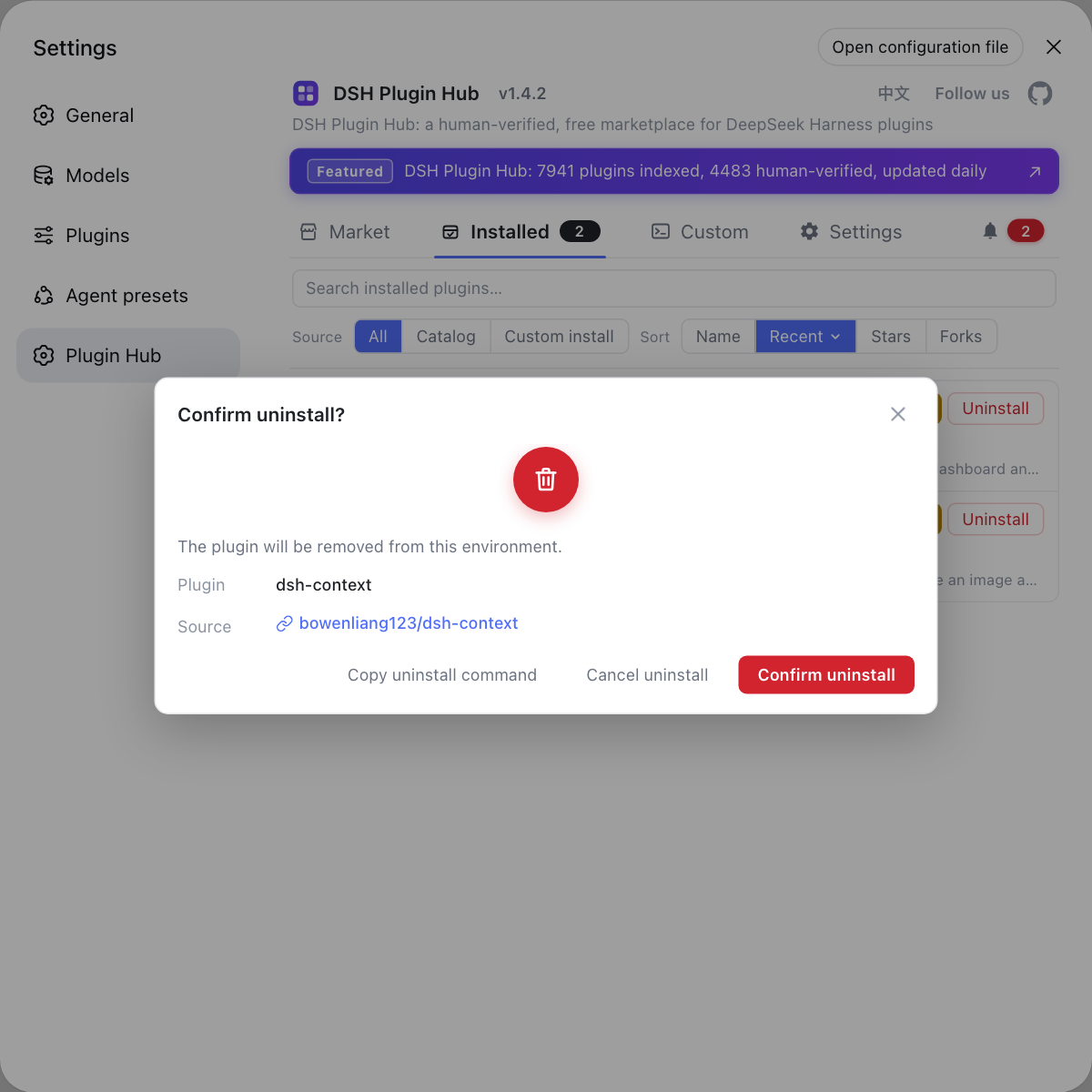
Use the Hub's proper path if you want to remove plugins while keeping the rest of the data; skipping this is fine too — as long as you keep ~/.dsh, your plugin records survive a reinstall. For the visual plugin-removal flow and residue cleanup see uninstalling plugins via DSH Plugin Hub; for stuck or failing core uninstalls see uninstall failed and the full uninstall guide.
In short: pick a tier, remove the program by your install method, then decide the fate of ~/.dsh — separate the program from the data and uninstalling DeepSeek Harness stops being a dilemma.
Sources: deepseek-ai/deepseek-harness, @deepseek-ai/dsh on npm, npm uninstall docs
FAQ
Uninstalling DeepSeek Harness itself deletes nothing: the program files and your user data are separate, and chat history, configuration and profiles live in the data directory (default ~/.dsh). Only deleting the data directory removes the chat history along with it.
Your data survives an uninstall-and-reinstall of DeepSeek Harness as long as you keep the data directory (default ~/.dsh) — configuration, sessions and plugin records all come back. To fully reset before reinstalling, delete ~/.dsh as well. To move to a new machine, copy the whole ~/.dsh over.
Confirm DeepSeek Harness is fully uninstalled by your original install method: after a global npm install, dsh --version should report command not found and npm ls -g should no longer list @deepseek-ai/dsh; after a source install, confirm the repo directory is gone and the startup command no longer works; the npx method never created global files. Keeping or deleting the data directory is your choice — the program layer just needs to be clean.
No — DeepSeek Harness keeps its plugin records in the profile data, so if you keep the data directory, uninstalling the core and reinstalling brings your plugins back exactly as they were. To remove plugins as well, delete the data directory, or use the Installed list in DSH Plugin Hub to remove the ones you no longer want first, so you never accidentally lose data you still need.
Related Terms
- ~/.dsh
- ~/.dsh is the default user data directory of DeepSeek Harness (movable with the $DSH_HOME environment variable), storing profiles, configuration and sessions; it is independent of the program location, so uninstalling the program does not touch it.— deepseek-ai/deepseek-harness
- npx install-free method
- The npx install-free method runs the official package with npx @deepseek-ai/dsh web: it creates no global dsh command and keeps downloads in the npx cache, so for this method there is almost no program file to remove.— npm official docs
- npm uninstall -g
- npm uninstall -g @deepseek-ai/dsh removes a globally npm-installed dsh; it is the standard way to uninstall the DeepSeek Harness core when you installed it globally with npm.— npm official docs
- data directory / $DSH_HOME
- The data directory holds DSH configuration and sessions; by default ~/.dsh, it can be pointed elsewhere with the $DSH_HOME environment variable. Deciding whether an uninstall should delete data is deciding whether to delete this directory.— deepseek-ai/deepseek-harness