Remove all DSH plugins and reset a DeepSeek Harness profile
DeepSeek Harness has no remove-everything command, because DSH plugins are managed per profile. A complete clear only has two routes: uninstall them one by one in the installed list, or strip a profile's out-of-tree plugin dependencies and let it re-initialize. The better first question is whether you really need a full clear, since most plugin conflicts yield to disabling or removing the one offender.
When to clear every DSH plugin: try the lighter options first
A full clear is the last resort, not the first move; ruling out two lighter paths can save you from reinstalling a pile of DSH plugins.
- Plugins conflict with each other. Conflicts usually involve just two plugins. Expected: locate the suspicious one and remove only that, as described in plugin runtime crash.
- A plugin crashes the runtime on load. The harness may not start at all, so the interface is unreachable. Expected: this is one of the few real reasons for a full clear, because diagnosing individual plugins assumes you can start.
- You are moving to a new machine or environment. You want a clean slate. Expected: creating a new profile is safer than clearing the current one, since the old environment stays intact.
- You only want plugins to stop taking effect. You do not want to delete them. Expected: disabling is "off without deleting" and keeps configuration and data, as covered in how to disable a plugin.
Route one: uninstall one by one in the DSH Plugin Hub installed list
When there are only a few plugins, uninstalling them graphically is the safest route, because every step asks for confirmation (source).
- Open the installed list. Go to the installed page of the plugin market and see what this environment holds. Expected: a full inventory with source tags.
- Narrow it down with search and source filters. Search by name, or show only the custom-installed entries. Expected: you can tell catalog entries from manually installed ones at a glance.
- Uninstall one at a time and confirm. Each removal opens a confirmation dialog naming the plugin and its source repository. Expected: nothing is removed until you confirm, which guards against deleting a plugin you still want.
- Review what is left. Check the list once more after removing. Expected: only the plugins you chose to keep remain, matching your expectation.
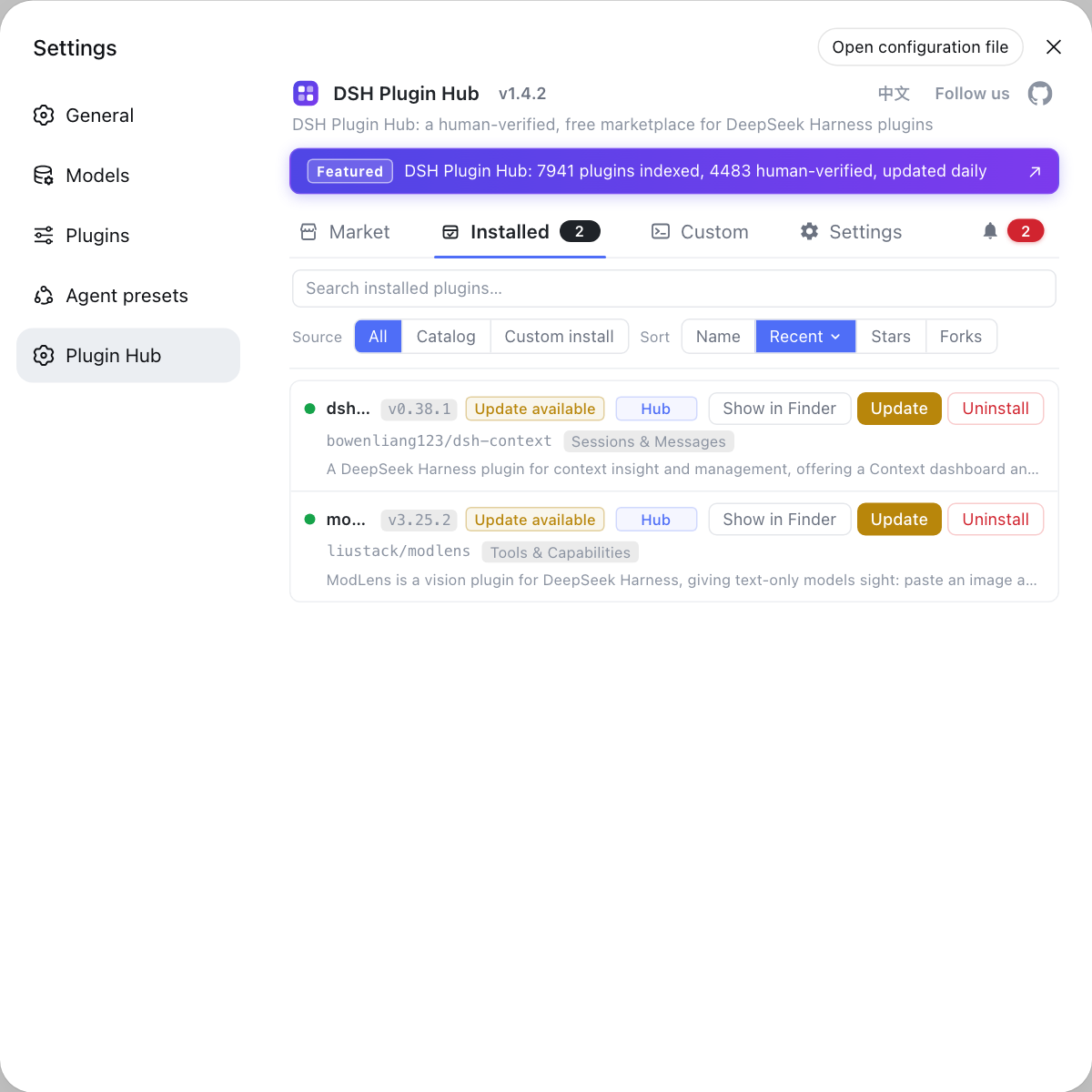
The full walkthrough plus leftover handling is in how to uninstall DSH plugins via the Hub.
Route two: reset a profile to zero out its DeepSeek Harness plugin dependencies
To clear everything in one pass you must touch the profile directory, since that is the authoritative record of which DSH plugins are installed (source).
- Back up the data directory first. Copy
$DSH_HOME(default~/.dsh) wholesale. Expected: configuration, sessions, and credentials all live there, so a mistake can be rolled back entirely. - Confirm which profile you are editing. Plugins are isolated per profile, so identify the right one. Expected: editing the wrong profile means changing a different environment for nothing.
- Remove the out-of-tree plugin dependencies. Edit that profile's
package.jsonand delete the third-party plugin dependency lines. Expected: the profile's list of installed DSH plugins drops to zero. - Remove the configuration overrides. Delete matching
configrows from thecordis.patch.ymlin the same directory. Expected: otherwise you get "the plugin is gone but behaviour did not change", because the framework still reads the leftover configuration. - The most thorough option: delete the whole profile directory. Remove
$DSH_HOME/profiles/<name>outright. Expected: built-in profiles such as web and headless rebuild from the bundled templates on the next start, while third-party plugins must be reinstalled.
How to handle each layer of leftovers is covered in clearing leftover configuration and cache.
How to recover after clearing DeepSeek Harness plugins: re-initialize the profile, reinstall as needed
After clearing, confirm it starts before installing anything back, and do not reinstall the whole batch at once (source).
- Start once to let the profile rebuild. For a built-in profile, just launch it. Expected: the profile directory reappears with its base structure restored to defaults.
- Inspect the configuration tree. Run
dsh --dump-configto view the composed configuration. Expected: removed plugins no longer appear, confirming a clean state. - Reinstall only what you need now. Prefer installing from the catalog. Expected: the environment regrows from scratch, which makes new problems easier to spot than restoring everything at once.
- Restore from backup if you want it all back. Copy the pre-cleanup data directory back into place. Expected: configuration, sessions, and plugin records return together, far faster than reinstalling.
- Rebuild optional plugins last. If a third-party plugin your profile depends on lags behind, see plugin runtime crash. Expected: keep the environment bootable first, then fill it in plugin by plugin.
Caveats and limits of clearing DeepSeek Harness plugins
- There is no one-click clear. DSH plugins are managed per profile, so any "clear all" acts on a single profile; no cross-profile bulk command exists.
- Deleting the directory is a reset, not just a plugin removal. Removing a whole profile directory also returns that profile's model settings and other runtime configuration to defaults.
- Configuration files are not cleaned automatically.
package.jsonandcordis.patch.ymlare two separate leftovers, and clearing only one produces "deleted but nothing changed". - Back up before you touch anything.
$DSH_HOMEalso holds sessions and credentials; plugin cleanup should not reach them, but a backup is the only dependable safety net. - Fix plugin conflicts in place first. A full clear destroys the evidence you need to identify the offending plugin, so disabling and diagnosing usually finds the root cause faster.
Clearing and reinstalling are both easier inside DSH Plugin Hub: the installed list carries source tags and search, removal asks for confirmation, and reinstalling can be browsed by category and stars.
Sources: dsh CLI README (official repository), DeepSeek Harness README (official repository), dshplugin/dsh-plugin-hub
FAQ
Uninstalling every DSH plugin in DeepSeek Harness is only worth it in three situations: plugins conflict with each other, a plugin makes the runtime crash on load, or you are moving to a new machine and want a clean start. Most problems yield to disabling one plugin or removing the suspicious one, so clearing everything is the last resort.
There is no remove-everything command, because DSH plugins are managed per profile. You have two workable routes: uninstall them one by one in the installed list when there are only a few, or strip the out-of-tree plugin dependencies from the profile's package.json and let the profile re-initialize when you want a complete clear.
Resetting a DeepSeek Harness profile only affects that profile's plugin dependencies and configuration overrides; sessions and credentials live elsewhere in the data directory and are not removed by plugin cleanup. Deleting the whole profile directory is a reset though, so model settings return to defaults, which is why you back up $DSH_HOME first.
After clearing DSH plugins, built-in profiles rebuild their base structure from the bundled templates on the next start, while third-party plugins have to be installed again as needed. If you only wanted a clean environment there is no need to reinstall everything; to restore the previous state exactly, copy the backup of the data directory back.
Verifying a DeepSeek Harness cleanup takes three checks: startup no longer reports plugin load failures, the installed list matches what you expect, and dsh --dump-config no longer shows configuration rows for the removed plugins. When all three line up, the plugin tree is clean and usable.
Related Terms
- profile directory
- The profile directory is where DeepSeek Harness stores a runtime stack per profile, at `$DSH_HOME/profiles/<name>`, containing a `package.json` that records out-of-tree plugin dependencies and a `cordis.patch.yml` that holds your own configuration overrides. Clearing plugins really means handling those two files.— dsh CLI README
- out-of-tree plugin dependencies
- Out-of-tree plugin dependencies are the third-party plugin packages listed in a profile's `package.json` and installed by pnpm into that profile's node_modules. They are the authoritative record of which DSH plugins are installed, which is why clearing plugins means reading this file rather than relying on memory.— dsh CLI README
- profile auto-initialization
- Profile auto-initialization means the built-in web, headless, sdk, sdk-minimal, and acp profiles are created from bundled templates on first use, while any other profile must be created with the plugin command. Deleting a built-in profile directory needs no manual rebuild, since the next start restores it.— dsh CLI README
- --dump-config
- --dump-config is the DeepSeek Harness argument that prints the composed configuration tree without starting the app, useful for checking whether a removed plugin left configuration rows behind. It is a more reliable signal of a clean removal than eyeballing directories.— dsh CLI README
Sources
- dsh CLI README· deepseek-ai
- DeepSeek Harness README (official repository)· deepseek-ai
- dshplugin/dsh-plugin-hub GitHub repository· GitHub