Fix profile "desktop" is managed exclusively: DSH plugin
The full text of this error is "error: profile "desktop" is managed exclusively by the electron application," and it means the desktop profile is managed exclusively by the Electron desktop app — the command line has no right to change it: error X → do W, either install plugins through the desktop app's plugin panel or create a custom profile to sidestep the boundary (source). It is not a configuration error but a deliberate isolation layer. To be straight about sourcing: this exact error string comes from user searches and feedback, and there is no verbatim hit in the official repository; the official-backed layer is that desktop is a reserved profile name owned exclusively by the Electron desktop app, so the CLI refuses its boot, config-dump and plugin-management requests. The desktop and CLI usage and boundaries are covered in desktop profile isolation and desktop commands; this page targets only this error.
What the "profile "desktop" is managed exclusively by the electron application" error means
It means you are trying to operate on the desktop profile from the command line, but that profile is reserved for the Electron desktop app and the CLI has no permission to touch it (source). Three layers of meaning:
desktopis a reserved name — unlikeweborheadless, which you manage yourself, it is a name the desktop app owns.- The exclusivity is for runtime consistency — before accessing any profile the desktop app takes a single-instance lock and exclusively holds
$DSH_HOME/profiles/desktop, so the CLI and the desktop app do not write the same data at once. - The CLI's writes are actively refused — both a plain CLI and an npm-installed dsh cannot change it, so what you see is "refused," not "file not found."
Match the command you typed first:
| Command you typed | Result | Correct move |
|---|---|---|
dsh plugin --profile desktop add <pkg> | refused | use the desktop app's plugin panel |
dsh --profile desktop (to launch it) | refused | double-click the app icon |
Editing profiles/desktop in the CLI | refused | leave it to the app |
One line to remember: seeing this error means you took the wrong entrance, not that your environment is broken.
What to do: use the desktop plugin panel or create a custom profile
Two legitimate routes: to add a plugin to the desktop app, use the in-app plugin panel; to manage freely from the command line, create a custom profile. Two paths.
Path one: install a plugin for the desktop app (via the in-app panel)
- Open the desktop app — launch the DeepSeek Harness desktop edition. Expected: it reaches the main screen.
- Go to the plugin panel — find the plugin entry in the app (the plugin page in settings, or the market from the sidebar). Expected: you see the current plugins and the installable list.
- Pick and install — browse the market by category, click install and confirm. Expected: the install shows a confirmation dialog, progress and a result, and tells you whether a restart is needed.
- Restart the app to apply — restart the desktop app as prompted. Expected: the new plugin takes effect in the UI.
Path two: switch to a custom profile (via the command line)
- Pick a template — choose by purpose:
dsh-web-appfor interactive web,dsh-headlessfor unattended. Expected: the template decides the default bundles. - Create a profile — run:
Expected:bash
dsh --profile <name> --from-default-profile <template>package.jsonand the patch file are generated under$DSH_HOME/profiles/<name>; do not use the reserved namedesktopfor<name>. - Install plugins per profile — run:
Expected: the plugin installs into that profile'sbash
dsh plugin --profile <name> add <pkg>node_modulesand never touches the desktop profile. - Verify the isolation — start that profile and check the plugin list. Expected: the plugin is visible in this profile and invisible in others, so the isolation is correct.
A possible exception path: the desktop app's own command
The desktop app also offers a "Manage dsh command…" registration entry in its menu. If you really must manage desktop plugins from the command line, the order is: install the command registration → let the desktop app start at least once to initialise the profile → fully quit the app → then use the desktop app's built-in command (source). But a plain CLI and an npm-installed dsh never work — they keep reporting this error.
The CLI/desktop boundary: why DSH plugin keeps the CLI out of the desktop profile
The essence of this boundary is that "executable packages, plugin activation and lock files are not shared" — the DeepSeek Harness desktop app exclusively holding the desktop profile is exactly what stops the CLI and the desktop app from stepping on each other on the same profile (source). Where the two sides' data and update boundaries sit belongs to the desktop-isolation and update-boundary guides (the desktop/CLI update boundary); this page targets only this error — a different command spelling does not get around it, deleting the profile is worse, and the desktop app itself manages its profile just fine.
Before troubleshooting a DSH plugin desktop-profile error
Before installing any DSH plugin for the desktop app, confirm which profile you are about to touch, and you save one doomed attempt. Three notes:
- Tell the profile's owner first —
desktopbelongs to the desktop app, whileweb,headlessand custom profiles belong to you; pause whenever--profile desktopshows up in a command. - Install desktop plugins through the UI — desktop plugins come from the in-app panel, with source, version and confirmation all in place; DSH Plugin Hub is exactly that kind of graphical management entry.
- For a free command line, use a custom profile — to avoid the desktop boundary, create your own profile and install plugins per profile.
Notes and limits when using DSH plugin
desktopis a reserved name — the desktop app holds it exclusively and the CLI refuses to boot or dump with it, so a custom profile must use another name.- Only the desktop app's built-in command can manage its plugins — an npm-installed dsh and a plain CLI cannot.
- Quit the desktop app before operating — the app holds the lock while running, so plugin operations involving it must wait until it is closed.
- The boundary protects both ways — it blocks CLI missteps and also stops the desktop app and the CLI from writing the same data at once.
- The wording follows the official version — details such as capitalization may vary (some versions write Electron), but the root cause and the fix do not change.
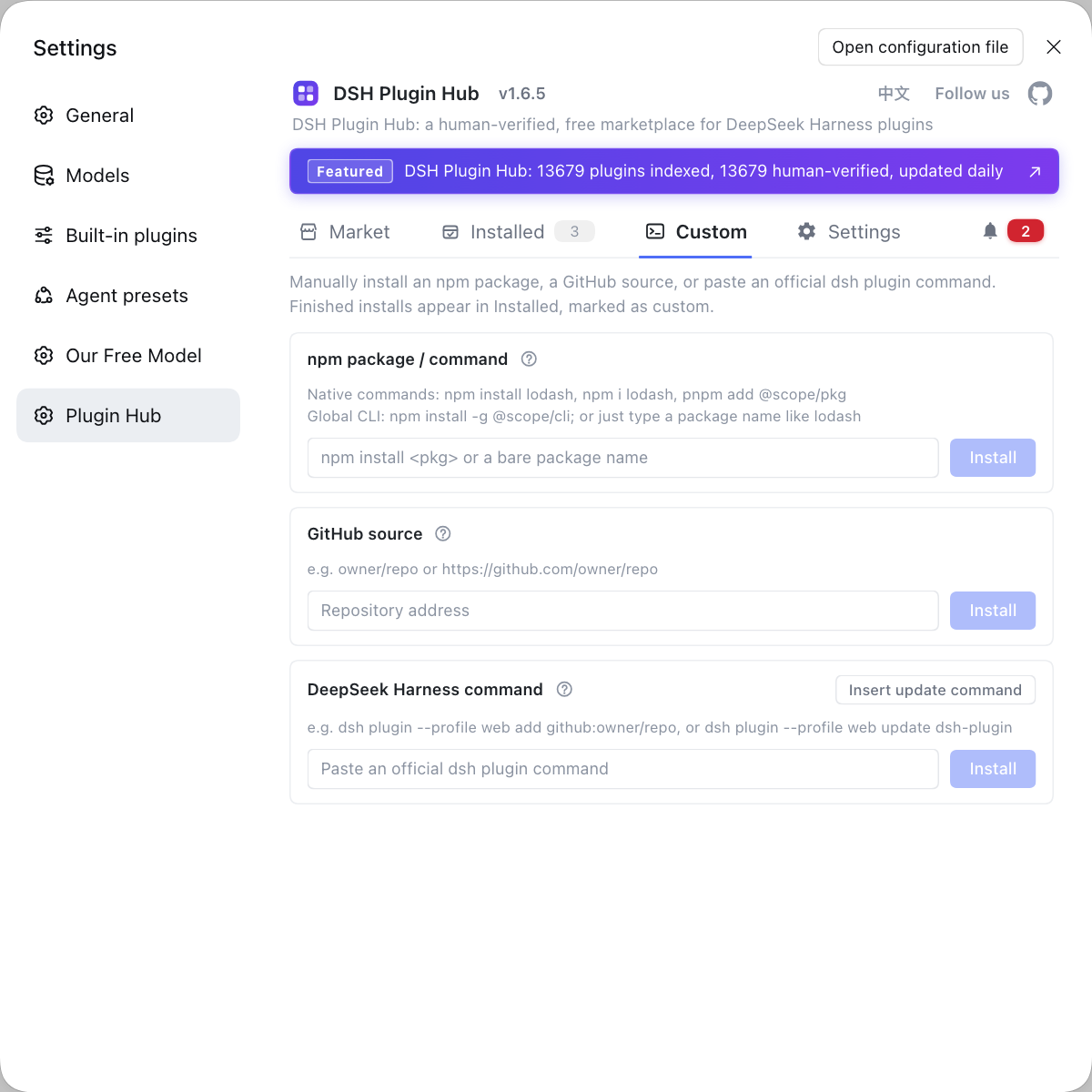
Rather than retrying rejected profile names on the command line, hand the desktop app's plugins to the DSH Plugin Hub UI: custom install supports three channels — npm packages, GitHub source and a DSH command — so the source is obvious at a glance, and once installed you verify it in the installed list instead of wrestling with the desktop exclusivity boundary.
Sources: dsh CLI README, dsh CLI behavior reference.
FAQ
In DeepSeek Harness, desktop is a reserved profile name that the Electron desktop app manages exclusively, so neither a plain CLI nor an npm-installed dsh may operate on it directly. This is not a misconfiguration but a deliberate isolation layer the desktop app builds to keep the runtime consistent; the error only means you took the wrong entrance.
The correct entry point to install a plugin in the DeepSeek Harness desktop app is the in-app plugin panel, not the command line. The desktop app takes a single-instance lock and exclusively holds profiles/desktop before touching any profile, so either install from the in-app plugin entry or initialise the profile with the desktop app's own command, fully quit the app, and only then operate.
In DeepSeek Harness the command line is not entirely forbidden from touching the desktop app's plugins, but the entry is restricted. First install the command registration via the desktop app's "Manage dsh command…", let the app start once to initialise the profile, then fully quit it, and only then may the desktop app's built-in command manage its plugins; a plain CLI and an npm-installed dsh are refused outright.
In DeepSeek Harness you can sidestep the restriction by replacing the desktop profile with a custom one. Run dsh --profile <name> --from-default-profile <template> to create your own profile and install plugins per profile, so you are not bound by the desktop exclusivity and can manage freely from the command line day to day.
In DeepSeek Harness the desktop profile should not simply be deleted and rebuilt. It belongs to the desktop app, and deleting or hand-editing it can make the app fail to start or even lose data; when you need to clean up, use the app's own path or the one the official docs give, and do not bypass this exclusivity boundary.
Related Terms
- desktop profile
- The desktop profile is the profile exclusively owned by the DeepSeek Harness desktop app, located at $DSH_HOME/profiles/desktop, carrying the desktop app's own plugins, config and runtime data, which the CLI must not start or modify.— dsh CLI README
- profile exclusivity
- Profile exclusivity means the Electron app takes a single-instance lock before accessing any profile and exclusively holds profiles/desktop, and the command line must not start or modify that profile.— dsh CLI README
- single-instance lock
- The single-instance lock is a lock the DeepSeek Harness desktop app acquires at startup to guarantee only one desktop instance operates a profile at a time and to block command-line access to profiles/desktop.— dsh CLI README
- reserved profile name
- A reserved profile name is a name in DeepSeek Harness that a specific client owns exclusively and that the CLI is not allowed to use as an ordinary profile — currently desktop.— dsh CLI README
Sources
- dsh CLI README· deepseek-ai
- dsh CLI behavior reference· deepseek-ai