Fix dsh is not installed and npm required: DeepSeek Harness
Running dsh and seeing error: dsh is not installed and npm (node.js) is required means the system cannot find a usable Node/npm runtime — error X → do W in one sentence: install Node.js LTS, verify it with node -v and npm -v, then reopen the terminal so PATH reloads (source). It sits in the same family as the command not found you may have met elsewhere, but this exact string means "the runtime is missing," not "the dsh binary was never installed" — for the general "command not found" case, see dsh command not found. To be straight about sourcing: this exact error string comes from user searches and feedback, and there is no verbatim hit in the official repository; the only part we can root in official evidence is that dsh is the sole supported Node application launcher, so a machine without a usable Node/npm runtime has nothing to start it on.
What the "dsh is not installed and npm (node.js) is required" error means
This error means the dsh launcher ran its runtime check and found neither a usable npm (node.js) runtime nor a usable dsh install, so it refuses to start (source). It names two things at once:
dsh is not installed— the launcher cannot find the dsh binary on the path it resolves, which commonly happens when only the launcher script was installed and the package never finished fetching, or when nothing was installed at all.and npm (node.js) is required— the more important layer: this machine has no usable Node/npm runtime, and because the DeepSeek Harness CLI runs on top of Node.js, without that runtimedshhas nothing to start on.
Match your symptom to the table first — it saves half the time:
| Symptom | Conclusion | Direction |
|---|---|---|
node -v prints command not found | Node runtime missing | Install Node.js LTS |
node -v works but npm -v errors | npm not on PATH, or a broken install | Reinstall / repair the Node distribution |
Both commands work, dsh still errors | The dsh binary itself is not in place | Add it with npx or a global install |
| Only one terminal or one machine errors | PATH or environment switch not applied | Reopen the terminal, check multiple versions |
Worth stressing: the error points at the "runtime," not at "network" or "plugins." It fires before dsh ever runs, so plugins, models and proxies can wait — with the environment not in place, everything downstream is moot.
Fix DeepSeek Harness dsh is not installed: install Node LTS, verify, reopen the terminal
The fix order is fixed; four steps finish it: install Node.js LTS → verify node -v / npm -v → reopen the terminal → close out with dsh --version (source).
- Install Node.js LTS — download the LTS build from nodejs.org and install it; on Windows, tick "Add to PATH" in the wizard. Expected: the installer finishes without error and the install directory contains the
nodeandnpmexecutables. - Verify the runtime — open a new terminal and run:
Expected: each prints a version —bash
node -v npm -vv20.xor newer for Node, plus the npm version. If you get command not found, PATH still lacks Node's bin directory, so do not rush to the next step. - Reopen the terminal — close the current window and open a fresh one. Expected: the new window has reloaded PATH and both commands from step 2 print normally. This is the step people skip most, yet on both Windows and macOS it is required.
- Close out by verifying dsh — run:
Expected: a version number, which means both the runtime and dsh are in place and the error is gone. If this still reports "not installed," what is missing is the dsh binary itself — add it withbash
dsh --versionnpx @deepseek-ai/dsh webornpm install -g @deepseek-ai/dsh.
One sentence to remember: this error is stuck on "Node is not installed" or "Node is installed but not on PATH" about nine times out of ten, and both are solved by "install once + reopen the terminal."
After the fix, verify PATH and the Node build in effect
Do not stop at a single passing dsh --version — multiple Node versions and PATH overrides are the most common reason this error comes back, so self-check in three steps.
- See which build is actually in effect — run
which -a node(orwhere nodeon Windows). Expected: the first path listed is the build currently in effect, and it is the LTS build you just installed. - Confirm node and npm come from the same directory — run
which nodeandwhich npm. Expected: both live in one Node install directory; if they are in two places, your environment has been polluted by mixed installs. - Regression-check — rerun
node -v,npm -vanddsh --version. Expected: all three are clean and behave identically in another terminal window, which means PATH has settled.
The multiple-Node, PATH-override and npx install-free details belong to the general "command not found" family — see dsh command not found; this page covers only the "npm (node.js) is required" branch. The boundary matters too: this error covers only the "runtime missing" branch — if Node is fine and dsh is installed but you get a silent anomaly such as "no output, exit code 0," that is a different family entirely, see dsh silent exit with code 0.
Before troubleshooting a DSH plugin environment error
Get the runtime layer clean before installing any DSH plugin, and you avoid most of the "it installed but will not run" second-round errors. Three notes:
- Measure the runtime before you look at plugins —
node -vandnpm -vare the precondition for everything; when the environment is not in place, plugin errors are usually a mirage. - Check the command-environment trio at once — read
node -v,npm -vandnpm prefix -gtogether to rule out "installed but not on PATH" in one pass; a fuller checklist of install-environment errors is in DeepSeek Harness install environment errors. - Separate whose error it is — a local environment error (missing Node) and a plugin's own error (a broken package) are two different things, so do not push an environment problem onto some DeepSeek plugin. Once the environment is ready, install plugins from the market via DSH Plugin Hub and pick by category.
Notes and limits when using DSH plugin
- PATH is terminal-level state — every new terminal window reads it fresh, so after a config change always verify in a reopened window; a one-time pass does not mean it is permanent.
- Multiple Node versions need active management — installing nvm on top of a system Node easily makes them override each other; a single version manager is the least painful.
node -vreflects only one build — a machine can hold several Node builds, anddsh --versiononly reflects the one the current PATH hits, so do not draw conclusions about all of them from one version number.- The message wording varies by version — take your installed official dsh version as authoritative; the root-cause judgment is "is the runtime usable," and it does not change with the wording.
- npx is a bypass, not a cure — running without a global install works around the PATH problem, but it still needs Node/npm, so the runtime must be installed regardless.
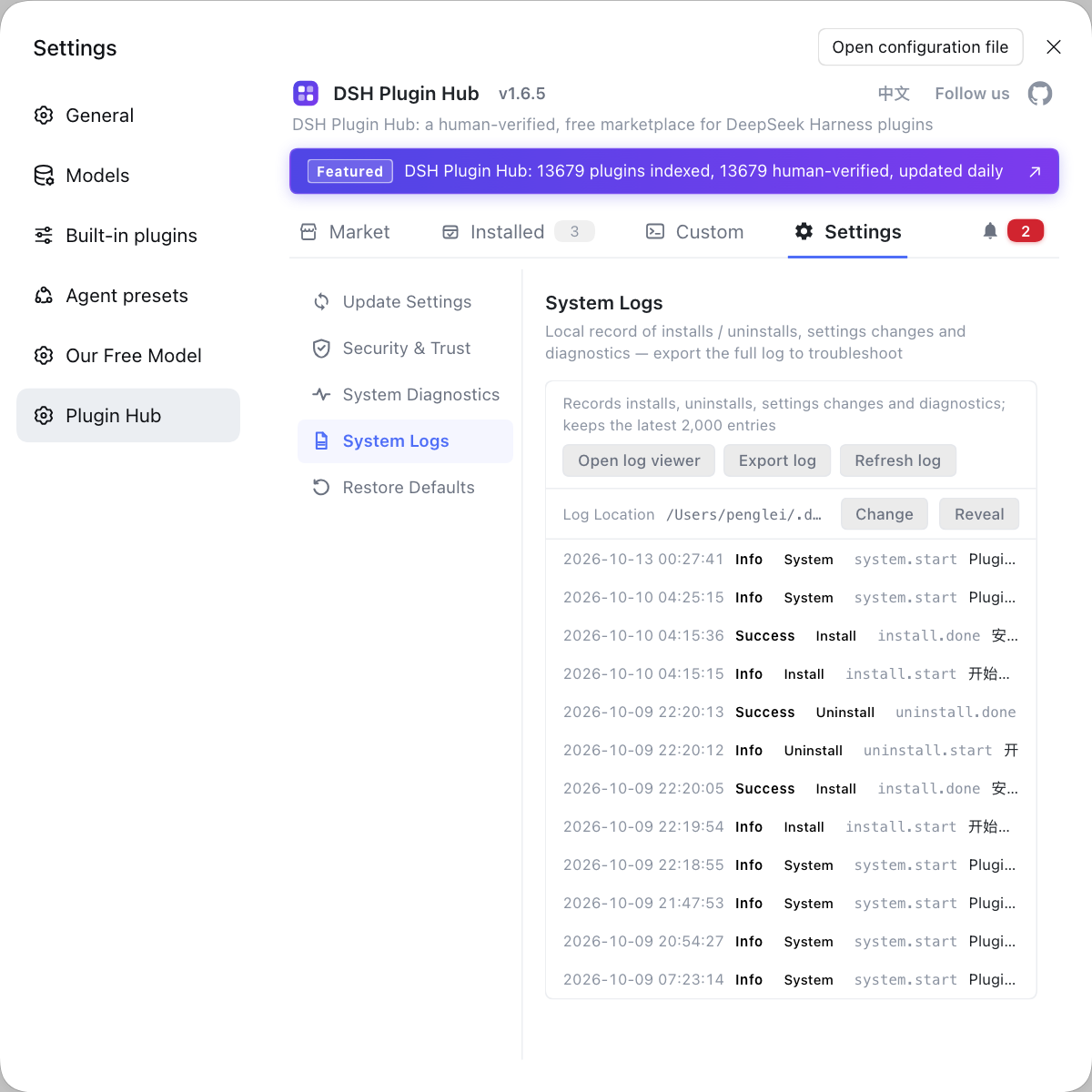
Rather than typing package names by hand in the terminal and fighting PATH over and over, once the environment is ready just install your plugins from DSH Plugin Hub: it is the official plugin market built into the DeepSeek Harness desktop app, where the market, install confirmations and system logs all live in the UI, so what got installed and how far it got is obvious at a glance instead of guessed at on the command line.
Sources: dsh CLI README, DeepSeek Harness Docs - Quickstart.
FAQ
In DeepSeek Harness this error means the machine has no usable Node/npm runtime, so the dsh launcher refuses to start. Run node -v and npm -v first: if either returns command not found, the runtime is missing or not on PATH, so install a Node.js LTS build once and reopen the terminal.
In DeepSeek Harness terms, that is almost always PATH not including Node's bin directory. Run which node (or where node on Windows) to see the path it actually resolves to, confirm it is the build you want, open a brand-new terminal window so PATH is reloaded, then rerun node -v and npm -v — the dsh error disappears with them.
DeepSeek Harness only ever uses the Node build that comes first in the current terminal's PATH. List every candidate with which -a node, then bring the LTS build to the front with nvm use <LTS version> or by reordering PATH; after reopening the terminal, confirm which node and which npm both point into the same directory.
You can try the install-free path npx @deepseek-ai/dsh web, which makes npx fetch the package temporarily and run it in a controlled environment. It skips a global dsh install, but npx itself still needs Node/npm, so the runtime layer must exist on the machine either way.
After node -v and npm -v both return cleanly, the steadiest place to install DeepSeek Harness plugins is the plugin market built into the desktop app. It shows a confirmation, progress and a result for every install, uninstall and update, so you are not fighting the command-line environment a second time.
Related Terms
- dsh
- dsh is the command-line entry point (CLI) of DeepSeek Harness, distributed as the npm package @deepseek-ai/dsh and running on top of Node.js; precisely because it depends on that runtime, it refuses to start when Node/npm is missing.— dsh CLI README
- npm (node.js)
- npm (node.js) refers to the Node.js runtime and its bundled npm package manager, the prerequisite for DeepSeek Harness to launch dsh; when the runtime is missing or not on PATH, it reports not installed.— dsh CLI README
- PATH
- PATH is the operating-system environment variable used to locate executables, and a terminal reads it only once at startup; if Node's and dsh's bin directories are not in PATH, you get command not found.— dsh CLI README
- Node.js LTS
- Node.js LTS is the long-term-support release line of Node.js, and DeepSeek Harness officially recommends running dsh on an LTS build to avoid minor-version compatibility issues in newer runtimes.— DeepSeek Harness Docs - Quickstart
Sources
- dsh CLI README· deepseek-ai
- DeepSeek Harness Docs - Quickstart· deepseek-harness