Fix DeepSeek Harness install errors: pnpm, node, Windows, macOS
DeepSeek Harness install and environment errors usually come from four root causes: a missing command environment (pnpm, node not found), a stale npm mirror (ERR_PNPM_FETCH_404), native dependencies without a toolchain (npx failure, node-pty), and platform-specific environments (Windows sandbox, macOS launchd, non-ASCII paths, exFAT). Match your error text below and follow the fix — most are resolved within three steps.
Command-line errors: pnpm missing, node not found, ERR_PNPM_FETCH_404
Command environment problems are the first obstacle when installing DeepSeek Harness: pnpm not installed, node not on PATH, or a mirror serving stale packages. Each error has a fixed remedy. These errors are from a community-run collection (source) — copy the commands directly.
'pnpm' is not recognized as an internal or external command
pnpm is not installed or not on PATH. Install pnpm globally once:
- Install pnpm globally; it is done when the command finishes without errors:
bash
npm install -g pnpm - Verify the version — it should print a pnpm version (for example
9.x.x):bashpnpm --version - If it is still not recognized, the npm global bin directory is missing from PATH. Find it with
npm prefix -g, then add it to PATH:bashnpm prefix -g- Windows: add the output directory (for example
C:\Users\you\AppData\Roaming\npm) to System Environment Variables → Path; - macOS / Linux: run
echo 'export PATH="$(npm prefix -g)/bin:$PATH"' >> ~/.zshrc(zsh) or append it to~/.bashrc(bash).
- Windows: add the output directory (for example
- Reopen the terminal and run
pnpm --versionagain; a version output means it is fixed.
node: command not found
node is not installed, or its executable is not on PATH. Check whether node exists first:
- Run
node --version; a command-not-found error means node is not installed — download and install the LTS release from nodejs.org, ticking "Add to PATH" in the installer; - Reopen the terminal and run
node --version— it should printv20.xor newer; - If node is installed but the command is still missing, locate it with
which nodeand add that directory to PATH (see step 3 of the previous section), then reopen the terminal; - Finally run
dsh --version; a version output means the environment is ready.
ERR_PNPM_FETCH_404: the npm mirror lags behind
ERR_PNPM_FETCH_404 means the package lookup against your current npm source returned 404 — usually a stale mirror that has not synced the newest release yet. Point the install at the official registry once (source):
- Install a plugin with the official registry explicitly — the install should enter the normal dependency-download flow instead of returning 404 immediately:
bash
dsh plugin add <package-name> --registry=https://registry.npmjs.org - Or set the registry for this install via an environment variable (same effect):
bash
npm_config_registry=https://registry.npmjs.org dsh plugin add <package-name> - If it still 404s, confirm the package name is spelled correctly and the package actually exists on npm — search for it on npmjs.com;
- Mirrors usually catch up within a few hours; you can switch back afterwards.
npx @deepseek-ai/dsh install failure: node-pty and the Linux toolchain
A failed npx @deepseek-ai/dsh install usually gets stuck on node-pty — a native module that backs the built-in terminal. Linux has no prebuilt binary, so it is compiled on your machine from the local toolchain. node-pty is a native dependency the official repository explicitly allows to build (source), which is why the install is sensitive to the system environment:
- Confirm Node is an LTS release: run
node --version—v20.xor newer is recommended; - Install the compile toolchain on Linux; it is ready when the install finishes without errors:
bash
sudo apt install build-essential python3 - Retry, pointing at the official registry if needed — this time the install should enter the normal dependency-download flow instead of stalling on node-pty compilation:
bash
npx @deepseek-ai/dsh --registry=https://registry.npmjs.org - If it still fails, install globally to avoid npx pulling packages on every run:
bash
npm install -g @deepseek-ai/dsh - Verify: run
dsh --version— a version output means the install succeeded.
Windows and macOS platform errors
Platform-specific issues concentrate around the Windows sandbox and native modules, and macOS service startup environments (source, community-run collection).
SEC_E_NO_CREDENTIALS: the Windows sandbox broke Schannel
SEC_E_NO_CREDENTIALS means the Windows sandbox broke Schannel (the system HTTPS stack), so HTTPS connections fail. Reported by users running dsh in practice:
- Open dsh's run-preset configuration (
dsh --dump-configshows the current preset) and switch the preset from the restricted sandbox back to full access; - Save, restart dsh (
Ctrl+Cto stop, then start again), and retry the HTTPS request that failed; - If it still fails, run the task in a node / python runtime that bypasses the sandbox credential restriction;
- After any of the above, retry the HTTPS request — no more SEC_E_NO_CREDENTIALS means it is fixed.
ERR_DLOPEN_FAILED: the sharp native module on Windows
ERR_DLOPEN_FAILED typically appears when loading sharp (the image-processing native module) on Windows — a dynamic library failed to load. Reported by users running dsh in practice:
- Make sure the Visual C++ Redistributable is installed (sharp depends on the VC runtime) — download the latest release from Microsoft and install it, then restart the terminal;
- Uninstall and reinstall the related plugin in Settings → Plugin Market so pnpm fetches the prebuilt binary for your platform;
- Check the Node version (sharp is sensitive to it) and switch back to LTS;
- Restart dsh web when everything is done — no more ERR_DLOPEN_FAILED on loading sharp means it is fixed.
Windows paths with Chinese characters get truncated
Paths containing Chinese (or other characters whose low byte is 0x00) can be truncated on Windows — the reader treats the low byte as a NUL string terminator. Reported by users running dsh in practice:
- Find the dsh-related directories that contain Chinese (or other non-ASCII) characters: run
echo %USERPROFILE%to see the user directory anddsh --dump-configto see the data-directory location; - Move the directories to pure ASCII paths (for example
C:\dsh,C:\Users\dsh\data) — copy the directory, then update the old path in environment variables and config files; - Run
dsh --versionagain to confirm it starts normally without path-truncation errors; - Use pure ASCII characters for new user names and project paths from now on to avoid triggering it again.
macOS launchd reports 'env: node' in a crash loop
When macOS runs dsh through launchd and the plist does not set PATH fully, the launch script cannot find node, printing env: node and restarting in a crash loop. Fix:
- Set the full PATH (including the node directory) in the plist
EnvironmentVariables:xml<key>EnvironmentVariables</key> <dict> <key>PATH</key> <string>/usr/local/bin:/opt/homebrew/bin:/usr/bin:/bin</string> </dict> - Add
ThrottleInterval(for example 30) so a crash loop does not restart too fast; - Reload the config:
bash
launchctl unload /path/to/your.plist launchctl load /path/to/your.plist - Watch the service with
launchctl list | grep <service-name>— it should stop restarting repeatedly and the logs should stop printingenv: node.
Port usage, disk format, and download optimizations
A stale process on the port, pnpm install failures on exFAT, and slow bulky downloads — these three are environment problems, not code problems. All from the community-run collection (source).
Port 3080 occupied: the page loads but talks to a stale instance
dsh web listens on 3080 by default. When an old process holds the port, the new instance may fail to start and the browser keeps talking to the old one — "config changes do not take effect" is usually this case. Fix:
- Find the process holding the port:
lsof -i :3080on macOS/Linux,netstat -ano | findstr :3080on Windows — note the PID; - Stop the old process —
kill -9 <PID>on macOS/Linux,taskkill /PID <PID> /Fon Windows; or simply switch ports:bashdsh web --port 8080 - After restarting dsh web, visit
http://localhost:3080and confirm the page shows the new instance (config changes take effect immediately), not the stale page; - See the full debugging flow in the 127.0.0.1:3080 connection refused article.
pnpm install fails on an exFAT volume
Filesystems such as exFAT do not support certain inode features, so the official install scripts (lefthook hooks) fail their inode check. Reported by users running dsh in practice:
- Confirm the filesystem of the volume holding the dsh directory:
diskutil info / | grep "File System"on macOS, or right-click the drive in File Explorer → Properties on Windows; - If it really is exFAT / FAT32, copy the dsh directory to a native filesystem (APFS on macOS, NTFS on Windows) and update the paths in environment variables;
- Re-run the install (
pnpm installornpm install) in the new location — no more inode-check failure means it is fixed; - If you are sure the hooks are unnecessary, you can temporarily skip scripts — note that this also skips packages' build scripts, so only use it for pure-JS packages.
Slow downloads and a large package: upgrade to rc.8
Early versions shipped larger dependency graphs, making installs slow; the official v0.1.0-rc.8 release improved download size so installs are faster (source). If you are on an old version, update first:
- Check the current version: run
dsh --versionand note the output; - Update to the latest — global install:
or a one-off npx run:bash
npm update -g @deepseek-ai/dshbashnpx @deepseek-ai/dsh@latest web - Run
dsh --versionagain to confirm you are on rc.8 or newer; download size and install time drop accordingly.
Notes
- Self-check the command environment first:
node --version,pnpm --version,npm prefix -g. - For
ERR_PNPM_FETCH_404, suspect a stale mirror first and try the official registry once. - Prepare the compile toolchain (build-essential + python3) before installing on Linux so node-pty does not stall the install.
- Match platform-specific errors to their fixes; do not edit config files blindly.
- A more convenient way to install plugins is the plugin market in Settings — the community channel DSH Plugin Hub — with graphical installs and traceable sources, rather than wrestling with the command environment first.
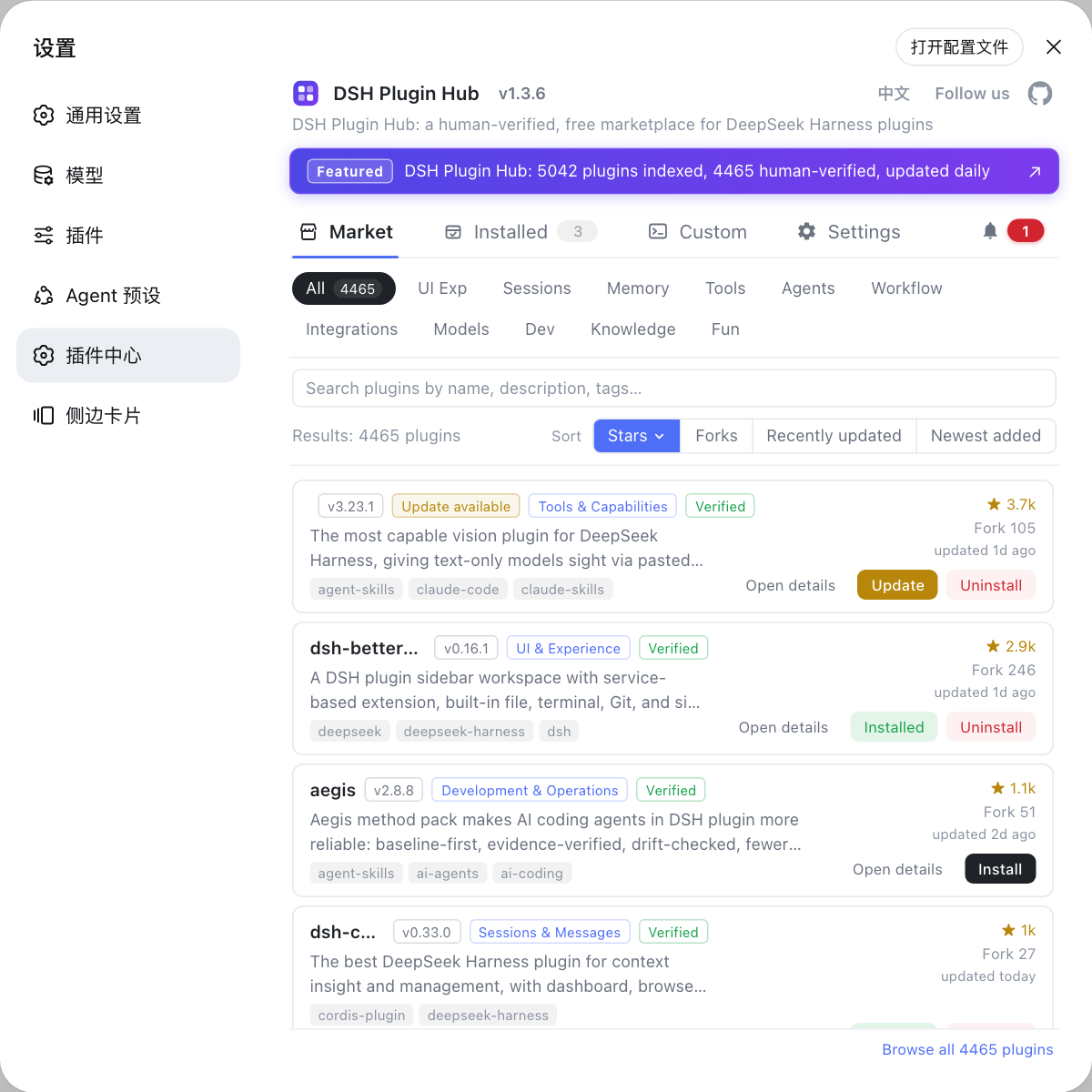
Source: dshbase troubleshooting, DeepSeek Harness pnpm-workspace.yaml, v0.1.0-rc.8 Release Notes
FAQ
pnpm is not installed or not on PATH. Run npm install -g pnpm, then pnpm --version; if it is still missing, get the npm global bin directory with npm prefix -g and add it to PATH, then reopen the terminal.
The failure usually comes from node-pty, a native dependency. Confirm Node is an LTS version, install the build toolchain on Linux (build-essential and python3), then retry npx @deepseek-ai/dsh --registry=https://registry.npmjs.org. If it still fails, install globally with npm install -g @deepseek-ai/dsh.
ERR_PNPM_FETCH_404 means the current npm mirror cannot find the package, usually because the mirror lags behind. Install with the official registry once: dsh plugin add <pkg> --registry=https://registry.npmjs.org. The mirror catches up after a few hours.
It means the Windows sandbox broke Schannel (the system HTTPS stack), so HTTPS requests fail. Switch the run preset back to full access, or use a node/python runtime that bypasses the sandbox credential restriction.
An old process on 3080 means the browser may still talk to a stale instance. Find and stop the process with lsof -i :3080 (macOS/Linux) or netstat -ano | findstr :3080 (Windows), or switch ports with dsh web --port 8080. See the full guide on the 127.0.0.1:3080 troubleshooting article.