DeepSeek Harness desktop config: profiles/desktop isolation
The DeepSeek Harness desktop app owns $DSH_HOME/profiles/desktop, with its own plugins, config and the lock file profiles/desktop/lock, invisible to the CLI and web profiles. This guide covers where desktop data lives, why plugins do not sync and how the lock and single-instance behavior work.
Where DeepSeek Harness desktop config lives: the profiles/desktop directory
The DeepSeek Harness desktop app uses its own $DSH_HOME/profiles/desktop for its plugins, cordis.patch.yml and runtime data, separate from the CLI and web profiles (source). In four steps:
- Locate the directory — desktop data is under
$DSH_HOME/profiles/desktop. Expected: when$DSH_HOMEis unset, it is~/.dsh. - Know the profile contents — like any profile it holds
package.json,cordis.patch.ymland plugin dependencies. Expected: desktop-specific config goes into the patch in this directory. - Tell the other two apart — the CLI and web each have their own profile directory. Expected: the three sets of data never overwrite each other.
- Back up the whole directory — copy the entire directory when migrating. Expected: plugins and config travel together.
Why desktop and CLI plugins do not sync in DeepSeek Harness: profile isolation
DeepSeek Harness profiles are invisible to each other by default: the desktop app uses profiles/desktop while the CLI and web each use their own, so a DSH plugin installed for desktop never appears in the CLI plugin list (source). Understand it like this:
- Plugins install per profile — dependencies go into each profile's
node_modules. Expected: what profile A installs has no effect in profile B. - Config applies per profile — permissions, models and plugin config follow the profile. Expected: a model changed in desktop does not change the CLI.
- Names cannot be mixed —
desktopis reserved, so the CLI cannot boot or dump with it as an ordinary profile. Expected: the attempt is rejected, preventing accidental writes to desktop data. - Configure each one for consistency — to make desktop and CLI behave alike you must configure both. Expected: there is no automatic sync.
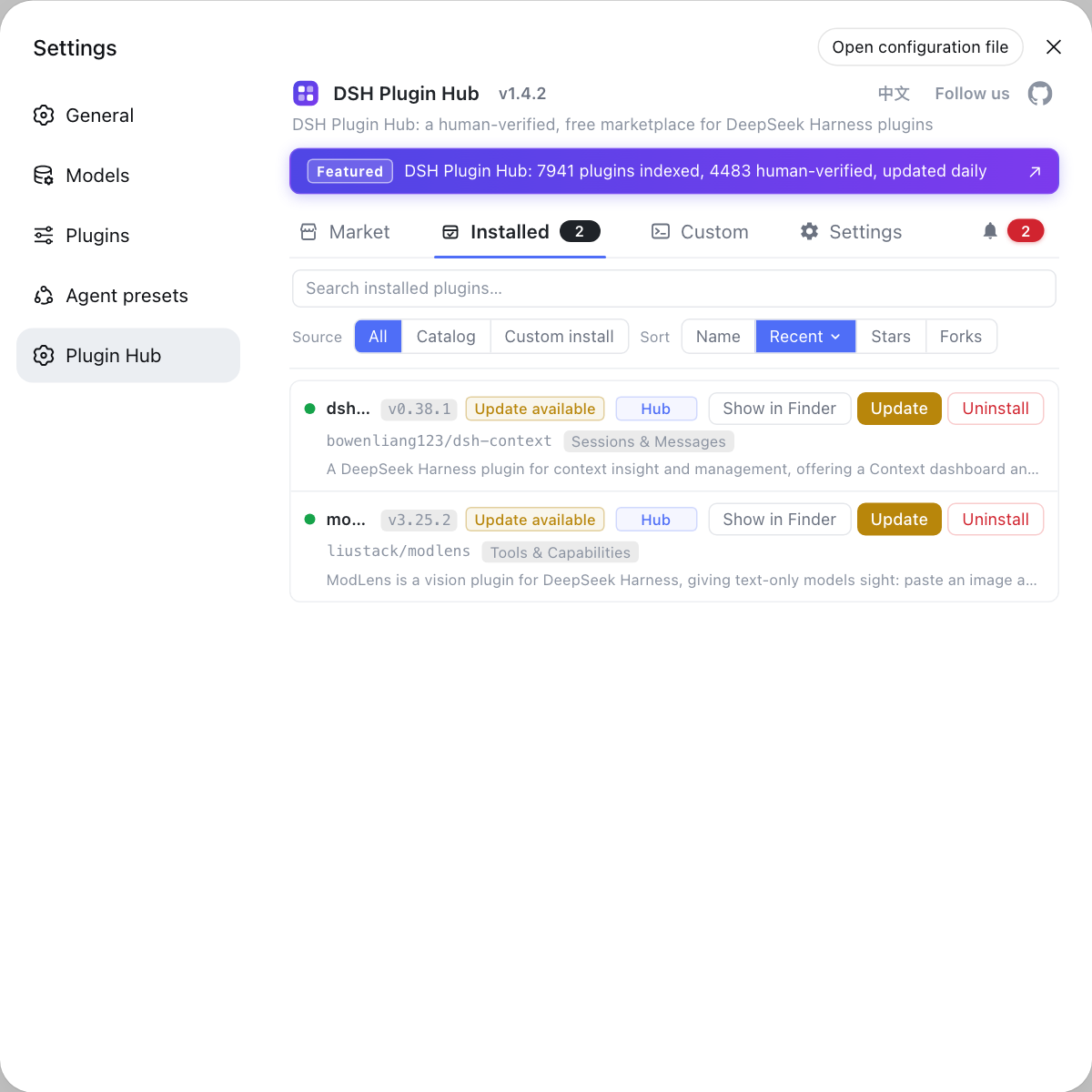
To extend the desktop app, find the DSH plugins you need in the DSH Plugin Hub and install them there.
The DeepSeek Harness desktop lock file and single-instance behavior
profiles/desktop/lock is the lock file the desktop app uses to enforce a single instance, preventing several desktop processes from writing the same profile data at once; it is normally managed by the program and manual deletion is not advised (source). How to read it:
- A normal start holds the lock — the lock file exists while the desktop app runs. Expected: this is the normal state.
- Duplicate starts are blocked — when an instance already exists, another does not write data in parallel. Expected: the existing window is focused or a message says it is already running.
- A crash can leave a stale lock — a force-killed process may leave the lock file behind. Expected: confirm no desktop process is running, then follow the official guidance instead of deleting blindly.
- Do not run multiple instances — bypassing the lock and opening two instances writes the same data concurrently. Expected: config files can be corrupted.
Caveats and limits of DeepSeek Harness desktop configuration
- Data is separate: desktop, CLI and web profiles are invisible to each other, and a change in one does not sync to another.
desktopis reserved: the CLI refuses to boot and dump with it, so give custom profiles another name.- Do not delete the lock manually: first confirm no instance is running, then follow the official way to handle a stale lock.
- Back up before upgrading: copy the whole
$DSH_HOME/profiles/desktopdirectory so you can roll back. - Debugging desktop is separate: for ports and DevTools see How to debug the DeepSeek Harness desktop app; for desktop commands see DeepSeek Harness desktop commands.
Sources: Desktop README (official repository)
FAQ
The DeepSeek Harness desktop app owns $DSH_HOME/profiles/desktop, where its plugins, cordis.patch.yml and runtime data live separately from the other profiles used by the CLI and the web app.
No. DeepSeek Harness profiles are invisible to each other by default: the desktop app uses profiles/desktop while the CLI and web each use their own, so a plugin installed for the desktop never appears in the CLI plugin list.
desktop is a reserved DeepSeek Harness profile name owned by the desktop app. The CLI refuses to boot or dump config with desktop, preventing a command-line mistake from touching the desktop app's data directory.
profiles/desktop/lock is the lock file the desktop app uses to enforce a single instance. It is normally managed by the program, and deleting it manually can let multiple instances write the same profile data concurrently, so manual changes are not advised.
Related Terms
- profiles/desktop
- profiles/desktop is the profile directory owned exclusively by the DeepSeek Harness desktop app, under $DSH_HOME/profiles, carrying the desktop app's own plugins, config and runtime data, isolated from the CLI and web profiles.— DeepSeek Harness desktop README
- lock file
- The lock file (profiles/desktop/lock) is the lock the DeepSeek Harness desktop app uses to guarantee a single running instance, preventing several desktop processes from writing the same profile data at once.— DeepSeek Harness desktop README
- profile isolation
- Profile isolation is the default behavior of DeepSeek Harness: different profiles own independent package.json, plugin dependencies and patch layers, and config and plugins are not shared across profiles by default.— dsh CLI README
- reserved profile name
- A reserved profile name is a name in DeepSeek Harness owned by a specific client and not allowed for CLI use as an ordinary profile, currently desktop.— dsh CLI README
Sources
- DeepSeek Harness desktop README· deepseek-ai