dsh ssh: remote DeepSeek Harness over SSH and DSH plugins
Strictly speaking, dsh has no dsh ssh subcommand — what people call "dsh ssh" is connecting over SSH from your machine to a server running dsh web; because dsh web binds only 127.0.0.1:3080, the right move is an SSH tunnel, not opening the port to the internet.
DeepSeek Harness remote access overview
This guide focuses on two things: why run dsh remotely and the security premises for remote access, while how to build the SSH tunnel is kept to the essentials with a pointer to the deployment guide. Clear up the most common misunderstanding first: there is no dsh ssh command — SSH is a transport-layer action, and dsh only runs the service on the server. This is a different slice of the same "remote deployment" question: deployment covers getting the service running on a server, while this piece explains why you'd run it remotely and why you must not loosen the bind casually; for the full deployment steps, see How to deploy DeepSeek Harness to a remote server.
Why run dsh remotely: compute on the server, your machine as a terminal
Running dsh on a server and treating your machine as a browser terminal is driven mainly by a few motives: compute and environment live on the server, workspace data stays inside the intranet, unattended always-on operation is needed, and every device sees the same environment. Take them one by one:
- Compute and environment on the server — big repos, build toolchains and local models are on the server, so your machine only needs a thin client. Expected: the heavy work stays remote and your machine isn't slowed down.
- Data never leaves the intranet — workspace files stay on the server and your machine only sees results through the tunnel. Expected: sensitive files don't have to be copied locally.
- Unattended always-on operation — with a terminal multiplexer or a system service, the service stays online. Expected: it's there whenever you connect, without starting it by hand each time.
- Every device sees one environment — one set of profiles and DSH plugins on the server is shared by desktop, laptop and phone. Expected: you don't reconfigure each device, and a long task survives a device switch.
- No GUI is not a problem — the server and the browser are separate anyway, and a pure server environment just prints the address. Expected: it won't hunt for a browser even without
--no-open, and adding it is cleaner still.
In other words, the value of remote access isn't "clicking the UI somewhere else" but keeping the stateful, permissioned part on a controlled machine. Where it doesn't fit: if the workspace already lives on your laptop and the model runs in the cloud anyway, running locally is simpler and there is nothing to tunnel; running remotely pays off when the heavy part — compute, data, or an always-on session — genuinely belongs on the server.
How to connect over dsh ssh: the SSH tunnel and LAN essentials
There is exactly one supported way to connect: SSH local port forwarding — ssh -L 3080:127.0.0.1:3080 <user>@<server>, mapping the server's loopback 3080 to your machine, then opening the ?token= address the server terminal printed in your local browser (source). Because dsh web binds 127.0.0.1 by default and does not support --host 0.0.0.0, direct same-subnet access is not a supported path either — LAN devices need the tunnel too. One design detail is easy to miss: when SSH_CONNECTION or SSH_TTY exists in the launch environment, dsh web suppresses the automatic browser open and only prints the host URL, since the local forward address is held by the SSH client or editor and the server can't know it. The full steps — starting the service on the server, pinning LocalForward in ~/.ssh/config, and keeping the process resident with tmux — are spelled out in How to deploy DeepSeek Harness to a remote server, so they aren't repeated here. Once you're connected remotely and want to add plugins, just browse categories in the DSH Plugin Hub market in the interface, without typing commands back and forth across the tunnel; for connecting other devices like phones and the trade-offs involved, see How to use DeepSeek Harness on mobile.
Two practical notes when you actually run it: if local 3080 is already taken by something else, forward to a different local port — for example ssh -L 8080:127.0.0.1:3080 <user>@<server> — and browse http://127.0.0.1:8080 instead; the remote side still serves only loopback, so nothing on the server changes. And keep the SSH session open for as long as you need the UI, because the forward disappears the moment the session closes, which looks exactly like the service being down even though it isn't.
Security premises for remote dsh access: never bind 0.0.0.0, never share the token
Two hard premises: don't bind the service to 0.0.0.0, and don't pass the tokenized address around (source). Why so strict? Because the Web app can execute commands and read or write local files with the Host user's privileges, so anonymous reachability amounts to handing over the machine. Check in order:
- Never expose it with
--host 0.0.0.0— it carries local file and command-execution power, so the vendor deliberately refuses this usage. Expected: the service always listens on loopback only and is unreachable from outside. - To restrict source hosts, use
--trusted-host— add trusted host names to the/apitrust fence rather than pushing the service onto the whole network. Expected: only the listed host names are trusted. - The token is one-shot, don't share it — the startup token prints once and changes on restart. Expected: the
?token=address is never pasted into a chat or a screenshot. - Tear the tunnel down when done — disconnect SSH or rebuild it when not in use. Expected: the local mapped port goes dead and access closes with it.
- Use the no-UI mode for batch jobs — to just run a task, use
dsh --profile headless "job". Expected: no Web entry is exposed at all. - Don't force it onto the internet behind a reverse proxy — the vendor provides no TLS, forwarded-header handling or proxy configuration for remote deployment, so pushing 3080 to the internet on your own is already outside the supported range. Expected: weigh the risk on any public-facing need instead of assuming it is a supported deployment.
- Keep the token out of history — a
?token=address lingers in browser history and shell history. Expected: exchange it for a session cookie right away and never paste it into an issue, a chat or a screenshot.
None of this is about distrusting SSH — it is about not widening the surface that the tunnel was built to keep narrow.
In one line: authentication solves "who can use it on the local machine", not "can it be opened to the internet"; the two don't substitute for each other. For where other run modes fit, see How to choose a dsh run mode.
Notes and limits for remote DSH plugin access
- There is no
dsh sshsubcommand — don't go looking for it in the docs; SSH is an action you take at the system layer, anddshonly runs the service. - The bind address can't be changed —
127.0.0.1and the refusal of--host 0.0.0.0are vendor decisions, and any workaround falls outside the supported range. - The token changes every start — each remote access means grabbing the tokenized address from the server terminal again; it can't be bookmarked in advance.
- A broken tunnel loses access — when the SSH session ends the forward dies, and an interface that won't open doesn't mean the service crashed.
- The data directory must be clearly owned — the user you run
dshas owns that user's$DSH_HOME, so running as another user means another set of config and DSH plugins. - Always-on hosting is your job — the vendor offers no service-ification, so for long-running use host it yourself with a terminal multiplexer or a system service.
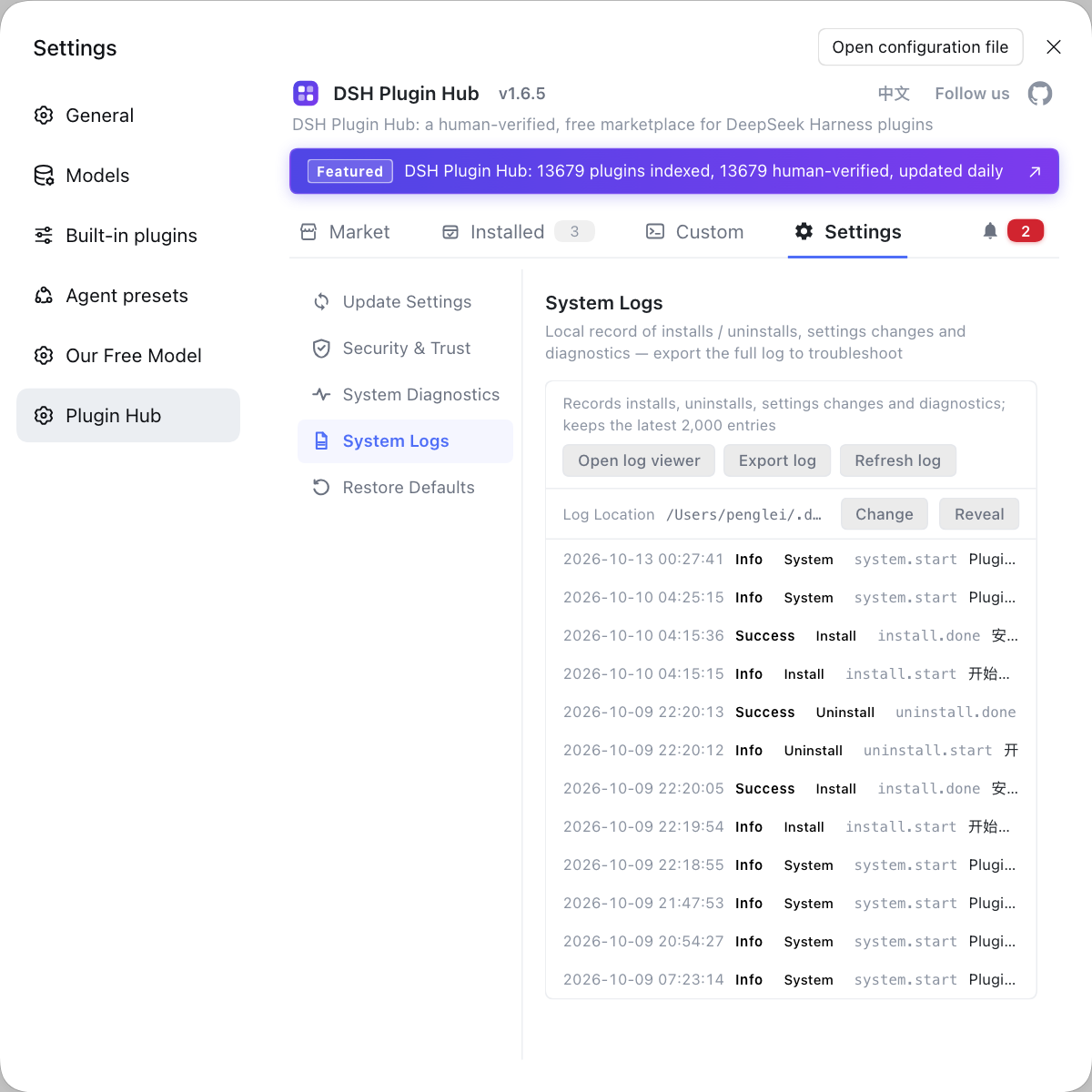
Rather than SSH-ing in to hand-type dsh plugin add for every DeepSeek plugin and digging through server logs when it breaks, use DSH Plugin Hub on the server side, where every install, update and uninstall is written to the system log.
Source: dsh CLI README, dsh CLI behavior reference, DeepSeek Harness README (official repo)
FAQ
dsh ssh is not a dsh subcommand but shorthand for the manual approach: run dsh web on the server, then on your machine run ssh -L 3080:127.0.0.1:3080 <user>@<server> to set up local port forwarding, and open the tokenized address in a browser. The core is the SSH tunnel, not some dsh flag.
Because dsh web binds only 127.0.0.1:3080 by default, an address only the server itself can reach, so other LAN machines and the public internet can't connect. The correct fix is not to change the binding but to build an SSH local port forward, mapping the server's loopback 3080 to your machine, then browse locally.
The startup token is a credential randomly generated at each process start and printed once; opening its URL exchanges it for a session cookie and redirects to a clean root path. It is not persisted and changes after a restart, so each remote access means grabbing the ?token= address from the server terminal again, and you should never bookmark it or pass it to others.
No. The CLI deliberately does not support --host 0.0.0.0 and exits with a usage error if you pass it, a design decision by the vendor to avoid implying network deployment support without TLS and a proxy agreement. To reach it from a LAN, use an SSH tunnel too; to restrict source hosts, add trusted host names with the repeatable --trusted-host.
No GUI changes nothing at runtime; it only prints the access address and never tries to open a browser. But a dropped SSH connection can end a foreground process, so for always-on operation host it with tmux or a system service and be clear about which user owns the $DSH_HOME data directory; otherwise the process is long gone on your next login and the tunnel is wasted.
Related Terms
- SSH local port forwarding
- SSH local port forwarding uses ssh -L to map a local port to a remote server's loopback address, so your local browser believes it is hitting a local port while traffic travels through an encrypted tunnel to the server.— DeepSeek Harness README (official repo)
- --trusted-host
- --trusted-host is a repeatable dsh web argument that adds trusted host names to the /api browser trust fence; it restricts source hosts rather than exposing the service to the network.— dsh CLI behavior reference
- startup token
- The startup token is a credential DeepSeek Harness generates randomly at each process start and prints once; visiting the tokenized root URL exchanges it for a host-only session cookie, after which you browse normally.— dsh CLI behavior reference
- headless profile
- The headless profile is the built-in no-UI run mode of DeepSeek Harness, running one fresh session with dsh --profile headless "job" and printing the result while exposing no Web entry at all.— dsh CLI README
Sources
- dsh CLI README· deepseek-ai
- dsh CLI behavior reference· deepseek-ai
- DeepSeek Harness README (official repo)· deepseek-ai