Use DeepSeek Harness on mobile: DSH plugin remote access
There are two routes to DeepSeek Harness on mobile: browse the deployed Web UI from your phone's browser, or install a mobile DSH plugin for dedicated interface and connection adaptation (source). This guide covers how the two differ, how to set the bind address and auth, and how to handle connect failures, auth failures, and safe exposure.
How far mobile goes: DeepSeek Harness browser access vs a mobile DSH plugin
The core of the mobile story is "remote access", not "a mobile client": the DeepSeek Harness interface is already a Web UI, so a phone browser opens the same interface. Its Web UI is assembled on the browser side by front-end client modules (source), so accessing it from another device keeps roughly the same feature set. The two paths differ as follows:
- Browser remote access — the phone browser connects to the
dsh webservice on your computer. Expected: nothing to install, features match the desktop, but the layout is a desktop design shrunk to a small screen. - A mobile plugin — install a DSH plugin optimized for small-screen interaction or connection style. Expected: smoother operation, possibly with notifications and direct LAN connection.
In one sentence: choose browser access to make it work, and look at a mobile plugin to make it pleasant.
Configure DeepSeek Harness mobile access: remote access and auth
Configuring mobile access comes down to two points: make the dsh web service reachable from the phone, and enable authentication. By default it listens only on localhost 127.0.0.1, so the phone cannot connect; but the official CLI does not support binding dsh web to 0.0.0.0 (--host 0.0.0.0 exits with a usage error), so the right move is an SSH tunnel or a reverse proxy plus auth, rather than opening the machine up. Steps:
- Start the web service — run
dsh webon your computer. Expected:http://127.0.0.1:3080opens locally. - Confirm it works locally — verify the interface in the computer's browser first. Expected: you rule out problems with the service itself.
- Choose a remote access method — the official CLI does not support binding
0.0.0.0, so share it through an SSH tunnel or a reverse proxy; the full steps are in How to deploy DeepSeek Harness to a remote server. Expected: the phone reaches the service through the tunnel or proxy, not by changing the bind address. - Configure authentication — set up auth as required when exposing beyond localhost; a prompt such as
web authentication requiredmeans auth must be configured first. Expected: anonymous requests are refused. - Verify from the phone — connect the phone to the same network and open
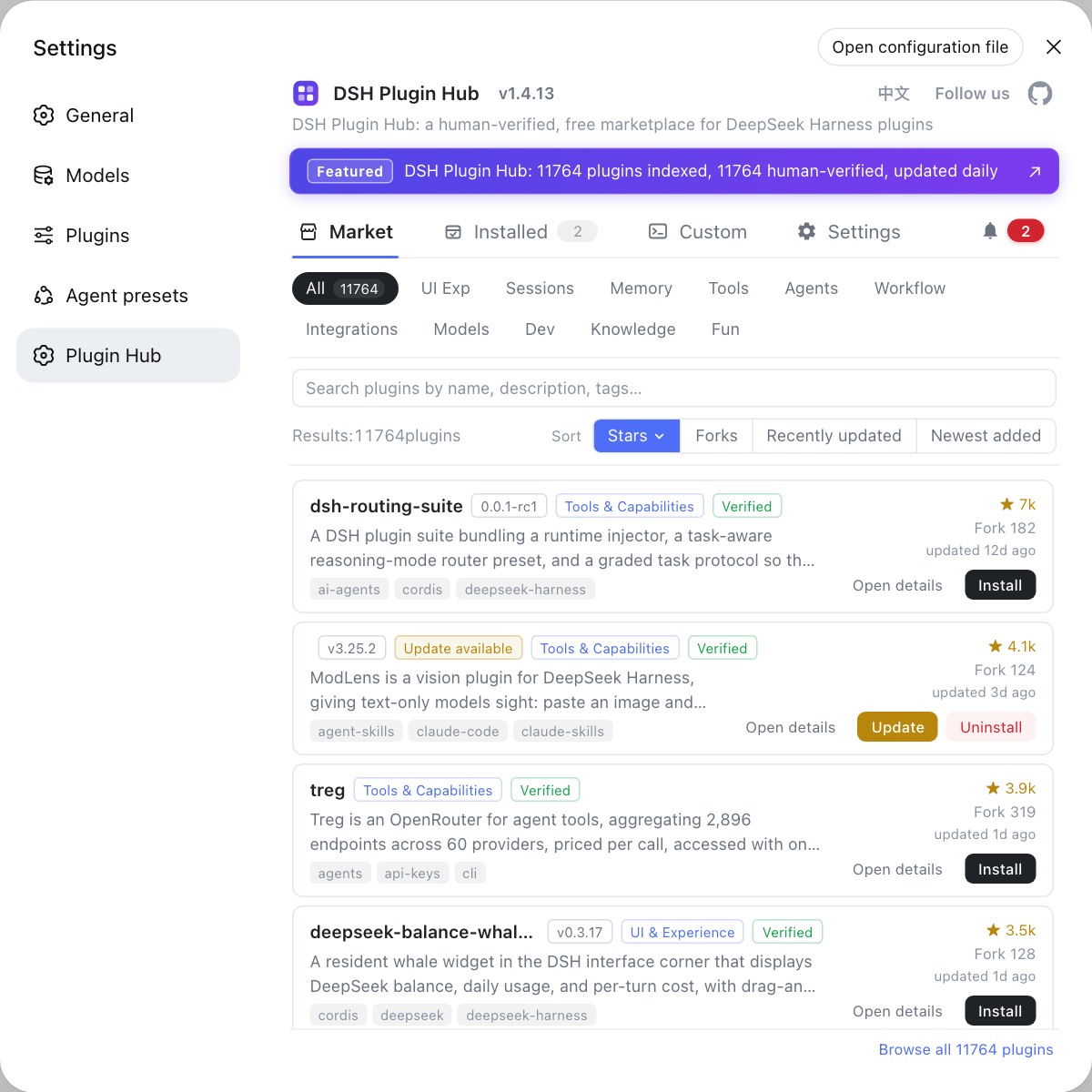
http://<computer-ip>:<port>. Expected: you can log in and see the Web UI. - (Optional) install a mobile plugin — pick one from the mobile / remote category on DSH Plugin Hub. Expected: small-screen experience or connection style improves.
DeepSeek Harness mobile connect and auth failures
When the phone cannot connect, check three layers in order: how the service is reached → network reachability → auth configuration, which saves the most time. The typical symptoms and handling for each layer:
- The service is localhost-only — the service is bound to
127.0.0.1only, so external devices can never connect. Expected: bring the service to the phone through an SSH tunnel or a reverse proxy (the official CLI does not support rebinding to0.0.0.0). - Network unreachable — the phone and computer are not on the same subnet, or the system firewall blocks the port. Expected: confirm the same LAN and allow the port, then it connects.
- Auth not passed — a
web authentication requiredprompt or a rejected login. Expected: configuring credentials lets you in normally. - Wrong address entered — using
localhostinstead of the computer's actual IP. Expected: switching to the computer's LAN IP plus port works.
DSH plugin mobile access safety notes
- Public exposure is high risk: it carries local file and command-execution ability, so prefer an intranet or a tunnel over the public internet.
- Auth and encryption are mandatory: for public access, enforce authentication plus HTTPS and restrict source IPs.
- Reclaim when done: after temporary remote access, drop the SSH tunnel or shut the reverse-proxy entry.
- Vet plugin sources: mobile / remote plugins hold broad permissions, so check compatibility status and maintenance activity before installing.
- Do not reuse weak passwords: keep the auth credential separate from other services to avoid a single leak taking everything down.
- Local first, remote second: verify locally before opening remote access, so problems are easier to locate.
Sources: DeepSeek Harness docs - quickstart, docs - client modules subsystem, dsh-web-mobile (DSH Plugin Hub).
FAQ
There are two routes to DeepSeek Harness on mobile: browse the deployed Web UI from your phone's browser, or install a mobile DSH plugin for dedicated interface adaptation. The first needs nothing installed as long as the server is reachable from the phone, and its features match the desktop Web UI; the second is a plugin-level change optimized for small-screen interaction, notifications, or direct LAN connection. Take the browser route for convenience, and consider a mobile plugin only when you want a more tailored phone experience.
The key to configuring mobile access is two things: make the dsh web service reachable from the phone, and enable authentication. By default it listens only on 127.0.0.1, so the phone naturally cannot connect; but the official CLI does not support binding dsh web to 0.0.0.0 (passing --host 0.0.0.0 exits with a usage error), so remote sharing should go through an SSH tunnel or a reverse proxy, then configure auth as required.
When the phone cannot connect, check three layers: how the service is reached, network reachability, and auth configuration. First confirm the service actually reaches the phone through an SSH tunnel or a reverse proxy (the official CLI does not support binding dsh web to 0.0.0.0, so changing the bind is not the fix); then confirm the phone and computer are on the same LAN and the system firewall is not blocking the port; a prompt such as web authentication required means that binding needs auth configured before access. Confirming the three layers in turn beats fiddling with ports.
Exposing DeepSeek Harness directly to the internet is high risk — at minimum add auth, encryption, and access control, and prefer an intranet or tunnel over a public endpoint. It carries your machine's files and command-execution ability, so anonymous access is equivalent to handing over the machine. Prefer LAN or VPN/tunnel access; if the public internet is unavoidable, enforce authentication and HTTPS and restrict source IPs.
For an easier path, look in the remote / mobile category on DSH Plugin Hub for ready-made implementations that package binding, auth, and interface adaptation together. Entries such as dsh-web-mobile lean toward small-screen access optimization, and some plugins specialize in direct LAN connection or remote tunneling. Before installing, check compatibility status and maintenance activity, and be more careful the wider the permissions.
Related Terms
- dsh web
- The command that starts DeepSeek Harness in its Web UI form, listening on 127.0.0.1 by default. External devices such as phones should reach it through an SSH tunnel or a reverse proxy with auth configured; the official CLI does not support binding 0.0.0.0.— DeepSeek Harness docs - quickstart
- bind address
- The address a service listens on, determining which sources may connect: 127.0.0.1 allows only the local machine. DeepSeek Harness's dsh web deliberately does not support binding 0.0.0.0, so mobile access must go through an SSH tunnel or a reverse proxy.— DeepSeek Harness docs - quickstart
- web authentication required
- The message DeepSeek Harness shows when a service is exposed beyond localhost and must have auth configured first. Seeing it means the current binding is unsafe for anonymous access and needs auth before use.— DeepSeek Harness docs - quickstart
- Web UI
- The browser-interface form of DeepSeek Harness, assembled on the browser side by front-end client modules. A phone browser opens exactly this, so mobile access is essentially opening the same Web UI from another device.— DeepSeek Harness docs - client modules subsystem
Sources
- DeepSeek Harness docs - quickstart· deepseek-harness
- DeepSeek Harness docs - client modules subsystem· deepseek-harness
- dsh-web-mobile (DSH Plugin Hub entry)· dsh-plugin.org