Connect workbuddy to DeepSeek Harness: DSH plugin setup
workbuddy is a desktop app that bundles several large models, and a DSH plugin such as dsh-workbuddy-connect can bring its models into DeepSeek Harness, usable directly from the model picker in the chat window (source). This guide covers why you would connect it, how to set it up, how to triage connection failures, and how to disconnect and uninstall.
What workbuddy is and why connect it to DeepSeek Harness
Connecting workbuddy to DeepSeek Harness is essentially reusing its existing models and login state, sparing you the chore of configuring third-party providers by hand. The workbuddy desktop app ships with several large models (such as GLM, DeepSeek, and Kimi); without a plugin like this you would fill in each provider, key, and endpoint inside DeepSeek Harness one by one. Connecting brings four direct benefits:
- Zero-configuration integration — reuse the app's login state without refilling keys. Expected: the models show up in the model picker right after install.
- Account and quota visible — the settings card shows account information, token expiry, and remaining quota. Expected: low quota or an expired login is visible at a glance.
- Works across interfaces — usable in Web, Desktop, and TUI forms. Expected: switching interfaces needs no reconfiguration.
- Follows account switching — change accounts in the app and the DeepSeek Harness side follows. Expected: you do not edit both sides.
In one sentence: it turns "an external model source" into a selectable option in DeepSeek Harness rather than a configuration to maintain.
Connect workbuddy with the DSH plugin: install, login state, profile
Installing dsh-workbuddy-connect takes one command, defaults to zero configuration, and reuses the WorkBuddy login state, so you usually do not type credentials or an address by hand. Getting started:
- Install the plugin — run in your terminal:
Expected: the terminal echoes that the plugin joined thebash
dsh plugin --profile web add dsh-workbuddy-connectwebprofile. - Restart to take effect — restart DeepSeek Harness as prompted. Expected: the plugin enters the current config tree.
- Pick a model — open DeepSeek Harness and choose a WorkBuddy model from the list. Expected: you can chat directly with no extra authentication step.
- Check status — use the plugin command
statusto read the account and login state. Expected: it shows the current account, token expiry, and remaining quota. - Diagnose when abnormal — run
doctorif it will not connect. Expected: it locates whether the problem is login, network, or version.
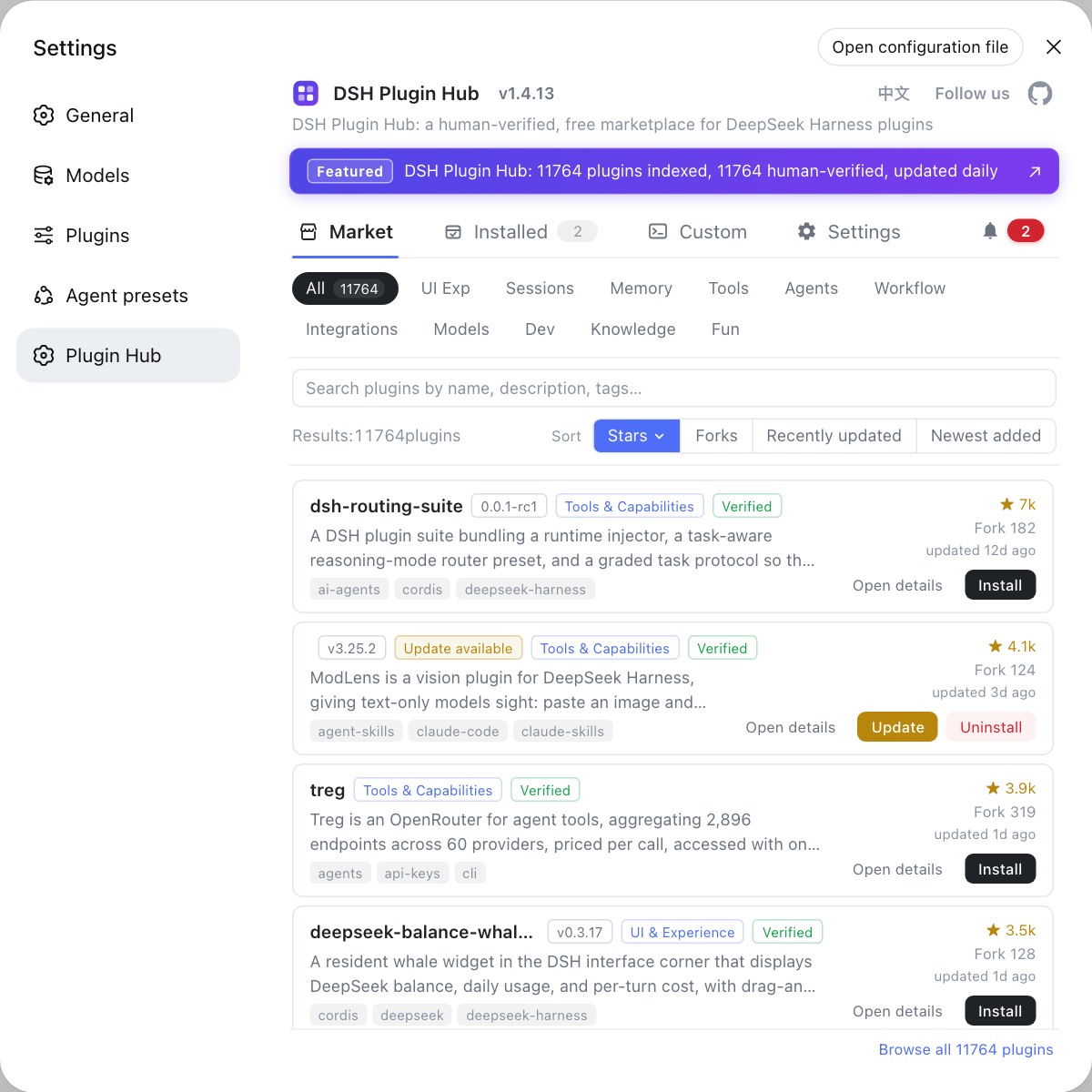
If you prefer not to use the command line, search workbuddy on DSH Plugin Hub and install from the entry in one click. Mind the profile scope: it is only available in the profile it was installed into.
When workbuddy will not connect in DeepSeek Harness: network, credentials, version
When it will not connect, run doctor for diagnostics first, then rule out login state, both ends' versions, and profile one at a time. The three layers and their typical symptoms:
- Login state invalidated — the WorkBuddy token expired or was signed out, so the DeepSeek Harness side cannot use it. Expected: signing back in through the desktop app restores it.
- Network unreachable — the request cannot reach the model service. Expected: once connectivity returns, the models work again.
- Version mismatch — DeepSeek Harness or the plugin is too old and the capabilities do not line up. Expected: upgrade past the minimum supported line and retry.
- Wrong profile — the plugin is installed in another profile, so the current session cannot see it. Expected: install into the profile you are using.
In order, status for login and quota and doctor for connection are usually enough to locate the layer.
DSH plugin workbuddy connection notes
- Log in before use: sign in to WorkBuddy first so the DeepSeek Harness side can reuse it.
- The profile must be right: install into the profile you are using, or the models will not appear.
- Quota runs out: remaining quota and token expiry live in the settings card, so glance at them before a long task.
- Log out to disconnect: to switch accounts or disable it,
logoutfirst, then uninstall. - Uninstall symmetrically: use
dsh plugin --profile web remove dsh-workbuddy-connect. - Do not trust the UI alone: when status looks wrong, go by the output of
status/doctor.
Sources: dsh-workbuddy-connect (DSH Plugin Hub), DeepSeek Harness docs - quickstart, docs - config catalog.
FAQ
workbuddy is a desktop app that bundles several large models, and connecting it to DeepSeek Harness saves you from hand-configuring third-party providers. A plugin like this brings the models bundled in the WorkBuddy desktop app (such as GLM, DeepSeek, and Kimi) into DeepSeek Harness automatically, selectable right from the model picker in the chat window. It reuses your existing app login state, so you do not refill keys and endpoints separately inside DeepSeek Harness.
Installing dsh-workbuddy-connect takes one command, defaults to zero configuration, and reuses the WorkBuddy login state, so you usually do not type credentials or an address by hand. Run dsh plugin --profile web add dsh-workbuddy-connect and restart so the plugin takes effect. After that, WorkBuddy models appear in the DeepSeek Harness model picker, with account and quota information shown in the settings card.
After connecting workbuddy you can verify state with the plugin's own commands: status shows the current account and login state, doctor runs connection diagnostics, and logout signs out the current session. These commands locate problems faster than clicking through the UI. Run status once after installing to confirm the models are visible, and run doctor when something looks wrong to see which link is broken.
When it will not connect, run doctor for diagnostics first, then rule out three layers: login state, both ends' versions, and profile. Common causes are an expired or invalidated WorkBuddy login, which needs a fresh sign-in in the desktop app; a version mismatch between DeepSeek Harness and the plugin; or the plugin installed into a different profile. Using status to read account and token state quickly separates a login problem from a configuration problem.
To disconnect workbuddy, first sign out with the plugin's logout command, then uninstall the DSH plugin through the standard flow. The uninstall command mirrors the install: dsh plugin --profile web remove dsh-workbuddy-connect; after removal the WorkBuddy models disappear from the model picker without affecting your use of the app itself. To use it again later, reinstall and confirm the login state.
Related Terms
- workbuddy
- A desktop app that bundles several large models and can be used as a standalone client. Through a DSH plugin such as dsh-workbuddy-connect, its models can be brought into DeepSeek Harness for reuse.— DSH Plugin Hub - dsh-workbuddy-connect
- dsh-workbuddy-connect
- The DSH plugin that connects the models bundled in the WorkBuddy desktop app into DeepSeek Harness, reusing the app's login state and supporting Web, Desktop, and TUI. After install, the models appear in the DeepSeek Harness model picker.— DSH Plugin Hub - dsh-workbuddy-connect
- provider
- The party in DeepSeek Harness that connects to a model service, handling authentication and request forwarding. A plugin that integrates an external model essentially adds or reuses a provider rather than replacing the official mechanism.— DeepSeek Harness docs - config catalog
- profile
- A full configuration set in DeepSeek Harness that determines which plugins load and which tools and permission policies are exposed. A DSH plugin installed into a profile only takes effect in that profile.— DeepSeek Harness docs - quickstart
Sources
- dsh-workbuddy-connect (DSH Plugin Hub entry)· dsh-plugin.org
- DeepSeek Harness docs - quickstart· deepseek-harness
- DeepSeek Harness docs - config catalog· deepseek-harness