Connect IM tools to DeepSeek Harness: DSH plugin setup
DeepSeek Harness connects to IM tools through instant-messaging DSH plugins - they route conversations and notifications into channels such as Feishu, WeChat, and DingTalk; for example, dsh-im supports bots on nine channels and unifies the management of multiple bot connections (source). This guide covers what these plugins do, how to configure credentials and profiles, how to triage when messages will not flow, and how to disable and uninstall them.
DSH plugin overview: the three layers of IM integration
What an IM integration plugin does is build a channel between DeepSeek Harness and an IM platform. Lay out the three layers first:
| Layer | What it is | What you manage |
|---|---|---|
| IM platform side | The bot or app on Feishu / WeChat / DingTalk, etc. | Create the app, obtain credentials, configure the webhook |
| Integration plugin | A DSH plugin such as dsh-im | Install, enter credentials, choose channels, manage multiple bots |
| DeepSeek Harness | The host and profile that run the plugin | Profile ownership, restart to take effect, permissions |
In one sentence: the IM platform must allow it, the plugin must connect, and the framework must load it - miss any one and nothing flows.
What DSH plugin IM integration can do: move conversations and notifications into instant messaging
Its value is bringing DeepSeek Harness's capabilities into the IM you already use, rather than making you spin up another system. Main capabilities:
- Multi-channel routing - one plugin manages multiple bots across several IM channels (source). Expected: no need to install a separate set for each channel.
- QR-code or credential onboarding - two configuration methods are supported, lowering the bar for filling in parameters. Expected: pick whichever is less trouble given what you have on hand.
- Unified connection management - connection status for multiple bots is viewed in one place. Expected: a broken one is visible at a glance.
Keep this distinct from "connecting to a specific external tool": Connect workbuddy covers hooking up one particular external tool, whereas IM integration here is the general configuration for "instant messaging as a category" - different subjects.
DSH plugin configuration path: install the plugin, enter credentials, set profile and permissions
Configuration has four steps: choose a channel -> install the plugin -> enter credentials / webhook -> set the profile and restart. The steps:
-
Prepare the bot on the IM platform side - create a bot or app on the matching platform and obtain the Bot Token, app secret, or webhook. Expected: usable onboarding credentials in hand, with send/receive permission enabled.
-
Install the integration plugin - go to the DSH Plugin Hub and search by keywords such as IM, instant messaging, or bot, or run:
bashdsh plugin --profile web add @xmanrui/dsh-imExpected: the plugin enters the web profile, with no install errors.
-
Enter credentials / webhook - open the plugin configuration and enter the credentials from the previous step per channel; channels that support QR codes can be scanned directly. Expected: the configuration saves, and is written to a credentials file rather than scattered in plaintext.
-
Confirm profile and permissions - make sure it is installed in the profile you are actually using, and verify the permissions the bot needs are granted. Expected: the plugin is compatible with the host version and has sufficient permissions.
-
Restart to take effect and self-test - restart
dsh weband send a message to the bot in the IM. Expected: a reply arrives, confirming the link is up.
The semantics of --profile web are straightforward: whichever profile you install into, only that environment is affected (source). With multiple profiles, always confirm you installed into the right one.
DSH plugin common problems and disabling / uninstalling
When messages will not flow, check in order; to disable, stop the connection first and then uninstall. Triage and cleanup steps:
- Is the plugin loaded - go to the installed list and confirm the plugin is there, and that the service has been restarted. Expected: the plugin appears in the list with no parse errors in the startup log.
- Is the credential valid - verify the Token / secret is not expired or mistyped, and whether the webhook was reset by the platform. Expected: sending and receiving work after switching to a valid credential.
- Is the network reachable - confirm this machine can reach the matching IM's open API and that a proxy is not blocking requests. Expected: connectivity is normal.
- Is permission granted - check whether the bot has been granted permission to send and receive messages on the IM side. Expected: messages get through once the permission is granted.
- When you want to disable / uninstall - first turn off the connection in the plugin configuration, then uninstall from the installed list, then restart. Expected: the plugin is removed and its UI entry disappears; then disable the bot or webhook on the IM side to avoid leftover pushes.
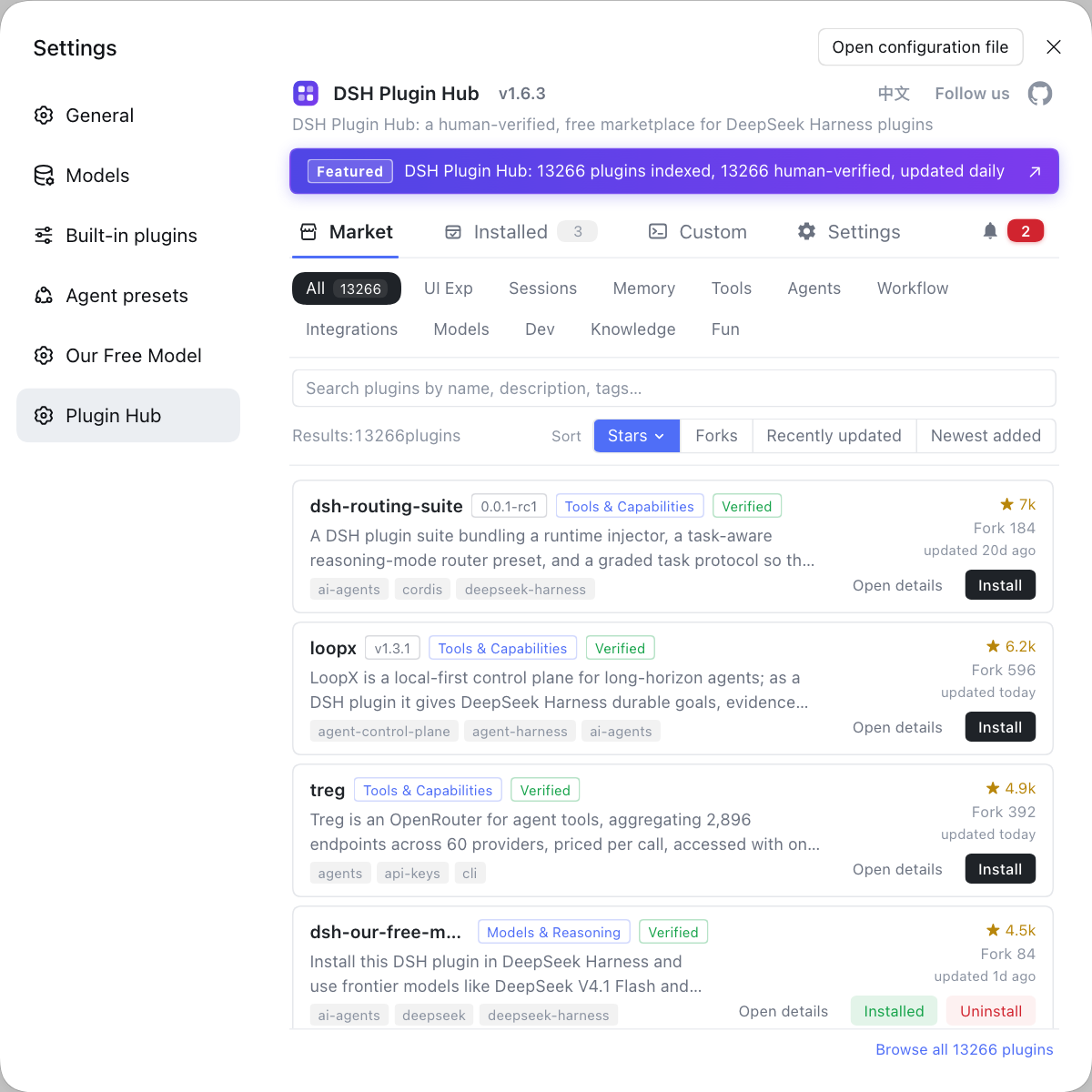
IM integration is, at heart, still installing and managing plugins - rather than hunting for packages and memorizing commands across multiple repositories, use a plugin market to download and manage them in one place: DeepSeek Harness's DSH Plugin Hub puts browsing, one-click install, uninstall, update detection, and system logs together, with a confirmation dialog before every install and centralized management in the installed list afterward.
DSH plugin notes
These are the DSH plugin points to remember before connecting IM. Item by item:
- Treat credentials like passwords: only enter Bot Tokens and webhooks into trusted plugins, and never paste them into chat or public repositories.
- Align the profile: installing into the wrong profile is a frequent cause of "installed but not working."
- Least privilege: grant only the permissions needed to send and receive messages, not everything.
- Restart to take effect: configuration and plugin changes load after a restart.
- Finish the cleanup: after uninstalling the plugin, delete the bot on the IM side, disable the webhook, and revoke old Tokens.
Sources: dsh-im (dsh-plugin.org), dsh CLI README, dshplugin/dsh-plugin-hub
FAQ
An IM integration DSH plugin brings DeepSeek Harness into instant-messaging tools, routing conversations and notifications through channels such as Feishu, WeChat, and DingTalk. For example, dsh-im supports bots on nine channels and unifies the management of multiple bot connections through QR-code or credential configuration; it leans toward "connecting DeepSeek Harness's capabilities into the IM you already use every day" rather than standing up a separate chatbot.
Three things: install the integration plugin, enter the IM-side credentials or webhook in the plugin configuration, and confirm it is installed into the profile you are using. Most implementations support both QR-code and credential methods, and credentials usually go into the plugin configuration or a credentials file under $DSH_HOME. Once filled in, restart dsh web so the plugin reloads the configuration.
Check in four steps: is the plugin loaded -> is the credential valid -> is the network reachable -> is permission granted. First confirm the plugin is in the installed list and that you restarted, then verify the credential/webhook is not expired or mistyped, then confirm this machine can reach the IM's open API, and finally check whether the bot has been granted permission to send and receive messages.
A credential equals partial control over your IM account - only enter it into plugins from trusted sources, and prefer a credentials file over plaintext configuration. Do not paste webhooks or Bot Tokens into chat windows or public repositories; revoke or reset them on the IM side when not in use, and clean up leftover configuration after uninstalling the plugin.
Stop the connection first, then uninstall: turn off the connection in the plugin configuration, uninstall from the installed list, and restart dsh web. After uninstalling, it is best to delete the corresponding bot or disable the webhook on the IM side so no leftover connection keeps trying to push; for credential-related ones, revoking the old Token is safer.
Related Terms
- dsh-im
- dsh-im is an integration-class DSH plugin that brings IM bots into DeepSeek Harness, supporting nine channels including Feishu, WeChat, and DingTalk, configured by QR code or credentials and managing multiple bot connections in one place.— dsh-im (dsh-plugin.org)
- IM integration
- IM integration refers to a class of configuration that connects DeepSeek Harness's conversations and notifications to instant-messaging tools, pairing the plugin with the IM open API, bot credentials, or a webhook so messages are sent and received on the IM channel.— dsh CLI README
- webhook
- A webhook is a callback address provided by the IM platform; the platform pushes message events to this address and the integration plugin receives messages through it. A wrong or expired webhook directly breaks sending and receiving.— dsh-im (dsh-plugin.org)
- credential
- A credential is the identity proof needed to connect to an IM, such as a Bot Token or app secret, usually stored in the plugin configuration or a credentials file. It determines whether the integration can communicate with the IM platform on behalf of your bot.— dsh CLI README
Sources
- dsh-im (dsh-plugin.org plugin entry)· dsh-plugin.org
- dsh CLI README (plugin add and profile semantics)· deepseek-ai
- dshplugin/dsh-plugin-hub· dshplugin