Enable computer use in DeepSeek Harness: DSH plugin setup
computer use lets a DeepSeek Harness agent drive the graphical interface directly — simulating clicks, typing on the keyboard, and reading screenshots, rather than only running tools on the command line (source). This guide covers three things: how it divides work with browser control and built-in tools, how to enable and configure it, and the permission and safety boundaries you must observe.
What computer use is: letting a DeepSeek Harness agent drive the GUI
computer use is the class of capability that lets a DeepSeek Harness agent drive the graphical interface directly: simulating clicks, typing on the keyboard, and reading screenshots to operate arbitrary desktop software. Ordinary built-in tools are the framework's general-purpose set, able to read and write files, run commands, and search the web; computer use carves out "operating the computer itself" at the OS level. The three divide work like this:
- Built-in tools — general tools the model can call, such as reading and writing files, running commands, and searching the web. Expected: they cover most software-engineering tasks without touching the GUI.
- Browser control — open pages, scrape, interact, and screenshot only within the browser process. Expected: it specializes in web automation with a narrower permission surface.
- computer use — control the mouse and keyboard and read the screen, able to drive any window. Expected: it covers local apps and cross-application flows that the browser cannot reach.
In one sentence: browser control works "inside one window", computer use works "across the whole machine" — more capable, at the price of wider permissions.
Enable computer use in DeepSeek Harness: built-in switch or DSH plugin
There are two routes to enabling computer use: install a DSH plugin that provides the capability, or enable the built-in tool chain in a supported profile per the official docs. Because it drives the graphical interface, it needs wider sandbox authorization than ordinary tools and is normally not enabled in the default least-privilege profile. On the plugin route:
- Install the plugin — run in your terminal:
Expected: the terminal echoes that the plugin joined thebash
dsh plugin --profile web add dsh-computer-usewebprofile. - Relax sandbox authorization — confirm the current profile's sandbox mode permits interface-level actions. Expected: the agent can drive the mouse and keyboard instead of being blocked by the gate.
- Restart to take effect — restart DeepSeek Harness as prompted so the capability enters the config tree. Expected: a new session can invoke the capability.
- Verify on a small scope — first have it do one clear, harmless action, such as opening a notepad and typing text. Expected: the action visibly happens, proving the chain works.
- Turn it off when done — switch back to a restricted profile once the task ends. Expected: the permission surface is reclaimed, lowering the risk of mistakes.
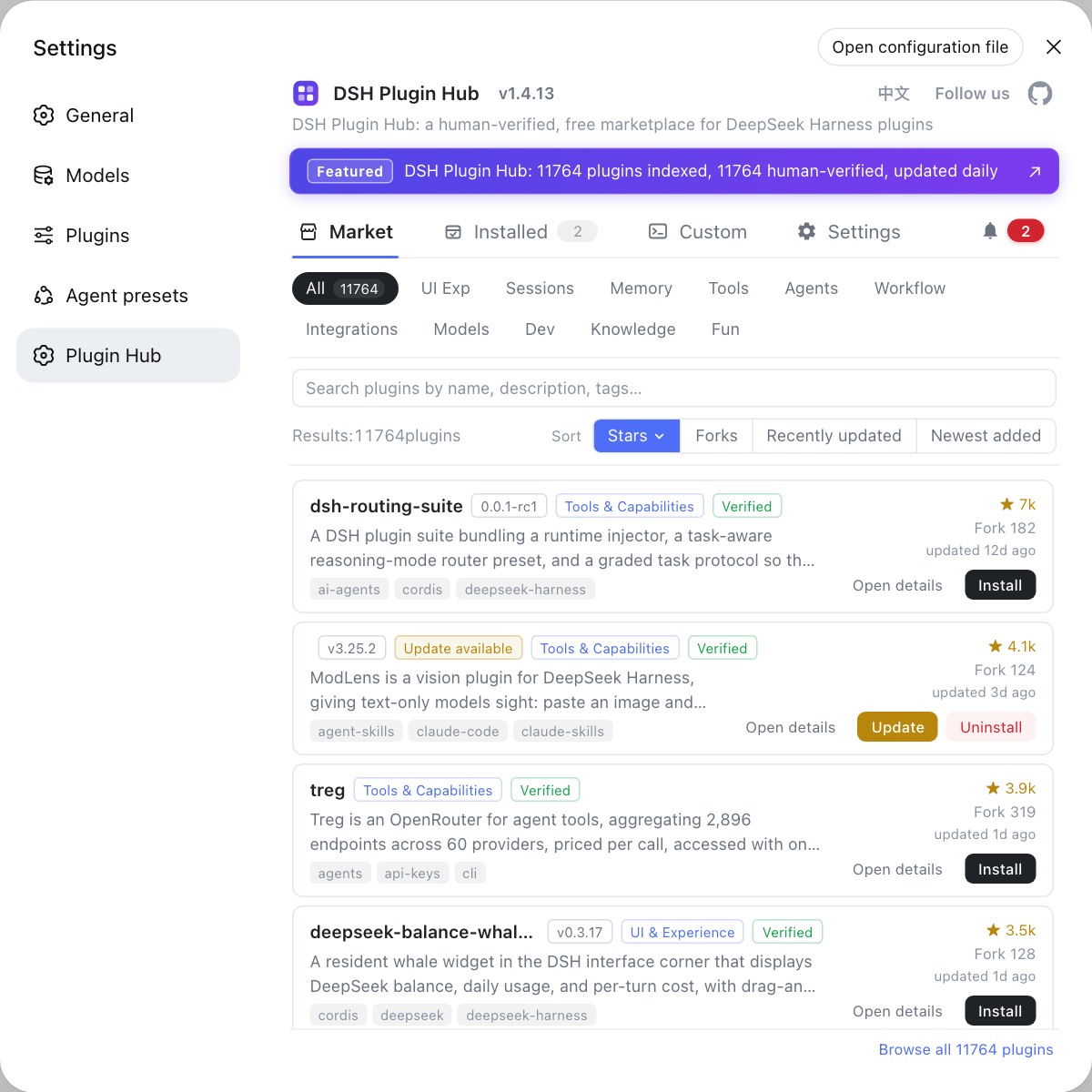
If you prefer not to use the command line, browse the computer-control / automation category on DSH Plugin Hub for a computer-use plugin and install one by compatibility status.
computer use safety boundaries: DSH plugin authorization scope and escalation risk
The risk of computer use comes from it naturally crossing the sandbox boundary: the screen, clipboard, and credentials can all be exposed to the agent, amplifying the consequences of mistakes and malicious prompts. The DeepSeek Harness sandbox can constrain a subprocess's file effects (source), but OS-level mouse and keyboard control is not covered, so restraint matters. Three boundaries:
- Keep authorization minimal — enable it only where you genuinely need desktop operation, never leave it on permanently. Expected: the exposure window is minimized.
- Avoid sensitive screens — do not let it touch banking, password managers, or terminals holding keys while it is on. Expected: credentials stay out of model context.
- Plan for prompt injection — malicious instructions in pages or documents can induce it to act. Expected: critical actions keep human confirmation.
DSH plugin configuration notes
- Confirm the profile first: install into the profile you are actually using (such as
web), or it will not take effect. - Coverage differs by OS: Windows, macOS, and Linux support interface control differently; read the plugin description first.
- Escalation is a policy problem: installing the plugin is not enough — the permission policy and sandbox mode are the real boundary.
- If it does nothing, read the log first: separate "not installed properly" from "blocked by the gate" instead of blindly reinstalling.
- Do not stack permissions with a browser plugin: if you only automate the web, use a browser-class plugin for a narrower surface.
Sources: dsh-computer-use (DSH Plugin Hub), process sandbox (DeepSeek Harness docs), tools subsystem (DeepSeek Harness docs).
FAQ
computer use is the class of capability that lets a DeepSeek Harness agent drive the graphical interface directly: simulating clicks, typing on the keyboard, and reading screenshots. It is not the same as browser control, which stays inside a single browser process to open pages, scrape, and interact; computer use targets the whole desktop and can drive any window. Built-in tools are the framework's general-purpose tool set, while computer use carves out "operating the computer itself" as a separate capability.
There are two routes to enabling computer use: install a DSH plugin that provides the capability, or enable the built-in tool chain in a supported profile per the official docs. On the plugin route, run dsh plugin --profile web add dsh-computer-use and restart so the capability enters the config tree. Because it drives the graphical interface, it needs wider sandbox authorization than ordinary tools and is normally not enabled in the default least-privilege profile.
computer use needs wider permissions because it controls the mouse and keyboard and reads the screen, which naturally reaches past the sandbox boundary. The DeepSeek Harness process sandbox tightens file and execution scope by default, but OS-level input cannot be fully contained by that layer. The escalation risk is real: once credentials, the clipboard, or system settings are exposed to the agent, both mistakes and malicious prompts can amplify the consequences. So enable it only for trusted tasks and turn it off when done.
If computer use is enabled but nothing moves, check permissions and profile first: confirm the current profile actually loaded the DSH plugin and that sandbox authorization is relaxed enough to drive the interface. Then confirm whether your OS is supported (Windows, macOS, and Linux differ in coverage) and whether screen-recording or accessibility authorization is missing. Finally, read the session log to see whether the tool was invoked at all, which separates "not installed properly" from "blocked by the gate".
computer use targets the whole desktop while dsh-browser targets in-browser actions, so in most cases you pick one as needed, and installing both means watching for stacked permissions. If you only automate the web, use a browser-class plugin — narrower permissions, more predictable behaviour; reach for computer use only when you must drive local apps or cross-application flows. Least privilege applies here too: if you do not need the desktop, do not enable computer use.
Related Terms
- computer use
- The capability that lets a DeepSeek Harness agent drive the graphical interface directly, covering simulated clicks, keyboard input, and screenshots. It targets the whole desktop, so its permission surface is wider than that of browser-automation plugins.— DSH Plugin Hub - dsh-computer-use
- sandbox
- The DeepSeek Harness mechanism constraining the file effects of subprocesses, defining read-only, workspace-write, and danger-full-access modes. Because computer use operates the OS interface, it usually needs wider sandbox authorization.— DeepSeek Harness docs - process sandbox
- profile
- A full configuration set in DeepSeek Harness that determines which plugins load and which tools and permission policies are exposed. A DSH plugin installed into a profile only takes effect in that profile.— DeepSeek Harness docs - tools subsystem
- tool gate
- The admission and approval step DeepSeek Harness runs around tool calls, deciding whether a given call is allowed. Even with the plugin installed, a call can still be blocked by the gate under permission policy.— DeepSeek Harness docs - tools subsystem
Sources
- dsh-computer-use (DSH Plugin Hub entry)· dsh-plugin.org
- DeepSeek Harness docs - process sandbox· deepseek-harness
- DeepSeek Harness docs - tools subsystem· deepseek-harness