How to update DSH plugins: the dsh plugin update command
Updating a DSH plugin takes one command: dsh plugin --profile <name> update <pkg>—with a package name it updates one, without a name it updates every plugin in that profile, and a restart of dsh web applies the change (source). This guide answers only "which command do I type to update plugins", across three directions: the command and its order, single versus batch wording, and how to roll back on failure.
Overview: a DSH plugin update command cheat sheet—decide what you are updating
Before anything, ask whether you are updating the app or a plugin—the two tracks use completely different commands.
| What to update | Command to run |
|---|---|
| One plugin | dsh plugin --profile <name> update <pkg> |
| All plugins in the profile | dsh plugin --profile <name> update |
| A specific exact version | dsh plugin --profile <name> add <pkg>@<version> |
| DeepSeek Harness itself (global) | npm update -g @deepseek-ai/dsh |
| DeepSeek Harness itself (npx) | nothing—npx @deepseek-ai/dsh web takes the latest each run |
The key fact: everything after dsh plugin --profile <name> is forwarded straight to pnpm, so verbs like update, add, remove, and why work directly (source).
DSH plugin command and order: check, update, then restart
The order trips people up more than the command, so follow these three steps.
- See what can be upgraded — in the target profile run
dsh plugin --profile web outdatedto list packages with newer versions. Expected: a comparison of current versus available versions. If you prefer no CLI, the "update available" badge in the marketplace shows the same thing. - Run the update —
update <pkg>for one, a bareupdatefor all. Expected: pnpm fetches and writes, updating the profile'spackage.jsonand its dependencies. - Restart to apply — updates are not hot-reloaded, so restart
dsh webto pick up the new build (source). Expected: the plugin version shows the new number after restart.
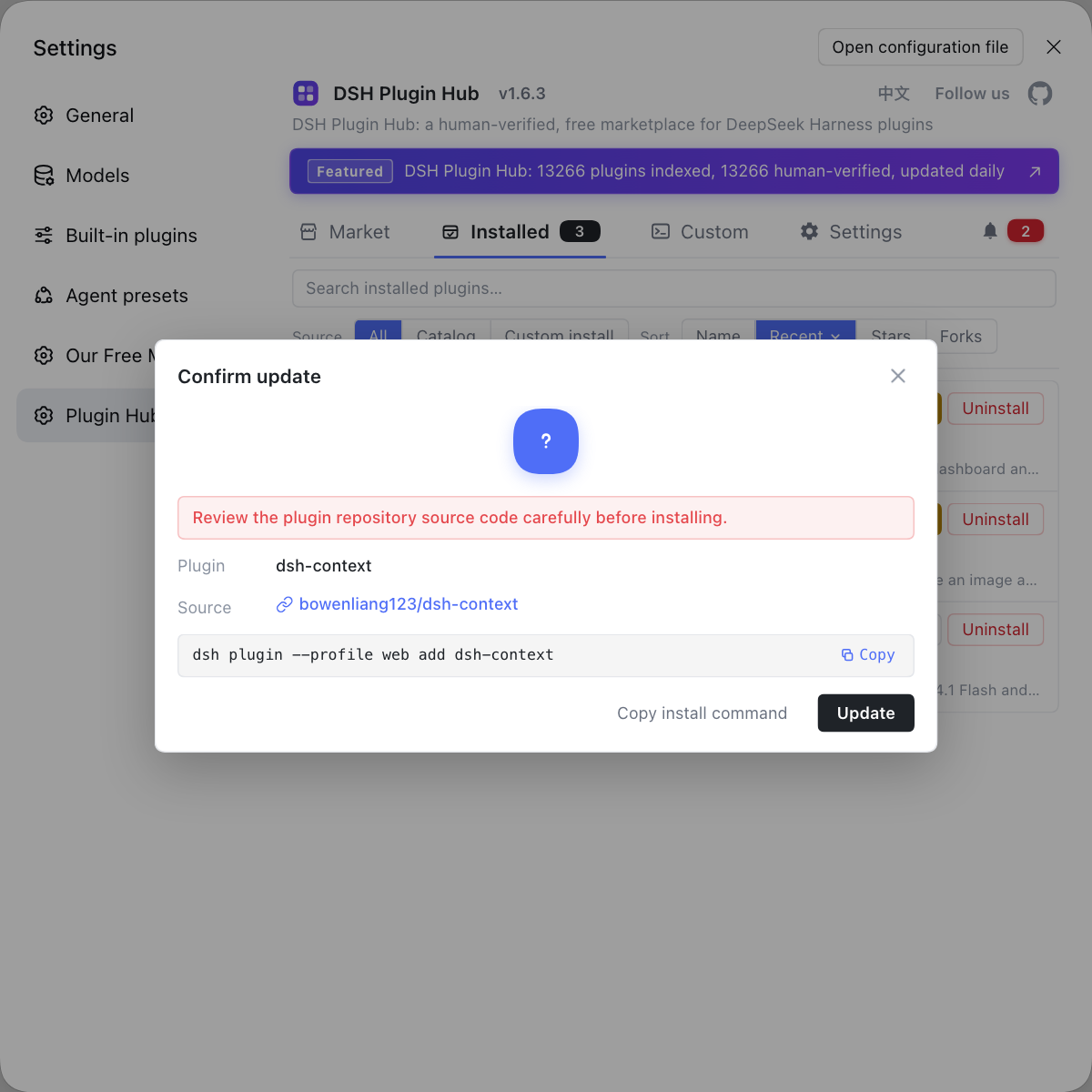
The graphical path follows the same three steps: in the installed list of DSH Plugin Hub, click "update available" and confirm the dialog to overwrite in place, and the UI flags a pending restart. The marketplace button and the CLI command act on the same layer, just through different entry points.
Single vs batch DSH plugin updates: the wording gap and profile ownership
The two forms differ by one package-name argument, yet their risk surface is entirely different.
- Single update:
dsh plugin --profile web update dsh-memory—touches only the named package, leaving other dependencies alone. Suits upgrading one plugin without worrying about knock-on regressions. Steps: Update a single dsh plugin. - Batch update:
dsh plugin --profile web update—bumps every dependency in the profile to its latest allowed version. Suits a periodic sweep, at the cost of more changed packages and a wider surface to debug. Steps: Batch update plugins.
Two preconditions are easy to miss:
- Target the right profile: plugins belong to a profile, so
--profilemust name the one your UI runs; the wrong profile changes nothing. For multiple environments, see Update plugins per profile. - Separate app from plugin:
update -gupgrades the program,dsh plugin ... updateupgrades plugins, and the two are independent, so do not mix them up.
When a DSH plugin update fails: pin and reinstall a version
The fastest way back from a failed or broken update is to reinstall the exact version.
- Retry and localize — first check for a network or mirror problem and retry once;
dsh plugin ... outdatedtells you which package is stuck. Expected: network-style failures pass on retry. - Reinstall a specific version — use
dsh plugin --profile <name> add <pkg>@<version>to land on the target version, which rewrites both the profile'spackage.jsonand its dependencies. Expected: the plugin returns to the version you named. - Pin long term — if a version must stay fixed and never be carried off by a batch update, handle it as a version pin. See Pin a plugin version and Update rollback.
Notes on updating DSH plugins
- Always restart afterward: without a
dsh webrestart the new build does not load, so do not mistake "not effective" for a failed update. - Record versions before a batch update: it makes problems comparable and lets
add <pkg>@<version>roll back precisely. - Do not misname the profile:
--profilemust point at the environment you are running, or the change lands elsewhere. - Do not mix the commands: upgrade the app with
npm update -g, plugins withdsh plugin ... update—two tracks, each its own. - Pin deliberately: a batch update will carry dependencies up within their range, so any package that must stay put has to be pinned explicitly.
Sources: dsh CLI README, DeepSeek Harness source - CLI arg definitions, pnpm docs - pnpm update
FAQ
The command is dsh plugin --profile <name> update <pkg>: dsh plugin forwards everything after --profile <name> straight to pnpm, so pnpm's update semantics apply. With a package name it updates that one; without a name it updates every dependency in the profile, and you must restart dsh web to apply it.
The only difference is whether a package name is present: update <pkg> is one, a bare update is all. The bare form bumps every dependency in the profile to its latest allowed version, good for a periodic sweep; the named form touches one package and avoids knock-on regressions.
No, they are two separate tracks: updating the app means re-fetching the dsh program (npx takes the latest each run, a global install runs npm update -g @deepseek-ai/dsh, a source checkout runs git pull), while updating plugins is dsh plugin ... update. Do not use the plugin command to upgrade the app.
Most often you have not restarted: plugins load at startup, so a restart of dsh web is required to pick up the new build. If a restart still does not help, confirm you updated the profile that is actually running—plugins belong to a profile, and editing the wrong one changes nothing.
Reinstall the exact version with dsh plugin --profile <name> add <pkg>@<version>, which rewrites both the profile's package.json and its dependencies. To see what can be upgraded first, run pnpm outdated; for pinning a version long term, see the version-pin guide.
Related Terms
- dsh plugin (plugin subcommand)
- dsh plugin is the DeepSeek Harness plugin management subcommand, written as dsh plugin --profile <name> <pnpm args>; it forwards everything after --profile to pnpm, so verbs like add, remove, update, and why work directly.— https://github.com/deepseek-ai/deepseek-harness/blob/master/apps/cli/src/args.ts
- pnpm update
- pnpm update bumps packages up to the latest version allowed by the declared range; dsh reuses it through dsh plugin ... update, where a package name updates only that package and no name updates every dependency in the profile.— https://pnpm.io/cli/update
- profile (plugin ownership)
- A profile is an ordered set of plugins and configuration in DeepSeek Harness; plugins install and take effect per profile, so an update must target the profile that is actually running or the change will not affect the current UI.— https://github.com/deepseek-ai/deepseek-harness/blob/master/apps/cli/README.md
- version pin
- A version pin fixes a dependency to an exact version; on the dsh side it is done with dsh plugin ... add <pkg>@<version>, which rewrites the profile's package.json and its dependencies to that version.— https://pnpm.io/cli/update