dsh update plugin: command & rollback for DeepSeek Harness
Update one DSH plugin with dsh plugin --profile <name> update <pkg>: the dsh plugin subcommand forwards its remaining arguments verbatim to pnpm, so pnpm's update semantics work as-is. First distinguish core updates from plugin updates, then follow the steps; when a plugin update fails, reinstall via DSH Plugin Hub or roll back.
First, the distinction: core update vs plugin update
Updating the dsh program and updating a DSH plugin are two separate command sets — do not mix them. The dsh core is the launcher plus built-in bundles; plugins are out-of-tree packages installed into a profile, so they update differently (source):
| What to update | Command | Notes |
|---|---|---|
| dsh core (one-off run) | npx @deepseek-ai/dsh web | pulls the latest package on every run |
| dsh core (global install) | npm update -g @deepseek-ai/dsh | updates the globally installed dsh |
| dsh core (from source) | git pull + rebuild | pull latest in the repo directory |
| One plugin | dsh plugin --profile <name> update <pkg> | updates a single plugin |
| All plugins | dsh plugin --profile <name> update | updates every dependency in the profile |
Key point: everything after dsh plugin --profile <name> is pnpm arguments — the official definition states that pnpm verbs such as add, remove, update, and why are forwarded verbatim (source).
Updating a single plugin, step by step
Updating one plugin without touching the others is simply naming the package in update. Work through these 5 steps:
- See which plugins have new versions first: pnpm's
outdatedchecks the profile's dependencies, anddsh pluginforwards it directly:The output's Current / Latest / Want columns show what can be updated.bashdsh plugin --profile web outdated - Update the single plugin:
Replacebash
dsh plugin --profile web update dsh-memorydsh-memorywith your package name. pnpm updates only that package; other plugins stay untouched. - Confirm the update: run
dsh plugin --profile web outdatedagain — the target should disappear from the list, or the terminal should show no errors. - Verify after the update: refresh the Web UI (or restart
dsh web) and confirm the plugin still works. - Pin an exact version:
updateonly steps within the range; useaddfor an exact version:This updates the profile's package.json and installs that version.bashdsh plugin --profile web add dsh-memory@1.2.3
When an update fails: fallback and rollback
Read the error type first, then choose a fallback — reinstall or roll back, do not keep retrying the same command. Handle it in order:
- Retry once: if the error is a timeout or a mirror that will not pull, retry or switch the mirror.
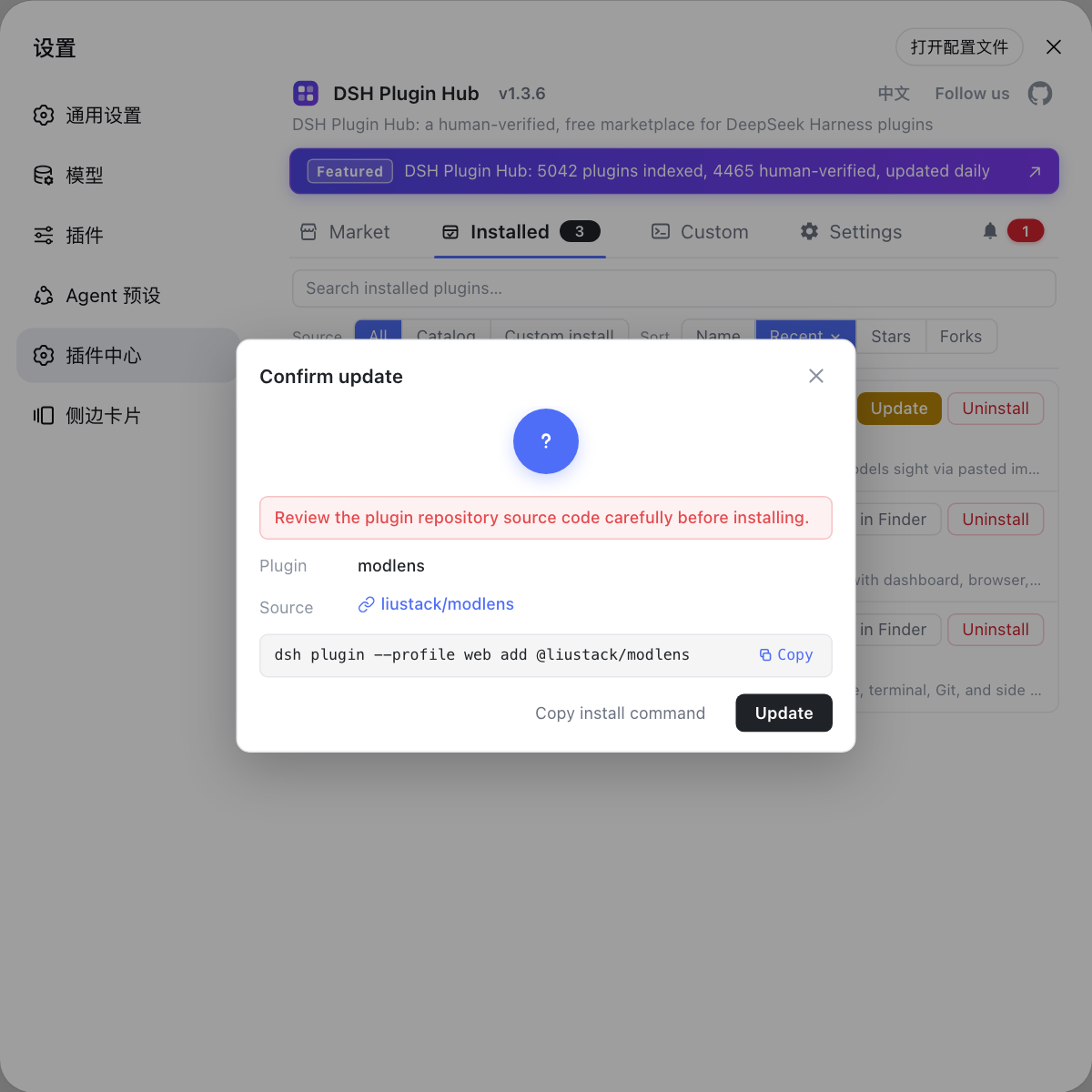
- Reinstall via DSH Plugin Hub: open Settings → Plugin Market in the Web UI — the community channel DSH Plugin Hub — find the plugin and reinstall with one click, bypassing command-line network issues.
- Roll back to the previous version: if the plugin misbehaves after an update, install the old version with
add:After rolling back, check compatibility in the Plugin Market or withbashdsh plugin --profile web add dsh-memory@1.1.0outdatedso an old version does not mismatch the current DSH. - Generic fallback for update failures: plugins distributed via git may fail to load after an update because the source lacks built artifacts. Install the npm build instead (
add package-namewithout thegithub:prefix when the registry has an npm package), or check the plugin's compatibility status on DSH Plugin Hub.
Notes
- Everything after
dsh pluginis pnpm arguments —update,add,remove,why,outdated, and more all work (source). - Always name the package when updating a single plugin;
updatewithout a package name updates the whole profile. - Run
dsh plugin --profile <name> outdatedbefore updating to see the list first. - Refresh or restart to verify after an update; roll back immediately if a plugin becomes incompatible.
- Use
add package@versionfor an exact version;updatedoes not jump major versions. - For convenience, update a single plugin from the DSH Plugin Hub Plugin Market button — one click when a new version is detected.
Source: dsh CLI argument definitions (source), dsh CLI README, pnpm update documentation
FAQ
dsh plugin --profile <name> update <pkg>. The dsh plugin subcommand forwards everything after it verbatim to pnpm, so updating one package is dsh plugin --profile web update <package-name>; run dsh plugin --profile web outdated first to see what has new versions.
No. Core updates re-fetch the program itself (npx @deepseek-ai/dsh web pulls the latest, npm install -g users run npm update -g @deepseek-ai/dsh, source users git pull and rebuild); plugin updates use dsh plugin --profile <name> update <pkg>. The two do not affect each other.
dsh plugin forwards its arguments verbatim to pnpm, so naming the package in update updates only it: dsh plugin --profile web update dsh-memory. An update without a package name updates every dependency in the profile.
Check whether the error is network/mirror related and retry once. If it still fails, reinstall the plugin from Settings → Plugin Market in DSH Plugin Hub, or follow the rollback flow in update-rollback to return to the previous version.
pnpm update only steps within the declared range. To pin an exact version, install it with add: dsh plugin --profile web add package-name@1.2.3. This updates the profile's package.json and installs that version.