Update npx DeepSeek Harness: DSH plugin @latest, two caches
Getting an npx-run DeepSeek Harness onto the latest build comes down to pinning @latest explicitly plus clearing the right cache when needed: npx has no resident install entity and resolves the package by tag on every run, but it can hit an old copy in ~/.npm/_npx or ~/.npm/_cacache, so simply rerunning is not always the same as upgrading (source). This article works through two directions — why it keeps running an old build, and how to make sure every run lands on the newest — and touches the npx-vs-global relationship in one sentence.
DSH plugin overview: tell npx apart from a global install first
Before touching anything, confirm which kind you are running: a global install has an entity to update, npx does not. One command tells you:
npm ls -g @deepseek-ai/dsh
Expected: output means it is a global install; output of (empty) while you normally start with npx @deepseek-ai/dsh means you are in the npx case. This article focuses only on the npx case and how to land on the newest build each time; the global npm path and the difference between the two are summed up in one sentence near the end, and the full upgrade path is in the DeepSeek Harness upgrade tutorial.
DSH plugin view: why npx mode never seems to update
In npx mode there is no such thing as an "installed version", yet it does not always pull the latest — the trouble is resolution and caching. Break it into three layers:
- No resident install — npx is a temporary executor: the package is downloaded to a temporary directory and then run, rather than staying in the global node directory as a global install does, so there is no target for npm update -g to act on. Expected: you understand that the "update" route does not apply to npx.
- Resolved by tag each run — every run re-resolves the package, by the latest tag by default; that should mean "always newest", but the next layer discounts it. Expected: you know that in theory it is "resolve once per run".
- May hit the cache, in fact two layers of it — npx places downloaded packages in
~/.npm/_npx(its temporary run environment), while npm's own download cache lives in~/.npm/_cacache; either can make you reuse an old copy (source). Expected: you realize the real source of "it feels stuck on an old version" is the cache, not a typo in your command.
To summarize: npx does not "never update", it updates depending on whether that run's resolution lands on the newest. To get the newest reliably, use both hands: pin the tag explicitly and clear both cache layers when needed; for what each layer holds and how to tell them apart, see the npx version cache mechanism.
There is a second reason the confusion lingers: the two lines look identical on the command line. Whether you typed a global dsh or npx does not change what the terminal prints, so the only way to tell them apart is to know which one your shell resolves first. Checking with the npm ls command takes a second and settles it; guessing from behaviour alone is what sends people down the wrong fix, cleaning caches that were never the problem.
How to get the latest DSH plugin build: @latest and dist-tag
The standard move is to pin @latest explicitly, and dist-tag decides which version it resolves to. Four steps:
- Check the latest version on the registry — run
npm view @deepseek-ai/dsh version. Expected: it prints the latest stable version on npm; note it for later. - Start with the latest tag pinned — run
npx -y @deepseek-ai/dsh@latest web. Expected: npx resolves against the latest tag and runs;-yskips the install confirmation prompt. - Clear both cache layers when you suspect a stale hit — first run
npm cache clean --forceto clear the npm download cache~/.npm/_cacache, then runrm -rf ~/.npm/_npxto clear the npx temporary run environment, then rerun the previous step. Expected: npx re-resolves and re-downloads, running the latest version; the two directories are independent, so clearing only one often changes nothing. - Confirm the version actually running — run
npx @deepseek-ai/dsh@latest --version, or read the version line in the startup log. Expected: the output matches the number noted in step 1, proving this run really is the latest.
One easy trap: mistaking a stale browser tab for "not updated". The web interface caches too, so even when the command line is already newest, the page may still show old content — do a hard refresh before judging.
Checking the version after switching a mirror
A mirror lags the official registry, so when npm view reports an old version, verify against the official source before concluding anything. Three steps:
- See where the source points — run
npm config get registry. Expected: it prints the current registry; a domestic mirror such as npmmirror usually lags the official source by minutes to hours. - Verify against the official source — run
npm view @deepseek-ai/dsh version --registry https://registry.npmjs.org. Expected: it prints the latest stable version on the official registry; when it disagrees with the mirror, trust the official source. - Tell latest from a prerelease tag — run
npm view @deepseek-ai/dsh dist-tags. Expected:latestpoints at the newest stable release, while a prerelease tag such asrc(if the maintainer has published one) points at a candidate;@latestonly resolves tolatestand will not hand you the candidate, so trying one requires writing that tag explicitly.
Three forms: newest, pinned, prerelease
The same npx command switches between "newest, pinned and prerelease" behaviour just by changing the package suffix. Pick by scenario:
| Form | Command | Resolves to | Use when |
|---|---|---|---|
| Newest | npx -y @deepseek-ai/dsh@latest web | The stable release the latest tag points at | You want the newest every day |
| Pinned | npx @deepseek-ai/dsh@<version> web | Exactly the version you wrote | Reproducing a problem, unifying a team environment |
| Prerelease | npx @deepseek-ai/dsh@rc web | The candidate the rc tag points at (if present) | You want to try new builds and can accept instability |
Before pinning, confirm the version number really exists on the official Releases page or npm package page rather than writing it from memory; likewise, confirm the maintainer has actually published the tag before trying a prerelease. None of the three forms touches the global version installed on your machine — switching only affects that one run (source). Reach for @latest day to day, pin a version when you need a fixed environment, and switch between them freely.
DSH plugin and the global install (one sentence)
npx and a global install are two lines that do not affect each other: the former re-resolves by tag each run with no entity to update, while the latter goes through npm update -g or npm install -g @deepseek-ai/dsh@latest. That difference already has its own tutorial, so it is not repeated here — see the npm update dsh tutorial; if you use both, each runs its own version, so when debugging "why is it still old" first confirm which line the command you typed actually took.
One more thing often confused: updating the DeepSeek Harness core is not the same as updating a DSH plugin — plugins are managed through the dsh plugin channel and upgraded with dsh plugin --profile web update, a different maintenance path (source).
Notes and limits for using DSH plugins
Keep core and plugin updates apart, and follow these points. Item by item:
- Do not drop @latest: in the npx case, omitting @latest risks hitting a cached old version — writing it in full is safer.
- Think of two separate lines: npx and a global install update independently; do not assume updating one changes the other.
- Update core and plugins separately: the core goes through npx / npm, plugins go through
dsh plugin update— do not merge them into one problem. - Clear both cache layers:
npm cache clean --forceclears only~/.npm/_cacache; the npx old copy lives in~/.npm/_npx, so remove it separately withrm -rf ~/.npm/_npx— do both for a thorough clear. - Watch for a lagging mirror: when
npm viewreports an old version, checknpm config get registryand, if needed, verify with a direct--registry https://registry.npmjs.orgconnection.
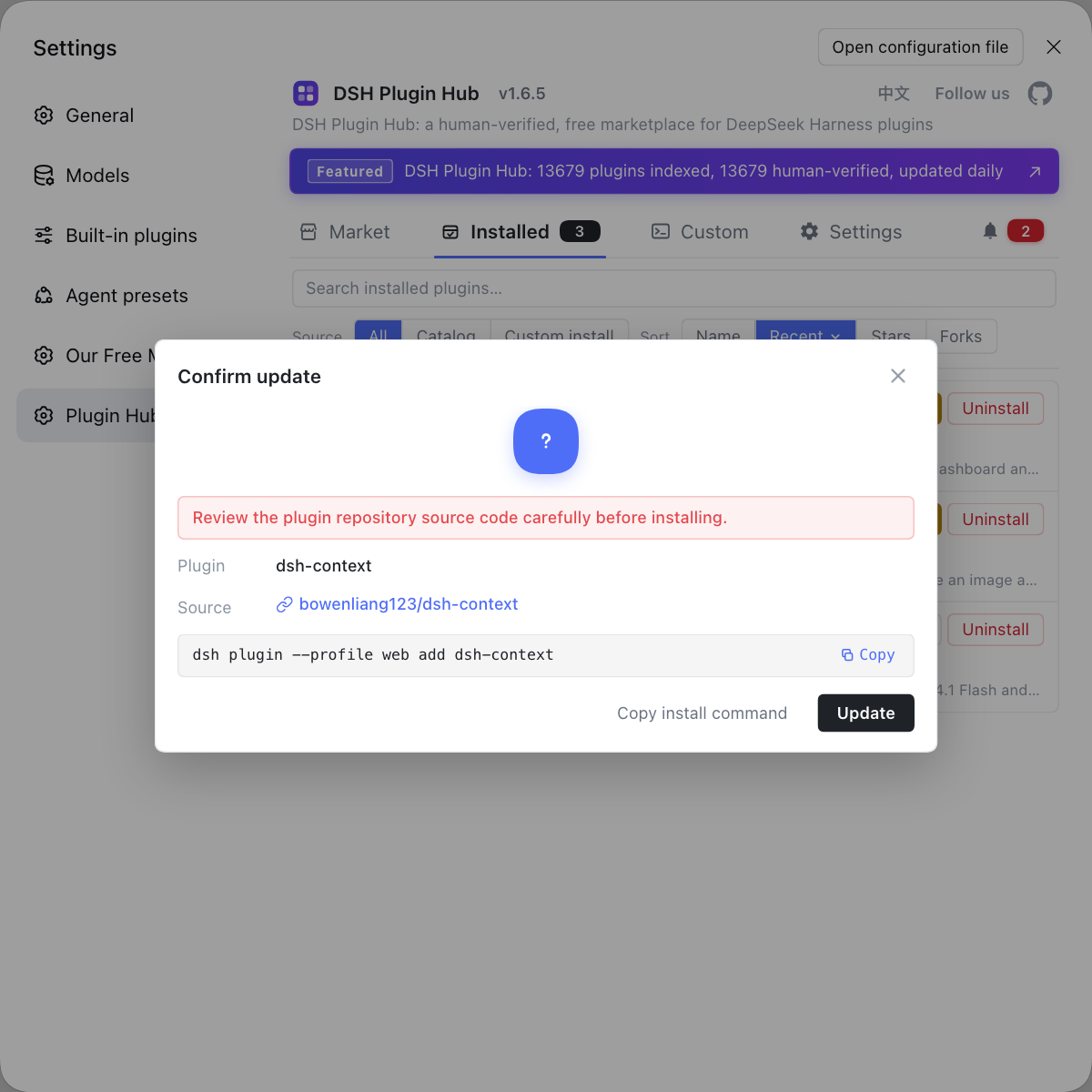
Once the core is updated, do not forget the plugin side — rather than typing the npx command by hand each time and remembering the tag and cache steps, let DSH Plugin Hub, the official community market for DeepSeek Harness at https://dsh-plugin.org/, manage plugin updates after a restart: click update on each installed row with an update badge, and the confirmation dialog shows the new version before reinstalling in place, so you never again mix up a core that was not updated with a plugin that was not updated.
Sources: npm Docs - npx, dsh CLI README, deepseek-ai/deepseek-harness GitHub repository.
FAQ
An npx-run DeepSeek Harness has no resident install entity, but it can still hit an old copy in the local cache at ~/.npm/_npx, which is why it feels stuck on an old version. Every run resolves the package, and only an explicit @latest forces resolution against the latest tag; otherwise it may reuse a version already downloaded in the cache.
For npx, the most direct way to update DeepSeek Harness is to rerun with @latest pinned explicitly: npx -y @deepseek-ai/dsh@latest web. The -y flag skips the install confirmation prompt; if it still behaves like an old build, run npm cache clean --force to clear ~/.npm/_cacache, then rm -rf ~/.npm/_npx to clear the npx temp dir, and rerun.
In the npx case there is no resident install entity, so npm update -g has nothing to act on and the only route is re-resolving by tag. npx downloads and runs on each invocation, so pin @latest to get the newest; only a global install has the npm update -g or npm install -g @deepseek-ai/dsh@latest path.
Check in three steps: first run npm view @deepseek-ai/dsh version to see the latest stable release on the registry, then run npx @deepseek-ai/dsh@latest --version to see the version actually pulled — the two should match. If they differ and you need to confirm freshness, pin @latest explicitly and check whether the npm source points at a lagging mirror.
No — npm cache clean --force clears only the npm download cache ~/.npm/_cacache, while the npx old copy sits in a different directory ~/.npm/_npx that needs a separate rm -rf ~/.npm/_npx. Run npm cache clean --force, then remove ~/.npm/_npx, then rerun with npx -y @deepseek-ai/dsh@latest web for a thorough clear.
Related Terms
- npx
- npx is the package runner bundled with npm that downloads and runs an npm package without a prior global install. Running DeepSeek Harness via npx leaves no resident install entity; each run resolves the package by tag and may hit the cache.— npm Docs
- @latest
- @latest is npm's default publish tag; npx @deepseek-ai/dsh@latest means resolving to the latest stable release through the latest tag. Pinning @latest explicitly is the direct way to stop npx hitting an old cache.— npm Docs
- npx cache
- npx-related caching lives in two places: the npx temporary run environment at ~/.npm/_npx and the npm download cache at ~/.npm/_cacache, which are independent. npm cache clean --force clears only ~/.npm/_cacache, while the npx old copy needs rm -rf ~/.npm/_npx, or can be bypassed by pinning @latest on each run.— npm Docs
- profile
- A profile is the configuration unit that separates runtime environments in DeepSeek Harness; a plugin installed into one profile affects only that environment. After updating the core, use dsh plugin --profile web update to update the DSH plugins under the current profile.— dsh CLI README