Which version does npx @deepseek-ai/dsh web run? Cache drift
npx @deepseek-ai/dsh web resolves the package from npm every time, but it reuses local caches — so when the command is unchanged and the version still disagrees, the problem is almost never DSH itself but the npx cache and multiple installs. This article covers cache locations, version-check commands, cache clearing and how to pin a version.
Overview: three causes of a dsh version mismatch
Version mismatches have three causes: npx hit an old cached copy, the machine has multiple installs, or the shell cached a command path. All three are verifiable with commands, and none require reinstalling (source). Start by checking the current version — establish the facts first, then decide which cache to clear.
Why npx runs an old dsh version: two caches, not one
There are two npx-related locations you can clear, and they are completely different things: ~/.npm/_npx is npx's temporary run environment, ~/.npm/_cacache is npm's download cache. Many people clear only the latter, so the old copy keeps winning (source).
| Cache location | What it stores | How to clear |
|---|---|---|
~/.npm/_npx | npx temporary run environment (packages and executables) | rm -rf ~/.npm/_npx |
~/.npm/_cacache | npm download cache (tarball data) | npm cache clean --force |
npm cache clean --force does not clear ~/.npm/_npx — they are independent directories, and clearing only one often changes nothing at all.
How to check which version of npx @deepseek-ai/dsh web is actually running
Asking "which version is running" is really three questions: the version npx resolved, the globally installed version, and the dsh this terminal actually hits. One command answers each (source):
- Check the launcher version npx resolves:
npx @deepseek-ai/dsh --version. Expect: a version number; it prints the launcher version only before the argument boundary (source); - Check the global install:
dsh --version. Expect: a version number. If you get command not found, you have been using npx all along and there is no global install; - Check every visible dsh path:
which -a dsh. Expect: all matching paths listed. Two or more lines means multiple installs (one per nvm Node version, plus a pnpm or Homebrew copy).
When the two version numbers disagree, suspect the shell's command path cache first: run hash -r (or rehash in zsh) and check again.
Clear the npx caches and force dsh to resolve the latest version
To break away from an old copy completely, follow "clear both caches → rerun with @latest" — no step is optional (source).
- Clear npm's download cache:
npm cache clean --force. Expect: the command succeeds and later downloads no longer reuse old tarballs; - Clear npx's temporary run environment:
rm -rf ~/.npm/_npx. Expect: the directory is gone and the next npx run re-resolves and downloads; - Rerun with the latest tag:
npx -y @deepseek-ai/dsh@latest web
Expect: the terminal shows a fresh download, and what starts afterwards is the current release;
4. Double-check: npx @deepseek-ai/dsh --version. Expect: the version matches the newest one on the official Releases page.
To confirm the current release number, look at the official Releases page or the npm package page — never write a version number from memory, because any version hardcoded in an article will go stale (source).
Pin a dsh version: swap @latest for an exact number
Pinning versus tracking the latest version is only a difference in how you write the package name: @latest is the newest tag, and a version number pins it. This is especially useful when investigating a problem a new release introduced, or when a team wants identical environments:
- Copy the exact version number from the official Releases page;
- Start with the pinned form:
npx @deepseek-ai/dsh@1.3.9 web
Expect: npx resolves and starts that version and no longer tracks the latest automatically;
3. Verify: npx @deepseek-ai/dsh@1.3.9 --version. Expect: the printed version matches exactly what you wrote;
4. To go back to tracking the latest, drop the version or restore @latest.
How to choose a version number, and how to weigh rc against stable releases, is covered in How to choose a DeepSeek Harness version.
Mixed global install and npx: dsh troubleshooting order
When a machine has both a global install and an npx cache, the classic failure is "I updated the global one but the terminal still runs the cached copy." Follow a fixed order rather than skipping around (source):
which -a dshto list every path. Expect: you know exactly how many copies exist and where;hash -rto clear the shell path cache. Expect: a laterwhich dshmay return a different result;- Compare
dsh --versionwithnpx @deepseek-ai/dsh --version. Expect: you identify the older copy; - If the old one is the global install →
npm update -g @deepseek-ai/dsh; if the old one is the npx cache → clear caches as in the previous section; if both are old → update the global install first, then clear the npx cache.
The full "I updated but the version didn't change" walkthrough is in dsh updated but the version didn't change.
Align DSH plugin versions too: let the Hub do it visually
Once the app version is sorted out, manage plugin versions from the UI — version numbers, update availability and update confirmation all live in one place (source). After installing DSH Plugin Hub, open Settings → Plugin Market → Installed: every plugin shows its current version and last-updated time, with Update and Uninstall actions at the end of each row:
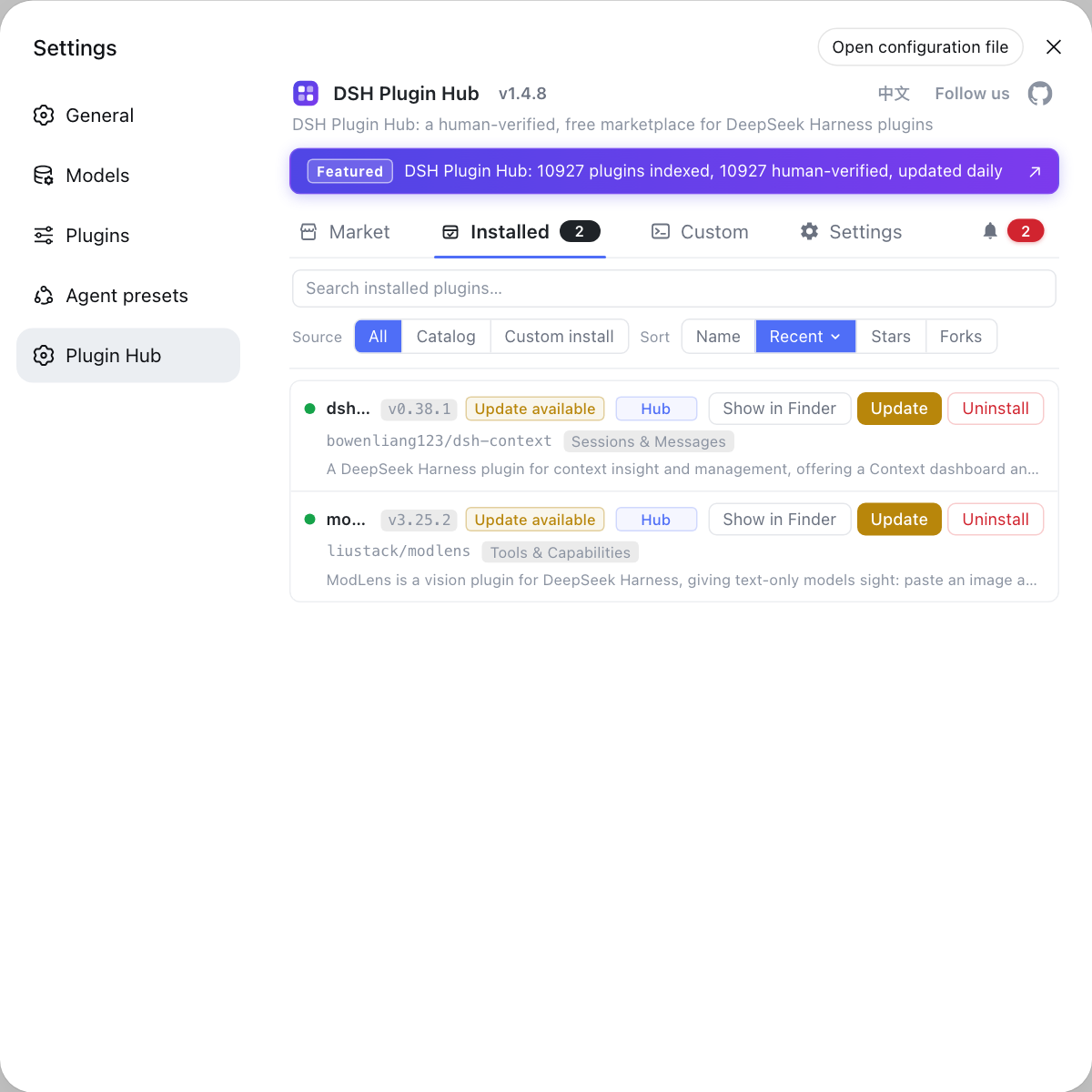
Instead of comparing dsh plugin list output with package versions in the terminal, the Hub's installed list shows at a glance which plugins are behind and which have new versions — and it asks for confirmation with the exact command before updating. Visit https://dsh-plugin.org/ to learn more.
Sources: npm npx docs, npm cache docs, dsh CLI README, official Releases
FAQ
npx @deepseek-ai/dsh web runs an old version because npx reuses local caches — resolving the package can hit an old copy in ~/.npm/_npx. Run npm cache clean --force and retry, or write the command as npx -y @deepseek-ai/dsh@latest web to resolve against the latest tag explicitly and download the newest package.
Run npx @deepseek-ai/dsh --version to see the launcher version npx resolved, then run dsh --version to compare the globally installed version if you have one. If the two numbers differ, your machine has both an npx cache copy and a global install, and which one runs depends on PATH and the cache.
npm cache clean --force clears npm's download cache (~/.npm/_cacache) but does not touch npx's temporary run environment at ~/.npm/_npx — the stale dsh copy usually lives in the latter. To fully break away from an old copy, run npm cache clean --force, then delete ~/.npm/_npx, then run again with @latest so npx re-resolves and downloads the newest package.
To pin dsh to one version, replace @latest with an exact version number — for example npx @deepseek-ai/dsh@1.3.9 web — and npx resolves that version instead of the latest tag. Before pinning, confirm the version actually exists on the official Releases page or the npm package page; never write a version number from memory.
When dsh --version and the npx version disagree, the usual cause is multiple dsh installs; work through three steps: run which -a dsh to list every visible dsh path and see whether there are multiple installs (one per nvm Node version, plus pnpm or Homebrew); run hash -r (or rehash in zsh) to drop the shell's command path cache; then compare dsh --version against npx @deepseek-ai/dsh --version and clear the cache belonging to whichever is older.
Related Terms
- npx
- npx is the package runner shipped with npm that fetches and executes a package from the registry without a global install. It caches packages locally, so later runs may reuse an old copy instead of downloading again.— npm official docs
- @latest
- @latest is npm's dist-tag for the newest published version; appending it to a package name resolves by that tag. Writing @latest explicitly in an npx command bypasses an old cached copy and forces resolution to the current release.— npm official docs
- npx cache
- The npx cache is the local directory where npx keeps temporarily downloaded packages, usually ~/.npm/_npx. It is a different location from npm's download cache at ~/.npm/_cacache, and both need checking when versions disagree.— npm official docs
- launcher version
- The launcher version is the version of the dsh launcher itself, read with dsh --version or npx @deepseek-ai/dsh --version. It prints only before the argument boundary; identical flags after that boundary are parsed by the launched application.— dsh CLI README
Sources
- npm CLI docs - npx· npm
- npm CLI docs - npm cache· npm
- dsh CLI README· deepseek-ai
- deepseek-ai/deepseek-harness Releases· GitHub
- dshplugin/dsh-plugin-hub GitHub repository· GitHub