Fix EPERM, EBUSY or EACCES deleting DeepSeek Harness files
When deleting dsh leftover directories fails, sort the error into three classes first: EBUSY / EPERM mostly means a file is in use, EACCES means permissions, read-only or admin rights, and a third class is antivirus or system indexing briefly locking files. Classify before acting; the order is "end the process, clear read-only, elevate, restart and delete" (source).
This guide covers three steps: how to tell the three error classes apart, how to locate the holding process, and the order to fix them. Permission problems at the uninstall-command stage are in Troubleshooting npm uninstall dsh; this article focuses on the delete-the-leftover-directory stage.
Three sources of delete errors on dsh directories: in use, permissions, locks
Delete-stage errors fall into three classes: EBUSY / EPERM point to a file in use, EACCES points to insufficient permission, read-only or admin needs, and a third is being locked by antivirus or system indexing; each is handled differently, so classify first (source).
Sort the error quickly against its message:
- Read the error name — EBUSY / EPERM go to the in-use class; EACCES / Permission denied go to the permission class. Expected: the general direction is set.
- See whether it names a file or a directory — Check whether the error points at a specific file or the whole directory. Expected: a finer target for the next handle lookup.
- See whether it is intermittent — Retry once immediately. Expected: an intermittent success usually means indexing or antivirus held it briefly; a stable failure needs class-based handling.
- Look for a process clue — Check whether Node / dsh / an editor just ran. Expected: with a clue, go straight to the in-use track.
Step 3 filters out the easiest case fast: locks from system indexing and antivirus scans are often temporary, so a single retry often clears it; only a stable failure needs the next two sections.
Locate the holding process first: Host, node, editor, Explorer, antivirus
The right way to handle an in-use error is to find who holds the file: the desktop Host, Node, pnpm, an editor, Explorer preview or a real-time antivirus scan can all hold handles. The official Windows packaging validation uses exactly the file-in-use replacement approach: handle the holder before touching files (source).
Locate layer by layer with commands:
- List directory handles — On macOS / Linux run
lsof +D <dir>; on Windows search the directory name under associated handles in Resource Monitor, or usehandle.exe <dir>. Expected: the processes and PIDs holding handles are listed. - Check the usual suspects — On macOS / Linux run
pgrep -fl "node|dsh"; on Windows runtasklist | findstr /i "node DeepSeek". Expected: Host, Node and pnpm processes surface. - Check editors and Explorer — Close editor windows, file previews and terminal sessions that
cdinto the directory. Expected: these foreground holders release the handles. - Check antivirus and indexing — Pause real-time scanning or wait for indexing to finish. Expected: if the handle comes from antivirus / indexing, pausing lets the delete through.
Step 1's lsof +D recursively lists every open file under the directory, the fastest way on Unix to find who holds it; on Windows, searching the directory name in Resource Monitor handles shows the process name to PID mapping directly.
The fix order for delete errors on dsh directories: process, read-only, elevation, restart
The correct order is four steps: end the holding process, clear the read-only attribute, elevate as needed (admin / sudo), and if the first three fail, restart the system and delete then — a restart clears temporary handles left by antivirus and indexing (source).
Run in order with a verifiable expectation each step:
- End the holding process — Use the PID from the previous section, preferring a graceful exit. Expected: the handle is released and the in-use error disappears.
- Clear read-only and directory attributes — On Windows run
attrib -R /S /D <dir>; on macOS / Linux runchmod -R u+w <dir>. Expected: the read-only EACCES disappears. - Elevate or take ownership — On Windows run in an elevated terminal, and if needed
takeown /F <dir> /R /D Ythenicacls <dir> /grant %USERNAME%:F /T; on macOS / Linux usesudo. Expected: the permission EACCES disappears. - Restart and delete — If the first three fail, restart the system and delete. Expected: the restart clears temporary handles and locked state, and the delete succeeds.
Why step 3 is third: elevation is the costliest step, bypassing permission checks; if the root cause is actually in use (EBUSY / EPERM), elevation still cannot delete it. Handle usage first, then read-only, and most delete errors resolve within the first two steps.
Notes on fixing delete errors for dsh leftover directories
- Classify before acting: the in-use class (EBUSY / EPERM) and the permission class (EACCES) are handled differently, so do not elevate every time.
- Retry when intermittent: locks from indexing / antivirus are mostly temporary and often clear on a retry.
- Use the right Windows commands:
attribfor read-only,takeownfor ownership,icaclsfor rights, in that order. - Do not delete a directory writing a transaction: force deleting a profile directory mid-package-write leaves non-rollbackable partial state.
- Restart as the last resort: only after the first three fail, so temporary handles are truly released afterward.
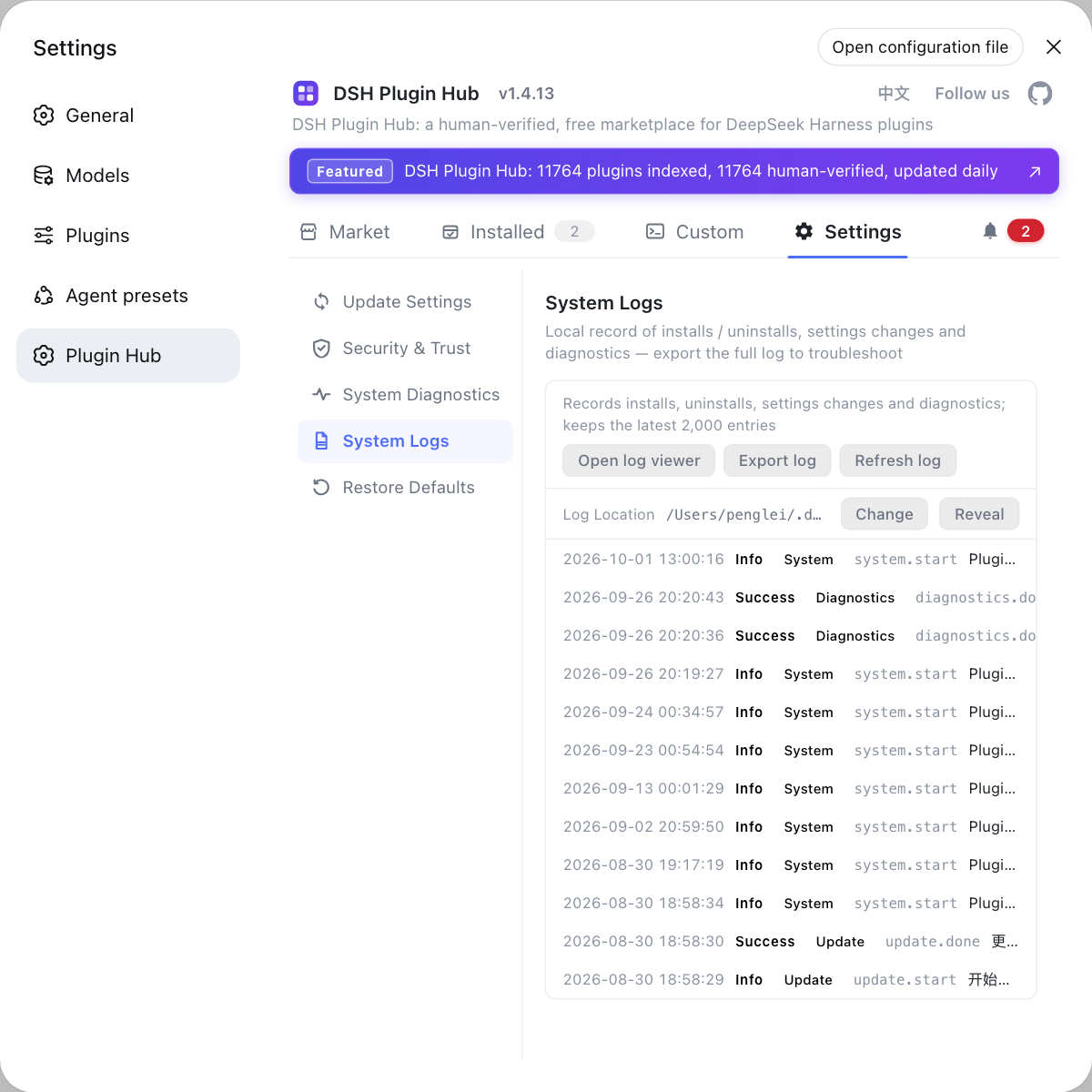
Before deleting a plugin directory, check its uninstall state in the DSH Plugin Hub installed list so a UI uninstall and a manual file delete do not fight each other; the system log there also shows the trace when an error appears.
Sources: DeepSeek Harness desktop README (official repository), npm Docs: common errors, Microsoft Docs: icacls
FAQ
EBUSY or EPERM when deleting dsh leftover directories usually means a file is in use. EBUSY means the resource is busy and in use, and EPERM means the operation is not permitted; in a delete scenario both usually point to the same thing: a process still holds a handle to that file or directory. Find and end the holding process, then delete, and neither error appears.
EACCES is essentially a permission problem, meaning access is denied. Common sources include a file set to read-only, the current user lacking write permission on the directory, the directory owned by an administrator or another account, or a global directory that needs elevation to modify. The fix is to clear the read-only attribute, grant the current user permission, or delete with admin / root rights when needed.
When no obvious process uses it but the directory still will not delete, antivirus or system indexing is usually holding it. Real-time antivirus scans, Windows Search indexing, file sync and background editor previews can briefly hold handles and release them later. Pause the scan or retry after a moment; if it still fails, restart the system and delete then, since a restart clears those temporary handles.
The order is end the process, clear read-only, elevate, then restart and delete. Locate and end the process holding the handle, clear the read-only attribute, then delete with admin rights or sudo as needed; if the first three fail, restart the system so leftover handles are fully released before deleting. The official Windows packaging validation uses exactly this file-in-use replacement thinking, handling the holder before touching files.
Not always, but you do for system directories, other users' directories or protected locations. If the current user owns the directory and has write permission, delete directly; if it belongs to an administrator or another account, take ownership with takeown and grant rights with icacls, or run the delete in an elevated terminal. Elevation is third in line, so first confirm whether it is a lock or read-only issue.
Related Terms
- EBUSY
- EBUSY is a resource-busy error that, when deleting a dsh directory, usually means the file or directory is in use by a process and requires ending that process first.— npm Docs
- EPERM
- EPERM is an operation-not-permitted error that in dsh directory deletion is mostly tied to a file being in use, and can also come from permission limits, so check both usage and permissions.— npm Docs
- EACCES
- EACCES is an access-denied error pointing at permissions; common causes include the read-only attribute, the current user lacking write permission, the directory belonging to another account, or needing admin / root rights.— npm Docs
- file-in-use replacement approach
- The file-in-use replacement approach is how the DeepSeek Harness desktop Windows packaging validation handles a file in use: locate and handle the holder first, then replace or delete the file instead of force deleting.— DeepSeek Harness desktop README
Sources
- DeepSeek Harness desktop README· deepseek-ai
- npm Docs: common errors (EACCES / EPERM)· npm
- Microsoft Docs: icacls· Microsoft