DeepSeek Harness desktop update: signed unit and DSH plugin
A DeepSeek Harness desktop update is a whole-package action: it does not let you swap a single dsh version, it replaces the Electron shell, the matching dsh runtime, Node.js and pnpm as one signed update unit that always shares one exact version (source).
If you only want the buttons and the polling cadence, that is the operational side and it lives in how to update the DeepSeek Harness desktop app. This article covers the mechanics instead: why a desktop update is always a whole package, what verifies the runtime at startup, and why upgrading dsh requires a new Desktop release. Desktop, core and plugins are three separate update layers, compared in DeepSeek Harness auto-update.
Why a DeepSeek Harness desktop update is a whole package
The smallest unit of a desktop update is not an npm package but a signed update unit, made of the Electron shell, the matching dsh runtime, Node.js and pnpm, all sharing one exact version and shipped together (source).
Break down where each part comes from and you stop thinking that updating the app equals swapping one dsh package:
| Component | Version source | What fixes it |
|---|---|---|
| Electron shell | Desktop release version | The app's own release |
dsh runtime (@deepseek-ai/dsh) | Same exact version as the shell | Pinned with the Desktop release |
| Bundled upstream Node.js | Packed into the update unit | Desktop release |
| Bundled pnpm | Packed into the update unit | Desktop release |
That explains five common misconceptions:
- The app is not "a shell plus your dsh" — it is an Electron shell wrapping the dsh Web UI, and dsh ships with it as a full production dependency tree rather than relying on a global install. Expect a brand-new machine to run right after installing the app, with no
npm i -gfirst. - Bundled runtimes and system runtimes do not mix — dsh runs through the bundled upstream Node.js and every package operation uses bundled pnpm; the Electron Node.js, system Node.js, system pnpm and your package manager config never enter the execution path. Expect other Node versions on your machine not to skew the runtime the app uses.
- Versions are bound, not assembled — the Electron shell and
@deepseek-ai/dshalways use the same exact version, so updating the app refreshes the whole runtime. Expect the dsh version shown in settings to always match the app's own release version. - Web client, backend and plugin graph are verified as one batch — a release verifies the desktop shell API, web client, backend and plugin dependency graph as a single combination. Expect the app version you see to name that whole relationship, not one package's version.
- Block reuse saves bandwidth, it does not change versions — platform update artifacts reuse unchanged data blocks to cut download size, but that reuse is file-level only. Expect reused blocks never to drift the app onto a different dsh version.
To confirm which runtime is bundled, run dsh --version (equivalent to dsh -V) to get the dsh version of that runtime (source).
What desktop-runtime.json verifies at startup
At startup the app reads resources/dsh/desktop-runtime.json from the signed resources, a manifest binding the shell version, bundled Node version, platform, architecture, shared package versions and the final file list, to confirm the runtime was not swapped or damaged (source).
You can open that manifest and check it yourself — on macOS it sits inside the app bundle under Contents/Resources/dsh/, on Windows under resources\dsh\ in the install directory. Walk through these six points:
- Locate and print the manifest — on macOS run
cat <app bundle>/Contents/Resources/dsh/desktop-runtime.json; on Windows runtype <install dir>\resources\dsh\desktop-runtime.json. Expect a JSON document exposing the shell, Node and platform fields. - Read the runtime metadata — startup reads the manifest first. Expect the shell version, bundled Node version, platform and architecture as the base set of facts.
- Cross-check the shell version — compare the manifest's shell version against the one shown under "Check for Updates…". Expect them to match, proving the shell was not swapped.
- Check shared package records — the app links each built-in first-party package into the current profile with a directory symlink (a junction on Windows) and checks those records at startup. Expect first-party packages to point back into the signed resources rather than being copied into the profile or reinstalled through pnpm.
- Confirm file integrity — release schema, shell version, target compatibility and file integrity are verified at packaging time. Expect a mismatch to surface at startup rather than midway through a run.
- No core reinstall on first launch — the first launch does not copy core packages into profile storage or install them through pnpm. Expect the profile to hold only the external plugins you added, with core packages always coming from the signed resources.
To see the shared links for yourself, run ls -l on a profile directory (or dir /AL on Windows) to list those symlinks and junctions: Expect them to point into the signed resources — a broken link usually means the resources were edited by hand.
Why upgrading dsh requires a new Desktop release
Because runtime version selection never leaves the Desktop release: even when the shell code itself is unchanged, upgrading the dsh runtime requires shipping a new Desktop release that carries the new runtime inside the signed update unit (source).
That constraint drives four rules:
- Do not swap the bundled dsh to "upgrade" — replacing the in-app runtime by hand breaks version consistency, because the app's dsh version follows the app. Expect the right upgrade path to be updating the app, not editing files under
extraResources. - The CLI dsh and the desktop dsh are not the same copy —
npm update -g @deepseek-ai/dshonly refreshes your global install and leaves the bundled runtime untouched. Expectdsh --versionmoving forward in a terminal to say nothing about the app's version, so the two must be updated separately. - Update artifacts may reuse unchanged blocks — to cut download size, platform update artifacts may reuse unchanged data blocks, but that reuse is file-level only. Expect reused blocks to keep the runtime on the release's chosen version rather than drifting to another dsh.
- Release identity is a verified relationship — the desktop shell API, web client, backend and plugin dependency graph are verified together as one release, and the exact Electron-to-
@deepseek-ai/dshrelationship is part of it. Expect the app version you see to be the name of that whole relationship.
Before updating, work out which layer you are actually touching: which dsh (or where dsh on Windows) shows the global entry point, npx @deepseek-ai/dsh web resolves a temporary one, and the app always runs its bundled runtime. Expect the three version tracks to stay independent, so fixing one never fixes another by accident.
Notes on the DeepSeek Harness desktop update unit
- Treat the app as one unit — do not try to upgrade dsh or the shell alone; version binding makes them move together.
- Do not steer the runtime with system Node or pnpm — bundled Node.js and bundled pnpm are the execution path, so changing system tools does not affect the app.
- Plugins are a separate layer — a desktop update replaces the runtime only, so version changes for installed DSH plugins are handled separately; see what happens to DSH plugins after a desktop update.
- Reinstall rather than hand-edit after a failed check — when the
desktop-runtime.jsonfile list no longer matches, going back to the official installer is more reliable than editing the runtime. - Keep the three version tracks apart — the global CLI, npx resolution and the bundled runtime are independent; when you check with
dsh --version, confirm which copy it hit instead of treating one number as the whole picture. - Keep the current installer around before updating — the desktop app has no version pin, so holding on to the current official installer lets you reinstall or roll back directly if a check fails.
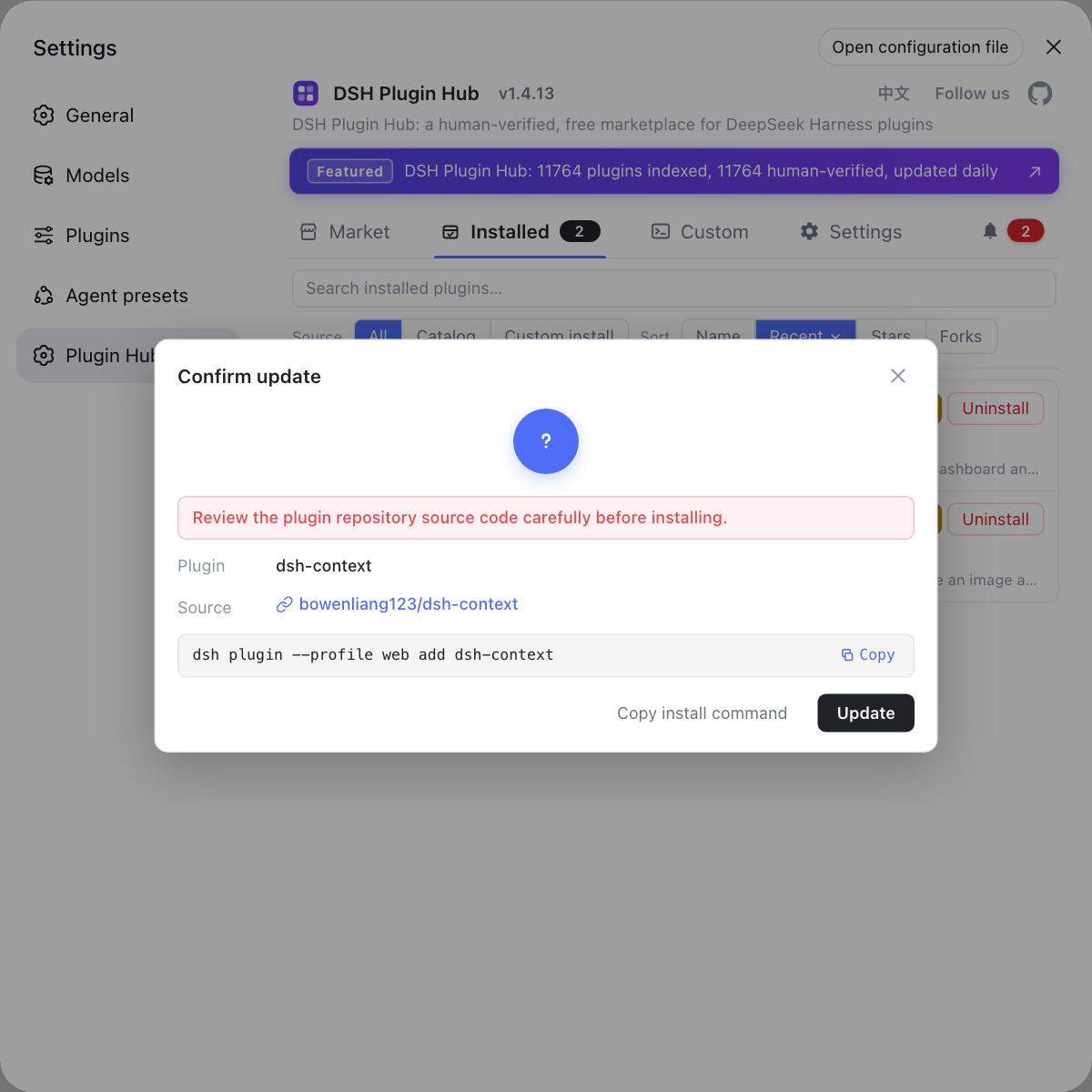
To sort out the plugin layer as well, use the built-in DSH Plugin Hub instead of tracking versions package by package: its installed list flags plugins with an available update, handles them in a click, and shows a confirmation dialog before anything changes.
Sources: DeepSeek Harness desktop README, Electron desktop packaging and updates Agent Note, DeepSeek Harness for desktop - download
FAQ
A DeepSeek Harness desktop update does refresh the bundled dsh, but it replaces a whole signed update unit rather than one package. The Electron shell, matching dsh runtime, Node.js and pnpm always share one exact version, so updating the app upgrades the entire runtime at once instead of touching dsh alone.
No. The dsh bundled in DeepSeek Harness desktop is always the same exact version as the published @deepseek-ai/dsh, and swapping the in-app runtime breaks version consistency. The desktop app runs dsh through its bundled upstream Node.js and bundled pnpm, so system Node.js and your package manager config never enter the execution path.
desktop-runtime.json is the runtime manifest in the signed resources; it binds the shell version, bundled Node version, platform, architecture, shared package versions and the final file list. DeepSeek Harness desktop reads this metadata on startup and checks the shared package records, while release schema, shell version, target compatibility and file integrity are verified at packaging time.
Because runtime version selection never leaves the Desktop release. Even when the shell code itself is unchanged, upgrading the dsh runtime requires shipping a new Desktop release that carries the new runtime inside the signed update unit, or the in-app version would not match the release identity.
Platform update artifacts may reuse unchanged data blocks to reduce download size. That reuse happens at the file level only, and runtime version selection never leaves the Desktop release, so reusing blocks cannot move the app onto a different dsh version.
Related Terms
- signed update unit
- A signed update unit is the smallest whole in a DeepSeek Harness desktop update, made of the Electron shell, the matching dsh runtime, Node.js and pnpm; all four share one exact version and are verified and shipped together.— DeepSeek Harness desktop README
- desktop-runtime.json
- desktop-runtime.json is the runtime manifest inside the desktop app's signed resources; it binds the shell version, bundled Node version, platform, architecture, shared package versions and the final file list for startup verification.— DeepSeek Harness desktop README
- release identity
- Release identity is the fixed set of version relationships in one desktop release, where the Electron shell and @deepseek-ai/dsh always map to one exact version, so a dsh upgrade ships as a new Desktop release even with unchanged shell code.— DeepSeek Harness desktop README
- bundled upstream Node.js
- The bundled upstream Node.js is the Node runtime packaged with the DeepSeek Harness desktop signed update unit; dsh runs through it, so system Node.js never enters the execution path.— DeepSeek Harness desktop README
Sources
- DeepSeek Harness desktop README· deepseek-ai
- Electron desktop packaging and updates Agent Note· deepseek-ai
- DeepSeek Harness for desktop - download· DeepSeek