DeepSeek Harness desktop update: what happens to DSH plugins
After a DeepSeek Harness desktop update, installed DSH plugins mostly stay in place: a compatible app upgrade only refreshes shared links in the current profile and checks the peer requirements of enabled plugins, while plugin files, config, versions and lockfiles are left alone and pnpm is not run (source).
The previous question was why a desktop update is a whole package, covered in is a DeepSeek Harness desktop update a whole-package upgrade. This one asks what happens next: the update swapped the runtime, so what about the DSH plugins installed inside — are they reinstalled, is config lost, and when does the app actually rebuild dependencies.
Why DSH plugins stay in place after a DeepSeek Harness desktop update
The desktop app splits "swap the runtime" from "rebuild the plugins": a compatible upgrade only refreshes shared links and runs a compatibility check, touching nothing in the plugin itself (source).
On a compatible app upgrade, the app does this:
- Refresh shared links — in the current profile it re-points built-in first-party packages at the new signed resources through directory symlinks (junctions on Windows). Expect plugin-referenced host packages to point at the new runtime while plugin directories stay unchanged.
- Check enabled plugins' peer requirements — it validates each plugin's declared host compatibility range. Expect compatible plugins to keep working, and mismatches to surface here rather than mid-run.
- Preserve plugin files, config, versions and lockfiles — these stay exactly as they were. Expect the installed list to show the same versions and timestamps as before the update.
- Run no pnpm — dependencies did not change, so only links needed refreshing. Expect update time not to scale with plugin count, and no failure from a dependency reinstall.
- Rewrite no profile dependency manifest — plugin versions live in the profile's
package.jsonand lockfile, and an app update does not rewrite them. Expect those dependency lines to be identical before and after the upgrade. - Run a read-only check if you want proof —
cat "$DSH_HOME/profiles/desktop/package.json"for dependency versions, thenls -l "$DSH_HOME/profiles/desktop/node_modules"for the shared links. Expect the links to still point into the signed resources and the versions to match.
One boundary to remember: the app exclusively owns profiles/desktop (Electron takes the single-instance lock before touching any profile), so those two are safe read-only commands; to actually add or change plugins, go back to the in-app plugin manager instead of writing to that profile from a shell.
When DeepSeek Harness desktop actually reinstalls plugin dependencies
Only when the bundled Node version, platform or architecture in the signed update unit changes does the desktop app reinstall the locked plugin dependency graph with scripts disabled, realigning dependencies to the new runtime (source).
First separate the two kinds of upgrade so you know whether a reinstall happens:
| What this upgrade changed | Reinstall plugin dependencies? | What you do |
|---|---|---|
| Shell and dsh runtime only (bundled Node, platform and arch unchanged) | No | Nothing; plugins stay in place |
| Bundled Node version, platform or architecture changed | Yes, locked graph reinstalled with scripts disabled | Wait for the rebuild and verification, then check the plugin list |
When the rebuild triggers, it runs in order:
- Reinstall the dependency graph with scripts disabled — the locked plugin dependency graph is reinstalled into the current profile without running lifecycle scripts. Expect dependencies aligned to the new bundled Node while third-party scripts stay unexecuted.
- Verify and link host packages — after confirming the relationships, host packages are linked back into profile storage. Expect plugins to keep resolving to the right host packages.
- Run approved plugin builds — only approved build steps execute. Expect plugins that need building to build within that controlled scope.
- Verify again — a final verification follows the rebuild. Expect the result to become available only after verification passes; a failure stops and reports.
- Check the result after the rebuild — look at the installed list, or read dependency versions in
$DSH_HOME/profiles/desktop/package.json. Expect versions to match the lockfile and plugins to load normally.
To predict whether a given update will trigger a rebuild, check two things: whether that desktop release changed the bundled Node version, and whether it shipped new architecture artifacts for your platform. When in doubt, verify the list afterwards rather than guessing beforehand.
How DeepSeek Harness desktop adds, updates and removes plugins
Adding, updating and removing plugins use bundled pnpm plus desktop-only package-manager state, and ordinary plugin dependencies must resolve inside the profile, because nested copies or aliases are rejected by validation (source).
A boundary first: the app exclusively owns profiles/desktop, so these add/update/remove actions happen in the in-app plugin manager; the CLI form dsh plugin --profile <name> ... (add / update / remove / list) targets profiles you manage yourself, such as web and headless, forwarding arguments to pnpm as-is.
Four shared rules apply:
- Go through bundled pnpm, not system tools — plugin install and update use the app's bundled pnpm with desktop package-manager state. Expect changing your system npm mirror or package manager not to change the plugin install path; to switch registries, do it in the app's own settings.
- Dependencies must resolve inside the profile — ordinary plugin dependencies must live in the current profile, and nested copies or aliases are rejected by validation. Expect plugin dependencies of different profiles to stay isolated with no cross-pollution.
- Plugin changes stop the Host first — the app stops the Host before modifying the current profile directly. Expect plugin changes not to be hot updates, so they take effect after the Host restarts; see restarting after a desktop plugin update.
- Adding and updating share one package path — installing a new plugin and upgrading an existing one both land in the same profile dependencies. Expect a new plugin to appear in the installed list immediately, with the list version matching the recorded profile version instead of the two disagreeing.
Notes on plugins after a DeepSeek Harness desktop update
- A compatible upgrade not reinstalling plugins does not mean you never touch them — the app replaces the runtime only, so newer plugin versions are still updated separately in the plugin manager.
- Dependency rebuilds have a precondition — only a bundled Node version, platform or architecture change triggers a reinstall; an ordinary app upgrade will not.
- Failures do not roll back — a failed plugin package operation keeps modified files, reports the error, and leaves an incomplete-operation marker for the next startup, so keeping a rollback version before updating is safer.
- Checking whether plugins caught up with the new runtime — comparing declared host versions by hand is tedious, and a tool that shows update status in one place is faster.
- Verify read-only, change in the app —
catonpackage.jsonandls -lon the links are harmless, but do not write toprofiles/desktopfrom a shell, which collides with the app's single-instance lock. - Check profiles separately — the desktop app and
web/headlesseach keep their own plugin dependencies, so a desktop upgrade only affects thedesktopset; do not fold other profiles' versions into the comparison.
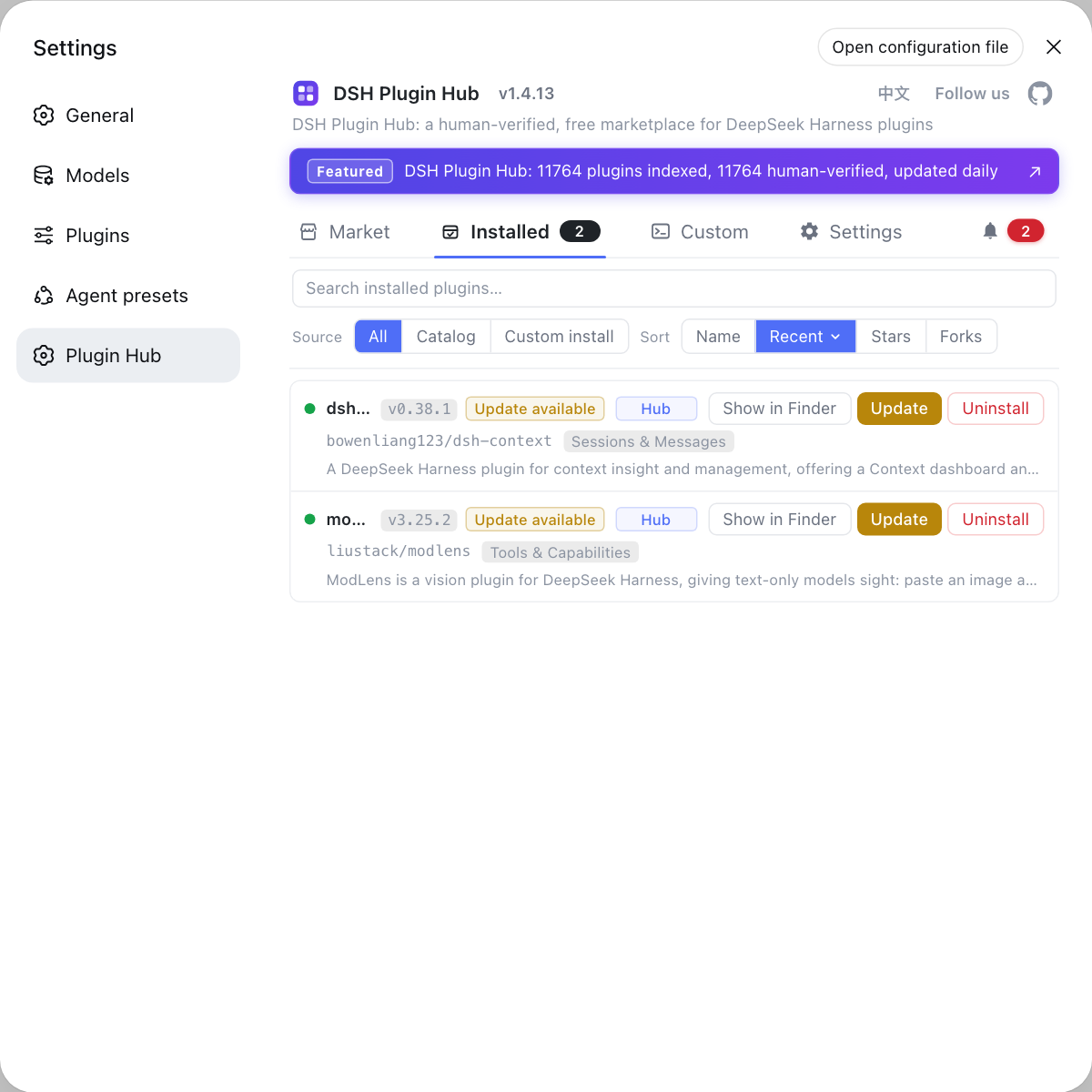
Instead of tracking what host version each DSH plugin declares, use the built-in DSH Plugin Hub: its installed list flags plugins with an available update, handles them in a click, and shows a confirmation dialog before anything changes.
Sources: DeepSeek Harness desktop README, Electron desktop packaging and updates Agent Note
FAQ
Usually not. When DeepSeek Harness desktop performs a compatible app upgrade, plugin files, config, versions and lockfiles stay exactly where they are; the app only refreshes shared links in the current profile and checks the peer requirements of enabled plugins, so it does not reinstall or wipe your DSH plugins.
Because a compatible upgrade does not need to rebuild plugin dependencies: DeepSeek Harness desktop only refreshes shared links in the current profile and checks peer requirements, without running pnpm. Only when the bundled Node version, platform or architecture changes does it reinstall the locked plugin dependency graph with scripts disabled, realigning dependencies to the new runtime.
When the bundled Node version, platform or architecture inside the signed update unit changes, DeepSeek Harness desktop reinstalls the locked plugin dependency graph into the current profile with scripts disabled. The flow is reinstall dependencies, verify and link host packages, run approved plugin builds, then verify again.
Because the desktop app requires ordinary plugin dependencies to resolve inside the profile, and nested copies or aliases are rejected by validation. This rule keeps each profile's plugin dependencies isolated, stops profiles from polluting each other, and keeps update and uninstall behaviour predictable.
Yes. A DeepSeek Harness desktop update replaces the runtime layer only, while plugin config, sessions and workspace data live under the shared $DSH_HOME and are preserved after the shared links are refreshed. Only a manual Desktop reset removes content under $DSH_HOME/profiles/desktop.
Related Terms
- shared link
- A shared link is how DeepSeek Harness desktop wires built-in first-party packages into the current profile, using a directory symlink (a junction on Windows) that points at the signed resources instead of copying packages into the profile.— DeepSeek Harness desktop README
- peer requirements
- Peer requirements are a plugin's compatibility declaration about host package versions; DeepSeek Harness desktop checks the peer requirements of enabled plugins during a compatible app upgrade to confirm they still match the new runtime.— DeepSeek Harness desktop README
- plugin dependency graph
- The plugin dependency graph is the locked set of all installed plugins and their dependencies in one profile; DeepSeek Harness desktop reinstalls it with scripts disabled only when the bundled Node version, platform or architecture changes.— DeepSeek Harness desktop README
- desktop package-manager state
- Desktop package-manager state is the package management record unique to DeepSeek Harness desktop; adding, updating and removing plugins use bundled pnpm together with it, sharing nothing with the command-line side.— DeepSeek Harness desktop README
Sources
- DeepSeek Harness desktop README· deepseek-ai
- Electron desktop packaging and updates Agent Note· deepseek-ai