dsh CLI: DeepSeek Harness install, commands, DSH plugins
dsh cli means the DeepSeek Harness command-line tool dsh — the sole officially supported Node application launcher, which loads a profile and hands the remaining arguments to it; the Web UI, headless jobs and the SDK are all different profiles it boots.
DeepSeek Harness CLI overview
This guide covers three things about "dsh CLI": what it is and how it relates to the Web and desktop builds, how to install it, and the three command families you use day to day plus their exit codes. Conclusion first: it is not a standalone product but the common entry to every form — every dsh command you type is essentially "pick a profile and boot it". For command details, use the dsh command cheatsheet; this piece focuses on the concepts and the install.
What dsh CLI is: the DeepSeek Harness launcher and its relation to Web and desktop
dsh is the DeepSeek Harness command-line launcher; it does exactly one thing: load the selected profile and hand the remaining arguments to the booted app to parse (source). To get it right, four points:
- It is the sole entry — the vendor states the
dshcommand is the only supported Node application launcher; the SDK and ACP are profiles, not separate public binaries. - Syntax and loading are separate — the command grammar lives in
src/args.ts, whilesrc/bin.tsonly dynamically loads the selected runner, so the "hand off what I don't recognize" boundary is very stable. - It is not "another interface" — the Web UI is the
webprofile booted bydsh webrendered in a browser, a headless job is theheadlessprofile, and SDK/ACP are their own profiles; different interfaces over one shared capability set. - Relation to the desktop build — the desktop and Web UI give you a graphical, browsing interface, while the CLI gives you the same capabilities from a command line, so you switch between them by scenario. For that trade-off, see DeepSeek Harness Web UI vs desktop.
In one line: the CLI is a launcher, not an interface; what you change is what it boots, not the CLI itself.
dsh web and dsh --profile web are the same load
dsh web is just a hardcoded alias for dsh --profile web: both load the web profile and hand the remaining arguments to it (source). Likewise, dsh <name> abbreviates dsh --profile <name> and boots the same-named profile under $DSH_HOME/profiles/<name>. The directory you launch dsh from becomes its default workspace root, while the profile always lives under $DSH_HOME/profiles/<name>. So don't treat dsh web as another product — it and dsh --profile headless "job" take the same load path, differing only in which profile they pick. The launcher parses only its own flags (--profile, --patch, --help and the like); after the first token it doesn't recognize, the rest goes to the booted app verbatim (source).
How to install dsh CLI: npm global install vs npx
There are two ways to install the CLI: npm install -g @deepseek-ai/dsh for a global install and then call dsh directly, or skip the install and run npx @deepseek-ai/dsh to pull it on the fly (source). Go in order:
- Confirm Node and npm are present — run
node -vandnpm -v. Expected: both print a version number. - Install globally — run
npm install -g @deepseek-ai/dsh. Expected: the install succeeds anddsh --versionprints the launcher version. - Boot the Web UI — run
dsh web. Expected: the terminal prints the address and the service runs athttp://127.0.0.1:3080. - Or run without installing via npx — run
npx @deepseek-ai/dsh web. Expected: the same result as the local install, only pulling the latest version each time. - Set the key and workspace — in the Web UI settings, enter the API key and pick a workspace. Expected: you can send your first task.
- Add plugins — when you need to extend capabilities, add them from the plugin market (see the link below). Expected: the plugin's capabilities appear in the interface.
# after a global install, call dsh directly
npm install -g @deepseek-ai/dsh
dsh web

# without installing, run it on the fly with npx
npx @deepseek-ai/dsh web

# confirm the version
dsh --version
The two differ only in whether a package is pulled each time: a global install for long-term daily use, npx for an occasional try-out or a CI run, both reading the same $DSH_HOME data — see the older npx @deepseek-ai/dsh web flags vs global install for the full install, flags and cache comparison.
Common dsh CLI commands: dsh, dsh web, dsh plugin
Three families cover daily use: dsh web boots the Web UI, dsh --profile <name> boots any profile (headless runs a one-shot job), and dsh plugin --profile <name> <pnpm args> manages plugins (source). Quick reference:
| Command | Purpose |
|---|---|
dsh web | A hardcoded alias for --profile web, boots the Web UI |
dsh --profile headless "job" | Runs one fresh session, prints the final answer, exits |
dsh --profile <name> | Boots any installed profile |
dsh plugin --profile <name> <pnpm args> | Forwards to pnpm inside the profile directory to manage plugins |
A few boundaries you must know (source):
- Argument ownership — the launcher parses only its own arguments; after the first token it doesn't recognize, everything goes to the app as-is. So in
dsh --profile web --port 8080,--portbelongs to the web app. dsh web's address is fixed — defaulthttp://127.0.0.1:3080, the port changes with--port, but the CLI does not support--host 0.0.0.0.- Initialize the profile before installing plugins — run
dsh webonce before the firstaddso thewebprofile exists. - One-click plugin management is easier — once the community market plugin is installed, browsing, one-click install, update and uninstall all happen in the GUI.
Argument ownership and common exit codes
A launcher exit code expresses one thing: whether the command and config were accepted — dsh --help exits 0, while rejected arguments or an unknown command exit nonzero (source). The cases you hit most:
- Usage errors exit nonzero — an unknown subcommand, an option from another mode, or a repeated
--profileis rejected before boot and exits nonzero, never booting with the wrong config. --helpexits 0 —dsh --helpprints the launcher's own help anddsh web --helpprints the web app's help; neither actually boots the service.- headless exits by task outcome —
dsh --profile headless "job"exits 0 when the job completes and 1 otherwise, so it is safe to gate a script on it. - Boot failure exits 1 and writes a log — when a required plugin fails to activate, the process prints diagnostics and exits with code 1, and writes a
startup-<timestamp>-<uuid>.logunder$DSH_HOME/logs/(default~/.dsh/logs/). - A missing profile fails loudly — a missing profile does not fail silently; it hints to create it with
dsh plugin --profile <name> add <package>first.
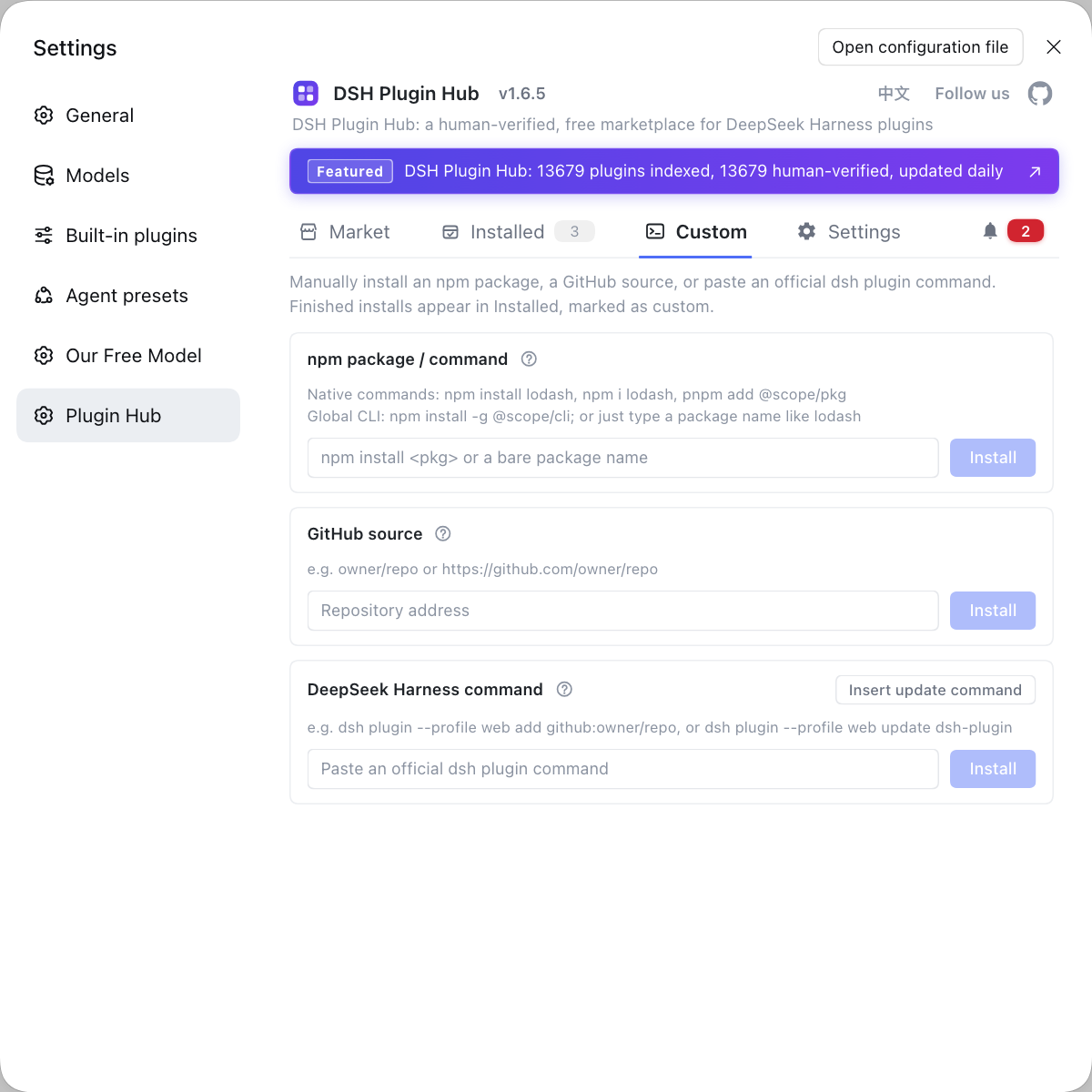
To master every command's arguments and exit codes, go straight to the dsh command cheatsheet. After a global dsh install, if you would rather manage DeepSeek plugins visually, add DSH Plugin Hub and you can install, update and uninstall from Settings → Plugin market in the Web UI.
Notes and limits for the DeepSeek Harness CLI
- The launcher parses only its own arguments — everything after the first unrecognized token goes to the app, so an argument in the wrong place is treated as an app argument.
- Profiles don't interfere — DSH plugins and config are isolated per profile, so
webandheadlesseach install their own, and switching profiles swaps the whole plugin set. - Web listens only on the local machine by default — it binds
127.0.0.1:3080and deliberately does not support--host 0.0.0.0; restrict source hosts with--trusted-host. - npx pulls the latest every time — no install is convenient, but you don't control the version; pin it with
@versionor use a global install. - Preview changes things — DeepSeek Harness is in developer preview and the vendor states breaking changes are coming (source), so treat the commands and interface as version-specific.
Rather than memorizing the dsh plugin add, remove and update family and checking profile dependencies yourself, add DSH Plugin Hub once dsh is globally installed: the CLI handles launching while the UI handles plugins.
Source: dsh CLI README, @deepseek-ai/dsh on npm, dsh-plugin.org plugin market
FAQ
dsh CLI means the DeepSeek Harness command-line tool dsh, the sole officially supported Node application launcher, which loads the selected profile and hands it the remaining arguments. The Web UI is the web profile it boots rendered in a browser, and a headless job is the headless profile, so Web, desktop and CLI share one capability set and differ only in entry and interface.
Both work: install globally with npm install -g @deepseek-ai/dsh and then call dsh directly, or run without installing via npx @deepseek-ai/dsh, which pulls the latest version each time. For long-term daily use a global install is recommended, while an occasional try-out or a CI run is cleaner with npx, and both boot the same launcher.
There are three families: dsh web boots the Web UI (equivalent to dsh --profile web); dsh --profile headless "job" runs one session, prints the result and exits and stands for any profile; and dsh plugin --profile <name> <pnpm args> manages plugins. The launcher parses only its own arguments, and everything after the first token it does not recognize goes to the booted app.
dsh web serves http://127.0.0.1:3080 by default, and the port can be changed with --port, for example dsh web --port 8080. But the CLI deliberately does not support --host 0.0.0.0 and exits with a usage error if you pass it; to restrict source hosts, add trusted host names with the repeatable --trusted-host instead of exposing the service to the network.
Once dsh is globally installed, run dsh web once so the web profile initializes, then install the community market plugin, for example dsh plugin --profile web add dsh-plugin; after a restart a plugin market appears in the interface. From then on browsing, one-click install, update and uninstall all happen in the GUI, so you don't type dsh plugin add every time.
Related Terms
- dsh
- dsh is the DeepSeek Harness command-line launcher and the sole officially supported Node application launcher; it loads the selected profile and hands the remaining arguments to the booted app to parse.— dsh CLI README
- profile
- A profile is an ordered stack of plugin-bundle patch layers for DeepSeek Harness that lives under $DSH_HOME/profiles/<name>; every dsh CLI start loads some profile, and the Web and headless modes are each a profile.— dsh CLI README
- dsh web
- dsh web is the dsh command that boots the Web UI, equivalent to dsh --profile web; it serves http://127.0.0.1:3080 by default, and the port is adjustable with --port.— dsh CLI README
- @deepseek-ai/dsh
- @deepseek-ai/dsh is the npm package name published for the DeepSeek Harness command-line tool; install it globally with npm install -g @deepseek-ai/dsh, or call it without installing via npx @deepseek-ai/dsh.— @deepseek-ai/dsh on npm
Sources
- dsh CLI README· deepseek-ai
- @deepseek-ai/dsh on npm· npm
- dsh-plugin.org plugin market· dsh-plugin.org