DSH plugin flags: npx @deepseek-ai/dsh web vs global install
npx @deepseek-ai/dsh web is the official command to start the DeepSeek Harness web UI: npx fetches the package on demand, @deepseek-ai/dsh is the package to run, and web is the subcommand to start (source). This guide takes the command apart, walks through startup flags such as --port, --host and --no-open one by one, and finally compares it with dsh web after a global install.
DSH plugin overview: the segments of one npx @deepseek-ai/dsh web command
npx @deepseek-ai/dsh web splits into three segments: the executor npx + the package name @deepseek-ai/dsh + the subcommand web. Each segment carries a clear responsibility:
| Segment | What it is | What it does |
|---|---|---|
npx | The package executor bundled with npm | Fetches and runs a package on demand, with no global install |
@deepseek-ai/dsh | The official CLI package name | The DeepSeek Harness command-line program to fetch and run |
web | A subcommand | Starts the web profile and brings up the web UI service |
By default it listens on 127.0.0.1:3080 and opens the browser automatically once startup finishes (source). To change the port, swap the binding address or stop it from opening the browser, you rely on the flags that follow.
DSH plugin startup flags, one by one: --port, --host and --no-open
The web app ships its own set of flags, written as dsh web --flag, and they override the defaults in the config file. The key question is who parses what: the launcher only parses its own flags, and after the first argument it recognizes, everything else is handed to the launched web app (source). So --port belongs to the web app, not the launcher.
The common flags, one by one:
--port <port>changes the listening port. It defaults to 3080; pass it explicitly to run the service on another port, for exampledsh --profile web --port 8080; passing0hands the choice of a free port to the operating system. Expected: the address and port printed in the terminal change accordingly.--host <address>changes the binding address. It only accepts an IPv4 / IPv6 literal for a specific local NIC; wildcard addresses are rejected. Expected: the service listens only on the address you specify, not the default127.0.0.1.--no-openstops the browser from opening automatically. Use it when the server is up but you do not want a browser popup (on a remote machine or started from a script). Expected: the terminal still prints the address, but no browser is launched.--public-url <url>sets the access root to advertise. Behind a reverse proxy or tunnel, it makes the printed address,DSH_WEB_URLand so on point at this root for easy copying. Expected: the address you copy is the domain you expose publicly.--trusted-host <authority>appends a trusted origin. The browser trust fence for/apionly accepts authorities on the allowlist; pass this flag repeatedly when you need to allow more. Expected: requests from that origin are no longer blocked by the fence.-h, --helpshows help only. Runningdsh web --helpprints the web app's own flag reference, not the launcher's help, and does not actually start the service.
A minimal example of the command broken down:
# Switch to port 8080 and skip opening the browser, good for running on a remote machine
npx @deepseek-ai/dsh web --port 8080 --no-open
What happens if a flag is wrong? The parser rejects invalid values before startup, and the process prints an error and exits with a non-zero code rather than running with a broken config (source). For example, passing letters as the port makes the command error out immediately; to see every available flag, run dsh web --help first.
How the DSH plugin differs from dsh web after a global install
npx and a global install read the same data; the only differences are whether to fetch the package each time and how fast startup is. Comparison:
| Dimension | npx route | dsh web after a global install |
|---|---|---|
| Install | None; fetch on demand | npm install -g @deepseek-ai/dsh once |
| Version | Latest automatically each time | Must be updated manually |
| Startup speed | Slow the first time, cached later | Just dsh web, the fastest |
| Common commands | Every one needs npx @deepseek-ai/dsh | Use subcommands such as dsh plugin ... directly |
| Data directory | The same one | The same one |
The choice is simple: for occasional use and a quick trial, take npx; if you use it daily and keep managing plugins with dsh plugin, install globally once. Once installed, the next step is to connect it to the plugin ecosystem:
- Run
dsh plugin --profile web add dsh-pluginto install DSH Plugin Hub into the web profile; - Restart
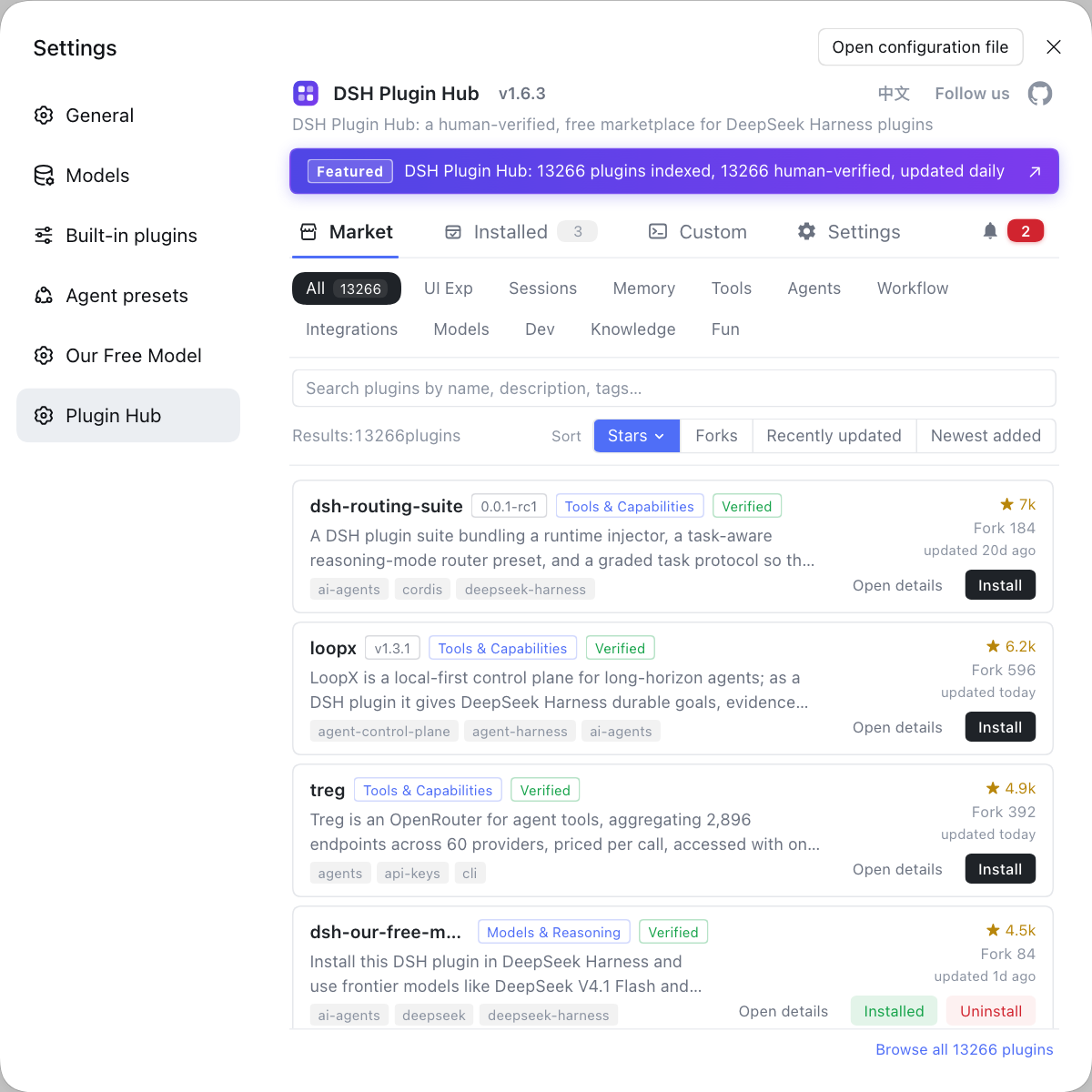
dsh weband open Settings → Plugin Market; - Browse by category in the market and install community plugins with one click.
Rather than typing a long npx command by hand each time and remembering flags and ports yourself, install globally once and connect the plugin market, so installing, uninstalling and updating DeepSeek Harness plugins is one click in a visual interface.
DSH plugin caveats
These are the DSH plugin pitfalls that trip people up most when configuring web startup flags. One by one:
- Whose flag is it:
--port,--hostand--no-openare web app flags; see the launcher's own flags withdsh --help— the two help screens are not the same. - Flags beat config: once a flag value is passed it overrides the config file's default, and it is only parsed once at startup, so no later config reload can quietly change it back.
- Wildcard addresses are rejected:
--hostonly accepts a specific local address literal; do not expect to use it for broad listening. - Do not close the terminal: an npx-launched service follows the terminal process, and closing the window stops it; for always-on use, install globally and run it in the background.
- Check the default port first on conflict: before changing the port, make sure 3080 is not taken by another process; when you hit an error, check the
--portspelling and the occupation first.
Sources: dsh CLI README, dsh-cmdline README, dshplugin/dsh-plugin-hub
FAQ
The three segments of this DeepSeek Harness startup command each have a clear job: npx fetches a package on demand and runs it, @deepseek-ai/dsh is the package to run, and web is the subcommand to start. npx does not install globally; it pulls the package from npm as needed. The web subcommand makes DeepSeek Harness start the web profile. So in essence it is "run the latest web UI without installing".
The DeepSeek Harness web app flags override the defaults directly: --port changes the listening port, and --no-open stops the browser from opening automatically. The web profile listens on 127.0.0.1:3080 by default; for example, dsh --profile web --port 8080 makes DeepSeek Harness run on 8080. Command-line flags take precedence over the defaults in the config file.
npx goes through the fetch flow every time, but from the second start on it hits the local npm cache, so the second DeepSeek Harness start is noticeably faster. To drop this step entirely, run npm install -g @deepseek-ai/dsh to install DeepSeek Harness globally, then run dsh web directly: startup is fastest, and you can manage plugins with the dsh command at any time.
When DeepSeek Harness starts, a malformed flag is rejected by the argument parser: the process prints an error and exits with a non-zero code, and it never starts with a broken config. For example, passing a non-numeric port makes the command error out and exit. To see the available flags first, run dsh web --help, which prints the web app's own help instead of starting the service.
Yes, they do: both read the same data directory, so DSH plugin entries, keys and sessions are fully interchangeable. Whether you go through npx or a global install, the profile, plugins and config all live under DSH_HOME, so switching launch methods loses no data. The only difference is whether to fetch the package each time and how fast startup is.
Related Terms
- npx
- npx is the package executor bundled with npm, used to download and run an npm package temporarily without a global install. It lets commands such as npx @deepseek-ai/dsh web run without installing first.— dsh CLI README
- dsh web (web subcommand)
- dsh web is the subcommand that starts DeepSeek Harness's web profile and brings up the web UI service. It listens on 127.0.0.1:3080 by default and is equivalent to dsh --profile web.— dsh CLI README
- --port (listening port)
- --port is a web app flag that specifies the service's listening port, overriding the default 3080 in config. Passing 0 lets the operating system pick a free port.— dsh-cmdline README
- --no-open
- --no-open is a web app flag that stops the default browser from opening the web UI automatically after startup. It suits starting the service on a remote machine or inside a script.— dsh-cmdline README
Sources
- dsh CLI README· deepseek-ai
- dsh-cmdline README (how app command-line arguments override config)· deepseek-ai
- dshplugin/dsh-plugin-hub· dshplugin