dsh bot: DeepSeek Harness chatbot DSH plugin setup & limits
dsh bot means a DSH plugin that connects DeepSeek Harness to chat platforms and runs it as a chatbot; in the plugin data there are at least two plugins named dsh-bot, and they solve different problems (source). This article explains what it solves, how to tell the same-named entries apart and get one installed, and where the boundaries lie between message channels, permissions, and IM bridge plugins.
Overview: what dsh bot actually is
There is no single answer to "what is dsh bot", because the one slug dsh-bot maps to two DSH plugins with different roles in the plugin data. Figure out which one you are searching for first, or you will install the wrong thing.
The first one turns a chat platform into an entry point to a DeepSeek Harness workspace: once you bind a bot, you send a message from a phone chat window, DeepSeek Harness executes it in a designated working directory, and the result comes back the same way (source).
The second one provides a resident agent entity that belongs to no session: its instance, memory, and task queue all live in the bot directory of the DeepSeek Harness home, so they survive closing a session, context compaction, or a machine restart (source).
Both are maintained by individual community developers; dsh-bot is just a shared name, not an official product line. So the real question behind "what is dsh bot" is "which dsh bot, and which class of problem does it solve".
What problem dsh bot solves: running DeepSeek Harness as a bot on chat platforms
The core problem dsh bot solves is "if you are not sitting at the computer, you cannot get DeepSeek Harness to work". It treats a chat platform or a resident instance as the front end of DeepSeek Harness, keeps the capabilities executing on your computer, and lets you drive them from a phone or an IM. It covers four pain points:
- Interaction breaks the moment you leave the desk — the traditional way needs you at the computer with a terminal open. After you install the chat-entry dsh bot and bind a bot once, sending a message in Telegram or WeChat drives the workspace. Expected: you can keep pushing a task forward while you are away, and the result returns to the chat window.
- Context disappears with the session — the resident-agent dsh bot keeps its instance, memory, and task queue in the bot directory of the DeepSeek Harness home and reads and writes the same copy across sessions. Expected: what you agreed this time is still there next time.
- Approvals are locked to the computer — the chat-entry dsh bot renders DeepSeek Harness approval requests as Telegram cards with Allow once / Deny buttons. Expected: you can approve with one tap on your phone instead of going back to the computer.
- Out-of-bounds actions have no gatekeeper — the resident-agent dsh bot moves a task that needs to touch something outside the workspace into
awaiting, lays out the tool name and full arguments, and waits for your approval. Expected: a privileged action stops for your nod instead of running silently.
In one line: dsh bot turns DeepSeek Harness from "you go find it" into "it follows your chat bubble", while memory continuation and an approval gate protect context and permissions.
How to install and enable dsh bot: telling the two same-named dsh-bot sources apart
The hard part of installing dsh bot is not the command but recognizing which same-named entry to install. Both use the standard dsh plugin add command; the only difference is the GitHub source — install the wrong source and no amount of configuration will match the scenario you wanted. Steps:
-
Decide which kind you need first — for "remote chat and remote approval from a phone" pick the chat-entry type; for "cross-session residency, memory tree, task queue" pick the resident-agent type. Expected: the goal is clear and you stop flip-flopping between two same-named entries.
-
Tell them apart in the plugin market — open DSH Plugin Hub, search
dsh-bot, and compare the maintainer and description on each card: the Telegram / WeChat bridge is dsh-bot, and the resident entity / memory tree / task queue is dsh-bot. Expected: the owner and description are enough to locate the right one. -
Run the install command — chat-entry type:
bashdsh plugin --profile web add github:aitcmhk-web/dsh-botresident-agent type:
bashdsh plugin --profile web add github:wqty123/dsh-botExpected: the command runs to completion with no error and the plugin enters the web profile (source).
-
Confirm the profile matches —
--profile webonly affects the web environment; install into whatever profile you normally start. Expected: the profile you installed into equals the profile you launch. -
Finish initialization by type — the chat-entry type's binding script asks only three things: what the workspace is called, the Telegram token (create one via @BotFather in Telegram, and do not share it with another bot), and whether to bind WeChat; the resident-agent type shows a bot entry in the left sidebar and a settings page. Expected: the chat-entry script prints "✅ Review passed: configuration is in effect" at the end; the resident-agent type can open the bot settings page.
-
Restart and self-test — restart the
dshprocess for that profile, then send the bot a message or create an instance. Expected: the message replies and the instance is created, which means the plugin is live.
If nothing happens after install and the script reports no error, it is most likely the chat-entry type's silent failure — it does not count as installed until you see that "Review passed" line, so re-bind per the official instructions; this kind of failure does not throw.
If you have not installed DeepSeek Harness itself yet, start with how to install DeepSeek Harness and come back for the plugin.
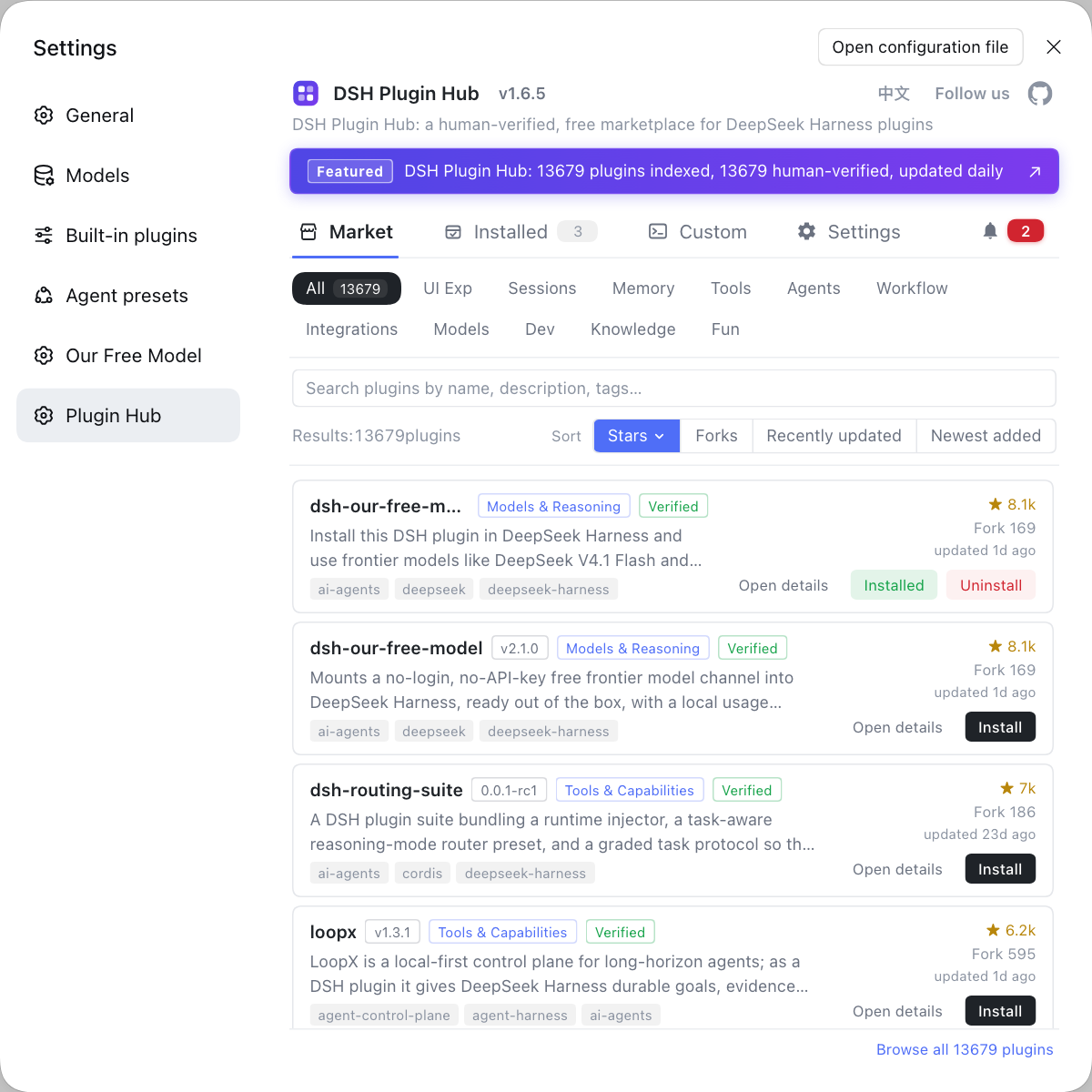
Installing a plugin is really just one dsh plugin add command, but same-named sources, profile ownership, and version compatibility are scattered across separate repos. Rather than comparing two GitHub repositories by hand and typing the commands yourself, use DSH Plugin Hub to download and manage them in one place: search, read descriptions, tell same-named entries apart, one-click install, uninstall, update checks, and system logs all live in one interface.
How to use dsh bot and its boundaries: message channels, permissions, and IM bridge plugins
Using dsh bot comes down to two things: message channels decide how you get words in, and permissions and division of labor decide how far it can go for you. One by one:
- Message channels — the chat-entry dsh bot supports two entries, Telegram and WeChat, and WeChat messages merge into the owner's Telegram session, sharing one context: running
/newor/modelin WeChat affects the same session. The resident-agent dsh bot instead sends messages outward throughbot_connectorover a connection you configure, with the channel filled in by you. - Common commands — the chat-entry type manages sessions and the process right in the chat window, with
/whoami/status/model/new/restart/help;/restartwrites progress into a handoff first. The resident-agent type exposes sevenbot_*tools (bot_statusbot_rememberbot_recallbot_taskbot_connectorbot_secretbot_agenda) that the agent calls. - Permission tiers — each resident-agent instance has three permission tiers: read-only, full permission, and conversation-only, and the toolset follows the permission: a read-only instance cannot even see the file-writing half of the tools, and autonomous time defaults to read-only. The chat-entry type's remote approval is a read-only side channel with a default 10-minute timeout; if rendering or editing fails it only logs, without changing the approval result.
- How it divides work with IM bridge plugins — dsh bot is the entry / agent for "running DeepSeek Harness as a bot"; an IM bridge plugin is channel management for "wiring conversations and notifications into Feishu, DingTalk, and so on". If you want a phone-driven DeepSeek Harness workspace, choose dsh bot; if you want to plug into your existing IM and manage multiple bot connections centrally, see connecting DSH plugins to IM tools. The two can coexist, but one cannot replace the other.
Notes and limitations of using dsh bot
Here is what to remember before wiring dsh bot into DeepSeek Harness. One by one:
- Same name is not the same thing:
dsh-botis at least two plugins; check the owner (aitcmhk-web / wqty123) and the description, and do not install on the name alone. - Treat credentials like passwords: only give the Telegram token to a plugin from a trusted source, and never paste it into a chat window or a public repo.
- Align the profile: installing into the wrong profile is a frequent cause of "installed but not working".
- Sensitive information has two doors: the resident-agent type always refuses hard items such as ID numbers, bank card numbers, passwords and keys, and session tokens, and excludes soft items such as health, finance, legal, and family matters by default; once enabled they carry a sensitive tag long term.
- Speech-to-text is not installed automatically: the chat-entry type defaults to the sensevoice backend, which recognizes Chinese more accurately, and when the local environment is missing it only returns a paste-ready install command that you must run yourself.
- Restart to take effect: plugins and configuration changes load after a restart, so restart the matching profile once you are done.
Sources: dsh CLI README, aitcmhk-web/DSH-bot, wqty123/dsh-bot
FAQ
dsh bot is a class of chatbot / resident-agent DSH plugin named dsh-bot in the DeepSeek Harness ecosystem that lets DeepSeek Harness be driven remotely through a chat platform or a resident instance. The plugin data has at least two same-named entries: one maintained by aitcmhk-web turns Telegram and WeChat into workspace entry points, and one maintained by wqty123 provides a resident agent entity that belongs to no session.
Tell them apart by owner and description: for remote chat and remote approval from a phone choose aitcmhk-web's dsh-bot, and for cross-session residency with a Markdown memory tree and task queue choose wqty123's dsh-bot. The first describes a Telegram / WeChat bridge, the second a resident entity plus a bot_* toolset; the maintainer and feature keywords on the card are enough to match.
Message channels decide how words get in and permissions decide how far it can go for you, and both are separate from IM bridge plugins. The chat-entry dsh bot supports both Telegram and WeChat entries over one shared session context; the resident-agent type has three permission tiers — read-only, full permission, and conversation-only — with autonomous time read-only by default. IM bridge plugins handle wiring conversations and notifications into channels such as Feishu and DingTalk; the two can coexist but should not stand in for each other.
Both go through dsh plugin add; the difference is only the GitHub source: the chat-entry type is dsh plugin --profile web add github:aitcmhk-web/dsh-bot and the resident-agent type is dsh plugin --profile web add github:wqty123/dsh-bot. The chat-entry type only counts as successful once the script prints "✅ Review passed: configuration is in effect"; without that line it is a silent failure that reports no error, so re-bind per the official instructions.
Speech-to-text defaults to the sensevoice backend and, when the machine lacks it, only returns a paste-ready install command — the plugin never installs it for you; remote approval is a read-only side channel that does not change the approval outcome. Remote approval cards default to a 10-minute timeout and only log if rendering or editing fails; speech recognition needs the matching runtime present locally to work.
Related Terms
- dsh bot
- dsh bot is a class of chatbot / resident-agent DSH plugin named dsh-bot in the DeepSeek Harness ecosystem that lets DeepSeek Harness be driven remotely through a chat platform or a resident instance. The plugin data has at least two same-named entries, maintained by aitcmhk-web and wqty123 respectively.— aitcmhk-web/DSH-bot, wqty123/dsh-bot (GitHub)
- resident agent entity
- A resident agent entity is a bot form in DeepSeek Harness that belongs to no single session; its instance, memory, and task queue are stored in the bot directory of the home and survive closing a session, context compaction, or a restart, with every session reading and writing the same copy.— wqty123/dsh-bot (GitHub)
- handoff memory continuation
- handoff memory continuation is a mechanism the chat-entry dsh bot enables by default, archiving progress through the /memory command and an accounting program so work resumes after a restart or in a new session; to turn it off, set memoryDir in the config to an empty string.— aitcmhk-web/DSH-bot (GitHub)
- approval gate
- The approval gate is a first-class task state in the resident-agent dsh bot: when a task needs to touch anything outside the workspace it enters awaiting, listing the tool name and full arguments for approval; you approve that one concrete action, and after approval a re-run is no longer blocked.— wqty123/dsh-bot (GitHub)
Sources
- dsh CLI README (plugin add and profile semantics)· deepseek-ai
- aitcmhk-web/DSH-bot (GitHub repository)· aitcmhk-web
- wqty123/dsh-bot (GitHub repository)· wqty123