How to create an isolated profile for DSH plugins
A DeepSeek Harness profile is an independent runtime configuration under $DSH_HOME/profiles/<name>, holding package.json (the dsh.profile manifest and ordered bundles) plus cordis.patch.yml; create one with dsh --profile <name> --from-default-profile <template> and install DSH plugins per profile. This guide covers what a profile is, how to create one and how plugins get in.
What a DeepSeek Harness profile is: directory layout and bundles order
A DeepSeek Harness profile directory holds package.json (recording out-of-tree plugin dependencies, the dsh.profile manifest and the ordered bundles) and cordis.patch.yml, with plugins installed into its node_modules, and profiles invisible to each other by default (source). Understand the layout in four steps:
- Check the location — each profile lives at
$DSH_HOME/profiles/<name>. Expected:<name>is what you pass to--profileordsh <name>at startup. - Read
package.json— beyond ordinary dependencies it carries thedsh.profilemanifest andbundles. Expected:bundlesis an ordered list deciding how bundle patches stack. - Know the common bundles — such as
@deepseek-ai/dsh-base,dsh-web-app,dsh-headless,dsh-sdk-app,dsh-sdk-minimalanddsh-acp-app. Expected: different shapes use different bundles, with web and headless each taking their own. - Read
cordis.patch.yml— this is the profile's user patch layer, overriding bundle defaults. Expected: it affects only this profile.
The stacking order is: each bundle's patch (in bundles order) → the profile cordis.patch.yml → the home-level $DSH_HOME/cordis.patch.yml → --patch. Later layers win.
How to create a custom DeepSeek Harness profile: --from-default-profile and templates
Create a profile from a default template with dsh --profile <name> --from-default-profile <template>, where the template decides the profile's shape; launch it with dsh <name> or dsh --profile <name> (source). Follow these steps:
- Pick a template — by purpose:
dsh-web-appfor interactive web,dsh-headlessfor unattended tasks,dsh-sdk-appfor building on top. Expected: the template directly sets the default bundle composition. - Create the profile — run
dsh --profile <name> --from-default-profile <template>. Expected:package.jsonand a patch file appear under$DSH_HOME/profiles/<name>. - Choose a memorable name — do not use the reserved name
desktop. Expected: an invalid name fails creation or collides with the desktop build. - Verify by launching — start with
dsh <name>ordsh --profile <name>. Expected: you enter that profile's shape. - Inspect the defaults — use
--dump-default-configwhen needed to see the profile's bundle defaults. Expected: you confirm what the template brought in.
How to install a plugin into a specific DeepSeek Harness profile: dsh plugin --profile
Use dsh plugin --profile <name> <pnpm args> to install a plugin into that profile's node_modules; profiles are invisible to each other by default, so a plugin installed into A has no effect in B (source). The order of operations:
- Confirm the target profile — decide which profile the plugin should serve. Expected: a plugin meant for
headlessneed not go intoweb. - Install per profile — run
dsh plugin --profile <name> <pnpm args>. Expected: the dependency lands in that profile'spackage.jsonandnode_modules. - Verify the install — launch the profile and check the plugin list. Expected: the plugin appears in this profile and not in others, confirming isolation.
- Share config when needed — to reach every profile, configure it centrally in the home-level
cordis.patch.yml. Expected: config is shared, but dependencies are still installed per profile.
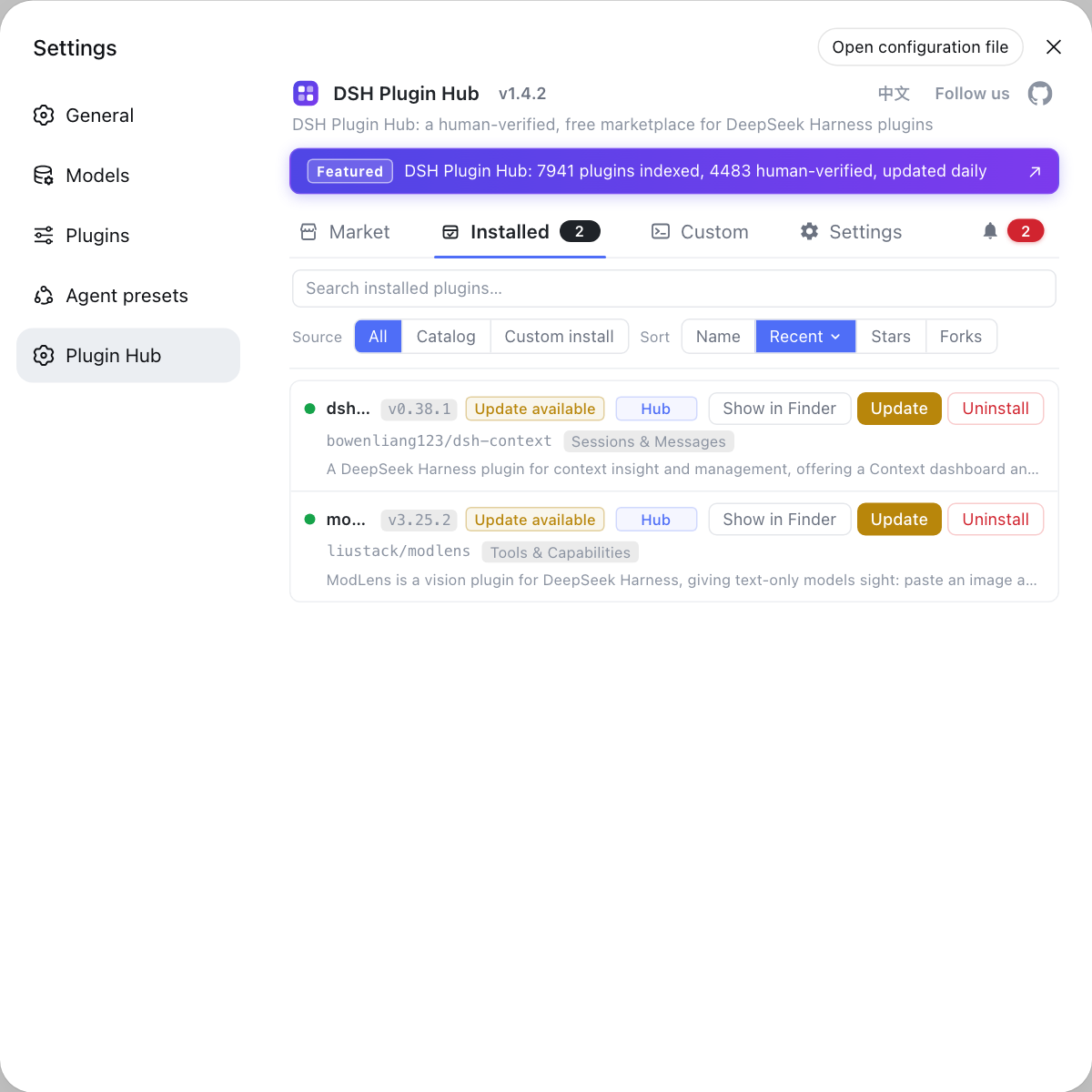
To trial community plugins in a profile, find the plugin name in the DSH Plugin Hub and install it per profile.
Caveats and limits of DeepSeek Harness profile configuration
desktopis reserved: the desktop build owns it, the CLI refuses to boot or dump with it, so give custom profiles another name.- Isolation is the default: plugin installs, permissions and models all apply per profile and do not sync across profiles.
bundlesorder is meaningful: the order decides whose defaults win, so do not shuffle it casually.- The template sets the starting point: a wrong template brings unsuitable default bundles, and starting over beats patching config.
- The profile directory is backup-ready: copy the whole
$DSH_HOME/profiles/<name>to take that profile's plugins and config with you.
For install differences across profiles, see dsh plugin multi-profile install; for file locations, see Where DeepSeek Harness config files live.
Sources: dsh CLI README (official repository)
FAQ
A DeepSeek Harness profile is an independent runtime configuration under $DSH_HOME/profiles/<name>. Its package.json records out-of-tree plugin dependencies, the dsh.profile manifest and the ordered bundles, cordis.patch.yml is that profile's user patch layer, and pnpm installs plugins into its node_modules.
Create one from a default template with dsh --profile <name> --from-default-profile <template>. Templates map to shapes such as @deepseek-ai/dsh-web-app, dsh-headless and dsh-sdk-app, so pick the one closest to your purpose as the starting point.
bundle order decides how bundle patches stack: each bundle's patch applies in the order listed under dsh.profile.bundles, and only after that come the profile cordis.patch.yml, the home-level patch and --patch. The order decides whose defaults win.
Use dsh plugin --profile <name> <pnpm args> to install the plugin into that profile's node_modules. Profiles are invisible to each other by default, so a plugin installed into A has no effect in B.
desktop is a reserved DeepSeek Harness profile name owned by the desktop app, and the CLI refuses to boot or dump config with it. Give custom profiles another name so they cannot collide with the desktop build.
Related Terms
- profile
- A profile is an independent runtime configuration unit in DeepSeek Harness, located at $DSH_HOME/profiles/<name>, with its own package.json, bundles, cordis.patch.yml and node_modules, invisible to other profiles by default.— dsh CLI README
- bundles
- bundles is the ordered list of bundles declared under dsh.profile in a DeepSeek Harness profile's package.json, deciding the stacking order of each bundle patch, and commonly including @deepseek-ai/dsh-base and dsh-web-app.— dsh CLI README
- --from-default-profile
- --from-default-profile is a dsh command-line flag that starts a new profile from a named default template, avoiding a from-scratch package.json and bundles.— dsh CLI README
- dsh plugin --profile
- dsh plugin --profile is a dsh subcommand usage that scopes a plugin install to a named profile, forwarding pnpm arguments to that profile's dependency install.— dsh CLI README
Sources
- dsh CLI README· deepseek-ai