Uninstall DeepSeek Harness: DSH plugin leftovers & purge
Uninstalling deepseek harness is one job no matter which English phrase you searched — "uninstall", "how to uninstall" and "remove" all point to the same action, and the real trouble sits outside the command: where the leftovers land and whether they should be cleared. This guide folds those English search variants into a single answer, then follows the directories on your machine to explain where the residue goes, and why uninstalling only touches the program layer while wiping data and deleting a session are two separate jobs.
Overview: uninstalling, deleting a session and purging are three different things
One sentence first: uninstalling touches the program, deleting a session touches logs, purging touches the whole user data directory — none of them replaces another. DeepSeek Harness keeps its program files, session logs and configuration in separate places, so although the English search terms all carry "uninstall", the operation they land on may be one of three different things (source):
| What you want | Common English query | What it actually touches |
|---|---|---|
Make the dsh command disappear | uninstall / remove | the program (npm global package or desktop app) |
| Clear only chat history | delete session | session logs under $DSH_HOME/sessions |
| Return to a clean state | purge / clean data | the whole $DSH_HOME (default ~/.dsh) |
Once you can read this table, the three directions below will not blur "remove the program" into "delete the data".
Uninstall, how-to-uninstall and remove all mean one action
uninstall deepseek harness, how to uninstall deepseek harness, deepseek harness uninstall and remove deepseek harness are the same search intent — take DeepSeek Harness off the machine — and the answer depends on how you installed it. In package-manager wording, uninstall and remove are synonyms: npm uses uninstall (aliases remove, rm) and pnpm uses remove, both meaning "take the package out of the dependencies and delete the executable links it registered" (source). Match your install first:
| How you installed it | Uninstall action |
|---|---|
npm install -g @deepseek-ai/dsh | npm uninstall -g @deepseek-ai/dsh |
| Desktop app (Electron) | menu Manage dsh Command… → Remove, then the OS uninstaller |
| Source build | delete the cloned repository directory |
npx only | no program on disk; just clear the cache |
Run them in order; every step lists its expected result:
- Quit every running process first — close
dsh webin the terminal or the desktop app window. Expected: nothing holds a port any more (web defaults to3080; the desktop build uses an OS-assigned random port and will not collide with3080). - For a global npm install, run the uninstall command:
npm uninstall -g @deepseek-ai/dsh
Expected: the terminal prints removed ... packages, and npm ls -g --depth=0 no longer lists @deepseek-ai/dsh.
3. For the desktop app, remove the CLI it registered first — open the app menu and click Manage dsh Command… → Remove. Expected: the /usr/local/bin/dsh link is gone on macOS and the entry in the current user's PATH is deleted on Windows, without affecting a dsh installed from another source (source).
4. Then uninstall the desktop app itself — drag it to the Trash on macOS, or use Settings → Apps → Installed apps → Uninstall on Windows. Expected: the app disappears; if it is still running, the Windows uninstaller asks you to quit it from the system tray first.
5. For a source build, delete the repository directory:
rm -rf ~/deepseek-harness # substitute your own path
Expected: the directory is gone and no build artifacts remain on the machine.
6. Verify the program layer — open a fresh terminal and run dsh --version. Expected: command not found (or "'dsh' is not recognized" on Windows), which means the command entry is clean.
The complete walkthrough for all three install styles is in how to uninstall DeepSeek Harness; the error-troubleshooting for the npm and pnpm channels is in npm uninstall DSH.
Where the leftovers go after uninstalling
The uninstall command only touches the program layer; everything under $DSH_HOME (default ~/.dsh) — configuration, sessions, profiles and node_modules — stays exactly where it was, and that is the entire source of "I removed it but there is still stuff on disk". The residue lives in five places (source):
| Leftover location | What is in it | After uninstall | Clear it? |
|---|---|---|---|
$DSH_HOME/settings.yaml, .credentials.yaml | config, model keys | kept | keep if you plan to reinstall |
$DSH_HOME/sessions | session logs | kept | clear only to wipe chat history |
$DSH_HOME/profiles/<name>/node_modules | DSH plugin dependencies | kept | plugins outlive the program |
npm _npx / _cacache | npx temp environment, download cache | kept | clear to reclaim disk |
| Electron userData | desktop-app preferences such as shortcuts | kept | clear together with the app |
Locate and clean them:
- Confirm the real data-directory path — run
echo $DSH_HOME(on Windows,echo %DSH_HOME%). Expected: if it prints a path, use it; an empty result means the default~/.dsh. - See what session logs remain —
ls "$DSH_HOME/sessions". Expected: it lists per-project--...--directories; if you have never written a session the directory will not exist, which is normal. - See where plugin dependencies live —
ls "$DSH_HOME/profiles". Expected: it lists profile directories such aswebandheadless, each with its ownnode_modules. - To clear npx residue:
rm -rf ~/.npm/_npx
Expected: the npx temp environment is emptied; the next npx @deepseek-ai/dsh web downloads again and no user data is lost.
5. To clear only chat history and keep config and plugins — stop dsh first, then delete just the sessions directory:
cp -r "$DSH_HOME/sessions" "$DSH_HOME/sessions.bak" && rm -rf "$DSH_HOME/sessions"
Expected: a backup lands before deletion, and configuration, keys and plugin dependencies are untouched.
The layer-by-layer cleanup (config overlays, the pnpm store) is detailed in uninstall leftovers.
Uninstalling DeepSeek Harness only touches the program layer; wiping data and deleting a session are another article
The uninstall command removes only the program itself; everything under $DSH_HOME — configuration, sessions and DSH plugin dependencies — stays exactly where it was, and whether to go on and delete a session or wipe the whole data directory is two separate jobs this article does not cover. In other words, uninstalling is not wiping: a "factory-fresh" state means deleting the whole data directory after uninstalling the program, and that last step is irreversible with no recycle bin. The boundary table across uninstalling, deleting a session and wiping data, plus when to wipe, how to do it at the file layer and what a mistake costs, all live in dsh purge vs uninstall — jump there when you need them.
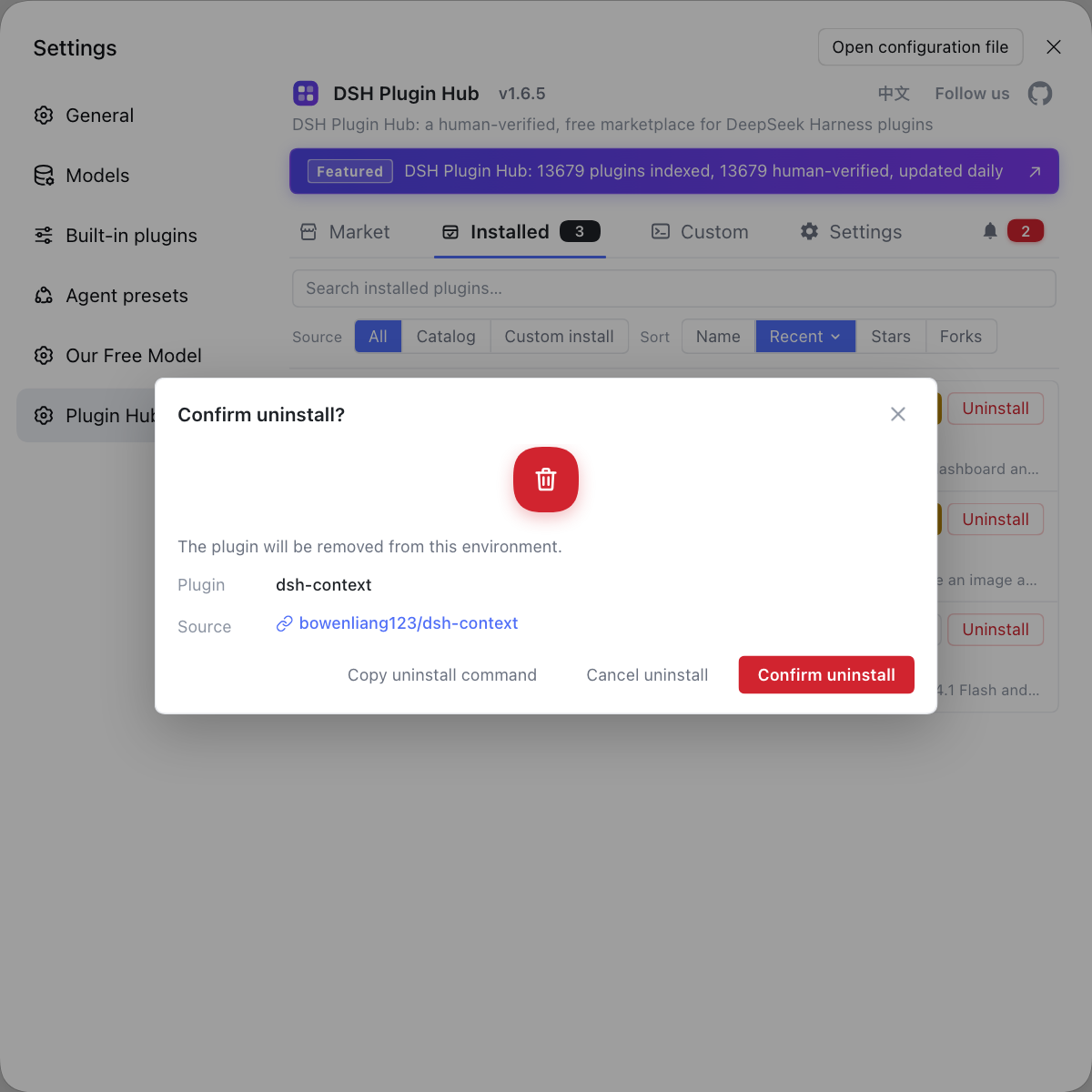
Rather than running list, remove and manual leftover-directory checks one by one in the terminal, manage plugins visually with a confirmation dialog — DSH Plugin Hub keeps installed plugins, their sources, versions and the uninstall entry in one panel, and pops a confirmation dialog showing the plugin and its source before anything is removed, so you do not delete the wrong thing.
Things to watch out for
- Pass the package name to the uninstall command:
npm uninstall -g @deepseek-ai/dsh. Writingdshfails because no package has that name. - Do not miss the CLI registration for the desktop build: run Manage dsh Command… → Remove before uninstalling the Electron app, or
/usr/local/bin/dshlingers forever. - The data directory is out of scope for uninstalling: no uninstall command touches
$DSH_HOME; whether to delete it is your call, and back it up first. - Multiple installs uninstall "incompletely": with nvm each Node version carries its own global package; check them one by one with
which -a dshbefore you confirm.
Sources: dsh CLI README, @deepseek-ai/dsh on npm, deepseek-ai/deepseek-harness
FAQ
Yes — these English phrasings all point to taking DeepSeek Harness off the machine; only the wording differs, and the command depends on how you installed it. A global npm install runs npm uninstall -g @deepseek-ai/dsh, the desktop app goes through the menu Manage dsh Command… → Remove and then the OS uninstaller, and a source build is simply deleting the cloned repository directory.
The commands are basically the same — all three platforms can run npm uninstall -g @deepseek-ai/dsh to remove a global npm install of DeepSeek Harness; the differences are in the paths. Find the global node_modules on the spot with npm root -g, and note that the data directory is %USERPROFILE%\.dsh on Windows and ~/.dsh on macOS and Linux. The desktop app always goes through each system's own uninstaller, so remove the command it registered first.
They all stay exactly where they are, inside the data directory $DSH_HOME (default ~/.dsh) — settings.yaml and .credentials.yaml hold config and model keys, sessions holds session logs, and profiles/<name>/node_modules holds DSH plugin dependencies. The uninstall command deletes only the program, never these; leave everything alone to keep it for a reinstall, or delete it by hand only when you want a full wipe.
The three do not replace each other — uninstalling removes only the program and a reinstall restores it; deleting a session clears only the logs under $DSH_HOME/sessions; a purge deletes the entire $DSH_HOME, taking config, keys, profiles, plugin dependencies and sessions with it, unrecoverably. So before any purge, run cp -r "$DSH_HOME" "$DSH_HOME.bak" to back up first.
No, they are not cleared automatically — the npx temp environment lives in ~/.npm/_npx, the download cache in ~/.npm/_cacache, and the desktop app's preferences such as keyboard shortcuts live in Electron's userData directory; no uninstall command touches them. To reclaim disk space run rm -rf ~/.npm/_npx; clearing these caches only means the next run downloads again, and no user data is lost.
Related Terms
- uninstall / remove
- In package-manager wording, uninstall and remove are synonymous: they take a package out of the dependencies and delete the executable links it registered, which is why uninstall deepseek harness and remove deepseek harness are the same search intent. An npm install of DeepSeek Harness answers to `npm uninstall -g @deepseek-ai/dsh`, while a pnpm install answers to `pnpm remove -g`.— @deepseek-ai/dsh on npm
- $DSH_HOME
- $DSH_HOME is the DeepSeek Harness user data directory, defaulting to ~/.dsh when unset, holding settings.yaml, .credentials.yaml, the session logs under sessions, and the DSH plugin dependencies under profiles; uninstalling the program never deletes it.— dsh CLI README
- purge
- A purge is the operation that deletes the entire user data directory $DSH_HOME (default ~/.dsh) in one go, clearing configuration, keys, profiles, plugin dependencies and sessions together, so it is an irreversible reset. It is a separate step from uninstalling the program and must be done afterwards on its own.— deepseek-ai/deepseek-harness
- Manage dsh Command…
- Manage dsh Command… is the command-management entry in the DeepSeek Harness desktop app menu, offering Install, Repair and Remove to register or remove the dsh CLI that ships with the desktop build (on macOS it lands at /usr/local/bin/dsh; on Windows it writes into the current user's PATH). Run Remove here before uninstalling the desktop app, because the app uninstaller does not remove this command registration.— DeepSeek Harness Desktop README
Sources
- dsh CLI README· deepseek-ai
- @deepseek-ai/dsh on npm· npm
- deepseek-ai/deepseek-harness· GitHub
- DeepSeek Harness Desktop README· deepseek-ai