DSH plugin overhead: does installing more slow dsh startup?
Yes — the more DSH plugins you install, the slower dsh starts, and plugins also keep consuming context long after startup. The good news is that both can be quantified: startup by layer count, context by fixed overhead. This guide gives the measurement steps and the trimming order.
Overview: a DSH plugin's cost splits into startup and runtime
A plugin's cost has two parts: what you pay at startup (config tree assembly and dependency resolution) and what you keep paying at runtime (tools and memories injected into context). The first can be counted with a single --dump-config line; the second shows up in memory plugins and context errors (source). Measure first, trim second — that is the order this article follows.
Why DSH plugin count slows startup: layer count is the workload
At startup DSH stacks each bundle's patch into the final config tree one after another; every active bundle is one layer, and the number of layers directly determines assembly and parse work. That is the mechanism behind "more installed = slower start", and you do not have to judge it by feel (source).
In --dump-config output every active bundle shows up as one # == <package> line, so counting lines is counting layers:
dsh --profile web --dump-config | grep -c "^# =="
Expect: a single number — your current bundle layer count; the more you have installed, the bigger that number.
Measure DSH plugin startup overhead in three steps
Measure a baseline first, then disable one plugin and measure again; the difference between the two is that plugin's cost. That way you cut real overhead when you trim, not just peace of mind (source).
- Time the config tree assembly:
time dsh --profile web --dump-config > /dev/null
Expect: a timing baseline for the assembly and parse stage;
2. Count layers: dsh --profile web --dump-config | grep -c "^# ==". Expect: a layer count number;
3. List the active packages: dsh --profile web --dump-config | grep -n "^# ==". Expect: one line per active bundle, showing which ones actually load.
To pin down one specific plugin's cost: first disable or uninstall it under Settings → Plugin Market → Installed, then repeat steps 1 and 2. Expect: both the layer count and the timing drop, and the size of the drop is that plugin's share.
DSH plugin ongoing context cost: memory plugins show it most
Plugins affect not only startup but every request — memory plugins inject long-term memory into the system prompt, creating fixed overhead. This kind of usage does not disappear when you open a new session, because it is injected at the configuration level (source).
- When a context-related error appears, read the message first. Expect:
maximum context length is 1048576 tokensmeans the model window limit has been exceeded (source); - Break down where the usage comes from: long session history, attachments and images, large tool outputs, and memory injected by plugins — four blocks in all;
- Handle it in four steps: open a new session → clear memory and attachments → split long tasks → lower
max_tokens. Expect: the same task no longer exceeds the limit; - If overflow lasts long term, check whether too many memory plugins are installed. Expect: disabling one of the lesser-used ones lowers the fixed cost of every request.
For the full context overflow walkthrough see DeepSeek Harness reports maximum context length is 1048576 tokens.
Three kinds of slowness that are not DSH plugin count
Once load volume is ruled out, the remaining slowness mostly comes from external waiting and one-off costs. Do not charge these three to your plugins (source):
- First-time initialization: a built-in profile such as
weborheadlessgenerates its directory structure from the built-in template, writes the manifest and installs dependencies the first time it is used — that step is itself the slowest start and is not repeated afterwards; - Network waiting: plugins that need the network during startup (checking for updates, fetching the list of available models) each wait until timeout when the proxy is unreachable, which shows up as "it always waits a moment on every start";
- Disk I/O: putting
$DSH_HOME(default~/.dsh) on a network or external drive slows the resolution of a large number of link paths.
The way to tell is straightforward: count layers and time as in the previous section first; if layer count and timing are both normal but startup is still slow, rule things out in the order 1 → 2 → 3.
Trimming DSH plugins: disable first, uninstall later
The correct trimming order is "disable → observe → uninstall": disabling is always reversible, only uninstalling touches the dependency tree (source).
- Open Settings → Plugin Market → Installed. Expect: every plugin's source, version and update time in one list;
- Disable the plugins you do not need for now (marked
disabled: truein the profile) and restartdsh web. Expect: the plugin no longer loads and its entry point disappears, but the dependency is still there and you can turn it back on at any time; - Re-run the two timing commands. Expect: layer count and startup time drop, confirming it really was a cost source;
- Uninstall once you are sure it is not needed long term:
dsh plugin --profile web remove <package>
Expect: the plugin is removed from the profile dependencies; on the UI side you can also uninstall it in one click from the Hub's installed list.
Managing scale starts with knowing what you have installed, and the Hub's installed list makes that visible in one glance. Once DSH Plugin Hub is installed, Settings → Plugin Market → Installed lists every plugin grouped by source, with "update available" and "uninstall" buttons right at the end of each row:
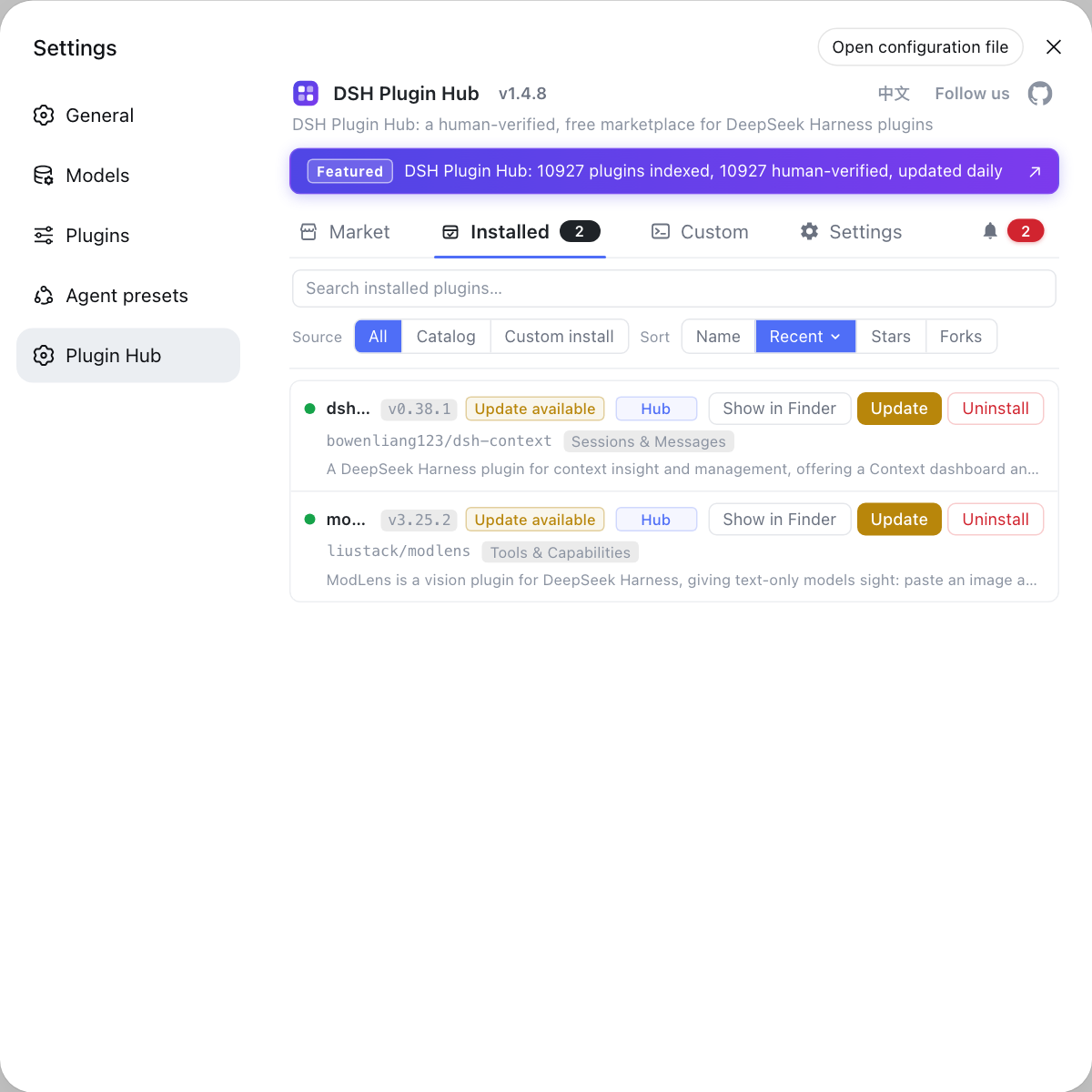
Rather than cross-checking line by line against the output of dsh plugin list, the Hub's installed list shows the count, sources and versions at a glance — uninstall and update both come with a confirmation dialog. Visit https://dsh-plugin.org/ for details.
Sources: dsh CLI README, DeepSeek Harness docs - Publishing plugins, DeepSeek API documentation
FAQ
The more DSH plugins you install, the slower dsh starts: at startup each bundle's patch is stacked into the final config tree one after another, every active bundle is one layer, and the number of layers directly determines assembly and parse work. Run dsh --profile web --dump-config and count the lines starting with "^# ==" to see how many layers are stacked right now.
DSH plugin load overhead can be measured in two steps: time a baseline with time dsh --profile web --dump-config > /dev/null, then run dsh --profile web --dump-config | grep -c "^# ==" to count layers. The layer count is the number of packages assembled and parsed at startup, and it is a quantity you can actually count; disable one plugin and run both again, and the difference between the two numbers is its cost.
Yes — DSH plugins do consume context: memory plugins inject long-term memory into the system prompt, so the fixed cost of every request grows, and that usage lasts as long as the plugin is installed. If you see maximum context length is 1048576 tokens, the request has exceeded the model window; handle it in four steps: open a new session → clear memory and attachments → split long tasks → lower max_tokens.
Startup slowness has three causes that are not DSH plugin count: built-in profiles such as web and headless initialize their directory from the built-in template and install dependencies the first time they are used, which is the slowest start in the whole lifecycle; plugins that need the network during startup each wait until timeout when the proxy is unreachable; and putting $DSH_HOME on a network or external drive slows the resolution of a large number of link paths.
For DSH plugins you rarely use, disable first and uninstall only once you are sure you no longer need it. Disabling does not change the dependency tree and can be turned back on at any time, which suits plugins you may not use this month but might next month; for ones you are sure you will not need long term, uninstalling clears the dependencies and build artifacts too, trimming the profile's parse burden and security surface.
Related Terms
- --dump-config
- --dump-config is a dsh launcher flag that prints the fully assembled configuration without starting the application; in the output every active bundle appears as one # == <package> line, so the number of those lines is the number of layers assembled and parsed at startup.— dsh CLI README
- bundle layer count
- Bundle layer count is the number of active bundles stacked into the config tree at startup, each bundle contributing one patch layer; more layers mean more assembly and parse work for the config tree and a slower start.— dsh CLI README
- profile initialization
- Profile initialization is the process in which a built-in profile such as web or headless generates its directory structure from the built-in template, writes the manifest and installs dependencies the first time it is used; it is the slowest start in the lifecycle and is not repeated afterwards.— DeepSeek Harness official documentation
- $DSH_HOME
- $DSH_HOME is the DeepSeek Harness user data directory (default ~/.dsh) holding profiles, configuration and session data; the I/O performance of the disk it lives on directly affects how fast path resolution runs at startup.— dsh CLI README
Sources
- dsh CLI README· deepseek-ai
- DeepSeek Harness docs - Publishing plugins· deepseek-ai
- DeepSeek API documentation - Models and context· DeepSeek
- dshplugin/dsh-plugin-hub GitHub repository· GitHub