How to download DSH plugins: market, GitHub and npm
Downloading a DSH plugin in DeepSeek Harness is installing: there is no separate download step — dsh plugin --profile web add pulls directly from npm or GitHub and writes it into the current profile. For convenience use the DSH Plugin Hub market's one-click install; for advanced use GitHub source or npm packages. This guide covers the scenarios and steps for all three channels, plus where the plugin lands and how to verify it.
Overview: download equals install — three channels in one table
"Downloading a plugin" is not a standalone action in DeepSeek Harness — dsh plugin add fetches and installs in one go. To obtain a DSH plugin you have three channels (source):
| Channel | How to do it | Best for | Where it lands |
|---|---|---|---|
| One-click market | click Install in the Plugin Market | beginners, everyday discovery | written into the profile, appears in Installed |
| GitHub source | add github:owner/repo or Download ZIP | source followers, plugins missing from the market | CLI route writes into the profile; ZIP is placed manually |
| npm package | add <package> or the Custom install panel | known names, traceable sources | written into the profile, appears in Installed |
Channel 1: one-click download from the plugin market (recommended)
The market merges search, download and install into a single button — the easiest route. Steps:
- Install DSH Plugin Hub first (
dsh plugin --profile web add dsh-plugin); - Open the DeepSeek Harness Web UI → Settings → Plugin Market;
- Find the target plugin with the search box or category filters and click Install on its card;
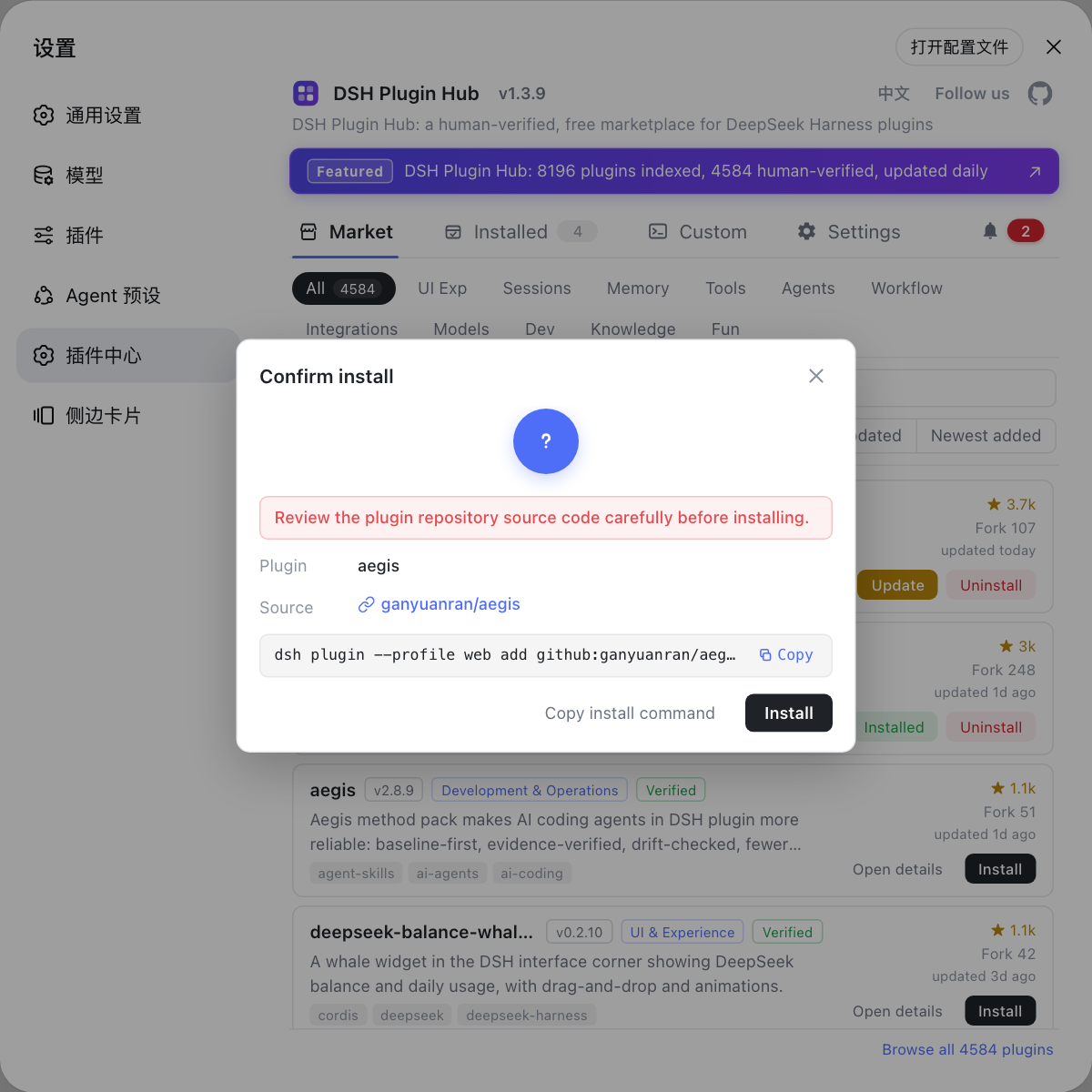
- Review the plugin name, source repo and the command that will run in the confirmation dialog;
- Confirm — the download and install run in the background with live progress; refresh the page when done.
Market plugins are collected daily and reviewed by humans at dsh-plugin.org, with verified badges for extra confidence (source). Fallback: if the progress is stuck, cancel and retry, or switch the npm mirror and click Install again.
Channel 2: download source from GitHub
For source builds or plugins missing from the market, use GitHub. Two ways:
Way 1: pull and install directly (recommended)
One command handles the clone, dependency resolution and install — fits normal install-and-use. Prerequisite: your machine can reach GitHub (configure a proxy when the network is restricted). Steps:
# Format: github: prefix + owner/repo
dsh plugin --profile web add github:owner/repo
Fallback: a few repos lack build artifacts and may not activate after install — switch to the npm build or contact the author.
Way 2: manual ZIP download
Suits reading code, modifying it, or local debugging. Steps:
- Open https://github.com/owner/repo in your browser;
- Click Code → Download ZIP to grab the source package;
- Unzip locally, then build as needed or place it into a plugin directory.
With GitHub sources, check active maintenance, star counts, recent updates, and whether the owner is official or well-known (source).
Channel 3: download from npm
Know the package name and add does the rest. Two ways:
Way 1: command-line install
The prerequisite is an accurate package name for a traceable source. Steps:
- Check the package exists and its latest version with
npm view <package>; - Run
dsh plugin --profile web add <package>to download and install; - Restart dsh web and confirm it in the Installed list of the Plugin Market.
npm downloads go through your registry, so a configured npm mirror applies automatically; a mistyped name returns 404 — verify with npm view first.
Way 2: the Custom install panel
Skip the terminal and paste the name into the UI. Steps:
- Open the Plugin Market and click Custom install in the top navigation;
- Paste an npm package name or a GitHub address;
- Confirm — the system generates and runs the install command; the plugin is ready when the progress finishes.
Where downloads go: storage and verification
A finished install writes the plugin into the current --profile environment's dependencies and syncs it to the Plugin Market Installed list. Two ways to verify:
Way 1: verify in the UI
- Open Settings → Plugin Market → click Installed in the top navigation;
- The plugin (name + version) showing in the list means the download succeeded;
- For manual cleanup, use Reveal in Finder at the row tail to locate the directory.
Way 2: verify on the command line
# List plugins installed in the web environment; confirm the target is there
dsh plugin --profile web list
If the output contains the plugin name and version, it succeeded. After uninstalling, leftover cache directories may remain under $DSH_HOME (uninstall removes dependencies only) — delete them manually for a full cleanup (source).
Troubleshooting common issues
Read the error type first, then fix accordingly. Common issues:
| Issue | Likely cause | Fix |
|---|---|---|
| Download timeout | slow network, restricted repo | switch the npm mirror; configure a proxy for GitHub sources |
| Package not found / 404 | mistyped name, stale mirror | confirm with npm view <package>, switch the mirror and retry |
| Plugin inactive after download | not restarted, wrong profile | restart dsh web and refresh; verify --profile web |
| GitHub install does nothing | repo lacks build artifacts | reinstall the npm build, or contact the author |
| Not in the Installed list | page not refreshed, wrong environment | refresh the page; re-check with dsh plugin --profile web list |
| Unsure about the source | non-official repo, no maintenance | prefer market plugins carrying the verified badge |
| Residue after uninstall | only dependencies removed | clean the plugin's leftover directories under $DSH_HOME |
If you cannot pinpoint it, open Settings → System logs for the full error and follow the matching guide.
Quick recap
In short: download equals install — the market one-click is easiest, npm by name, GitHub by maintenance. Four reminders:
- Default to the market: human-reviewed with verified badges — the most reliable source;
- Check the confirmation dialog: every channel shows the source repo and command before installing;
- Verify after download: refresh or restart dsh web; the plugin must show up in Installed or in
dsh plugin --profile web list; - Read logs on failure: check the system logs for the exact error and follow the matching guide.
Sources: dshplugin/dsh-plugin-hub, dsh CLI README, dsh-plugin.org Plugin Market
FAQ
In dsh, downloading a plugin means installing it: running dsh plugin --profile web add <package or repo> pulls it from npm or GitHub and writes it into the current profile. There is no separate download step — once installed, it is downloaded.
Install DSH Plugin Hub (dsh plugin --profile web add dsh-plugin), open Settings → Plugin Market, find the target plugin and click Install. Review the source and command in the confirmation dialog, confirm, and the download plus install runs with live progress; refresh the page when it finishes.
Two ways: run dsh plugin --profile web add github:owner/repo to pull and install directly; or open the GitHub repo page, click Code → Download ZIP for a manual source download. The first is recommended as it handles dependencies automatically.
Running dsh plugin --profile web add <npm package> downloads it from npm automatically. To inspect package info first, use npm view <package> for the version. The Custom install panel in the Plugin Market also accepts a bare npm package name.
The add command writes the plugin into the current --profile environment's dependencies and syncs it to the Plugin Market Installed list. Verify in Settings → Plugin Market → Installed, or check that dsh plugin --profile web list prints the plugin name and version. After uninstalling, leftover cache directories under $DSH_HOME may need manual cleanup.
Sources
- dshplugin/dsh-plugin-hub GitHub repository· GitHub
- dsh CLI README· deepseek-ai
- dsh-plugin.org Plugin Market· dsh-plugin.org