DeepSeek Harness desktop uninstall leftovers: DSH plugin
DeepSeek Harness desktop "uninstall leftovers" almost all live in the shell layer: Electron user data, update artifact caches, NSIS installer temp extraction directories, and the directory symlinks (macOS / Linux) and junctions (Windows) the desktop uses to link in shared modules. The most misread part is the shared link: the official docs state cleanup removes the link only, not its target, so "the directory looks deleted but the target remains" is expected, not a failed delete.
This guide covers four steps: which shell leftovers exist, why a shared link looks undeleted, how to locate and clean in order, and when to reset instead. The normal uninstall scope and command registration are in How to uninstall DeepSeek Harness desktop.
Which shell leftovers a DeepSeek Harness desktop uninstall leaves behind
The official docs state the Windows uninstall removes the Electron user data directory, the %APPDATA% product directory and the %LOCALAPPDATA% update download cache, and cleans ordinary empty scoped directories under %APPDATA%; the install stage also cleans the NSIS temp extraction directory, but a failed install leaves those temp directories behind (source).
Locate all four categories with commands to see what actually remains:
- Electron user data — On macOS / Linux run
ls -la ~/Library/Application\ Support/ | grep -i deepseek; on Windows rundir "%APPDATA%" | findstr /i deepseek. Expected: the desktop's browser storage and caches appear. - Update artifact cache — On Windows run
dir "%LOCALAPPDATA%" | findstr /i deepseekanddir "%LOCALAPPDATA%" | findstr /i updater. Expected: the update download cache directory appears. - NSIS installer temp extraction directory — On Windows run
dir "%TEMP%" | findstr /i deepseek. Expected: empty on a successful install; a failed install leaves extracted files here. - Shared links — On macOS / Linux run
find ~/.dsh -type l -maxdepth 4; on Windows rundir /S /AL "%DSH_HOME%". Expected: every symlink / junction is listed, which is the focus of the next section.
Category 3 is a common source of "leftovers": temp extraction left by a failed install is not on the normal uninstall list, because the normal flow cleans it during install and only the failure path leaves it. Check %TEMP% before reinstalling.
Shared links are the real leftover: cleanup removes the link, not the target
The desktop links shared modules into the app — directory symlinks on macOS and Linux, junctions on Windows — and the official docs state cleanup removes the link only, not its target (source). So "the directory looks deleted but the target remains" is not an incomplete cleanup.
Use commands to tell links from real content:
- List the links — On macOS / Linux run
ls -lato see the->target, orfind ~/.dsh -type l; on Windows rundir /AL(reparse points only) ordir /S /AL. Expected: every link shows an explicit-> targetor<JUNCTION>marker. - Confirm the target still exists — Follow the
->or junction target to the real directory. Expected: the target directory is intact with its content, proving you deleted the link and not the data. - Delete the link only — On macOS / Linux run
rm <link path>(do not add-rto follow into the target); on Windows usermdir <link path>for a junction and do not add/S. Expected: the link disappears and the target remains. - Verify — Return to the DSH Plugin Hub installed list to check the plugins. Expected: plugins are still there (the target was untouched), proving only the link was removed; if plugins are gone, restore from backup or reinstall.
The exact form of step 3 decides whether you delete data: on Windows, rmdir removes only the junction while rmdir /S follows into and deletes the target; on Unix, rm link removes the link while rm -r link/ recurses into the target. That is precisely why the official docs stress removing the link and not its target.
Messy DeepSeek Harness desktop uninstall: locate each path, clean in order, fix stale reinstall
An old state after reinstall means leftover shell data or links are still being reused; the order "list links → clear links → clear shell data → reset if needed" beats deleting directories blindly.
Run in order, each step with a verifiable expectation:
- Back up what you want to keep — Confirm
~/.dsh(sessions, settings, credentials, plugins) is not in the cleanup scope. Expected: cleanup touches only the shell; shared data stays. - Clear shared links — Remove symlinks / junctions the way shown above. Expected: links disappear, targets remain.
- Clear shell data — Delete Electron user data, the product directory and update cache under %APPDATA% / %LOCALAPPDATA%, and the installer temp directory under %TEMP%. Expected: a fresh
dir/lsshows no such directories. - Reinstall and verify — Reinstall the desktop and check the DSH Plugin Hub installed list. Expected: the list looks right and the reinstall is no longer stale; if it still is, the problem is in the profiles/desktop layer, so go to step 5.
- Reset if needed — Use the desktop reset when its own executable layer is broken. Expected: the reset deletes everything in profiles/desktop except the held transaction lock and reinitializes the built-in profile, while shared tasks, settings and the Harness-home .env stay unchanged.
Why step 5 fits better than repeated uninstalls: repeated uninstalls clear the app and shell but never touch the $DSH_HOME/profiles/desktop layer, where desktop configuration and third-party packages live; a reinstall therefore restores the old state. Use uninstall plus manual cleanup only when leftovers are genuinely in the system shell.
Notes on cleaning up after a DeepSeek Harness desktop uninstall
- Never follow the link: use
rm <link>on Unix andrmdiron Windows junctions, with no recursive-follow flag, to avoid deleting real data. - Do not forget temp directories: a failed NSIS install leaves a directory under %TEMP% that the normal uninstall list does not cover.
- Shared data is out of scope: sessions, settings, credentials and plugins in ~/.dsh remain; delete it only after confirming you want to.
- Use uninstall only for shell problems: when the root cause is in profiles/desktop, reset beats uninstall plus reinstall.
- Keep the order: list links, clear links, then clear the shell, and reinstall last; reversing it risks deleting a target.
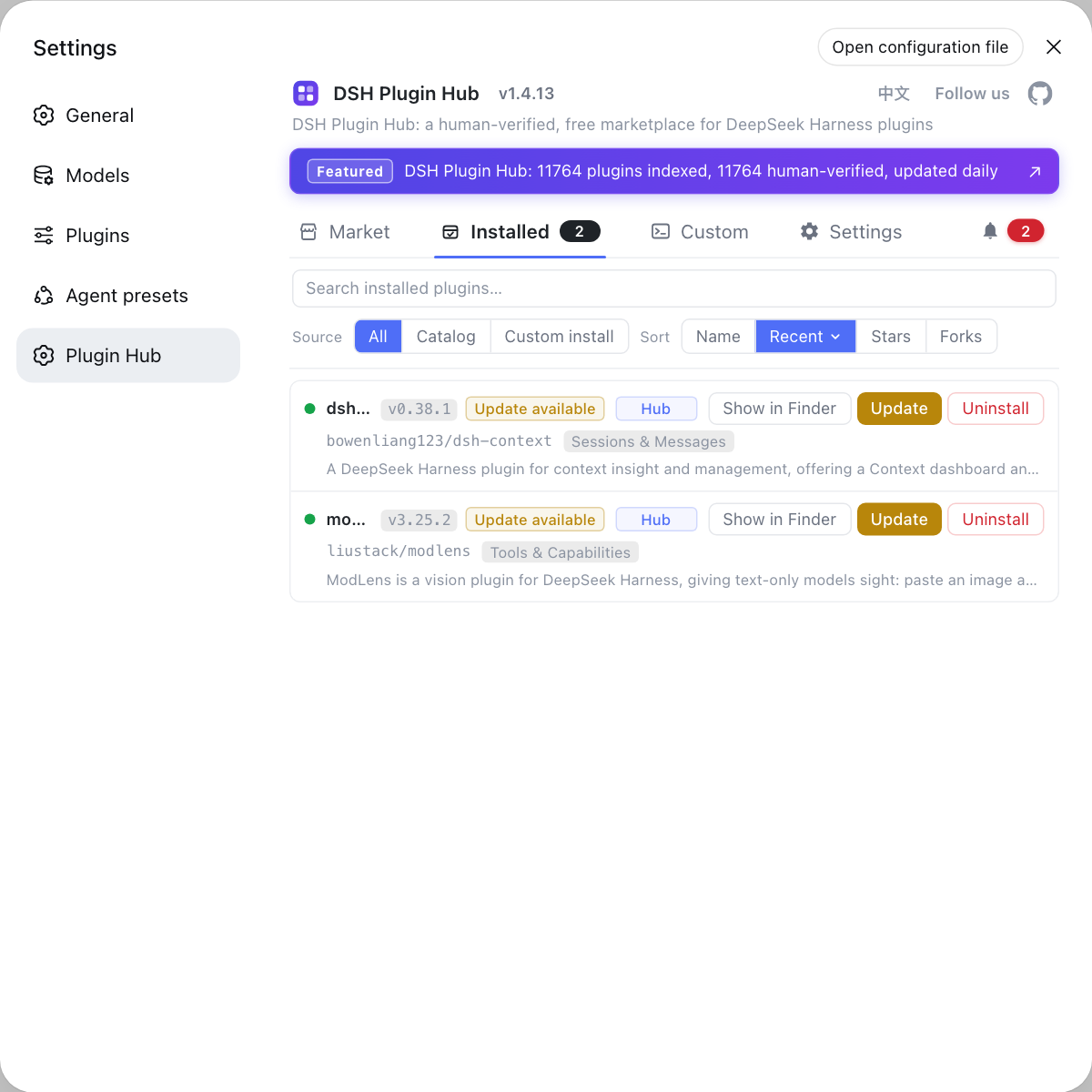
After cleaning leftovers, use the DSH Plugin Hub installed list to see which plugins are back and which need reinstalling, instead of tracking package names one by one.
Sources: DeepSeek Harness desktop README (official repository), DeepSeek Harness source repository, dshplugin/dsh-plugin-hub
FAQ
A DeepSeek Harness desktop uninstall tends to leave shell-level directories: Electron user data, update caches, and the NSIS installer temp extraction directory. The official docs state the Windows uninstall removes Electron user data, the %APPDATA% product directory and the %LOCALAPPDATA% update cache, and the install stage cleans its temp extraction directory, but a failed install leaves those temp directories behind.
This comes from how shared links work. The DeepSeek Harness desktop links shared modules into the app with directory symlinks on macOS and Linux and junctions on Windows, and the official docs state cleanup only removes the link and not its target. So after you delete the link, the target directory stays in place, which looks like an incomplete uninstall.
Deleting by link never removes the target when done correctly. On macOS and Linux ls -la shows the -> target, and on Windows dir /AL lists junctions and other reparse points. Delete without following into the target: on Windows use rmdir, not rmdir /S, and the link is removed while the target directory stays. That is exactly the official rule of removing the link and not its target.
An old state after reinstall means leftover shell data or links are still being reused. Work in this order: list links, clear links, clear shell data, then reset if needed. First find shared links with dir /AL or find -type l, then clear Electron user data, update caches and installer temp dirs, and finally if the desktop is still broken use the desktop reset to restore profiles/desktop instead of uninstalling and reinstalling again.
Reset when the problem is in the desktop's own executable layer rather than leftover files on the system. The official docs state a reset deletes everything in $DSH_HOME/profiles/desktop except the held transaction lock and reinitializes the built-in profile, while shared tasks, settings and the Harness-home .env stay unchanged. Reinstalling never touches that layer, so the old state returns; reset is the right tool here.
Related Terms
- shared link
- A shared link is the directory link the DeepSeek Harness desktop uses to bring shared modules into the app; macOS and Linux use directory symlinks and Windows uses junctions, and the official docs require cleanup to remove the link only, not its target.— DeepSeek Harness desktop README
- junction
- A junction is the Windows directory-link form the DeepSeek Harness desktop uses to link the app and shared modules on Windows, and both uninstall and smoke validation must confirm it is cleaned up correctly.— DeepSeek Harness desktop README
- NSIS installer temp extraction directory
- The NSIS installer temp extraction directory is where the DeepSeek Harness desktop Windows installer unpacks its payload; the install stage cleans it, but a failed install leaves it behind.— DeepSeek Harness desktop README
- update artifact cache
- The update artifact cache is the directory under %LOCALAPPDATA% on Windows where the DeepSeek Harness desktop stores downloaded update content, and the uninstaller removes it together with the app.— DeepSeek Harness desktop README
Sources
- DeepSeek Harness desktop README· deepseek-ai
- DeepSeek Harness source repository· GitHub
- dshplugin/dsh-plugin-hub GitHub repository· GitHub