Stuck DeepSeek Harness desktop uninstall: DSH plugin locks
A stuck DeepSeek Harness desktop uninstall or reset is almost never a broken uninstaller; it is a lock problem. The desktop must first take two locks: Electron's process lifecycle single-instance lock, and the package transaction's profiles/desktop/lock. While a Host, Node or pnpm process still holds either one, the uninstall waits at the last step.
This guide walks through four steps: why it hangs, who holds the lock, how to locate a locked file, and how to stop safely. The normal uninstall scope and command registration are covered in How to uninstall DeepSeek Harness desktop; this article only deals with an uninstall that stalls or fails along the way.
Why a DeepSeek Harness desktop uninstall hangs: the single-instance lock on profiles/desktop
The official docs state the desktop acquires a process lifecycle single-instance lock before touching any profile and exclusively holds $DSH_HOME/profiles/desktop plus its package manager state. So as long as a desktop or Host process is alive, a new uninstall or reset is blocked outside that profile, appearing as "nothing happens" or a long stall (source).
Run these four checks to see who is still alive before retrying:
- Check desktop and Host processes — On macOS / Linux run
ps aux | grep -i deepseek-harness; on Windows runtasklist | findstr /i "DeepSeek node". Expected: leftover desktop, Host or Node processes show up, or none remain. - Check who holds the profile directory — On macOS / Linux use
lsof +D "$DSH_HOME/profiles/desktop"; on Windows search the directory name under associated handles in Resource Monitor. Expected: the process holding the directory appears, which is what blocks the uninstall. - Fully quit the desktop from the tray — Closing the window is not quitting; use the tray or menu bar to quit. Expected: the process from the previous step disappears and the single-instance lock is released.
- Retry the uninstall or reset — Act only after all processes exit. Expected: it no longer stalls at the first step and reaches the package transaction stage.
Step 3 is the most commonly missed: closing the window only hides the app, the single-instance lock stays, and the uninstall waits outside the door. The action that releases the lock is quitting the app, not closing the window.
profiles/desktop/lock: while pnpm runs, the uninstall waits
The package transaction exclusively holds $DSH_HOME/profiles/desktop/lock until the pnpm process exits, and a reset keeps that directory and lock until initialization and Host startup complete. So a stall at the last step usually means the transaction is not finished, not that the progress bar is dead (source).
Use these three commands to tell "still working" from "truly stuck":
- Check whether the lock file still exists — On macOS / Linux run
ls -la "$DSH_HOME/profiles/desktop/lock"; on Windows rundir "%DSH_HOME%\profiles\desktop\lock". Expected: a present lock file means the transaction is unfinished; a missing file means the lock is released and the stall has another cause. - Check whether pnpm / Node is still running — On macOS / Linux run
ps aux | grep -E "pnpm|node"; on Windows runtasklist | findstr /i "pnpm node". Expected: running processes mean the transaction is active and a slow network makes the uninstall wait; no process with the lock still present means a real stall. - Confirm no second dsh process grabs the same profile — The desktop and the CLI may act at once. Expected: only one process should hold that profile; concurrent operations wait on each other's locks and look like an unresponsive uninstall.
Step 2 requires telling two kinds of stalls apart: a patient wait caused by a slow network (pnpm is still fetching packages or writing the store, the process runs with CPU activity) and a mutual wait caused by lock contention (the process runs but shows no IO for a long time). Wait for the first; find the lock-grabbing process for the second. Two common mistakes here:
- Mistake 1: kill the process the moment the bar stops moving — this leaves a half-written store state.
- Mistake 2: delete the whole profiles/desktop directory — the official docs state a failed plugin change keeps partial modifications and does not roll back, so a hard delete of a transaction directory only makes the state harder to recover.
DeepSeek Harness desktop uninstall stuck: locating a locked file you cannot delete or replace
The most common conflict in a desktop uninstall or reset is a file in use that cannot be replaced. The official Windows packaging and smoke validation covers exactly this with "two file-in-use replacement approaches": locate the holder first, then decide whether to end the process or wait for it to exit, and touch files last (source).
Follow the safe order of "check the log first, find the holder, end the process, then touch files":
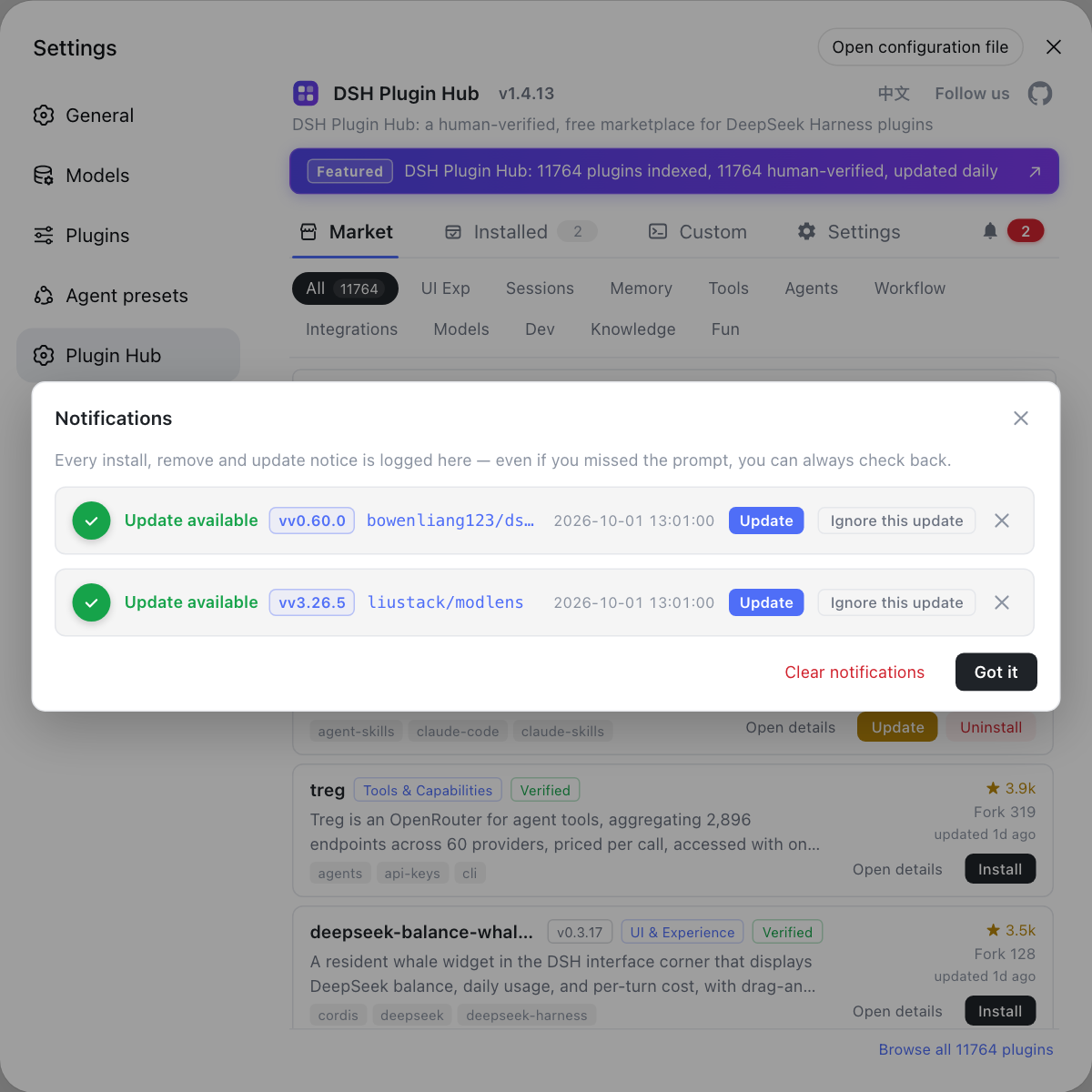
- Watch progress in the UI first — Open the DSH Plugin Hub notification center and check whether the uninstall or update task is "in progress" or "restart pending". Expected: an in-progress task means keep waiting; a restart-pending task means the process must exit to finish.
- Find the holder with system tools — On Windows use Task Manager details or Resource Monitor and search handles by directory name; on macOS / Linux use
lsof +D <dir>. Expected: the process actually holding the handle is listed, usually the Host, Node, pnpm, or an editor / file preview. - End the holding process — On Windows run
taskkill /F /PID <pid>; on macOS / Linux runkill <pid>, or quit normally when possible. Expected: the handle is released and the lock clears. - Only then delete / replace files — After the handle is released, let the uninstall continue or clean the directory manually. Expected: deletion no longer reports "file in use" or "locked".
Why step 1 comes first: the worst thing to do when stuck is to click uninstall repeatedly, which stacks concurrent requests and worsens lock contention. Confirm the current task state in the notification center before deciding to wait or intervene.
Notes on a stuck DeepSeek Harness desktop uninstall
- Closing the window is not quitting: the single-instance lock releases only when the process truly exits, so quit the desktop from the tray or menu bar before uninstalling.
- A reset also holds the lock: the reset keeps the profiles/desktop directory and lock until initialization and Host startup complete, so do not touch that directory during a reset either.
- Failures do not roll back: the official docs state a failed plugin change keeps partial modifications and does not roll back, so a hard delete of a busy directory makes recovery harder.
- Diagnose before retrying: cross-check the lock file, the pnpm / Node process, and directory handles; do not treat a slow network as a true deadlock.
- Do not mix up the scope: an uninstall only touches the app and executable layer; sessions, settings, credentials and plugins in ~/.dsh remain. See How to uninstall DeepSeek Harness desktop for the uninstall vs reset difference.
A stuck uninstall is often just an unfinished task in the UI. When you reinstall or restore DSH plugins, use the DSH Plugin Hub for less friction: it is the official plugin market with an uninstall confirmation dialog, and uninstall and reinstall progress both show in the notification center so you never guess which step stalled.
Sources: DeepSeek Harness desktop README (official repository), DeepSeek Harness source repository, dshplugin/dsh-plugin-hub
FAQ
A DeepSeek Harness desktop uninstall hangs at the last step because the package transaction still holds its lock. The official docs state the transaction exclusively holds $DSH_HOME/profiles/desktop/lock until the pnpm process exits, and a reset keeps that directory and lock until initialization and Host startup complete. While pnpm or Node is running, the uninstall can only wait, so check the process state before assuming a real deadlock.
Yes, you must quit the Host and Electron before uninstalling DeepSeek Harness desktop. The official docs state the desktop acquires a process lifecycle single-instance lock before touching any profile and exclusively holds $DSH_HOME/profiles/desktop plus its package manager state. As long as a desktop or Host process is alive, a new uninstall or reset is blocked outside that profile, which looks like nothing happens when you click.
To locate a locked file, find who holds the handle first, then decide whether to end that process or wait for it to exit. On Windows use Task Manager or Resource Monitor and search the directory name under associated handles, or use tasklist for Node, pnpm and Host processes. On macOS and Linux use lsof to list processes with the directory open. Only after identifying the holder should you end it and then touch the files.
No, you should not delete profiles/desktop while a transaction is writing to it. The DeepSeek Harness desktop package transaction exclusively holds the lock file in that directory until pnpm exits, and deleting it mid-transaction corrupts the package manager state. The official docs also note a failed plugin change keeps partial modifications and does not roll back, so a hard delete only makes recovery harder. Wait for the transaction to finish or end the process safely first.
A stuck DeepSeek Harness desktop uninstall is usually not a broken uninstaller but unreleased processes and locks. The official docs describe the desktop state ownership clearly: Electron exclusively holds profiles/desktop with a single-instance lock, and the package transaction exclusively holds the lock until pnpm exits. If either lock is still held, the uninstall pauses. Diagnose the process, lock and locked files in that order, and most cases need no repair.
Related Terms
- process lifecycle single-instance lock
- The process lifecycle single-instance lock is a lock the DeepSeek Harness desktop acquires before touching any profile, used to exclusively hold $DSH_HOME/profiles/desktop and its package manager state so only one desktop instance operates on that profile at a time.— DeepSeek Harness desktop README
- $DSH_HOME/profiles/desktop/lock
- $DSH_HOME/profiles/desktop/lock is the lock file held by the DeepSeek Harness desktop package transaction; the transaction exclusively holds it until the pnpm process exits, and a reset also keeps that directory and lock until initialization and Host startup complete.— DeepSeek Harness desktop README
- Host process
- The Host process is the backend process the DeepSeek Harness desktop stops or starts around plugin changes and runtime work; the desktop stops the Host before plugin changes and waits for Host startup to complete during a reset before releasing the held directory and lock.— DeepSeek Harness desktop README
- profiles/desktop
- profiles/desktop is the profile directory the DeepSeek Harness desktop exclusively owns under $DSH_HOME; it contains the desktop configuration, installed third-party packages and their package manager state, and the desktop locks it via the single-instance lock before operating on it.— DeepSeek Harness desktop README
Sources
- DeepSeek Harness desktop README· deepseek-ai
- DeepSeek Harness source repository· GitHub
- dshplugin/dsh-plugin-hub GitHub repository· GitHub