Uninstall DeepSeek Harness desktop: does it affect dsh CLI?
Uninstalling DeepSeek Harness desktop does not remove the dsh CLI command, and uninstalling the CLI does not touch the desktop. The two installs share supported product data under $DSH_HOME (sessions, settings, credentials, tasks) but never share executable packages, plugin activation, lock files or node_modules (source).
This guide covers three steps: how to confirm each chain, what is shared versus not shared, and the order and verification for uninstalling each side. The desktop uninstall steps themselves are in How to uninstall DeepSeek Harness desktop.
The desktop and the CLI are two install chains: confirm what is installed first
The official docs describe them as separate installation ownership: the CLI installs via npx / npm / source, and the desktop installs via a signed installer; uninstalling the desktop and uninstalling the CLI are unrelated tasks (source).
Use commands to pin down both sides before talking about boundaries:
- Check whether and how the CLI is installed — Run
which dshordsh --version, thennpm ls -g @deepseek-ai/dshfor the global package. Expected: you see the command path and package origin;npxruns leave no global package. - Check whether the desktop is installed — On macOS look in Applications; on Windows check Apps & features. Expected: the desktop app body is present or absent.
- Check whether the desktop registered the dsh command — Open Manage dsh Command from the app menu. Expected: the dialog shows the current registration plus install, repair and remove; this decides whether to remove the registration before uninstalling.
- Check where shared data lives — Run
ls -la "$DSH_HOME"(default~/.dsh) andls "$DSH_HOME/profiles". Expected: shared sessions and settings, plus the desktop's profiles/desktop, are visible.
Steps 3 and 1 must be told apart: is the path which dsh resolves to the one the desktop registered or the one the CLI installed? Both may exist, so identify it before uninstalling or you may think the CLI is gone when only the desktop was removed.
What is shared and what is not: $DSH_HOME product data vs executable packages
The desktop and the CLI share supported product data under $DSH_HOME (sessions, settings, credentials, tasks) but never share executable packages, plugin activation, lock files or node_modules; the desktop owns only the profiles/desktop layer inside it (source).
Use a shared / not-shared checklist and confirm each item with commands:
- Shared: sessions and settings — Run
ls "$DSH_HOME"to see the session and settings directories. Expected: both sides read the same data, and uninstalling either side does not delete it. - Shared: credentials and tasks — Same $DSH_HOME layer. Expected: after one program is removed, the other still uses the same credentials and tasks.
- Not shared: executable packages — The CLI is a global package / npx / source, the desktop is an installer. Expected: after removing the desktop, the CLI's
dsh --versionstill works if the CLI was installed. - Not shared: plugin activation and node_modules — The CLI installs plugins per profile, the desktop owns profiles/desktop. Expected: each side keeps its own set of installed plugins; desktop installs are not the CLI's set.
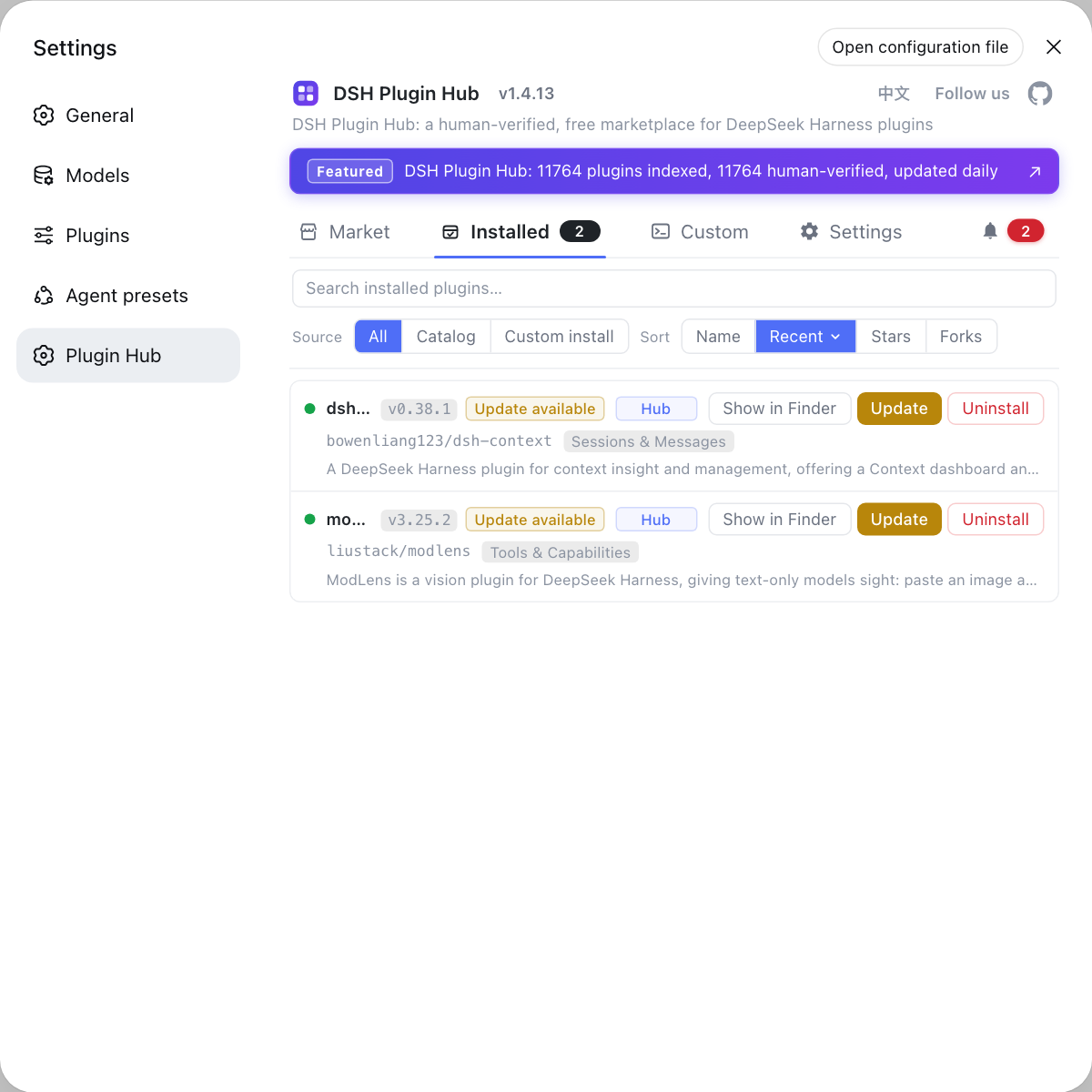
Item 4 is the most misunderstood: the desktop and the CLI each maintain their own set of installed plugins. The installed list in the DSH Plugin Hub shows the desktop set; the CLI side must be checked per profile against the matching node_modules and configuration, so never infer one from the other.
Uninstall order and verification for each side
The two sides uninstall independently: remove the desktop first (after removing the CLI command registration), then the CLI; verify the command and package are gone, and note that sessions, settings and credentials in $DSH_HOME staying is a separate matter (source).
Run in order and check each expectation:
- Remove the dsh command registration in the desktop first — Manage dsh Command → Remove. Expected: the desktop's registered entry is cleared so no dangling command survives the app removal.
- Uninstall the desktop app — Use the system's normal uninstall. Expected: the app is removed and the desktop executable layer is gone.
- Uninstall the CLI — Remove it the way it was installed: uninstall the global package with its package manager, do nothing for npx runs, and delete the directory for a source install. Expected: neither
which dshnornpm ls -g @deepseek-ai/dshreturns a result. - Verify shared data remains — Run
ls "$DSH_HOME". Expected: sessions, settings and credentials remain; removing both programs does not affect that data unless you delete it.
Why step 1 must come first: the desktop uninstaller will not remove the CLI command registration, as the official docs state. Skip it and a dsh pointing at a deleted app remains, looking like "the CLI was not fully uninstalled" when it is actually the one the desktop registered.
Notes on uninstalling DeepSeek Harness desktop and the CLI
- Identify the command owner first: the path from
which dshmay be the desktop's registration or the CLI install; tell them apart before uninstalling. - The desktop uninstall does not remove the CLI registration: remove it manually via Manage dsh Command or a dangling command stays.
- Shared data is out of scope: sessions, settings, credentials and tasks in ~/.dsh remain; delete them only on purpose.
- Plugins are per side: plugins in the desktop's profiles/desktop and in each CLI profile do not affect each other, so do not infer across sides.
- Desktop before CLI: clear the desktop registration, remove the app, then uninstall the CLI for the clearest verification.
To check and remove installed plugins on the desktop side, the DSH Plugin Hub is the clearest place; the CLI side is checked inside the matching profile, and looking at both separately keeps the shared / not-shared boundary clear.
Sources: DeepSeek Harness desktop README (official repository), DeepSeek Harness CLI README (official repository), DeepSeek Harness source repository
FAQ
No. The desktop and the CLI are two separate installation chains, so uninstalling the desktop only removes the app and its own executable layer and leaves the dsh CLI command alone. The official docs also state the desktop uninstaller will not remove the CLI command registration for you, so before uninstalling the desktop you must remove that registration via Manage dsh Command; the dangling dsh left otherwise is the one the desktop registered, not the CLI install.
No. Uninstalling the CLI only removes its own executable packages and install method (npx / npm / source), while the desktop is a separate signed installer; the two do not share executable code. The official docs say they share supported product data under $DSH_HOME but never share executable packages, plugin activation, lock files or node_modules, so after the CLI is removed the desktop still starts and reads the shared sessions and settings.
They share supported product data under $DSH_HOME (default ~/.dsh), such as sessions, settings, credentials and tasks. They never share executable packages, plugin activation, lock files or node_modules, and the desktop owns only the profiles/desktop layer inside it. Removing the desktop therefore does not lose sessions, while removing the shared data affects both sides.
Uninstall the desktop first, then the CLI. Before removing the desktop, use Manage dsh Command to remove the dsh command it registered so no dangling command points at the deleted app; then uninstall the CLI the way it was installed. After both are gone, credentials, sessions and settings remain in $DSH_HOME until you delete that directory on purpose.
Check each chain separately. On the CLI side use which dsh or dsh --version to confirm the command is gone, and npm ls -g @deepseek-ai/dsh to confirm the global package is removed. On the desktop side confirm the app is gone from the system and its registered dsh command was removed via Manage dsh Command. Whether $DSH_HOME still exists is a different matter from whether both programs are gone.
Related Terms
- installation ownership
- Installation ownership is the DeepSeek Harness desktop README's term for separating the two install chains: the CLI installs via npx / npm / source, and the desktop installs via a signed installer, with different executable layers.— DeepSeek Harness desktop README
- $DSH_HOME
- $DSH_HOME is the DeepSeek Harness product data root, defaulting to ~/.dsh, holding sessions, settings, credentials and tasks; the desktop and the CLI share the supported data in it, and the desktop owns only the profiles/desktop layer.— DeepSeek Harness desktop README
- Profile
- A Profile is an independent environment the DeepSeek Harness CLI uses per entry mode; its directory holds package.json, the dsh.profile manifest and cordis.patch.yml, and pnpm installs out-of-tree plugins into that profile's node_modules while the desktop owns its own profiles/desktop.— DeepSeek Harness CLI README
Sources
- DeepSeek Harness desktop README· deepseek-ai
- DeepSeek Harness CLI README· deepseek-ai
- DeepSeek Harness source repository· GitHub