DeepSeek Harness desktop pet DSH plugin: in-UI or window
A DeepSeek Harness desktop pet DSH plugin is a decorative plugin: it turns idle, working, waiting and error agent states into animation or poses and stays in a Web GUI corner or a standalone desktop window (source). It makes background tasks visible and does not track money — balance and spend are the job of functional widgets. This guide covers three things: what pets can do, which real implementations exist, and how to choose by form and platform.
What a DeepSeek Harness desktop pet DSH plugin can do
The core value of a desktop pet DSH plugin is making background tasks visible: it translates agent idle, working, waiting and error states into animation or poses readable at a glance (source). Split by capability into four pieces:
- State visualization — dozing when idle, busy when running, prompting while it waits for your approval, celebrating on completion, alerting on error. Expected: you know whether it is running without opening a log.
- Interface interaction — most pets support dragging, snapping to a corner, resizing, muting and a right-click menu, and some can be clicked to talk. Expected: it is a companion layer that does not get in the way.
- Standalone window form — some pets run in a standalone transparent always-on-top window and keep showing even when DeepSeek Harness is minimised or the browser is closed. Expected: you can glance at progress while switched to other software.
- It handles state, not money — a pet shows neither balance nor spend; that is a functional balance widget's job and a different plugin kind, so for balance and usage see the balance and cost plugin roundup. Expected: you never mistake a pet for a cost tool.
One line to remember: a pet answers "what is it busy with", a balance widget answers "how much money is left". This guide covers only the former, and the latter already has its own article, so do not mix the two in one choice.
Which DeepSeek Harness desktop pet DSH plugin implementations exist
These entries are searchable on DSH Plugin Hub by keywords such as desktop-pet and whale, and the implementations differ noticeably in display form, platform and customisability. Several real entries:
- dsh-whale-pet — a whale girl in the bottom-right of the Web GUI that switches action with agent state and plays a celebration voice on completion, supporting dragging, muting and respect for the system reduce-motion setting, with assets loaded locally. Expected: the Web interface gains a mascot that reacts to state.
- dsh-dafeiyu — shows real agent state in an always-on-top transparent desktop window, event-driven rather than screen-reading, supporting reasoning intensity and multi-session priority, and declaring support for Windows, Linux x64 and macOS (experimental). Expected: you can see progress even after switching windows.
- dsh-pet-companion — a standalone transparent floating window that switches poses with agent events, with a built-in pet named Lokki and support for endlessly expanding a local pet library from a folder (sprite sheets or single transparent art). Expected: you can add your own pets.
- dsh-ui-pet — a floating kitten in the bottom-right of the Web GUI, linking expressions and bubbles to running, idle and no-session states, purely display with zero side effects. Expected: a glance shows whether the session is running.
- dsh-pet-desktop-linux — a standalone desktop pet targeting Linux X11 only and needing extra system dependencies; it is the textbook case that a standalone-window pet is not necessarily cross-platform, so check your system first. Expected: it stays as a standalone window on a supported Linux desktop.
Watch the install method: on the pet side some follow the standard dsh plugin --profile web add while others need a repo-provided script or a source checkout rebuild, so the paths are not uniform — follow the command the Hub entry gives.
Four representative pet implementations side by side:
| Implementation | Form | Platform | Customisable | Changes the session? |
|---|---|---|---|---|
| dsh-whale-pet | In-UI whale mascot (bottom-right) | Follows the Web UI, multi-platform | Drag / mute / respects reduce-motion | No |
| dsh-dafeiyu | Standalone transparent always-on-top window | Windows / Linux x64 / macOS (experimental) | Reasoning intensity / multi-session priority | No |
| dsh-pet-companion | Standalone transparent floating window | Depends on the implementation | Hot-loading a local pet library | No |
| dsh-ui-pet | In-UI kitten (bottom-right) | Follows the Web UI, multi-platform | Three state expressions and bubbles | No |
How to read the table: start with the "Form" column to decide whether you need a standalone desktop window, then the "Platform" column to confirm your system is supported — the standalone-window kind is the one that most often trips over the platform, so do not discover it after installing.
Desktop pet DSH plugin: in-UI or standalone window how to choose
Choosing comes down to one question: do you want a mascot inside the session UI, or a desktop pet that stays after the browser closes? The first takes an in-UI pet, the second a standalone-window pet (source). The comparison:
| Aspect | In-UI pet | Standalone-window pet |
|---|---|---|
| Typical implementations | dsh-whale-pet, dsh-ui-pet | dsh-dafeiyu, dsh-pet-companion |
| Where it shows | Web GUI corner | Transparent always-on-top desktop window |
| After Harness closes | Disappears with it | Keeps showing |
| Platform | Follows the Web UI, effortless cross-platform | Each has system requirements, macOS may be experimental |
| Customisable | Art, mute, actions | Pet library, priority, reasoning intensity |
One-line decision: want a mascot reacting to state inside the session UI, pick an in-UI pet; want to glance at progress after switching to other software, pick a standalone-window one. You can install only one, or one of each, but mind the corner overlap.
Three common choosing scenarios to map onto. Scenario one, "I just want a state hint while coding": take an in-UI pet, following the page, zero configuration, gone when closed — the least effort. Scenario two, "Harness runs long tasks and I want to peek at progress": take a standalone-window pet that stays through minimising or app switching. Scenario three, "I want to swap in my own pet art": take one supporting local pet-library hot-loading (such as dsh-pet-companion), where dropping art files into a folder is enough to expand.
Notes and limits for using DSH plugin desktop pets
Remember three things — decorative does not touch the real work, match the platform, data stays local — and desktop pets stay pleasant.
- Purely display-oriented does not affect the session: most pets inject no context and burn no quota, but the occasional one with a chat feature uses a model key, so read its description first.
- Confirm the platform first: dsh-pet-desktop-linux targets only Linux X11 and needs extra system dependencies; desktop-window plugins may be experimental on macOS, so do not assume all platforms work.
- Restart and hard-refresh after install: pets usually load after a
dsh webrestart, so hard-refresh to rule out the cache; script installs also need the profile directory and load line written in. - They compete for interface space: pets all love the bottom-right corner, and running several easily overlaps; hiding or repositioning solves it.
- Performance and motion: a pet is continuously rendered animation, so on a low-end machine or with several stacked it may use some CPU / GPU; respecting the system reduce-motion setting and limiting how many run at once eases it.
- Data stays local: pet assets and preferences stay on the machine; when a chat feature is involved, mind where the key it reads comes from.
If it does not work after install, debug in this order:
- Confirm the plugin landed in the right profile — run
dsh plugin --profile web listand check the pet plugin name is present. Expected: the name is listed, meaning the dependency reached the web profile. - Hard-refresh to rule out cache — restart
dsh weband hard-refresh the browser once. Expected: the pet appears in the corner, or its toggle appears in settings. - Check the load line for script installs — if it came from a repo script or a source checkout, verify the profile directory and cordis load line are written. Expected: the load line exists and the pet comes up after a restart.
- If still hidden, check the platform — a standalone-window pet will not appear on an unsupported system, so confirm the system and run mode match. Expected: you can tell "installed wrong" from "system unsupported".
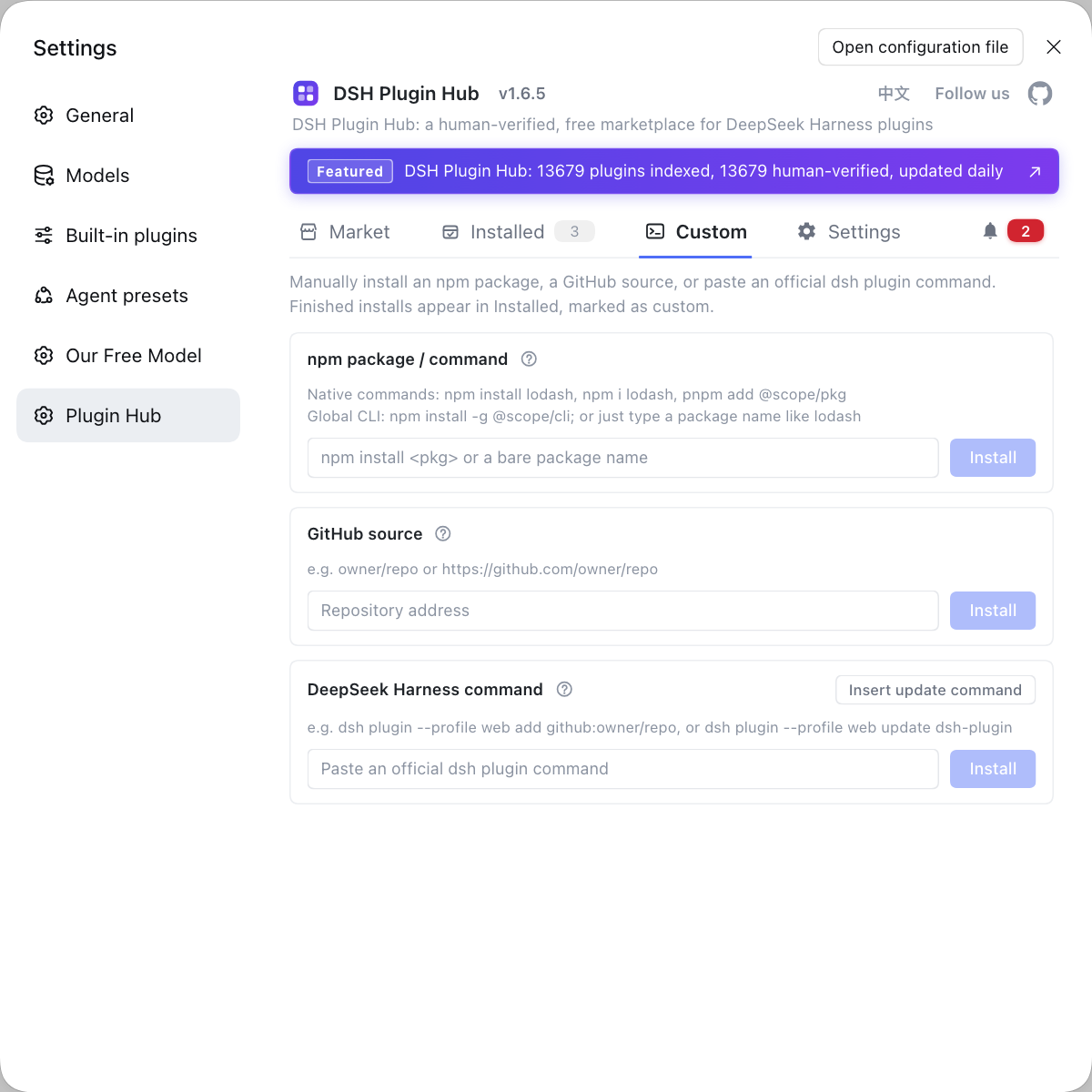
Rather than installing pets one at a time and only then discovering the platform is unsupported or that they collide with another pet, use DSH Plugin Hub's Custom install channel to pull a GitHub source or npm package in directly, with source and version visible up front. Its home page is https://dsh-plugin.org/.
Sources: dsh-whale-pet (DSH Plugin Hub), dsh-dafeiyu (DSH Plugin Hub), dsh-ui-pet (DSH Plugin Hub).
FAQ
A desktop pet DSH plugin is decorative: it turns idle, working, waiting and error agent states into animation or poses, making background tasks visible, and it is not a balance widget. A pet shows neither balance nor spend; that is a functional balance widget's job, so for balance and usage see the balance and cost plugin roundup article. The distinction is simple: something whose motion follows state is a pet, something showing numbers is a widget.
Quite a few real implementations exist: dsh-whale-pet, dsh-dafeiyu, dsh-pet-companion, dsh-ui-pet, plus dsh-pet-desktop-linux which targets Linux X11 only. dsh-whale-pet is a whale girl in the bottom-right of the Web GUI that switches action with agent state; dsh-dafeiyu shows real agent state in a standalone always-on-top transparent window; dsh-pet-companion supports hot-loading a local pet library; and dsh-ui-pet is a display-only UI kitten. Decide whether you want an in-UI mascot or a standalone desktop window first.
Most desktop pet DSH plugins need a dsh web restart plus a hard browser refresh before the pet shows up. On the pet side some follow the standard dsh plugin command while others need a repo-provided script or a source checkout rebuild. Confirmation differs by implementation: standard installs show up in dsh plugin list, while script installs need the profile directory and cordis load line written in.
An in-UI pet follows the Web page and is cross-platform and effortless, while a standalone desktop-window pet stays visible after the browser closes; you can run both as needed but both take corner space. If you only want a mascot reacting to state inside the session UI, an in-UI pet is enough; to glance at progress after switching to other software, add a standalone-window one. When running both, mind them crowding the same corner and hide or reposition one.
A purely display-oriented desktop pet DSH plugin usually does not affect the session itself or consume model quota, but cross-platform support varies, so read it carefully first. dsh-dafeiyu declares support for Windows, Linux x64 and macOS (experimental); dsh-pet-desktop-linux targets only a Linux X11 environment and needs extra system dependencies; some pets show inside the Web GUI and others use a standalone desktop window. Before choosing, confirm it supports your system and run mode.
Related Terms
- desktop pet plugin
- A desktop pet plugin is a DSH plugin that turns DeepSeek Harness agent states into animation or poses and stays on the interface or desktop, mainly for fun and state visualization. It is decorative and does not change session content.— DSH Plugin Hub - dsh-whale-pet
- dsh-dafeiyu
- dsh-dafeiyu is a desktop companion plugin driven by real DeepSeek Harness agent events, showing thinking, working, waiting and done states in an always-on-top transparent window. It is event-driven rather than screen-reading.— DSH Plugin Hub - dsh-dafeiyu
- dsh-ui-pet
- dsh-ui-pet is a desktop pet plugin that stays in the bottom-right of the DeepSeek Harness Web GUI, linking running, idle and no-session states to expressions and bubbles with zero side effects. It is decorative and shows neither balance nor spend.— DSH Plugin Hub - dsh-ui-pet
- shell.overlay
- shell.overlay is the entry point in the DeepSeek Harness interface for stacking persistent components, where desktop pet plugins register an entry to float themselves over the UI. It is what makes a pet float rather than occupy page area.— DSH Plugin Hub - dsh-whale-pet
Sources
- dsh-whale-pet (DSH Plugin Hub entry)· dsh-plugin.org
- dsh-dafeiyu (DSH Plugin Hub entry)· dsh-plugin.org
- dsh-ui-pet (DSH Plugin Hub entry)· dsh-plugin.org