DeepSeek Harness Web UI not connecting: gray send button and 404 errors
DeepSeek Harness Web UI not connecting has three typical symptoms: a send button that stays gray (no workspace selected), /api/commands/list returning 404 (command registration failed), and a blank plugin panel on remote access (plugin management is local-only). They map to three different root causes — fix them in this order: select a workspace → manage plugins locally → restart the web service and verify.
DeepSeek Harness Web UI not connecting: the three symptoms
The three symptoms are different and so are their root causes: a gray button is a state problem, a 404 is an API problem, and a blank panel is an access-method problem. One by one (source: dshbase troubleshooting):
- Send button stays gray — the Web UI opens, the input box accepts text, but the send button is unclickable; this usually happens right after startup or when a new profile is created;
/api/commands/listreturns 404 — the command menu is empty, and visiting the endpoint directly in the browser returns 404; this usually happens after installing a new plugin;- Blank remote plugin panel — opening the Web UI from a LAN IP or a tunnel shows a silently empty "Settings → Plugins" with no hint at all;
- All three can be mistaken for "the Web UI is broken", but the fixes are completely different — match the symptom first.
Why the DeepSeek Harness Web UI fails: no workspace, local-only plugins, broken command API
Three root causes: the web profile has no workspace so sending is disabled; plugin management is bound to the local file system and unavailable remotely; and the command API returns 404 because plugin registration did not take effect. In detail:
- No workspace selected: the web profile must have a workspace before it can send — without one, the Agent has no working directory and sending is disabled (source: dshbase troubleshooting);
- Plugin management is local-only: opening the Web UI from another machine shows a silently blank plugin panel — plugin management is bound to the local file system, and dsh web listens on 127.0.0.1 by default (source: DeepSeek Harness README); a remote browser can chat, but plugin installs and removals must happen locally (source: dshbase troubleshooting);
- Broken command API:
/api/commands/listreturning 404 means the plugin-manifest auto-discovery mechanism failed and commands were not registered (source: dshbase troubleshooting) — common when a plugin was installed without a restart, or the plugin never activated.
Fix DeepSeek Harness Web UI: select workspace, manage plugins locally, restart and verify
Route by symptom: a gray button means select a workspace, a blank panel means go back to the local machine, and a 404 means reinstall the plugin and restart the service. Step by step:
- Select a workspace (fixes the gray send button) — find "Choose workspace" at the top of the Web UI, open it and pick a directory:
- Click the "Choose workspace" button;
- In the file picker, select a project directory (or create a new empty one);
- The send button should become clickable and the input box ready.
- Manage plugins locally (fixes the blank remote panel) — go back to the machine running dsh, open
http://127.0.0.1:3080in the browser, and install/uninstall/update plugins under "Settings → Plugins"; a remote browser is for viewing and chatting only, plugin operations must be local (source: dshbase troubleshooting). - Reinstall the plugin and restart the web service (fixes the commands/list 404) — reinstall the plugin under "Settings → Plugins", then restart the web service in the terminal:
Wait until the terminal printsbash
# Press Ctrl+C in the terminal running dsh, then run: dsh webhttp://127.0.0.1:3080, then refresh the browser. - Verify the endpoint — visit
http://127.0.0.1:3080/api/commands/list:- A 200 with JSON data → the command menu is back;
- Still 404 → check whether the plugin is activated (see "DSH plugin installed but not active"), and report the error if it persists (source: dshbase troubleshooting).
- Rule out leftover instances — if it is still broken, check for port conflicts:
lsof -i :3080(macOS/Linux) ornetstat -ano | findstr :3080(Windows), kill the old process and restart; see "Fix port 3080 already in use".
How to verify a DeepSeek Harness Web UI fix: three endpoint checks and a real message
After the fix run three checks — the command endpoint returns 200, the service is listening, the workspace took effect — then close with a real chat message; only when all pass is the Web UI truly connected. In order:
-
Check the command endpoint — in the browser or the terminal:
bashcurl -i http://127.0.0.1:3080/api/commands/listAn
HTTP/1.1 200with JSON data means the command menu is back; a persistent 404 means the plugin is not activated or not restarted — back to step 3 of the fix section. -
Check the service is listening:
bashlsof -i :3080A dsh process in
LISTENstate means the service is healthy; no output or a PID conflict points to a leftover instance — back to step 5 of the fix section. -
Check the workspace took effect — "Choose workspace" at the top of the Web UI now shows a directory, and the send button is clickable instead of gray.
-
Close with a real message — send a test message in a session; a normal send and reply means the Web UI is truly connected.
-
Remote scenario review (optional) — a blank "Settings → Plugins" over remote access is by design: confirm plugin management works on the local dsh machine, and that the remote browser can chat.
Notes: DeepSeek Harness Web UI — match the symptom first
- For a gray send button, select a workspace first — do not rush to reinstall; this is the most commonly mis-fixed state problem.
- A blank remote panel is by design, not a fault — manage plugins back on the local machine.
- For a
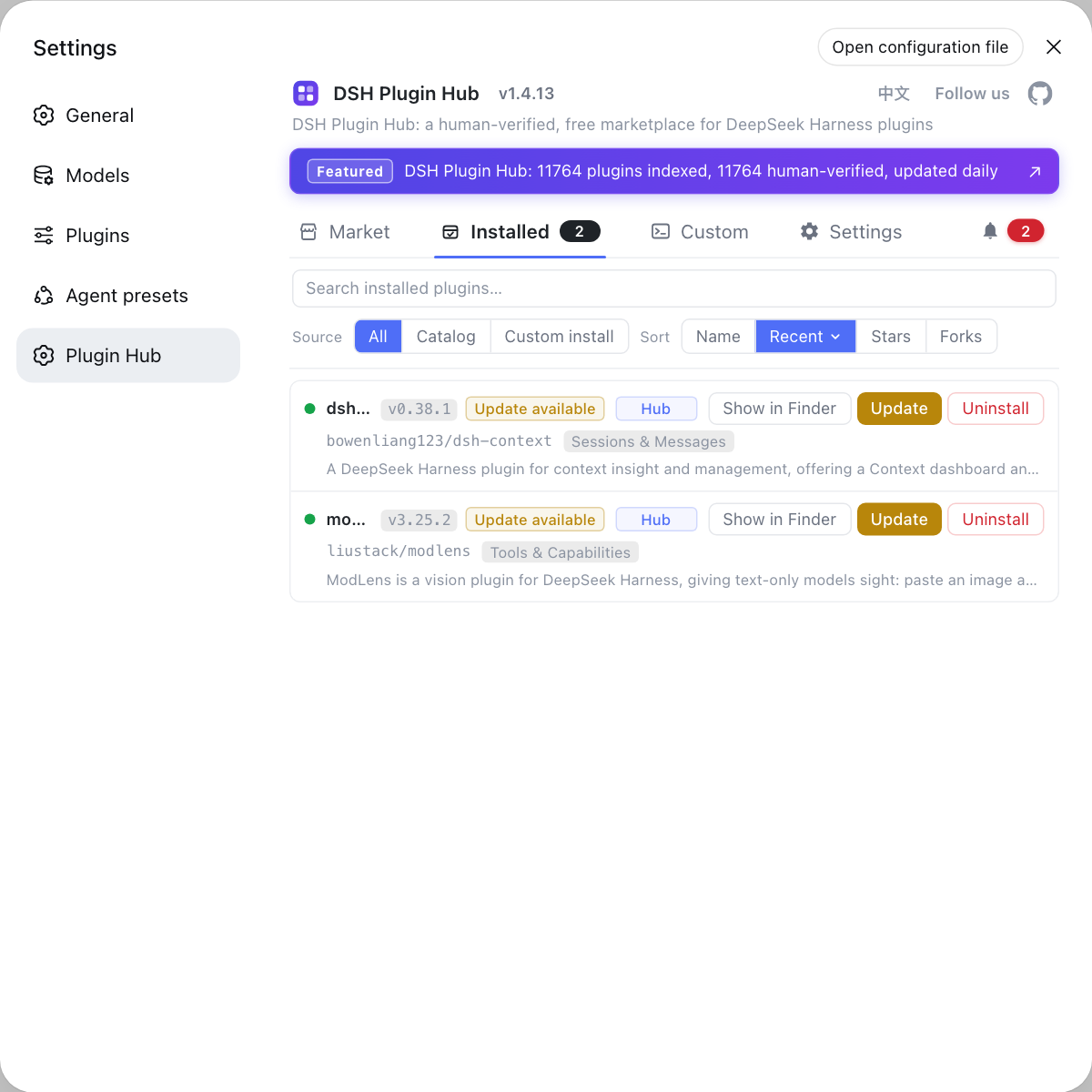
/api/commands/list404, reinstall the plugin first, then restart the service; command registration follows plugin activation. - Back on the local machine, the most convenient way is Settings → Plugin Market (DSH Plugin Hub) — visual install/uninstall/update with clear failure reasons.
- See install error troubleshooting for other DeepSeek Harness install errors.
Sources: dshbase troubleshooting, DeepSeek Harness apps/web, DeepSeek Harness README
FAQ
A gray send button in DeepSeek Harness Web UI means the web profile requires a workspace before it can send: without a workspace the Agent has no working directory, so sending is disabled. Click "Choose workspace" and select a directory and the button becomes clickable again (source: dshbase troubleshooting).
A 404 from /api/commands/list in DeepSeek Harness means the plugin command registration did not take effect — the plugin-manifest auto-discovery mechanism failed and commands were not registered. Reinstall the plugin and restart the web UI; then visit http://127.0.0.1:3080/api/commands/list and a 200 with JSON means it is back, while a persistent 404 needs reporting (source: dshbase troubleshooting).
A blank plugin panel in remote DeepSeek Harness Web UI: plugin management is local-only: when you open the Web UI from another machine (LAN IP or tunnel), the plugin panel stays silently blank with no hint. Manage plugins on the machine running dsh via http://127.0.0.1:3080; a remote browser can chat, but plugin installs and removals must be done locally (source: dshbase troubleshooting).
To restart the DeepSeek Harness web service: press Ctrl+C in the terminal running dsh, run dsh web again, wait until the terminal prints http://127.0.0.1:3080, then refresh the browser; if it is still broken check the port (lsof -i :3080) and the proxy environment to rule out leftover instances and proxy hijacking.
Related Terms
- workspace
- A workspace is the directory context the Agent can operate on; the web profile must select a workspace before sending messages, otherwise the send button stays disabled.— dshbase troubleshooting
- /api/commands/list
- /api/commands/list is the DeepSeek Harness Web UI endpoint that loads the command menu, registered by the plugin-manifest auto-discovery mechanism; a 404 means the commands were not registered.— dshbase troubleshooting
- plugin management
- Plugin management refers to installing, uninstalling and updating plugins, which is local-only on the machine running dsh (127.0.0.1); remote access can only view and chat, and the plugin panel stays silently blank.— dshbase troubleshooting
- 127.0.0.1:3080
- 127.0.0.1:3080 is the local address dsh web listens on by default; it is only reachable on the same machine, and remote access requires port forwarding or a tunnel.— DeepSeek Harness README