Stop dsh processes before uninstalling DeepSeek Harness
Stop background processes before uninstalling dsh, because DeepSeek Harness leaves several long-running or semi-persistent processes: the profile process started by the CLI dsh web, the session process from dsh --profile headless that exits when its task finishes, and the desktop Host process. They hold the runtime, the profile and file handles, so step-by-step cleanup is blocked outside the door.
This guide covers three steps: which processes to stop, why a port stays busy, and how to locate and finish off leftover processes and ports. The uninstall commands and per-platform paths are in Ways to uninstall dsh.
Which processes to stop before uninstalling dsh
Stop three kinds of processes before uninstalling: the long-running web profile process from dsh web, the session process from dsh --profile headless (which exits when its task finishes), and the desktop Host process (source).
Find all three with commands first:
- List dsh and Node processes — On macOS / Linux run
pgrep -fl dshorps aux | grep -i deepseek; on Windows runtasklist | findstr /i "dsh node". Expected: all related processes and their PIDs are listed. - Tell long-running from one-off — Check whether the command line is
dsh web(long-running, listens on a port) ordsh --profile headless "..."(exits when done). Expected: you can separate what holds resources long term from what you can leave alone. - Check the desktop Host process — A Host runs while the desktop is open. Expected: it disappears after you quit the desktop, releasing the single-instance lock on profiles/desktop.
- End the long-running processes one by one — On macOS / Linux use
kill <pid>; on Windows usetaskkill /F /PID <pid>, preferring a normal exit when possible. Expected: related entries vanish from the process list and the runtime and handles are released.
Step 2 saves effort: a headless session process exits by itself when the task finishes and usually needs no manual action; the ones that need work are the long-running dsh web and the desktop Host. Do not treat a one-off as long-running, and do not assume a long-running one costs nothing.
Why a port stays busy after uninstall: the desktop opens none, dsh web does
The official docs state the desktop app opens no web port; only the profile process started by the CLI dsh web listens on one. So a port still in use after uninstalling DeepSeek Harness is almost always a dsh web process that did not exit, not an incomplete uninstall (source).
Confirm the port owner with commands:
- List listening ports — On macOS / Linux run
lsof -i -P | grep LISTEN; on Windows runnetstat -ano | findstr LISTENING. Expected: ports with their PIDs are listed. - Map the PID back to a process — On macOS / Linux use
ps -p <pid> -o pid,command; on Windows find the PID in Task Manager details. Expected: you confirm whether the PID is a Node / dsh process. - Confirm it is dsh web — Check whether the command line contains dsh web or --profile web. Expected: a match means it is a CLI-started long-running process, unrelated to the desktop.
- End it and recheck the port — After ending the process, rerun step 1. Expected: the port leaves the listening list, confirming the occupation is over.
Step 3 explains a common misread directly: "I uninstalled the desktop, so why is the port still there?" Because that port was never opened by the desktop. The desktop opens no web port; a coexisting dsh web process is the listener. Knowing the owner prevents repeated uninstalls.
Locating and finishing off processes and ports after uninstall
The finishing order is "find processes by name, map ports to a PID, match the two, then exit gracefully", force killing only an unresponsive process so a process writing packages is not interrupted (source).
Run in order with a verifiable expectation each step:
- Check leftover processes again — On macOS / Linux run
pgrep -fl dsh; on Windows runtasklist | findstr /i node. Expected: you confirm whether any dsh / Node process remains. - Check ports again — Run
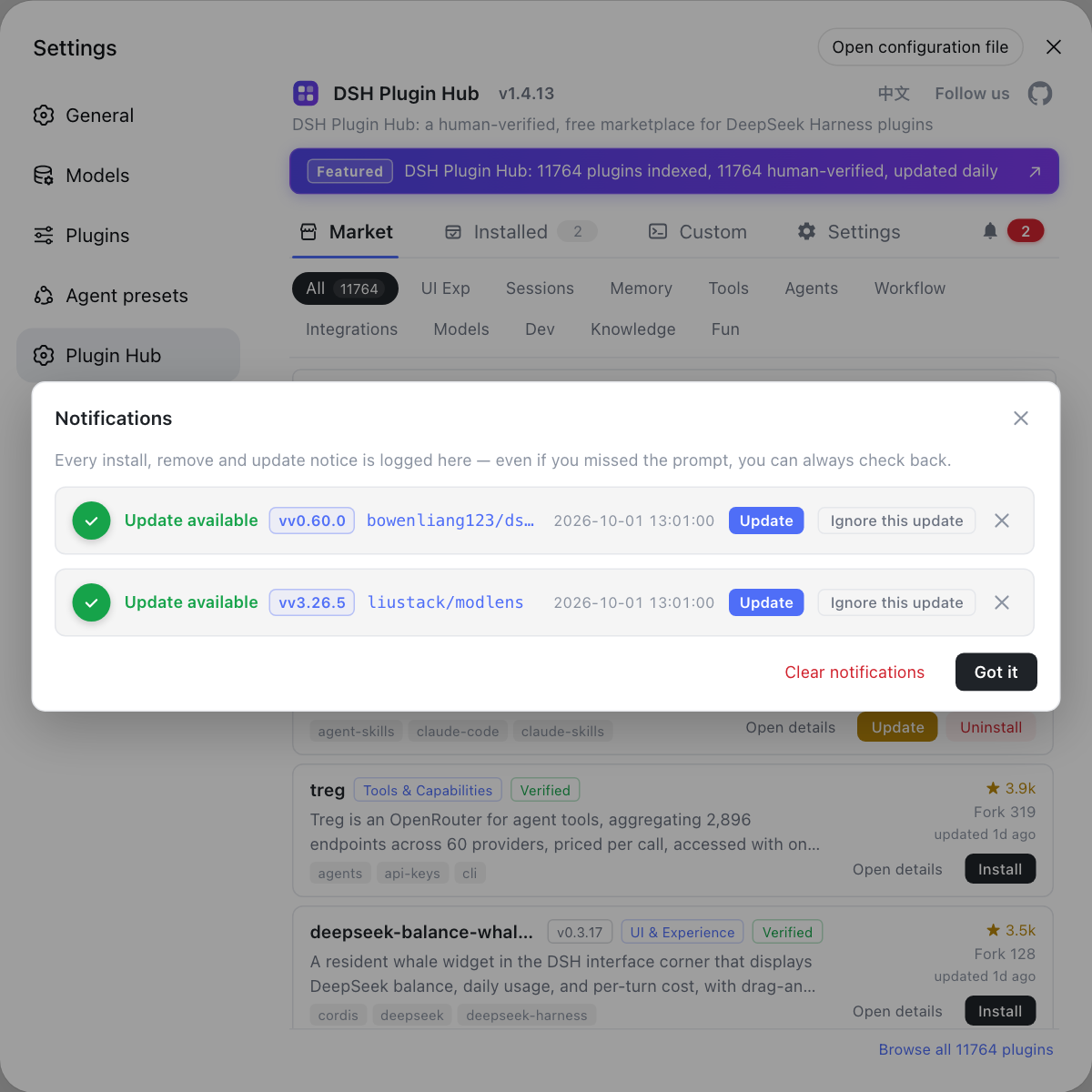
lsof -i -P | grep LISTEN/netstat -ano | findstr LISTENING. Expected: you confirm whether the port is released. - Check the desktop restart reminder — Open the DSH Plugin Hub notification center. Expected: a "restart pending" note means the process must exit to finish; quit the desktop and recheck.
- Prefer a graceful exit — Exit from the UI or send a normal termination signal when possible. Expected: the process finishes and releases its profile and locks with no half-finished state; force kill only an unresponsive one.
Step 4 matters: force killing a process writing packages means a failed plugin change keeps partial modifications without rollback, per the official docs, so do not force kill what a normal exit can finish. Once processes exit and ports free up, uninstall and cleanup stop fighting each other.
Notes on stopping processes before uninstalling dsh
- Headless usually needs nothing: it exits when the task ends; only handle it if it hangs without exiting.
- The desktop opens no port: a busy port is a dsh web process, not a desktop uninstall issue.
- Identify the owner first: map the port to a PID, map it back to a process, and confirm it is dsh / Node before acting.
- Prefer a graceful exit: force kill can interrupt a package transaction and leave non-rollbackable partial state.
- Processes first, then uninstall: once the runtime and handles are released, uninstall and directory cleanup go smoothly.
To see which tasks are still running and whether a restart is pending before or after uninstall, the DSH Plugin Hub notification center lists progress and reminders together, more clearly than scrolling processes in a terminal.
Sources: DeepSeek Harness CLI README (official repository), DeepSeek Harness desktop README (official repository), DeepSeek Harness source repository
FAQ
Yes, stop background processes before uninstalling dsh. The DeepSeek Harness dsh web starts a long-running profile process that listens on a port, and the desktop keeps a Host process running; these processes hold the runtime, the profile and related files, so step-by-step cleanup is blocked. Quit them before uninstalling so no file is in use and no port stays listened on.
A port still in use after uninstalling DeepSeek Harness is almost always a dsh web process that did not exit. The official docs state the desktop app opens no web port, so the process listening is the profile process started by the CLI dsh web; uninstalling the app or deleting a directory never ends a running Node process, so the port stays listened on. Find it with process and port commands and end it.
dsh web starts a long-running web profile process that listens on a port for continuous use, while dsh --profile headless runs a task in the headless profile and exits as soon as the task finishes, so it does not hold a port long term. When cleaning up, look first for a long-running dsh web process; a headless run usually needs no manual action unless it hangs without exiting.
Find processes by name first, then map ports to a PID. On macOS and Linux use pgrep -fl dsh or ps aux | grep -i deepseek for processes and lsof -i -P | grep LISTEN for listening ports; on Windows use tasklist | findstr /i node for processes and netstat -ano | findstr LISTENING for ports and PIDs, then confirm in Task Manager. Check on both ends that process and port line up.
Prefer a graceful exit and force kill only if it will not quit. When a process can quit from the UI or receive a normal termination signal, it gets to finish and release its profile and locks; force kill only for an unresponsive process. Force killing a process writing packages can leave a half-finished state, and the official docs state a failed plugin change keeps partial modifications without rolling back, so avoid force kill when possible.
Related Terms
- dsh web
- dsh web is a DeepSeek Harness CLI entry mode (equivalent to --profile web) that starts a long-running web profile process and listens on a port, the main source of a port still in use after uninstall.— DeepSeek Harness CLI README
- dsh --profile headless
- dsh --profile headless is a DeepSeek Harness CLI entry mode that runs one task in the headless profile and exits once the task finishes, so it does not hold a port long term.— DeepSeek Harness CLI README
- Host process
- The Host process is the DeepSeek Harness desktop backend that the desktop starts or stops around plugin changes and runtime work; it takes part in owning profiles/desktop, so quit it before uninstalling or resetting.— DeepSeek Harness desktop README
- profile
- A profile is an independent runtime environment in DeepSeek Harness; the CLI uses different profiles per entry mode and each profile has its own package.json and node_modules, so check the profile along with the process when locating one.— DeepSeek Harness CLI README
Sources
- DeepSeek Harness CLI README· deepseek-ai
- DeepSeek Harness desktop README· deepseek-ai
- DeepSeek Harness source repository· GitHub