npx @deepseek-ai/dsh web vs global: version drift
npx @deepseek-ai/dsh web and a global dsh install are the same product run two ways — mix them and you get two classic pseudo-failures: version drift and disappearing plugins. Drift is version uncertainty, because npx may resolve a different release each time. The disappearing plugin is more common and more often misdiagnosed: DSH plugin records live in the data directory (DSH_HOME), not beside the executable, so when two launch methods read two different data directories, plugins look lost even though versions never changed. This guide covers the three run patterns, three ways to identify which dsh is running, and four migration routes to a single entry point.
What actually differs between the two DeepSeek Harness run patterns
Bottom line: only three things differ — whether a global install exists, whether the version is fixed, and when artifacts are resolved and cached. Those are enough to create inconsistent command behavior and inconsistent plugin lists.
| Dimension | npx @deepseek-ai/dsh web | Global dsh install |
|---|---|---|
| Install footprint | None globally; artifacts in the npm cache | Global directory, dsh on PATH |
| Version | May resolve a different release per run unless specified | Fixed until you upgrade explicitly |
| Startup speed | First run may download and unpack | Starts immediately |
| Best for | Trials, short verification, multi-version comparison | Daily use, plugins, long tasks |
| Main risk | Drift; cache growth | Forgetting to upgrade and staying old |
Option A: npx only (cleanest, but versions move)
Bottom line: npx-only keeps the machine clean at the cost of version certainty — and if you install DSH plugin packages, that uncertainty becomes compatibility risk.
- Pin the version when trialing so each start uses the same build:
npx -y @deepseek-ai/dsh@0.2.0-rc.2 web --port 3080
- Know what cache clearing does: clearing the npm cache forces a re-download (slower) but fixes the occasional bad cached artifact.
- Respect its weakness: plugins installed this way still land in DSH_HOME, so always set DSH_HOME explicitly or changing terminals and containers changes the data directory.
Option B: global only (most stable, but you own upgrades)
Bottom line: for daily long-term use, install globally, pin the version, and treat upgrades as explicit actions. This is the least surprising route.
- Install and verify:
npm i -g @deepseek-ai/dsh@0.2.0-rc.2
dsh --version        # expected: matches the pinned version
- Upgrading is one command, and dsh web must be restarted to pick it up.
- Record the plugin list before and after any plugin change, so you can tell "not installed" from "installed elsewhere."
- Do not use this route for multi-version comparison — swapping globals back and forth is worse than version-pinned npx.
Option C: version-pinned npx as a quasi-global (recommended middle ground)
Bottom line: if you want no global install but fear drift, pin the version and wrap it in an alias — you get a fixed-version, no-install entry point.
- Alias it in your shell profile:
alias dshx='npx -y @deepseek-ai/dsh@0.2.0-rc.2'
dshx web --port 3080
- Combine with a fixed DSH_HOME so one machine never ends up with two plugin lists.
- Upgrading means editing the alias version — more controllable and easier to roll back than a global upgrade.
- Watch cache size: several pinned versions each occupy cache; clean unused ones periodically.
Three symptoms of a mixed DeepSeek Harness setup
Bottom line: separate "version mismatch" from "data directory mismatch" — the second is more common and has a completely different fix.
- Two dsh executables on one machine: the CLI and some script behave differently. Diagnose below; fix by consolidating entry points.
- The plugin went to another profile or data directory: it disappears right after install. Check DSH_HOME and the --profile flag before discussing versions — eight out of ten cases are this.
- Version numbers disagree: one place reports an old version and another a new one, and plugin compatibility flickers. Use the three checks below, then pin.
How to identify which DeepSeek Harness dsh is running
Bottom line: fastest to slowest — which -a for the number of copies, dsh --version against the global version, then process arguments to see if npx launched it.
- Count executables and resolution order:
which -a dsh
# expected: may list both the global path and an npx or local path
- Compare versions:
dsh --version                      # the CLI you are invoking
npm ls -g @deepseek-ai/dsh         # the global install
# different values mean the CLI is not the global copy
- Inspect how the process was started:
ps -ef | grep -i dsh | grep -v grep
# expected: shows the executable path; npx-launched runs include the npx layer
- Check the data directory too: echo $DSH_HOME. Empty means the default is in use, which may differ from what you set elsewhere.
Four migration routes to a single DeepSeek Harness entry point
Bottom line: the goal is one entry point, one data directory, one fixed version. Pick the route that matches your usage intensity and change one thing at a time.
- Route one (simplest): keep only the global install; drop the alias and npx usage; upgrade explicitly.
- Route two (stay install-free): keep only the version-pinned npx alias and uninstall the global copy.
- Route three (multi-version comparison): global for daily work, pinned npx for comparison; isolate them with different DSH_HOME values and document which directory belongs to which version.
- Route four (full isolation): move version differences into images and stop installing on the host (see installing DeepSeek Harness in Docker).
- Verify after migrating: which -a shows one entry, versions agree, and the plugin list is unchanged. All three, or the migration is incomplete.
- Archive the plugin list: export or screenshot the installed list in DSH Plugin Hub and compare after migrating instead of retyping package names.
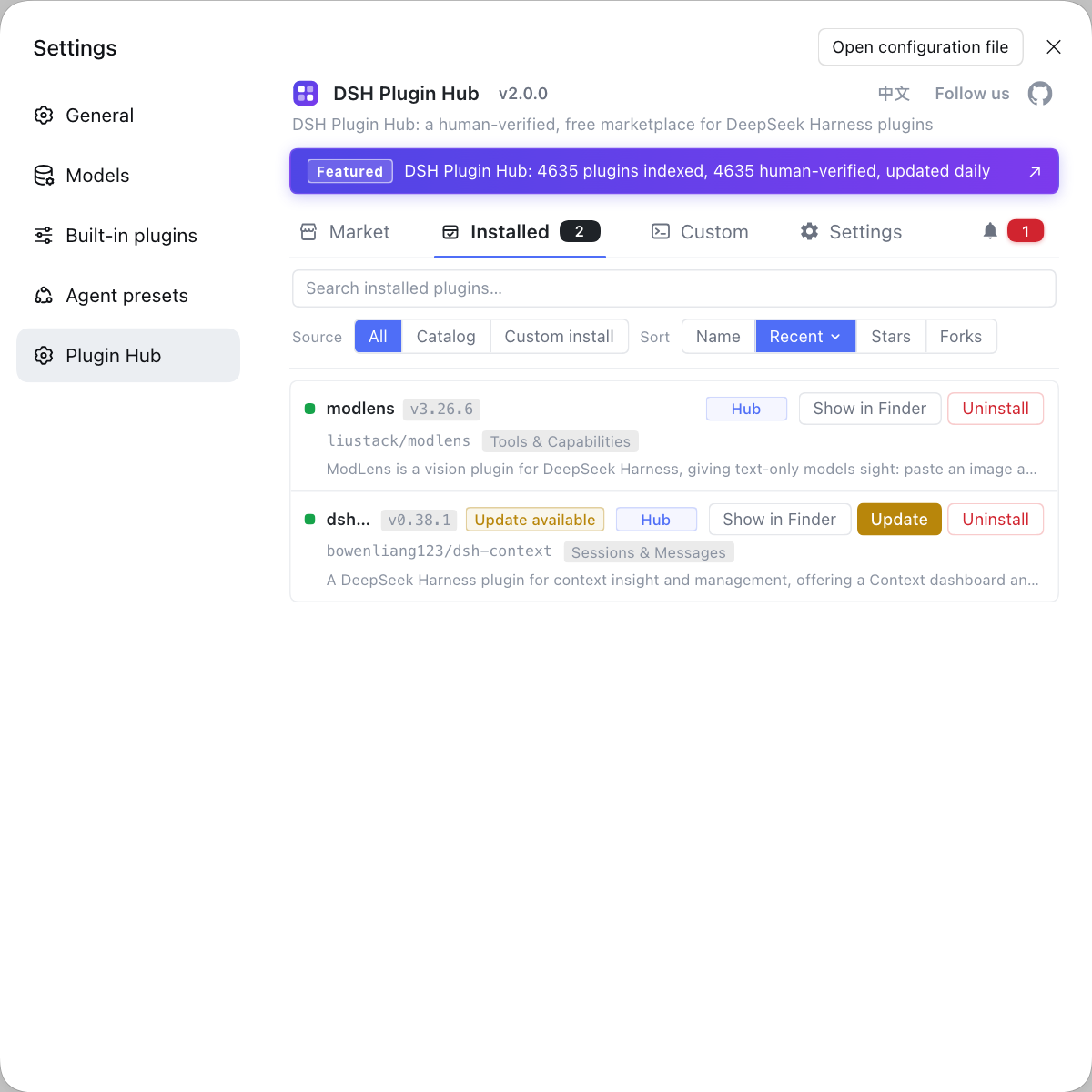
DSH plugin troubleshooting in mixed setups
Bottom line: establish one entry point and one data directory before reinstalling anything — reinstalling in an ambiguous setup makes both environments worse.
- Pin the facts first: record which -a dsh, dsh --version and echo $DSH_HOME.
- Then branch: missing plugins means data directory or profile; inconsistent behavior means version.
- Do not uninstall and reinstall blindly — the new install may land in the other location.
- Restart the service after upgrading; a long-running dsh web will not switch versions by itself.
- Write it into team conventions: one entry point, one version, one data directory per project.
- Repair status, stated honestly: behavior here follows npm's npx documentation and the official CLI package. Confirm versions and flag names with dsh --version and dsh --help on your machine.
If you have not chosen an install method yet, start with comparing global, npx and desktop installs.
Sources: apps/cli/README.md, npm @deepseek-ai/dsh, npm Docs · npx.
FAQ
In DeepSeek Harness, three differences matter here. The npx path leaves no global install, may resolve a different version on each run and caches artifacts in the npm cache; a global install pins dsh to one version on your PATH. npx is good for trials, global for daily use. Mixing them produces the classic symptom of a CLI dsh at one version while the process serving dsh web runs another.
In DeepSeek Harness, three checks, fastest first: which -a dsh lists every matching executable and the resolution order; dsh --version compared with npm ls -g @deepseek-ai/dsh shows whether the global copy is being used; process arguments reveal whether this run was launched by npx. Disagreement among the three is the signature of a mixed setup.
DeepSeek Harness records plugins in the data directory (DSH_HOME), not next to the executable. If the two runs read different DSH_HOME values — one in a container or temporary environment, one on the host — the plugin lists differ. Confirm both runs resolve the same data directory before blaming versions; this cause is more common than drift.
In DeepSeek Harness, pin a version in a global install for daily work and treat upgrades as explicit actions; for trials, use npx with a full version specifier such as @deepseek-ai/dsh@0.2.0-rc.2. Global for stability plus version-pinned npx for experiments is the combination that avoids silent version changes while keeping the no-install option.
Identify the DeepSeek Harness entry point first. If your daily workflow uses the global install, upgrade that (npm i -g @deepseek-ai/dsh@<version>) and confirm with dsh --version. The npx copy needs no upgrade because it fetches on demand. Restart dsh web afterward, then re-check DSH plugin compatibility.
Related Terms
- npx temporary install
- npx is npm's runner that fetches and executes a package without a global install, caching artifacts in the npm cache. For DeepSeek Harness this means each execution can resolve a different version, so behavior drifts with releases.— https://docs.npmjs.com/cli/v10/commands/npx
- version drift
- Version drift is the condition where multiple versions of the same tool exist on one machine and the one actually executed is uncertain. In DeepSeek Harness it usually comes from mixing a global install with npx, showing up as inconsistent plugin compatibility and CLI behavior.— https://www.npmjs.com/package/@deepseek-ai/dsh
- DSH_HOME
- DSH_HOME is the environment variable that sets the DeepSeek Harness data directory holding profiles, installed DSH plugin records, sessions and credentials. Plugin lists follow the data directory, not the executable, which explains why a plugin appears to vanish when you change launch method.— https://github.com/deepseek-ai/deepseek-harness/blob/master/apps/cli/README.md
- profile
- A profile is a DeepSeek Harness unit that isolates configuration and plugin sets. Starting through different entry points but pointing at different profiles produces the illusion of lost plugins.— https://github.com/deepseek-ai/deepseek-harness/blob/master/apps/cli/README.md