Install DeepSeek Harness in Docker: dsh web and DSH plugin
DeepSeek Harness runs in containers, but three decisions come first: which install method, which volume holds state, and which address dsh web binds to. Installing is not the hard part — the official CLI package is @deepseek-ai/dsh with the executable dsh. The hard part is that its single-machine assumption breaks in a container: dsh web listens on loopback by default, and a container's loopback is unreachable from the host, which is why "the container is up but the browser cannot connect" is the most common report. DeepSeek Harness is also stateful: profiles, installed DSH plugin records, sessions and credentials live in the data directory, so an unmounted container loses everything on delete.
This guide covers three install paths (global install in the image, npx without installing, and a custom image), three ways to expose dsh web, and the extra prerequisites for DSH plugin workloads. Verify subcommand flags against dsh --help and dsh web --help inside your image — the official CLI ships frequently.
DeepSeek Harness in Docker: pick one of three install paths
Bottom line: run long-term workloads with a global install, try things out with npx, and standardize teams and CI on a custom image. These are not substitutes — they split on whether state must survive, whether plugins are needed, and whether the environment must be reproducible.
| Path | Best for | State and plugins | Main cost |
|---|---|---|---|
| A. Global install in the image | Long-running use, DSH plugin installs, local file access | State lives in volumes, plugins persist | Slightly larger image, rebuild or upgrade per version |
| B. npx without install | One-off trials, quick dsh web checks | State defaults to a temp path, lost on delete | May resolve a different version each start |
| C. Custom image | Team-wide versions, CI pipelines, preset plugins | Fully controlled and reproducible | You maintain the Dockerfile and upgrade flow |
Pick one and stop mixing them. The most common mixed failure is "the plugin landed in a different data directory."
Path A: global install inside the image (most reliable)
Bottom line: install @deepseek-ai/dsh globally in the image, mount one volume for the data directory and one for the workspace, and bind dsh web to an external address. This is the only path that satisfies persistent plugins, retained sessions and host reachability at once.
- Choose the base image. Use a standard node:20 (or newer) image when you need DSH plugin workloads; node:20-slim works for CLI and web only, but slim and Alpine images routinely fail at plugins with native modules (see the last section).
- Install the CLI globally:
npm i -g @deepseek-ai/dsh
dsh --version       # expected: prints a version such as 0.2.0-rc.2
- Point the data directory at the mount point so profiles, plugin records and sessions land in the volume:
export DSH_HOME=/data/dsh     # container path matching the mounted volume
mkdir -p "$DSH_HOME"
- Start dsh web with an explicit bind address and port (flag names per dsh web --help):
dsh web --host 0.0.0.0 --port 3080
# expected: process stays up and prints the listen address; curl -I http://127.0.0.1:3080 responds
- Publish the port and mount both volumes:
docker run -d --name dsh \
  -p 3080:3080 \
  -e DSH_HOME=/data/dsh \
  -v dsh-data:/data/dsh \
  -v "$PWD/workspace:/workspace" \
  dsh-local:0.2.0-rc.2
- Verify three things: the host browser opens http://host-ip:3080, dsh plugin lists your installed entries, and a container rebuild keeps both the profile and the plugin list. That last check is what proves the volume mapping is correct.
Path B: run dsh web with npx (lightest)
Bottom line: npx @deepseek-ai/dsh web avoids a global install and is the fastest way to try things, but state defaults to a temporary path and each start may pull a different version — so it suits trials and short diagnostic sessions.
- Start the service with one command (still mount the data directory, or everything is lost on restart):
docker run --rm -it -p 3080:3080 \
  -e DSH_HOME=/data/dsh \
  -v dsh-data:/data/dsh \
  node:20 \
  npx -y @deepseek-ai/dsh web --host 0.0.0.0 --port 3080
- Mount the npx cache too, otherwise every rebuild re-downloads the package:
-v dsh-npx-cache:/root/.npm
- Pin the version (for example @deepseek-ai/dsh@0.2.0-rc.2). Without a version, each start can pick up a new release and plugin compatibility changes with it — the same failure mode as npx versus global version drift.
- Know the boundary: plugins you install inside this container land wherever DSH_HOME points. Skipping the -e DSH_HOME flag means the plugin install goes to a temp path and disappears when the container stops.
Path C: build a custom image (most controlled)
Bottom line: a custom image buys pinned versions, preset DSH plugin packages and a one-time environment setup. The cost is rebuilding on every upgrade.
FROM node:20
# 1) pin the DeepSeek Harness version
RUN npm i -g @deepseek-ai/dsh@0.2.0-rc.2
# 2) prepare the data directory (overridden by the volume mount)
ENV DSH_HOME=/data/dsh
RUN mkdir -p /data/dsh
# 3) optional: preset team plugin packages (use your real package names)
# RUN dsh plugin add <your-plugin-package>@<version>
WORKDIR /workspace
EXPOSE 3080
CMD ["dsh", "web", "--host", "0.0.0.0", "--port", "3080"]
- Build and run: docker build -t dsh-local:0.2.0-rc.2 . then run as in Path A step 5.
- Separate baseline from user state: plugins baked into the image form the baseline; plugins users add later are recorded in DSH_HOME on the volume, so an image upgrade does not disturb personal installs.
- Reuse in CI: push the image to a private registry and have pipelines pull it, avoiding dependency installation per run (see updating DeepSeek Harness in CI).
- Upgrade two ways: rebuild the image (recommended, rollback-able) or run npm install in the container and commit the result. The latter accumulates messy layers and is not a long-term pattern.
DeepSeek Harness dsh web binding in containers: why 0.0.0.0 matters
Bottom line: dsh web listens on loopback by default and a container's loopback is its own namespace, so host access requires two things at once — an all-interfaces bind and a published port. One without the other never works.
- Option one: bind 0.0.0.0 and publish the port (most common).
dsh web --host 0.0.0.0 --port 3080      # inside the container
docker run -p 3080:3080 ...              # on the host
# expected: curl -I http://127.0.0.1:3080 returns HTTP headers
- Option two: keep loopback and proxy on the host (smallest exposure). The container never publishes a port; a host reverse proxy reaches it over the container network. This centralizes HTTPS and auth at the proxy layer (see dsh web behind a reverse proxy).
- Option three: --network host (simplest, least isolated). The container shares the host network stack, so binding 0.0.0.0 equals binding on the host. Fine for local development only.
Separate the two error classes. "Address already in use" means the port is taken; "permission denied" means privileges or a reserved range. Read the code before changing anything — port conflicts are covered in fixing dsh web port conflicts.
DSH plugin and sandbox prerequisites in containers
Bottom line: the hard part is not installation but "runs on the host, fails in the container." Native dependencies, file ownership and sandbox differences account for nearly all of it.
- Native dependencies: slim and Alpine images lack compilers. Switch base image, install build tools (apt-get install -y python3 make g++), or pick a pure-JavaScript alternative.
- File ownership: running as root in the container makes host-side files root-owned. Run with --user $(id -u):$(id -g) or accept the difference and fix ownership on the host.
- Sandbox layering: adding a sandbox inside a container multiplies failure modes. For local development, mount the workspace and work inside an authorized directory instead of stacking restrictions.
- Timezone and locale: wrong log timestamps usually mean a missing TZ (for example -e TZ=UTC); garbled text means missing locales.
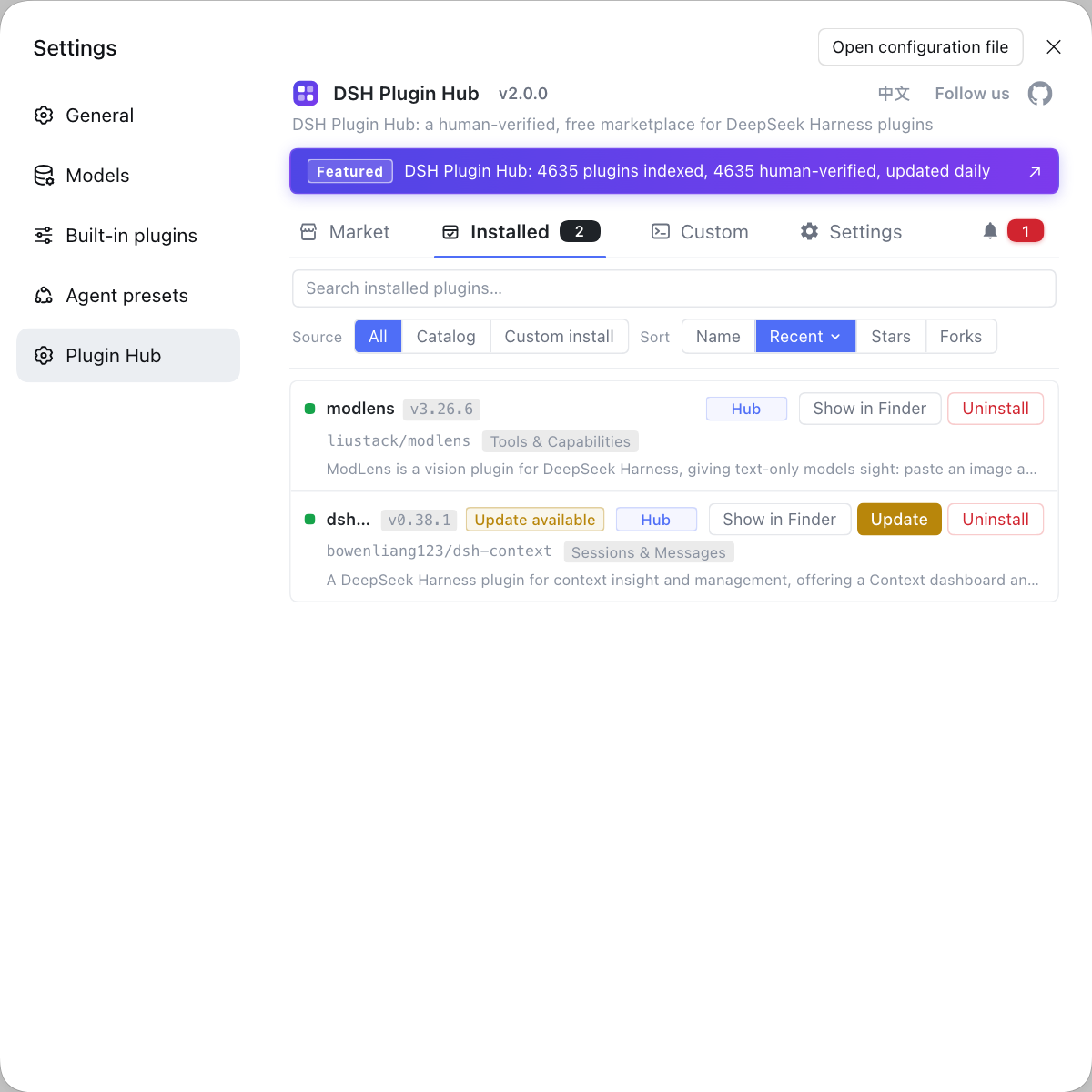
- Where plugins come from: browse DSH Plugin Hub by category and read dependency notes to pick candidates without native modules, rather than guessing package names.
DSH plugin container troubleshooting checklist
Bottom line: diagnose in four stages — installs, starts, connects, works — and never mix all four into one pass.
- Will not install: check for build tools in the base image, then confirm the package and version exist.
- Will not start: read dsh web output — listen failures (port, permission) versus configuration load failures (wrong profile path).
- Will not connect: check only two things — the bind address is 0.0.0.0, and the runtime publishes the port. Either missing breaks the chain.
- Connects but misbehaves: check data directory permissions and sandbox prerequisites before reinstalling.
- Loses state: the volume is wrong. Confirm DSH_HOME matches the -v target, rebuild, and verify again.
- Repair status, stated honestly: the paths and commands here follow the official CLI package (@deepseek-ai/dsh, bin dsh); flag names should be confirmed with dsh --help in your image. Container deployment has no official dedicated guide, so the trade-offs here are ours and should be validated in your environment.
Sources: apps/cli/README.md, npm @deepseek-ai/dsh, apps/desktop/README.zh.md.
FAQ
The DeepSeek Harness CLI package is @deepseek-ai/dsh and the executable is dsh. The most reliable container pattern is a global install inside the image, then start dsh web: install Node, run npm install globally, mount a data volume, and launch dsh web. Verify with dsh --version, and check subcommand flags against dsh --help in your image.
In DeepSeek Harness, because dsh web binds to the loopback address by default, and inside a container that loopback is the container's own network namespace. Change the bind address to all interfaces (0.0.0.0) and publish the port with docker run -p. Doing only one of the two still fails: port mapping without an external bind is unreachable, and an external bind without mapping is invisible to the host.
At minimum mount the DeepSeek Harness data directory that DSH_HOME points to, otherwise deleting the container wipes profiles, installed DSH plugin records, sessions and credentials. Mount your project workspace separately so file tools have files to work on, and optionally mount an npm cache volume to avoid re-downloading on every rebuild.
In DeepSeek Harness, slim and Alpine base images usually lack compilers and prebuilt artifacts, so plugins with native modules fail. Three options: switch to a fuller base image, install build tools (python3, make, g++) before adding the plugin, or choose a pure-JavaScript alternative. DSH Plugin Hub dependency notes let you filter out candidates that need compilation.
DeepSeek Harness distinguishes two failures: address already in use means another process holds the port, while permission denied means a privileged or reserved port range. In containers the second case is common when you switch to a non-root user and bind a low port. Read the error code first, then decide between changing the port number or the port range.
Related Terms
- DSH_HOME
- DSH_HOME is the environment variable that sets where DeepSeek Harness stores its data directory, including profiles, installed DSH plugin records, sessions and credentials. Pointing it at a mounted volume keeps that state alive across container rebuilds.— https://github.com/deepseek-ai/deepseek-harness/blob/master/apps/cli/README.md
- dsh web
- dsh web is the DeepSeek Harness web entry point that serves sessions and plugin management through a local web service. It binds to loopback by default, so containers and remote access need an explicit bind address and port.— https://www.npmjs.com/package/@deepseek-ai/dsh
- container plugin sandbox
- The container plugin sandbox is the extra permission and filesystem boundary DeepSeek Harness applies when running tools and plugins inside a container. It is not identical to host-side sandboxing, so native dependencies, user identity and filesystem differences can make workloads that run on the host fail in a container.— https://github.com/deepseek-ai/deepseek-harness/blob/master/apps/cli/README.md
- Docker volume
- A Docker volume is storage whose lifecycle is independent of a container, so it survives container deletion. DeepSeek Harness container deployments need at least two: one for the data directory and one for the workspace holding files you process.— https://docs.docker.com/storage/volumes/
Sources
- deepseek-ai/deepseek-harness — apps/cli/README.md (CLI install, profile launch, plugin management)· deepseek-ai (GitHub)
- npm — @deepseek-ai/dsh (bin: dsh; profile launch / plugin management / configuration inspection)· npm
- deepseek-ai/deepseek-harness — apps/desktop/README.zh.md (desktop vs CLI positioning)· deepseek-ai (GitHub)