DeepSeek Harness on WSL2: DSH plugin, paths and ports
The first decision when installing DeepSeek Harness on WSL2 is not which command to run, but which side to install on — it determines which files your DSH plugin can touch, who can open dsh web, and what every later path problem looks like. All three setups work: WSL side only (smoothest for Linux projects), Windows side only with WSL as a toolchain, or both (independent, non-interoperable). The real traps are path interop — the cross-filesystem cost of /mnt/c, and Windows backslash paths silently eaten as Markdown escapes — browser access (when WSL2 localhost forwarding breaks), and ownership mismatches on cross-mounted directories that make plugins fail to write.
Which side to install DeepSeek Harness on: three setups compared
Bottom line: do not ask "can WSL run DeepSeek Harness" — ask "which side's files do you want it to operate on." Installing both is fine, but the two environments never share state.
| Setup | Best for | Strength | Cost |
|---|---|---|---|
| A. WSL side only | Projects in the Linux filesystem, Linux toolchains | Fastest file IO, consistent shell and plugin behavior | Windows-only tools unavailable |
| B. Windows side only + WSL as toolchain | Projects on Windows drives | Uses Windows resources and desktop app directly | Cross-filesystem access costs apply when WSL touches the files |
| C. Both sides | Working on both kinds of projects | Each side independent | Two data directories, two DSH plugin lists, two credential stores — every fix runs twice |
Path A: install DeepSeek Harness on the WSL side
Bottom line: install @deepseek-ai/dsh globally in WSL, keep DSH_HOME on the native filesystem, start dsh web, and open it from a Windows browser through localhost forwarding. This is the smoothest route for Linux projects.
- Install Node with nvm to avoid permission problems from sudo npm -g:
curl -o- https://raw.githubusercontent.com/nvm-sh/nvm/master/install.sh | bash
nvm install 20 && nvm use 20 && node -v
- Install the DeepSeek Harness CLI globally:
npm i -g @deepseek-ai/dsh
dsh --version        # expected: prints the version
- Keep the data directory on the native filesystem (under /home, never /mnt/c):
export DSH_HOME="$HOME/.dsh"     # add to ~/.bashrc so it persists
mkdir -p "$DSH_HOME"
- Start dsh web (flag names per dsh web --help):
dsh web --port 3080
# expected: curl -I http://127.0.0.1:3080 inside WSL responds
- Open http://127.0.0.1:3080 in a Windows browser — WSL2 localhost forwarding is on by default (see the ports section).
Path B: install DeepSeek Harness on Windows and keep workspaces on /mnt/c
Bottom line: install on the Windows side and keep projects on Windows drives, using WSL only as your shell. File IO stays native to Windows; the cost is that WSL-side commands see different paths.
- Install on Windows with npm i -g @deepseek-ai/dsh in a Windows terminal, then verify with dsh --version.
- Add workspaces using Windows paths so plugins operate on Windows files with normal performance and ownership.
- Cross over deliberately: use \\wsl$\<distro>\home\... from Explorer and /mnt/... from WSL commands. Never hand a Linux-style path to a Windows program or the reverse.
- Trade-off: you lose toolchain consistency — the same DSH plugin command can behave differently on each side because shells, separators and permission models differ.
Path C: install DeepSeek Harness on both sides
Bottom line: both installs work only if you treat them as two separate machines from day one — separate DSH_HOME, separate plugin lists. "I installed it there, why is it missing here" always means they were never shared.
- Set a different DSH_HOME on each side and never point both at the same directory or volume; concurrent writes to one data directory from two systems invite inconsistent state.
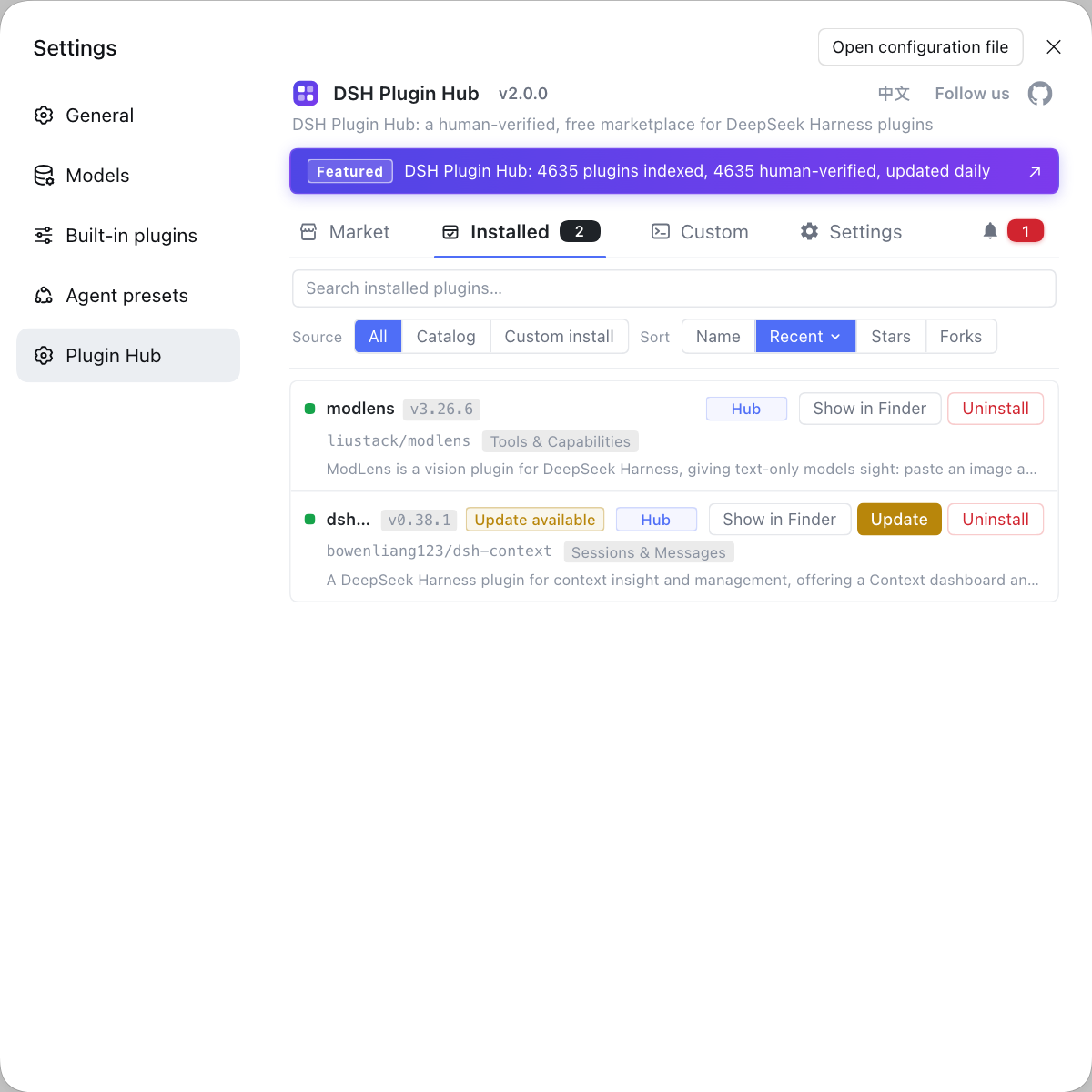
- Install plugins per side. A DSH plugin installed in WSL serves the WSL environment; Windows-side plugins operate on Windows files. Compare both sides through the installed list in DSH Plugin Hub rather than diffing command output by hand.
- Upgrade twice. Version drift between the two sides is normal — see aligning DeepSeek Harness across machines.
- Do not share credential files. Each side has its own credential format and version, so sharing them causes startup failures.
DeepSeek Harness path interop between WSL2 and Windows
Bottom line: one rule for correctness — whoever executes chooses the path style; one rule for speed — keep projects on the native WSL filesystem and cross over only for artifacts that must.
| Form | Used from | Behavior |
|---|---|---|
| /mnt/c/Users/you/project | WSL commands | Works but slow, especially directory scans |
| /home/you/project | WSL native | Fastest; put projects here |
| C:\Users\you\project | Windows programs | Normal on Windows, but eaten as an escape inside Markdown |
| \\wsl$\Ubuntu\home\you | Windows Explorer | Works, slow for bulk operations |
- "The path exists but will not open" almost always means the path style does not match the executing side.
- "Image or attachment preview returns 404" often traces to a backslash escape in Markdown. Prefer forward slashes — see Windows paths eaten by Markdown.
Opening dsh web from Windows: three DeepSeek Harness access routes
Bottom line: localhost forwarding usually suffices; when it breaks, work outward — explicit bind, then the WSL IP, then rebuild the WSL network. Do not start by touching authentication.
- Route one: localhost forwarding (default, try first). Access http://127.0.0.1:3080 in Windows.
- Route two: explicit bind plus the WSL IP when forwarding fails:
dsh web --host 0.0.0.0 --port 3080          # inside WSL
ip addr show eth0 | grep "inet "             # find the WSL address
# then open http://<wsl-ip>:3080 in Windows
- Route three: rebuild the WSL network with wsl --shutdown and re-enter the distro. Localhost forwarding is refreshed with the instance.
- Then check the firewall. Windows Firewall or third-party security software may block the port; allow it temporarily to confirm.
- Reverse the check too. If curl inside WSL also fails, the problem is dsh web itself (port taken or permission denied), not forwarding — see fixing dsh web port conflicts.
DSH plugin prerequisites and troubleshooting in WSL
Bottom line: plugins behave like native Linux installs here, so failures concentrate in Node installation permissions and native module compilation, then in ownership differences on cross-mounted paths.
- Global install permissions: Node managed by nvm needs no sudo. If you see EACCES, switch to nvm rather than sudo npm -g, which leaves root-owned files that complicate upgrades.
- Native modules: install build-essential and python3 before adding the plugin. Pure-JavaScript plugins are unaffected.
- Ownership mismatches: plugin writes under /mnt/c can fail or produce wrong owners. Move frequently written directories to the native filesystem.
- Environment persistence: put DSH_HOME in ~/.bashrc, or a new shell falls back to the default data directory and the plugin list suddenly looks empty.
- Cleanup: uninstalling on the WSL side follows the same logic as container and CI cleanup — record the installed list, then remove the data directory.
- Repair status, stated honestly: commands here follow the official CLI package and WSL networking documentation. Confirm dsh web flag names with --help on your machine; Windows-versus-WSL behavior may change between versions.
Sources: apps/cli/README.md, README.zh.md, Microsoft Learn · WSL networking.
FAQ
Decide by which files you want DeepSeek Harness to operate on. Install on the WSL side for Linux projects in the WSL filesystem, and on the Windows side for projects on Windows drives. Installing both works too, but they are two independent environments: separate data directories, separate DSH plugin lists, separate credentials. Installing one never makes the other work.
In DeepSeek Harness, wSL2 forwards localhost ports to Windows by default, so 127.0.0.1 in a Windows browser normally reaches dsh web. If it fails, check three causes: the service is not listening on an address that survives forwarding, localhost forwarding broke (restart the distro or run wsl --shutdown), or Windows Firewall blocks the port. Verify with curl inside WSL first, then look at forwarding.
In DeepSeek Harness, because /mnt/c crosses filesystems: WSL2 reaches Windows drives through a protocol rather than native disk IO, so many small reads and writes cost much more. DeepSeek Harness file tools and plugins amplify that during scans, reads and writes. Keep project code on the native WSL filesystem and reserve /mnt/c for artifacts that must cross the boundary.
In DeepSeek Harness, whichever process executes decides the style: use /mnt/c/... for WSL commands and C:\... for Windows programs. Never mix them. One practical trap: Windows backslashes inside Markdown are treated as escapes, silently eating a path separator and breaking references, so prefer forward slashes when passing paths across systems.
In DeepSeek Harness, plugins behave like native Linux installs in WSL, so failures cluster in two places: global install permissions (use a Node version managed by nvm instead of sudo npm -g) and native modules that need compiling (install build-essential and python3). Cross-mounted directories add an ownership mismatch that causes plugin write failures.
Related Terms
- WSL2 localhost forwarding
- WSL2 localhost forwarding is the network feature that maps ports listened to inside WSL onto the Windows host, so Windows browsers can reach them at 127.0.0.1. It is on by default but can break when the WSL instance restarts or sleeps.— https://learn.microsoft.com/windows/wsl/networking
- cross-filesystem access (/mnt/c)
- Cross-filesystem access is how WSL reaches Windows drives through a mount point. IO is forwarded over a protocol rather than native disk access, so bulk small-file operations are markedly slower, which directly affects DeepSeek Harness file tools and plugins.— https://learn.microsoft.com/windows/wsl/networking
- DSH_HOME
- DSH_HOME is the environment variable that sets the DeepSeek Harness data directory holding profiles, installed DSH plugin records, sessions and credentials. WSL and Windows each have their own DSH_HOME, which is why the two sides never share state.— https://github.com/deepseek-ai/deepseek-harness/blob/master/apps/cli/README.md
- dsh web
- dsh web is the DeepSeek Harness web entry point serving sessions and plugin management over a local web service. Started inside WSL, it listens in the WSL network namespace, so Windows access depends on localhost forwarding or an explicit bind address.— https://www.npmjs.com/package/@deepseek-ai/dsh