DeepSeek Harness usage DSH plugins: quota and spend
The usage-tracking DSH plugins in DeepSeek Harness fall into two readings: one turns token spend and call counts into a usage dashboard, and one aggregates multi-provider quota into real-time monitoring; representatives are dsh-usage-stats, dsh-usage-dashboard and dsh-quota-viewer (source). They differ from a "watch the balance" widget — usage tracking answers "how much was used", while a balance widget answers "how much money is left". The three sections below cover it fully: (1) what problem it solves; (2) which implementations exist; (3) how it relates to balance-widget plugins. To browse similar entries side by side, filter the market on DSH Plugin Hub by usage and quota keywords.
What a usage-tracking DSH plugin solves
A usage-tracking plugin solves "consumption visibility" — it arranges the token spend, call counts and provider quota scattered across local sessions into charts you can read at a glance, answering questions such as "how much did I use today, how much in total, and how much quota is left" that you would otherwise have to dig through logs to confirm (source). Lay out the questions it can answer first:
| What you want to know | What usage tracking gives | Typical fields |
|---|---|---|
| How many tokens did I use today | today's tokens and call volume | today's usage, 24-hour curve |
| How far have I gone cumulatively | cumulative tokens and active days | cumulative spend, active days |
| Which model absorbed the spend | per-model breakdown and share | model distribution |
| How much quota is left | per-provider quota / balance and period | used, cap, remaining, expiry |
Read it in this order:
- It solves "cannot see it" first — without a plugin, usage only lives in session logs and you have to work it out yourself. Expected: after installing, the interface gives you charts directly.
- It explains the "consumption structure" — split by hour, by day and by model, making review easy. Expected: you can see usage peaks and the main consuming model.
- It also gathers the quota — multi-provider quota and balance shown together, saving you logging into each console. Expected: each provider's remainder is visible in one place.
In one line: it answers the "consumption structure", not the "account remainder".
A quick way to avoid the most common misjudgment: if you want a number in money, this is the wrong plugin kind. A usage-tracking plugin counts tokens, calls and quota windows; it does not read a price sheet and convert them into currency, and it does not know your prepaid balance. So do not install it expecting "how much did this cost me" — that is a cost meter's job, and the closest thing here is the quota window some plugins show next to the usage data. Nor is it an alerting tool by default: most of these plugins display numbers, and only some add low-balance threshold alerts.
Which usage-tracking and quota-monitor implementations exist
The representative implementations in the ecosystem today fall into two small classes: usage dashboards (dsh-usage-stats, dsh-usage-dashboard) and quota monitors (dsh-quota-viewer, dsh-quota-monitor); the unified entry point is the DSH Plugin Hub market (source). One by one:
- dsh-usage-stats: a local usage dashboard. It shows token spend via heatmaps, an hourly call curve and a per-model breakdown, and gathers account balance and subscription period; a control page changes the refresh interval and custom quota queries. Expected: after installing, you see today's and cumulative usage in the interface.
- dsh-usage-dashboard: attaches the usage report to the host Web. It does not produce data; it only wires the usage report page to the DeepSeek Harness host Web's
/usagepath, reusing the host login state for auth. Expected: once the report exists, refresh the page to reach it. - dsh-quota-viewer: a sidebar multi-provider quota panel. It aggregates several providers' quota into one sidebar row, showing used, cap, remaining and expiry, and keeps a local historical trend. Expected: open the panel and see every provider's quota.
- dsh-quota-monitor: multi-vendor real-time quota monitoring. It offers a monitor window in the interface corner, showing plan, balance and usage together, plus cost estimation and a low-balance threshold alert. Expected: the window updates live as quota changes.
Choose by "what you want to see": to see only the token usage structure, take a dashboard; to watch several providers' quota together, take a quota monitor; to have both, one of each can also pair up.
A practical way to choose among the four: if the question is "where did my tokens go, by model and by hour", take a dashboard (dsh-usage-stats); if the question is "show the same report on the host Web without building a second data pipeline", add the dashboard page (dsh-usage-dashboard) on top; if the question is "how much is left on each provider", take a quota panel (dsh-quota-viewer or dsh-quota-monitor). The dashboard class produces data and the quota class watches a window, so they compose rather than compete.
How it relates to balance-widget plugins: data vs display
Usage tracking and balance widgets are not substitutes but a "data vs display" split: usage tracking covers consumption structure (token, calls, quota) and balance widgets cover account remainder (how much money is left), and the two numbers never line up exactly (source). So do not use one to check the other — they answer different questions, and a disagreement does not mean either plugin is broken.
The plugins that watch how much money is left in the account, or compute cost per session, belong to the balance / cost reading, and the full roundup and selection is in DeepSeek Harness balance plugins: DSH plugin cost meters; this page focuses on the quota / spend monitoring branch only, split by "consumption structure vs account remainder".
Notes for DSH plugin usage and quota monitoring
- Separate the readings first — usage = consumption structure, balance = account remainder; do not mix them.
- Install one as needed — the two partly overlap, and more only crowds the interface.
- Panels clash for space — when two resident panels are installed at once, hide one as needed.
- Do not mix sources — an npm name and a
github:direct install are two sources, so do not install the same plugin through both. - Check two places after install —
dsh plugin --profile web listhas the name and the profile'sbundleshas the entry before it really loads. - Read-only does not mean zero footprint — a dashboard still polls local session data on a refresh interval, so on a very large session directory the first load can take a moment.
- Check the profile name — the Web UI uses
--profile web; installing into another profile leaves the panel missing from the interface you are looking at.
Why DSH plugin usage tracking is read-only
The shared design stance of these plugins is read-only — they read session usage and provider quota to display, and never call a model for you or rewrite session content. Two points:
- Read-only is safer — they write no session content and change no config, so the worst case is "the number does not show", which never affects normal conversation. Expected: feel free to try them and uninstall at any time.
- Install through the standard command — install them all with
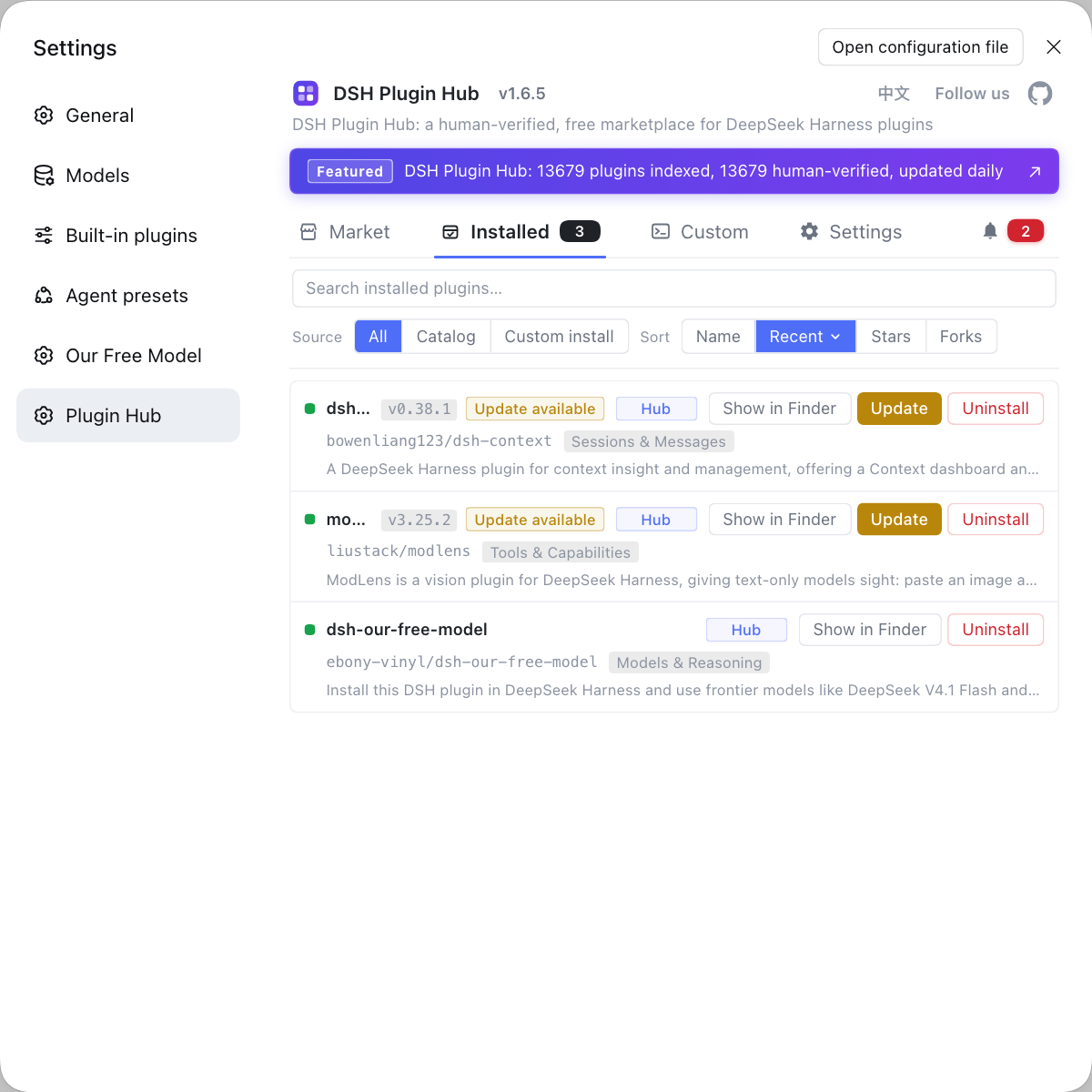
dsh plugin --profile web add <package>, and finish updating and uninstalling in the DSH Plugin Hub installed list (source). Expected: the command line handles install and uninstall, and the market handles browsing and verification.
One consequence of read-only design worth knowing: none of these plugins can "fix" a quota or top up an account, and none of them need your model API key to display usage. They read what the host already recorded, so a number that looks stale usually means the refresh interval has not elapsed, not that the plugin died — reopen the panel or wait out one interval before reinstalling.
Rather than switching between several consoles to check quotas, use DSH Plugin Hub to install and update your usage-tracking plugins together, managing them from a single entry point end to end. Its home page is https://dsh-plugin.org/.
Sources: dsh CLI README, Community plugin repo - dsh-usage-stats, Community plugin repo - dsh-quota-viewer.
FAQ
A usage-tracking DSH plugin solves the visibility of "how much did this turn use, how much in total, and how much quota is left", reading token spend, call counts and provider quota. It arranges the usage scattered across local sessions into charts or a dashboard, saving you the effort of digging through logs. In one line: it answers "how much was consumed", not "how much money is left".
The common DeepSeek Harness usage-tracking and quota-monitor DSH plugins are dsh-usage-stats (a local usage dashboard), dsh-usage-dashboard (attaches the usage report to the host's /usage path), dsh-quota-viewer (a sidebar multi-provider quota panel) and dsh-quota-monitor (multi-vendor real-time quota monitoring). Their readings differ, so pick by whether you want to see token spend or quota.
In DeepSeek Harness they work on different dimensions: a usage-tracking plugin covers consumption structure (token, calls, quota), while a balance widget covers account remainder (how much money is left). The first is data and the second leans toward display, so they do not fully overlap; install a widget if you only watch the balance, install a usage-tracking plugin to review consumption, and mind the panel placement if you run both.
dsh-usage-stats and dsh-usage-dashboard are two DSH plugins, but they are often used together: the first produces the local usage report (heatmaps, a per-model breakdown, quotas), while the second attaches that report to the DeepSeek Harness host Web's /usage path and reuses the host login state for auth. One produces the data and the other exposes the page.
These usage-tracking DSH plugins all install with dsh plugin --profile web add, and are viewed, updated and uninstalled from the DSH Plugin Hub installed list. The list shows each plugin's source, version and update time; after installing, confirm it really loads in two places — dsh plugin --profile web list and the profile's bundles.
Related Terms
- usage stats
- usage stats is the statistics of token spend and call counts across DeepSeek Harness local sessions, usually presented as a dashboard or report, answering "how much was used" rather than "how much money is left".— Community plugin repo - dsh-usage-stats
- quota
- quota is the cap and remaining amount set by a model service provider or plan; a quota-monitoring plugin aggregates used, cap and remaining per provider and can estimate how many usable days are left.— Community plugin repo - dsh-quota-viewer
- dsh-usage-stats
- dsh-usage-stats is a local usage-dashboard plugin that shows token spend via heatmaps, an hourly curve and a per-model breakdown, and also gathers account quota and subscription period.— Community plugin repo - dsh-usage-stats
- profile
- A profile is the ordered stack of startup config that DeepSeek Harness boots for plugins; usage-tracking plugins install with dsh plugin --profile web add, and the wrong profile means the matching panel never appears.— dsh CLI README