What is dsh-synapse? DeepSeek Harness session map plugin
dsh-synapse is a visual session map DSH plugin for DeepSeek Harness: it arranges the sessions, follow-ups, and branches of one workspace on a pannable, zoomable canvas while keeping native sessions as the single source of truth (source). This article examines that one plugin across three directions: what need it addresses, how to install and enable it, and the dependencies, permissions, and trade-offs involved.
Overview: the dsh-synapse DSH plugin in one line
It addresses getting lost once sessions multiply—upgrading a linear session list into a navigable map. What you asked, which thread you forked a follow-up from, and which branch is still open are all visible on the canvas. It is a UI plugin: it does not change model capability and does not touch workspace files.
| Dimension | Description |
|---|---|
| Problem solved | Context gets hard to track as sessions and branches multiply |
| Core form | A pannable, zoomable session map canvas |
| Data relation | Two-way sync with native sessions, no parallel store |
| Install | Search and install in the marketplace, or dsh plugin --profile web add dsh-synapse |
The need it addresses: turning a linear DeepSeek Harness conversation into a navigable map
The pain is concrete: sessions pile up in a workspace and follow-ups fork deeper, while a list view only scrolls by time and shows no structure. dsh-synapse answers with four capabilities:
- A conversation map canvas — Sessions, follow-ups, and branches sit on one canvas you can pan and zoom. Expected: you see the whole structure at a glance instead of opening each item.
- Real branches preserved — Branches created by follow-ups are real structure on the map, not visual decoration. Expected: the branch relationships match the actual sessions.
- Smoother follow-ups — You continue asking directly from a node on the map. Expected: a follow-up's attribution is clear and does not bleed into another session.
- Two-way sync — The canvas and native sessions stay consistent. Expected: a change on the canvas lands on the native session, and a change to the native session shows on the canvas.
The key point is that the native session is the single source of truth—dsh-synapse does not keep a second copy, so there is no risk of two stores telling different stories. It is organized per workspace, which means switching workspaces switches the map.
How to install and enable this DSH plugin: marketplace, command line, and profile scope
Installation goes through the standard plugin channel, two options:
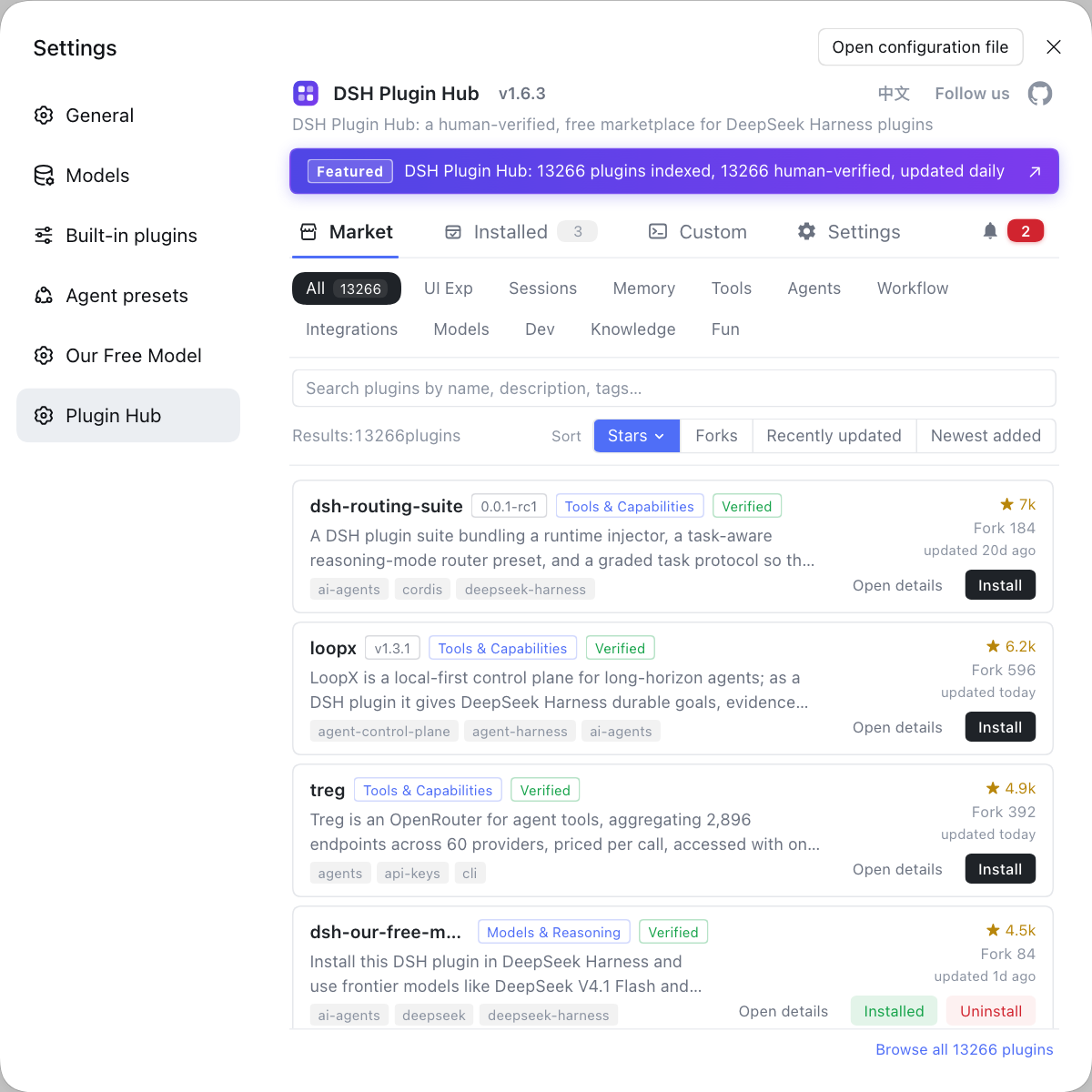
- Graphical install — Open the plugin marketplace, search
dsh-synapse, and click install. UI plugins are browsable by category here, with the entry point at DSH Plugin Hub. Expected: dsh-synapse appears in your installed list. - Command-line install — One command installs it:
dsh plugin --profile web add dsh-synapse
Expected: the canvas entry appears after you restart dsh web.
Watch the profile scope: plugins install and take effect per profile, and --profile must point at the environment you are actually running; the web version is the web profile, while the desktop client has its own, and installing in the wrong place means no entry in the UI. For a source install, use dsh plugin --profile web add github:liangmianya/dsh-synapse.
Usage notes and boundaries: DeepSeek Harness dependencies, permissions, and trade-offs
It is a UI plugin, so its permission surface is relatively narrow, but check dependencies and sources all the same.
- Dependencies and approval — Installing from npm is the easiest path; a direct GitHub install may pull build dependencies and require allowBuilds approval, which you should not grant without reviewing the source.
- Permission boundary — UI plugins mainly display and navigate and do not directly read or write workspace files; for settings sensitive to control, that is friendlier than a tool plugin.
- Trade-offs against similar plugins — For lightweight session switching in a sidebar, a sidebar plugin fits better, as covered in What is dsh-better-sidebar; only when you need a global view across branches and follow-ups is the dsh-synapse canvas the right tool.
- Trial it small first — With many sessions the canvas gets denser, so try a real workspace once to confirm readability before making it a daily driver.
Notes on using the dsh-synapse DSH plugin
- It does not create sessions: dsh-synapse is a view layer; sessions themselves are still produced and saved by DeepSeek Harness native mechanisms.
- Do not install it into the wrong profile: install it outside the running profile and no entry appears in the UI.
- Verify the source: prefer the marketplace and the official npm package name
dsh-synapse, and do not pull packages from unknown sources. - The canvas is not a backup: it visualizes native sessions and does not back up data, so confirm through the session management flow before cleaning up sessions.
- Split the work with similar plugins: sidebar plugins handle quick switching, map plugins handle global structure—pick one primary use per need.
Sources: liangmianya/dsh-synapse, dsh CLI README, dshplugin/dsh-plugin-hub
FAQ
dsh-synapse is a visual session map DSH plugin for DeepSeek Harness: it arranges the sessions, follow-ups, and branches of one workspace on a pannable, zoomable canvas. It solves the case where sessions multiply and branches deepen until context gets lost, letting you see at a glance what you asked and where a thread forked.
Go through the standard plugin channel: search dsh-synapse in the marketplace and click install, or run dsh plugin --profile web add dsh-synapse, then restart for it to take effect. It belongs to a profile, so install it into the profile you are actually running; for a source install use dsh plugin --profile web add github:liangmianya/dsh-synapse.
No—the project design keeps DeepSeek Harness native sessions as the single source of truth, with the canvas and the native sessions syncing both ways. Operations you make on the canvas land on the native session, so it is not a parallel store and the two sides cannot drift apart.
Ask whether you want quick switching or a global view: for flipping between sessions in a sidebar, a lightweight sidebar plugin fits better; to see the whole structure across branches and follow-ups, you need the dsh-synapse canvas. The two can coexist with different jobs, so weigh them by how often you actually use each.
It is a UI plugin and does not directly read or write your workspace files, so the main cost is dependencies and runtime environment. Confirm the source before installing (prefer the marketplace or the official npm package name dsh-synapse); a direct GitHub install may pull build dependencies and ask for allowBuilds approval, which you should not grant without reviewing the source.
Related Terms
- dsh-synapse
- dsh-synapse is a visual session map plugin for DeepSeek Harness (npm package dsh-synapse) that arranges the sessions, follow-ups, and branches of one workspace on a pannable, zoomable canvas while keeping native sessions as the single source of truth.— https://github.com/liangmianya/dsh-synapse
- session map
- A session map is the view form dsh-synapse provides: nodes and edges represent the relationships among sessions, follow-ups, and branches, with pan and zoom so the structure stays readable as sessions pile up.— https://github.com/liangmianya/dsh-synapse
- single source of truth
- Single source of truth means dsh-synapse does not build a parallel store; DeepSeek Harness native sessions remain the one authoritative copy of that data, and the canvas is only a visualization of it, syncing both ways.— https://github.com/liangmianya/dsh-synapse
- profile
- A profile is an ordered stack of plugins and configuration in DeepSeek Harness; dsh-synapse installs and takes effect per profile, so it shows up in the UI only when installed into the environment you are running.— https://github.com/deepseek-ai/deepseek-harness/blob/master/apps/cli/README.md
Sources
- liangmianya/dsh-synapse GitHub repository· liangmianya
- dsh CLI README· deepseek-ai
- dshplugin/dsh-plugin-hub GitHub repository· dshplugin